Verify that product schema (JSON-LD) is implemented correctly on example.co.uk after the migration to Adobe Commerce (Magento). The script crawls your chosen product URLs and reports if required fields like price, brand, sku, and availability are present.
Step 1 – Open a terminal
Click the black terminal icon on the Pi desktop.
Step 2 – Check Python 3
python3 --version
You should see something like Python 3.9.2 (any 3.7+ is fine).
import requests, json, csv, time
from bs4 import BeautifulSoup

# ---------- configuration ----------
# Put your product URLs here (you can add as many as you like)
urls = [
    "https://www.example.co.uk/example-product-1",
    "https://www.example.co.uk/example-product-2"
]

# Fields you want to confirm exist in the Product schema
required_fields = ["name", "brand", "sku", "price", "priceCurrency", "availability"]

# Optional delay between requests (seconds)
delay = 2

# ---------- functions ----------
def extract_product_schema(url):
    try:
        r = requests.get(url, timeout=15)
        soup = BeautifulSoup(r.text, "html.parser")
        for tag in soup.find_all("script", type="application/ld+json"):
            try:
                data = json.loads(tag.string)
                if isinstance(data, list):
                    for item in data:
                        if item.get("@type") == "Product":
                            return item
                elif data.get("@type") == "Product":
                    return data
            except Exception:
                continue
    except Exception as e:
        print(f"Error fetching {url}: {e}")
    return None

def check_fields(product_json):
    found = json.dumps(product_json)
    return [f for f in required_fields if f not in found]

# ---------- main ----------
results = []
for u in urls:
    print(f"Checking {u} ...")
    product = extract_product_schema(u)
    if not product:
        print(f"❌ No Product schema found: {u}")
        results.append([u, "No Product schema", ""])
    else:
        missing = check_fields(product)
        if missing:
            print(f"⚠️ Missing: {', '.join(missing)}")
            results.append([u, "Missing fields", ", ".join(missing)])
        else:
            print(f"✅ All key fields present")
            results.append([u, "All fields present", ""])
    time.sleep(delay)

# ---------- save to CSV ----------
with open("schema_results.csv", "w", newline="") as f:
    writer = csv.writer(f)
    writer.writerow(["URL", "Status", "Missing Fields"])
    writer.writerows(results)

print("\nDone! Results saved to schema_results.csv")
Save and exit:
Ctrl + O, Enter → save
Ctrl + X → exit
Step 6 – Edit your URLs
Later, open the script again (nano check_schema.py) and replace the two example links with your 10–50 product URLs. Each URL must be inside quotes and separated by commas.
Step 7 – Run the script
python3 check_schema.py
It will:
Fetch each page
Extract the Product JSON-LD
Report any missing fields
Save a summary to schema_results.csv in the same folder
Semantic search adds context and meaning to search results. For example, if someone is searching for “Lego” – do they want to buy Lego toys, or see a Lego movie or TV show (Ninjago is great). Another example might be “Tesla” – do people want to see the latest self-driving car, or learn more about Tesla the scientist and inventor?
How to Optimise for Semantic Search
Make sure you understand search intent and any confusing searches like Tesla(inventor or car?), Jaguar (car or animal?), etc
Look for structured data opportunities
Optimise internal links – especially if you are using a “Pillar Post” and “Cluster Page” structure
Follow traditional on page SEO best practices with headers, meta titles, alt tags etc
Tools for Semantic Search
SMA Marketing have done a cool YouTube video about Semantic Search and they recommend tools including:
Wordlift
Frase
Advanced Custom Fields for WordPress
Google Colab with a SpaCy
Before you publish a post – look at the search results for the keyword(s) you are optimising the post for. Check in incognito in Chrome to remove most of the personalisation of the results.
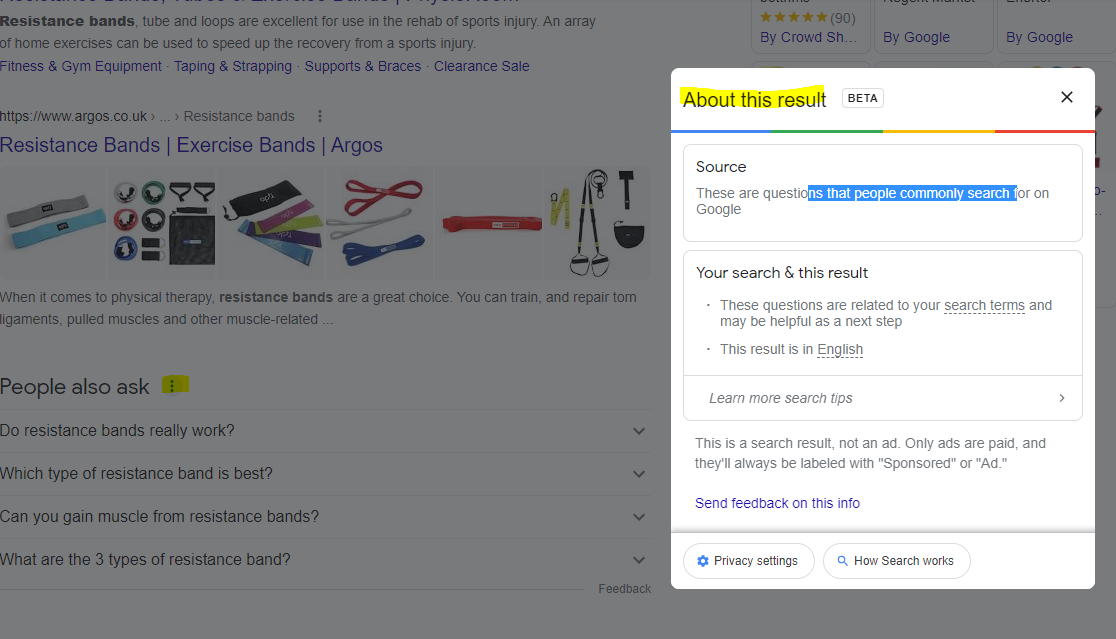
For any answer boxes or snippets, you can click the “3 dots” to get information about the results:
As well as the snippets, you can click the 3 dots next to any organic result. Here’s another result for “MMA training program pdf” with some additional information:
With this in mind – if you are looking to rank for “MMA training program pdf” then you will want to include the search terms highlighted in the “About this result” box: mma, training, program, pdf and ideally LSI keywords “workout” and “plan”.
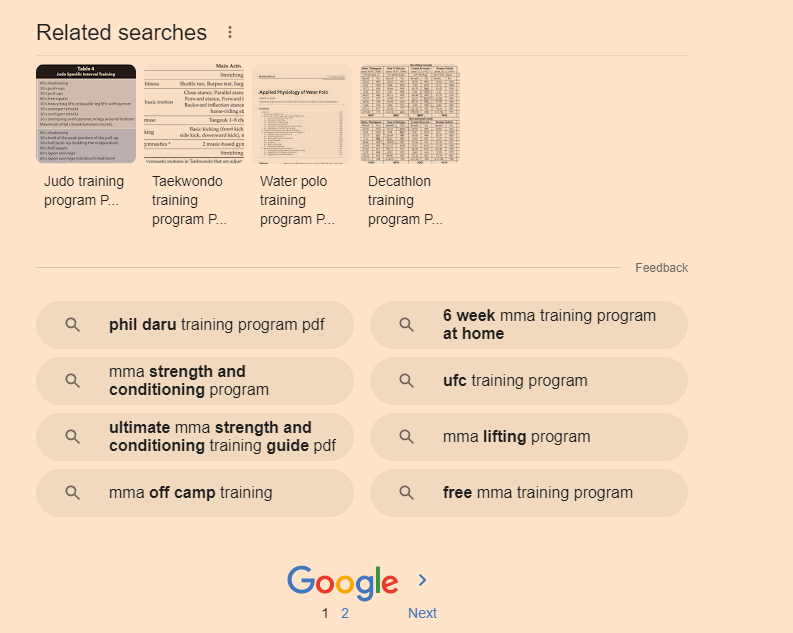
It’s also a good idea to scroll down to the bottom of the SERP and check out the “related searches”
Take a look too at any breadcrumb results that pull through below the organic listings. Combining all this information will give you a good idea as to what Google understands by your search query and what people are looking for too.
Hover over [1] and click the play icon that appears (highlighted yellow in screenshot below)
When that section has finished loading and refreshing, scroll down to the “Installation tensorflow + transformers + pipelines” section and click the play icon there.
When that’s finished doing it’s thing, scroll down again, and add your search query to the uQuery_1: section:
add your query and then press the “play” button on the left hand side opposite the uQuery_1 line
You should then see the top 10 organic results from Google on the left hand side – in the form of a list of URLs
Next, you can scrape all the results by scrolling down to the “Scraping results with Trafilatura” section and hover over the “[ ]” and press play again:
Next, when the scraping of results is done – scroll down to “Analyze terms from the corpus of results” section and click the play button that appears when you hover over “[ ]”
Next! when that’s done click the play button on the section full of code starting with:
“df_1[‘top_result’] = [‘Top 3’ if x <= 3 else ‘Positions 4 – 10’ for x in df_1[‘position’]] # add top_result = True when position <=3 “
Finally – scroll down and click the play button on the left of the “Visualizing the Top Results” section.
On the right hand side where it says “Top Top 3” and lists a load of keywords/terms – these are frequent and meaningful (apparently) terms used in the top 3 results for your search term.
Below that, you can see the terms used in the results from 4-10
Terms at the top of the graph are used frequently in the top 3 results e.g. “Mini bands”
Terms on the right are used frequently by the results in positions 4-10
From the graph above, I can see that for the search term “resistance bands” the top 3 results are using some terms, not used by 4-10 – including “Mini bands”, “superbands” “pick bodylastics”
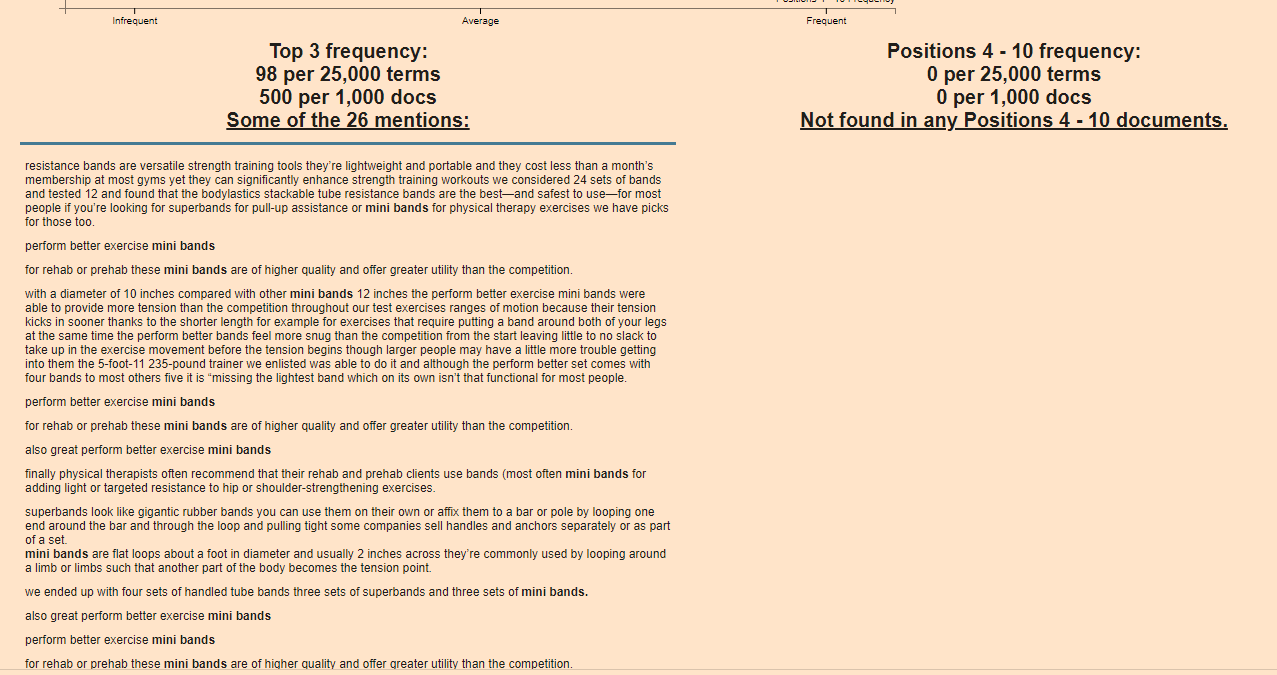
If you click on a term/keyword in the graph – a ton of information appears just below:
e.g. if I click “mini bands”
It’s interesting that “mini bands” is not featured at all in the results positioned 4-10
If you were currently ranking in position 7 for example, you’d probably want to look at adding “mini bands” into your post or product page
You can now go to the left-side-bar and click “Top 25 Terms” and click the “play icon” to refresh the data:
Obviously – use your experience etc and take the results with a pinch of salt – some won’t be relevant.
Natural Language Processing
next click on “Natural Langauge Processing” in the side-menu
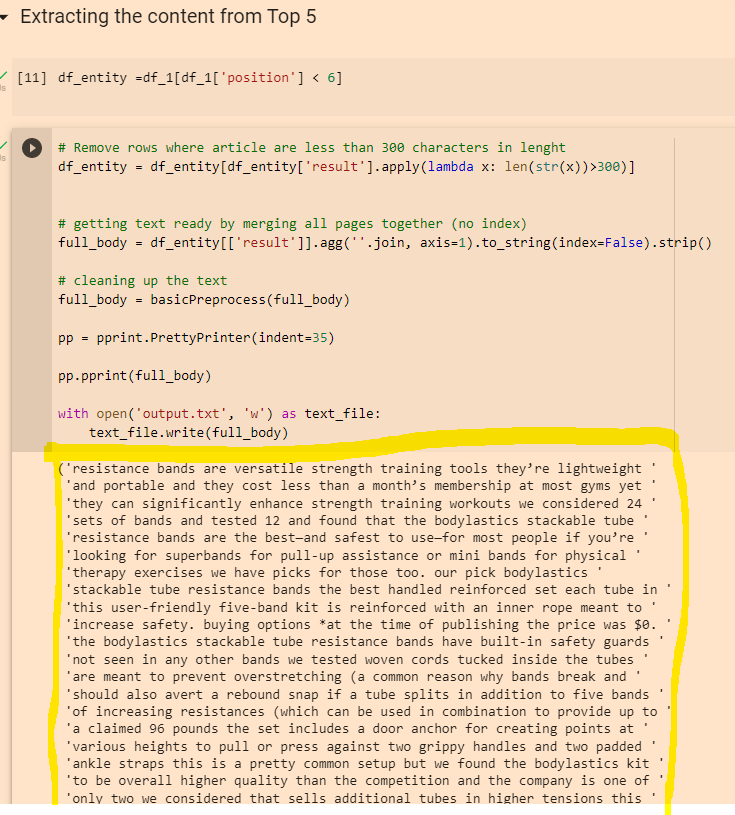
Click the “play” icons next to “df_entity =df_1[df_1[‘position’] < 6]” and the section below.
When they have finished running click the play icon next to “Extracting Entities”
Click “play” on the “remove duplicates” section and again on the “Visualising Data” section
This should present you with a colourful table, with more terms and keywords – although for me most of the terms weren’t relevant in this instance 😦
You can also copy the output from the “Extracting the content from Top 5” section:
Then paste it into the DEMO/API for NLP that Google have created here:
You can then click the different tabs/headings and get some cool insights
Remember to scroll right down to the bottom, as you’ll find some additional insights about important terms and their relevance
The Google NLP API is pretty interesting. You can also copy and paste your existing page copy into it, and see what Google categories different terms as, and how “salient” or important/relevant it thinks each term is. For some reason, it thinks “band” is an organisation in the above screenshot. You can look to improve the interpretations by adding relevant contextual copy around the term on the page, by using schema and internal links.
Speed Up Data Studio Reports (Significantly) – Extract Data
To speed up your reports – you can “Extract Data” and cache it.
It can help to have 2 copies of the report up – so you can see which metrics and dimensions you need to select when adding the data to extract and cache (also a good idea to test the extract data method on a copy of the report in case you faff anything up)
Go to “Add Data” in the top menu-bar
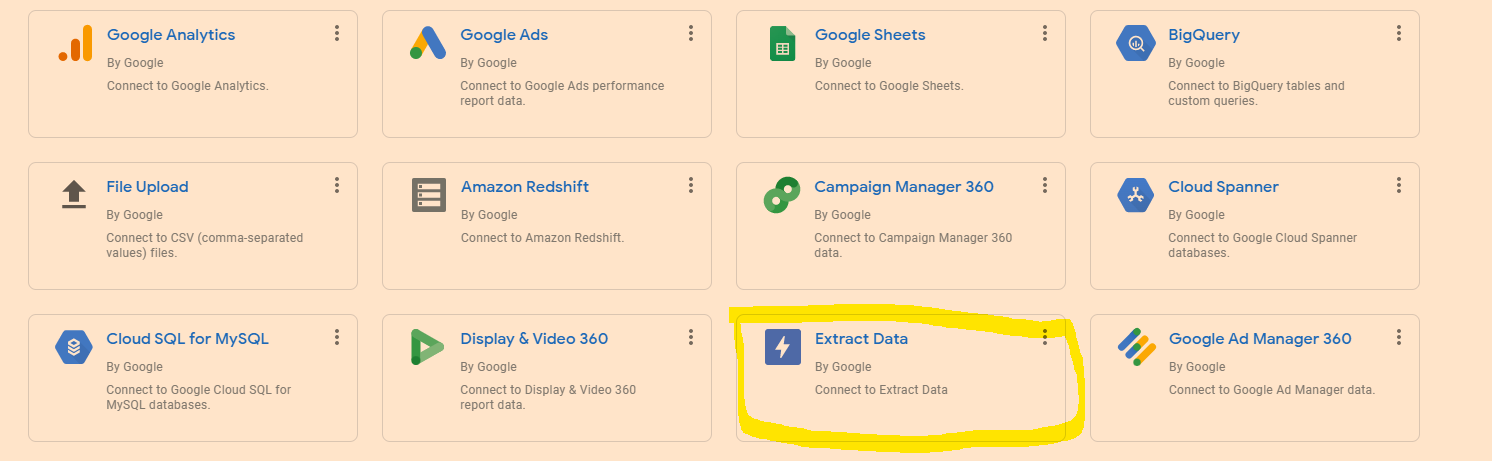
Click on “Extract Data”
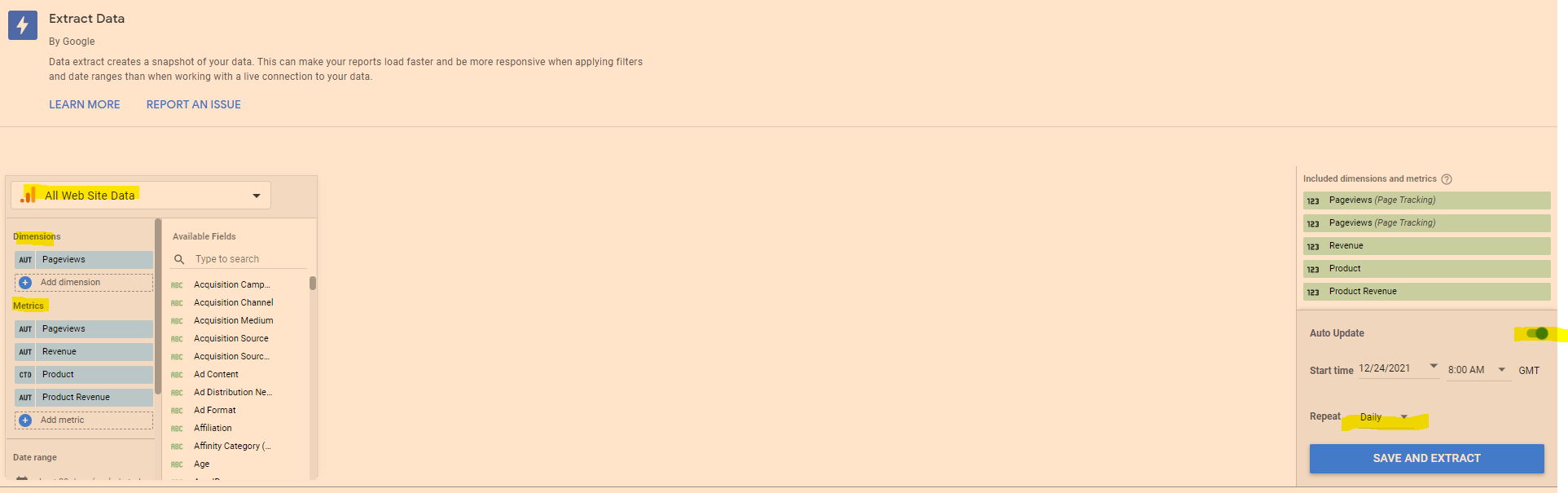
Choose the data you need – eg Google Analytics
Add the dimensions and metrics you need for the report
On the Right hand side – click to turn “Auto Update” on
Select “daily”
Click “Save and Extract”
Sometimes you have to faff around a bit with the dimensions – Google Analytics doesn’t seem to like caching a dimension, but still goes super-quick if you cache the metrics only.
Edit in Bulk
If you want to edit all of the charts or tables on the page, in “Edit” mode, right click – go to “Select” and then choose “Tables on page” or whatever type of chart, scorecard or table you’ve selected.
This works instead of CTRL clicking or SHIFT clicking – but you can only change charts or visualisations of the same type at the same time. You can change the style, add a comparison date range etc.
Brand Colour Theme in Data Studio
Click on “Them and Layout” at the top of the screen and then, near the bottom right click “Extract Theme from Image” – you can then upload your logo and choose a theme with your brand colours.
If your shite at presentation like me, this is helpful.
Copy & Paste Styles
In Data Studio – If you want to copy a style from a chart or table, right click it, then choose “copy”
Click another chart/table and the right click – Paste Special – Paste Style Only
Add Chart Filters to an Entire Report
If you want to add a filter to all the data in a report, then it can be a pain going through the charts individually.
Right click on a blank part of the page –
Click “Current Page Settings”
On the right hand side – click “Create a Filter”
Choose or create a filter to apply to all the page
To add a filter to multiple pages
Right click on a blank part of the page
click “Report Settings”
click “Add a filter” in the right side-menu
Add Elements to All Pages of a Report in Data Studio
If you want to add a header and date range selector, for example, to all the pages in the report – add the elements to a page, then right click on the element – and choose “Make report-level”
Quickly Align Elements in Data Studio
Click and drag to select all the elements
Right click – choose “align” – “middle” to get everything inline horizontally
To get an equal space between all the elements, so they’re spaced evenly:
– click and drag to select the elements
– right click – select “Distribute”
– “horizontally” to space evenly across the page, or “vertically” to distribute evenly in a vertical manner.
You can also tidy up individual tables to align the columns vertically – right click and select “”Fit to data”
There are a few ways to blend data, here’s my fave:
Go to “Resources” in the main menu at the top
Click “manage blended data” option
Click “Add a Data View”
Choose a Data Source e.g. Search Console
Then “Add a Table” and include another data Source for blending – e.g. GA or click “blend data” on an existing table or chart – and select another data source
Choose a common “key” to both data sources e.g. “Date”
Choose the metrics you want from each Data Source – I wanted to get daily revenue into my search console reports:
Using the blended data above, I can now add Revenue from Google Analytics to my search console reports. I have to remember however, that the revenue is simply attributed to each day and not any queries
**Update to the screenshot –
add a table filter to get organic only revenue from GA.
To be able to filter Revenue to organic only – you need to add a “Dimension” to the table on the right – click the “+” next to “Add dimension” in the GA data and then “Default Channel Grouping” – you can then create a filter in the report:
Blending Search Console Data in Data Studio
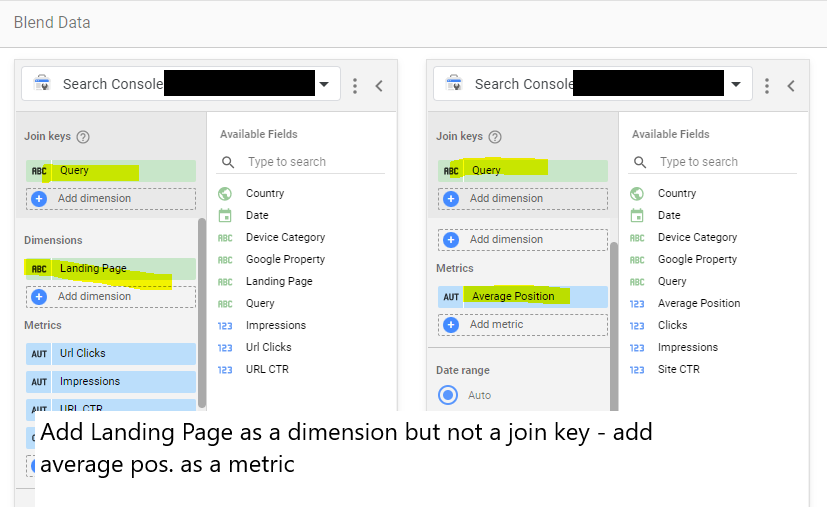
Another common reason to blend data – is to get average position data from Search Console “Site Impression reports, added to “URL Impression” data:
URL impression vs site impression
Incidentally –
the main difference between Data Studio Search Console URL Impression Vs Site Impression data – is that Site Impression contains the Average Position metric and URL Impression contains the Landing Page metric. So when you’re blending the data from both sources, make sure you have “Landing Page” as a metric and “Average Position”.
For lead generation websites, if you are a local tradesman for example, you’ll want a Call to ACTION button on the homepage, and probably all of your other pages – a Contact Now button for example
Homepage Call to Action
Strong Call To Action
You will probably want a “Call to Action” or “CTA” button, such as “Buy Now”, “Learn More” or “Contact Us”
This CTA button is generally placed “above the fold” on most pages, so that people don’t have to scroll down or look for a way to get in touch or buy from you.
“Join Free for a Month” – is the CTA on Netflix’s homepage (at the time of writing)
For more expensive, high end or though-out purchases such as – buying a car or contacting a therapist, sometimes it’s better to have the CTA below the fold. The best thing to do is test it, with Google Optimize.
For more information about “Conversion Rate Opimization” (CRO), see this article:
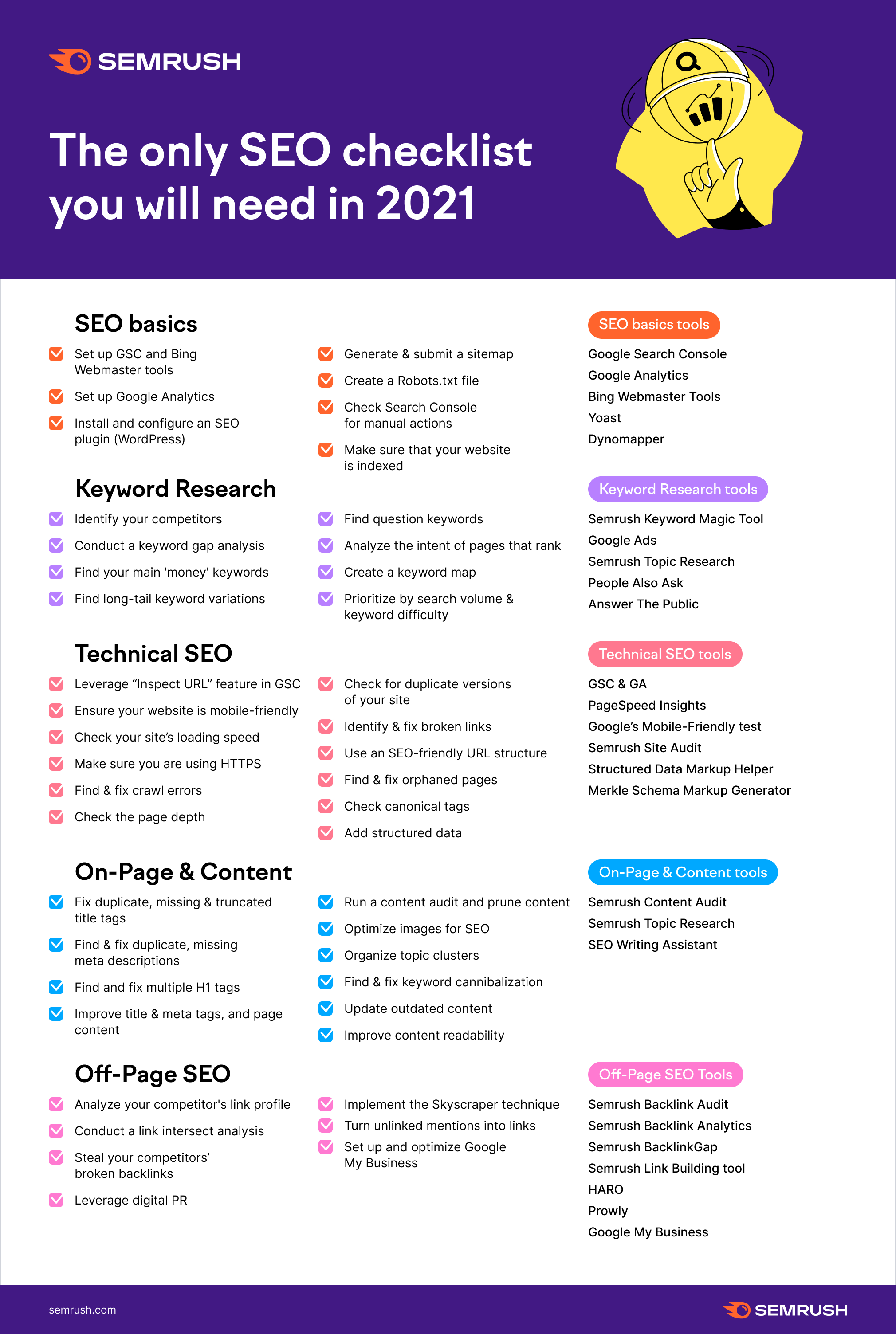
For a full SEO (Search Engine Optimization) checklist for your website – to help get visibility on Google – see this article – https://backlinko.com/seo-checklist
Google My Business
Register your website and your office with Google My Business
Google will send out a postcard to your office (or home) address
The postcard has a code – so you can confirm you are at that address
Local Directories
Register your business with high quality, local directories such as
Bing Places
Yelp
Yell
Free Index
Open Di
Try and get on any local government directories too.
Social Media & Captioned Videos
If relevant, register your business on:
Linkedin
Facebook
Instagram
TikTok
Arguably the best way to get noticed on social media at the moment, is to create videos with captions – so they can be watched on mute.
Linkedin is said to have the greatest organic reach at the moment too – meaning you can get your video, image or text-post in front of more people, without paying for ads.
Social media sites like people posting videos too – because they drive a high rate of engagement and keep people on the site for longer.
Do NOT post to YouTube and then post a link on social media
Instead – upload your video direct to the platform.
For example, if you have a Facebook page, upload the video directly to Facebook, so that Facebook hosts the video and not YouTube.
Social media sites will tend to kill your reach if you post a link – they don’t want people to click and leave their website
YouTube is also showing on more and more Search Results Pages on Google.
Consider creating a YouTube channel with lots of informative, helpful and entertaining content.
You can then edit the videos and post to specific social media platforms.
Find out the pain point of your target audience and create video content that helps with those pain points.
Take long form videos and edit them into YouTube shorts, and shorter clips for social media.
If you work in b2b for example, you could do a webinar on digital marketing for small businesses, create some 1 minute highlights of the most informative points and create a YouTube short, and create lists of 30 second clips for tiktok, Facebook, twitter, Instagram and LinkedIn.
Make sure you add captions to your videos for social media!
80% of social media videos ate watched muted.
Jab, Jab, Jab – Right Hook
General principle of content and social media marketing by Gary V.
Identify your target market
Identify their issues and pain points
Post helpful content related to their pain points and problems
Do NOT constantly promote your business – slip in the odd “Right Hook”, every 3 or 4 posts
People do not want to be sold to constantly, they want helpful, insightful and funny content.
For example.
If you target market is small business owners, take a look on Quora and Reddit and see what people are talking about. If a common theme is Facebook advertising for example, make some helpful videos and blog posts about Facebook marketing.
SEO, PPC and More
The above is just a foundation.
If you have the time and resources, you will ideally produce lots of insightful blog content, earn lots of inbound links and work your way to the top of Google.
You will also want to consider “PPC” – Pay Per Click ads on Google, Facebook and Linkedin.
One beginner mistake to avoid with ads – is sending people to your homepage.
Have a specific “landing page” for each advertising campaign.
oh – make sure you have a good looking logo too. You can use Canva or hire someone on PeoplePerHour.com
Google ads is changing all the time, but generally speaking you’ll want to use exact match keywords and create very specific ads for each keyword or group of keywords.
A good place to start with SEO is to check your website using an On-Page SEO Checklist.
Videos can also be used as aa way to gain presen o Google.
Videos are great for social media, and YouTube is also starting to show more and more often in the Google results. I would personally have a good go at gaining an online presence using videos and social media – particularly Linkedin at the moment.
Build a Brand
Here’s a good article that some hero wrote about building your brand as a small business
Identify other propositions “why use me/us and not the competitor?”
Write down your brand story
Use high quality photography & videography (avoid stock pictures)
Consider making customer support a key element of your brand – this can help with online reviews too. Pre-purchase, purchase and post-purchase consumer stages are all opportunities to impress and help.
Just use SEMRush – Organic Research – Positions tab and download and pivot the pages data – no need for advanced filter
Once you’ve found the blog posts with the most traffic, you can analyse the “Exact URL” in SEMRush
This analysis, should show you the keywords on the page that generate most of the search traffic
I personally like to go after KWs with a Keyword Difficulty score of less than 20 for my personal blog and under 30 for my employer’s blog
You can also use Reddit & Quora for Content Ideas
Unsolicited #SEO tip: You can get great ideas for specific content ahead of features like PAAs being generated by using Google site operators with specific sites. For instance, I can use the command:
site:reddit[dot]com/r/amateur_boxing “how do i”
or
site:reddit.com/r/bootroom “how do i”
To search just the amateur boxing subreddit for questions starting with “how do I?” You can apply this on any niche or on other sites like Quora to get up to the minute questions people are asking.
I only want the URLs that reside at the third level – i.e. /productpage/
Go to your XML sitemap – usually at Myshop.com/sitemap.xml
Right click and “save as” – save on your computer
Open Excel
Go to the Developer Tab (you might need to add this as it’s not there by default)
Click “Import”
Browse to find your sitemap.xml and import it into Excel
This usually pulls all your URLs into column 1 and other info like priority into separate columns
Delete all the columns except the first one with your URLs in it
Remove the https:// from the URLs with “find and replace” – On “Home” tab under “Find & Select” on the right
In cell B2 add the function: (change A2 – to the cell you have put the first URL in)
=LEN(A2)-LEN(SUBSTITUTE(A2,"/",""))
11. Drag the formula down the rest of column B
12. You can now order column B by the number of “/” found in each URL
If different categories have different folder structures then you can conditionally format and use different colours for different categories and then do a multiple criteria sort – by colour, then folder depth (column B)
You can download an example spreadsheet with the formula in here
The idea of technical SEO is to minimise the work of bots when they come to your website to index it on Google and Bing. Look at the build, the crawl and the rendering of the site.
To get started:
Crawl with Screaming Frog with “Text” Rendering – check all the structured data options so you can check schema (under Configuration – Spider – Extraction)
Crawl site with Screaming Frog with “JavaScript” rendering also in a separate or second crawl
Don’t crawl the sitemap.xml
This allows you to compare the JS and HTML crawls to see if JS rendering is required to generate links, copy etc.
Download the sitemap.xml – import into Excel – you can then check sitemap URLs vs crawl URLs.
Check “Issues” report under Bulk Export menu for both crawls
Also download or copy and paste sitemap URLs into Screaming Frog in list mode – check they all result in 200 status
*Great for tailoring copy and pages. Just turn it on and add query parameter
Summary:
– Perform a crawl with Screaming Frog – In Configuration – Crawl – Rendering – Crawl once with Text only and once with JavaScript
Check indexation with site: searches including:
site:example.com -inurl:www
site:*.example.com -inurl:www
site:example.com -inurl:https
– Search screaming frog crawl – for “http:” on the “internal” tab – to find any unsecure URLs
*Use a chrome plug in to disable JS and CSS*
Check pages with JS and CSS disabled – Are all the page elements visible? Do Links work?
Configuration Checks
Check all the prefixes – http, https and www redirect (301) to protocol your using – e.g. https://www.
Does trailing slash added to URL redirect back to original URL structure?
Is there a 404 page?
Robots & Sitemap
Is Robots.txt present?
Is sitemap.xml present? (and in the sitemap)
Is Sitemap Submitted in S.C.?
X-robots present?
Are all the sitemaps naming conventions in lower case?
Are the URLs correct in the sitemap – correct domain and correct URL structure?
Do sitemap URLs all 200? (including images) List Mode in Screaming Frog – “Upload” – Download sitemap – “ok”
For site migrations check – Old sitemap and Crawl Vs New – For example, Magento 1 website sitemap vs Magento 2 – anything missing or added – what are status codes?
– Status Codes – any 404s or redirects in SCreaming Frog crawl?
Rendering Check – Screaming Frog – also check pages with JS and CSS disable. Check links are present and work
Are HTML Links and H1s in the rendered HTML – check URL Inspection in Search Console or Mobile Friendly text?
Do pages work with JS disabled – links and images visible etc?
What hreflang links are present on the site?
Schema – Check all schema reports in Screaming Frog for errors
Sitemap Checks Are crawl URLs missing from the sitemap? (check sitemap Vs crawl URLs that 200 and are “indexable”
Site: scrape How many pages are indexed?
Do all the scraped URLs result in a 200 status code?
H1s Are any duplicate H1s? Are any pages missing H1s? Any multiple H1s?
Images Are any images missing alt text? Are any images too big in terms of KB?
Canonicals Are there any non-indexable canonical URLs?
Are any canonicals canonicalised? e.g. pages with different canonicals that arent simples/config products
URL structure Errors
Meta Descriptions Are any meta descriptions too short? Are anymeta descriptions too long? Are any meta descriptions duplicated?
Meta Titles Are any meta titles too short? Are anymeta titles too long? Are any meta titles duplicated?
Robots tags blocking any important pages?
Menu Is the menu functioning properly?
Pagination Functioning fine for UX? Canonical to root page?
Check all the issues in the issues report in Screaming Frog
PageSpeed Checks Lighthouse – check homepage plus 2 other pages
GTMetrix
pingdom
Manually check homepage, listing page, product page for speed
Dev Tools Checks (advanced) Inspect main elements – are they visible in the inspect window? e.g. right click and inspect the Headings – check has meta title and desc Check on mobile devices Check all the elements result in a 200 – view the Network tab
Console tab – refresh page – what issues are flagged? Unused JS in the elements tab – coverage
other Checks
Has redirect file been put in place? Have hreflang tags for live sites been added? Any meta-refresh redirects!?
Tech SEO 1 – The Website Build & Setup
The website setup – a neglected element of many SEO tech audits.
Storage Do you have enough storage for your website now and in the near future? you can work this out by taking your average page size (times 1.5 to be safe), multiplied by the number of pages and posts, multiplied by 1+growth rate/100
for example, a site with an average page size of 1mb with 500 pages and an annual growth rate of 150%
1mb X 1.5 X 500 X 1.5 = 1125mb of storage required for the year.
You don’t want to be held to ransom by a webhost, because you have gone over your storage limit.
How is your site Logging Data? Before we think about web analytics, think about how your site is storing data. As a minimum, your site should be logging the date, the request, the referrer, the response and the User Agent – this is inline with the W3 Extended Format.
When, what it was, where it came from, how the server responded and whether it was a browser or a bot that came to your site.
Blog Post Publishing Can authors and copywriters add meta titles, descriptions and schema easily? Some websites require a ‘code release’ to allow authors to add a meta description.
Site Maintenance & Updates – Accessibility & Permissions Along with the meta stuff – how much access does each user have to the code and backend of a website? How are permissions built in? This could and probably should be tailored to each team and their skillset.
For example, can an author of a blog post easily compress an image? Can the same author update a menu (often not a good idea) Who can access the server to tune server performance?
Tech SEO 2 – The Crawl
Google Index
Carry out a site: search and check the number of pages compared to a crawl with Screaming Frog.
With a site: search (for example, search in Google for site:businessdaduk.com) – don’t trust the number of pages that Google tells you it has found, scrape the SERPs using Python on Link Clump:
How to scrape Google SERPs in one click – Don’t use LinkClump, use the instructions on my blog post here to make your own SERP extractor
Too many or too few URLs being indexed – both suggest there is a problem.
Correct Files in Place – e.g. Robots.txt Check these files carefully. Google says spaces are not an issue in Robots.txt files, but many coders and SEOers suggest this isn’t the case.
XML sitemaps also need to be correct and in place and submitted to search console. Be careful with the <lastmod> directive, lots of websites have lastmod but don’t update it when they update a page or post.
Response Codes Checking response codes with a browser plugin or Screaming Frog works 99% of the time, but to go next level, try using curl and command line. Curl avoids JS and gives you the response header.
You need to download cURL which can be a ball ache if you need IT’s permission etc.
Anyway, if you do download it and run curl, your response should look like this:
Next enter an incorrect URL and make sure it results in a 404.
Canonical URLs Each ‘resource’ should have a single canonical address.
common causes of canonical issues include – sharing URLs/shortened URLs, tracking URLs and product option parameters.
The best way to check for any canonical issues is to check crawling behaviour and do this by checking log files.
You can check log files and analyse them, with Screaming Frog – the first 1,000 log files can be analysed with the free version (at time of writing).
Most of the time, your host will have your logfiles in the cPanel section, named something like “Raw Access”. The files are normally zipped with gzip, so you might need a piece of software to unzip them or just allow you to open them – although often you can still just drag and drop the files into Screaming Frog.
Lighthouse Use lighthouse, but use in with command line or use it in a browser with no browser add-ons.If you are not into Linux, use pingdom, GTMetrix and Lighthouse, ideally in a browser with no add-ons.
Look out for too much code, but also invalid code. This might include things such as image alt tags, which aren’t marked up properly – some plugins will display the code just as ‘alt’ rather than alt=”blah”
Javascript Despite what Google says, all the SEO professionals that I follow the work of, state that client-side JS is still a site speed problem and potential ranking factor. Only use JS if you need it and use server-side JS.
Use a browser add-on that lets you turn off JS and then check that your site is still full functional.
Schema
Finally, possibly in the wrong place down here – but use Screaming Frog or Deepcrawl to check your schema markup is correct.
You can add schema using the Yoast or Rank Math SEO plugins
The Actual Tech SEO Checklist (Without Waffle)
Basic Setup
Google Analytics, Search Console and Tag Manager all set up
Site Indexation
Sitemap & Robots.txt set up
Check appropriate use of robots tags and x-robots
Check site: search URLs vs crawl
Check internal links pointing to important pages
Check important pages are only 1 or 2 clicks from homepage
For render blocking JS and stuff, there are WordPress plugins like Autoptimize and the W3 Total Cache.
Make sure there are no unnecessary redirects, broken links or other shenanigans going on with status codes. Use Search Console and Screaming Frog to check.
Site UX
Mobile Friendly Test, Site Speed, time to interactive, consistent UX across devices and browsers
Consider adding breadcrumbs with schema markup.
Clean URLs
Image from Blogspot.com
Make sure URLs – Include a keyword, are short – use a dash/hyphen –
Secure Server HTTPS
Use a secure server, and make sure the unsecure version redirects to it
Allow Google to Crawl Resources
Google wants to crawl your external CSS and JS files. Use “Fetch as Google” in Search Console to check what Googlebot sees.
Hreflang Attribute
Check that you are using and implementing hreflang properly.
Tracking – Make Sure Tag Manager & Analytics are Working
Check tracking is working properly. You can check tracking coed is on each webpage with Screaming Frog.
Internal Linking
Make sure your ‘money pages’ or most profitable pages, get the most internal links
Content Audit
Redirect or unpublish thin content that gets zero traffic and has no links. **note on this, I had decent content that had no visits, I updated the H1 with a celebrity’s name and now it’s one of my best performing pages – so it’s not always a good idea to delete zero traffic pages**
Consider combining thin content into an in depth guide or article.
Use search console to see what keywords your content ranks for, what new content you could create (based on those keywords) and where you should point internal links.
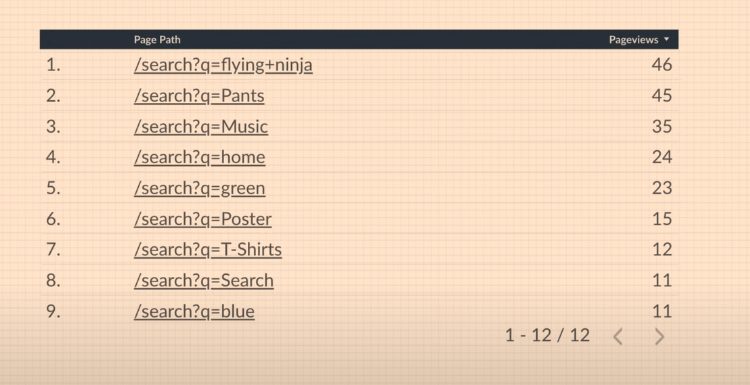
Use Google Analytics data regarding internal site searches for keyword and content ideas 💡
Update old content
Fix meta titles and meta description issues – including low CTR
Find & Fix KW cannibalization
Optimize images – compress, alt text, file name
Check proper use of H1 and H2
See what questions etc. are pulled through into the rich snipetts and answer these within content
Click “Pages” (near the bottom-third of the page on the left)
Click on a high-performing post in terms of Impressions and Clicks in google
With the specific page/post selected, click on queries
Make a note of all relevant queries in the top 100
See if these queries can be added to the ranking post
Find any queries that are not directly related to your post
Create a new post specifically about this/these queries (if you rank for it without a specific post – you’ll rank better with a specific post for that query)
In the original post – put an internal link to the new post


















 Small Business Dad