SEO & Google Ads/PPC: News – Sept 2026

SEO & Digital Marketing News Round-Up: What UK Small Businesses Need to Action Right Now (Late August / Early September 2026)

If you’ve blinked in the last three weeks, you’ve missed a lot. Here’s the plain-English rundown of what actually changed, what it means for your business, and more importantly: what you should actually do about it.

Laptop screen showing digital marketing analytics dashboard with charts and data
Photo by Unsplash. Swap for your own or upload to your Media Library.

TL;DR The Five Things That Actually Matter This Month

If you only read one thing, read this table. Everything else is context.

# The Change Deadline Who It Affects Urgency
1 Google Ads AI Max auto-migration 1 Sept 2026 Anyone running Google Search Ads with broad match or auto-created assets 🔴 Critical
2 Google Performance Max AI video auto-resize 4 Sept 2026 (opt-out) Anyone running PMax with video assets 🔴 Critical
3 Cloudflare AI crawler default changes 15 Sept 2026 Anyone hosting a site on Cloudflare (especially free-tier) 🟠 High
4 Google August 2026 Spam Update (finished rolling out) Complete – 21 Aug 2026 Sites relying heavily on AI/programmatic content 🟠 High
5 Bing Webmaster Tools old API retired 31 Aug 2026 Anyone using dashboards/tools that pull Bing data 🟡 Medium

1. Google Ads AI Max: The Silent Migration You Might Have Missed

This is the single biggest paid-media change of the year, and Google has been remarkably quiet about it.

From 1 September 2026, Google is automatically migrating Search campaigns using either “Automatically Created Assets” (ACA) or the campaign-level broad match setting over to its new AI Max system. There is no advance decline – you either configured it yourself before the deadline or Google configures it for you.

What actually changes

When AI Max flips on, Google’s AI can:

  • Rewrite your ad text – new headlines and descriptions generated based on your website and existing ads (words you didn’t write and didn’t approve)
  • Match queries beyond your keyword list – using “search term matching” similar to how Performance Max already works
  • Swap landing pages – potentially pointing traffic to different pages on your site

Your brand inclusions/exclusions, budget and bid strategy do carry over.

The uncomfortable data

Google says AI Max delivers a +7% conversion lift. Independent testing tells a different story:

Source Finding
Google’s own aggregate data +7% conversions at similar CPA (excludes retail)
Smarter Ecommerce (250+ retail campaigns) Median 13% increase in conversion value, 0% median ROAS change
Independent test of 30,000 search terms 99% of AI Max impressions produced zero conversions
Lunio (nine-month study) Invalid-traffic rates rose from 2.46% to 5.28%

Not exactly a slam dunk.

Your action list

  • Before 1 September: Log into every Google Ads account and audit whether campaigns use ACA or campaign-level broad match
  • ☐ Decide per campaign whether to opt in deliberately (Campaigns → Settings → AI Max) or disable the legacy feature first
  • Warning: Once you disable the legacy ACA feature, you can’t turn it back on. AI Max itself is reversible; ACA disablement is a one-way door.
  • ☐ Export current search term reports and conversion data now so you’ve got a clean before/after baseline
  • ☐ Audit “Limited by budget” campaigns – Google explicitly said it won’t adjust bid targets for you

Regulated industries (health, finance, legal): AI-rewritten ad copy could breach your compliance rules. Take this seriously.


2. Performance Max: Google’s AI Will Reframe Your Videos

If you didn’t already have enough to worry about, there’s a separate PMax change with an even earlier deadline.

From 4 September 2026, Google will use generative AI to auto-create missing aspect ratios (vertical, square) from your existing horizontal video assets in Performance Max campaigns. This applies to video you’ve already uploaded and approved, not just new uploads.

Why this matters

A 16:9 original cut down to 9:16 vertical keeps roughly a third of the width. That means:

  • Burnt-in text overlays likely disappear
  • Logos at the edges get cropped out
  • Legally required disclaimers can vanish
  • Generative AI invents the rest

How to opt out

Contact your Google account team or submit Google’s opt-out form before 4 September. Video settings can still be changed inside your account after that date, but the default from that point is “on”.

If your PMax video has your premises, staff, or actual product on screen – look at what the AI produces before letting it run in your name.


3. Google’s August 2026 Spam Update: What Got Hit

Google’s third spam update of the year ran from 18–21 August 2026. It rolled out globally in every language over about two days and 16 hours.

What Google said

  • No new spam policies were added
  • It re-scores sites against existing rules
  • Link spam and site reputation abuse were explicitly excluded from scope
  • Recovery is measured in months, not weeks

What actually got hit

According to SE Ranking’s study of 100,000 keywords across 20 industries:

  • 16.71% of URLs that had ranked in Google’s top 10 fell beyond position 100 during the update
  • That’s roughly 1.8 times more than a comparable baseline period
  • Common patterns among impacted sites: programmatic content at scale, AI-generated content published without meaningful human review, thin affiliate pages, near-duplicate content hubs

What to do if you were hit

Priority Action
1 Wait until rollout completed (it has – 21 Aug) before making changes
2 Check Search Console dates. Line up traffic drops with 18–21 August
3 Audit pages with low engagement, near-duplicate content, or high AI-probability scores
4 Consolidate or remove thin content rather than mass-rewriting good pages
5 Don’t file a reconsideration request, those are for manual actions, which this isn’t

One thing NOT to do: Don’t panic-rewrite perfectly good pages because an AI detector scored them highly. Detection tools are noisy and rewriting well-performing content in a panic is how you make things worse.


4. Cloudflare AI Crawler Changes: 15 September Deadline

This is the one everyone’s got slightly wrong. Let’s clear it up.

From 15 September 2026, Cloudflare’s new defaults kick in for:

  • New domains being onboarded
  • New sites added by existing customers
  • Existing free-tier accounts that haven’t touched their settings

On pages that show ads, Training and Agent crawlers will be blocked by default. Search crawlers stay allowed.

The actual risk (this is important)

Multi-purpose crawlers like Googlebot, Applebot and Bingbot crawl for both Search AND Training under a single user agent. Cloudflare’s new rule is: the most restrictive setting wins.

Translation: If someone on your team ticked the old “Block AI Bots” toggle in 2025, from 15 September you could accidentally be blocking Googlebot too, which would quietly disappear you from Google Search.

Your ten-minute check

  1. Log into Cloudflare → Security → Settings → AI bot policies
  2. If you see the old blanket “Block AI Bots” toggle, that’s your risk. Change it to the granular Search / Agent / Training controls
  3. Allow Search crawlers unless you have a very specific reason not to
  4. Make a deliberate choice on Training (are you happy for your content to train AI models?) and Agent (do you want ChatGPT, Perplexity etc to fetch your pages when users ask?)
  5. Save. Even saving your current choice explicitly protects you from the new defaults being applied

If your growth loop includes getting cited in AI answers, blocking Training and Agent bots is an SEO own-goal. Most small businesses should probably allow all three.


5. ChatGPT Ads: Now Live in the UK (and 30 Other European Markets)

OpenAI has quietly turned ChatGPT into a self-serve ad platform, and as of 31 August 2026, self-service Ads Manager access is now live across 31 European markets, with the UK already included in the earlier launch cohort.

The state of play

Fact Detail
Where ads appear Free and Go tier users, logged in, adult accounts
UK availability Live (self-serve Ads Manager)
Bidding oCPC (conversion-optimised) now available
Formats Sponsored product cards, multi-product carousel (new in August)
Partners Etsy, Shopify integrations for in-chat checkout
Early UK/US CPM Around $30 (down from initial $60 estimate)

Should you actually spend on this?

Honestly? Not yet, for most small UK businesses. Here’s why:

  • Ads only reach Free and Go tier users (Plus and Pro users see none)
  • Independent tests have been mixed at best – one agency test recorded 8,940 impressions, 58 clicks and zero leads
  • The channel behaves more like brand awareness than direct response
  • Measurement stack is still immature

But: get your OAIQ pixel installed and Conversions API wired up now, so you’re ready to test cheaply in Q1 2027 when the data will be clearer.


6. Quick-Fire Round-Up: The Other Stuff That Happened

Update What Happened What To Do
Bing Webmaster Tools API SOAP/POX interfaces retired 31 Aug 2026 Migrate any dashboards to REST/JSON API
Google Search Console Third-party views for IG, YouTube, TikTok now showing Check your GSC – new data source for social attribution
GA4 & Google Ads AI Overviews and “Ask Advisor” rolling out for benchmarking Explore the new prompts for quick insights
Google Assistant Being replaced by Gemini on Android from 4 Sept Test how your business appears in Gemini responses
Reddit citations in ChatGPT 86% drop reported by Promptwatch in mid-August Diversify – Reddit was a huge citation source for many niches
EU AI Act Watermarking rules for AI content now in force If you use AI-generated marketing content in EU markets, comply with disclosure rules
DaVinci Resolve, CapCut, Premiere Pro All shipped major AI-powered updates Genuine time-savers for video content teams

The Bigger Picture: Three Themes Worth Internalising

1. “Doing nothing” is now an active choice

Google, OpenAI and Cloudflare are all shipping changes with defaults that apply if you don’t act. Small businesses without dedicated marketing ops are the most exposed. Put September deadlines in your diary this week.

2. AI search rewards the same things good SEO always has

Generative Engine Optimisation (GEO) – getting cited by ChatGPT, Claude, Google’s AI Overviews and Perplexity – rewards clear answers, structured content, real expertise and trustworthy brand entities. The tactics haven’t changed as much as the terminology.

Data point worth knowing: SE Ranking found AI-referred visitors spend around 68% more time on site, and Semrush has reported they convert roughly 4.4 times higher than standard organic. AI referrals are still a trickle – but they’re a trickle of pre-qualified people.

3. Your Google Business Profile decays faster than you think

Recent local SEO data suggests GBP impressions drop noticeably for businesses that haven’t posted an update or added a photo in over 30 days. If you haven’t touched yours in a while, that’s a 10-minute Sunday-evening job.


Your September Action Checklist

Screenshot this, save it, tick it off.

Before 1 September:

  • ☐ Audit Google Ads accounts for ACA and campaign-level broad match usage
  • ☐ Export current search term reports as your baseline

Before 4 September:

  • ☐ Decide on Performance Max video auto-resize opt-out
  • ☐ Contact Google account team or submit opt-out form if needed

Before 15 September:

  • ☐ Log into Cloudflare and set explicit AI bot preferences (don’t leave on defaults)
  • ☐ Confirm Googlebot is not accidentally blocked

By end of September:

  • ☐ Review Search Console for August spam update impact
  • ☐ Post fresh content to your Google Business Profile
  • ☐ Test how your business appears in ChatGPT, Claude and Google AI Overviews
  • ☐ Audit your service pages for clear, extractable answers to buyer questions

Final Thought

Most of the damage in a month like this comes from the reaction rather than the news itself. Panic-rewriting content, changing settings without measuring, buying tools that “fix” problems you don’t have. Check your data against Search Console before you change anything. Put the September dates in your diary. Then get back to running your business.

The businesses that win in AI-era search aren’t the ones with the biggest content machines. They’re the ones with clear money pages, real expertise, strong local signals, and settings they’ve actively chosen rather than defaults they’ve inherited.

Any questions on any of this or want help auditing your setup ahead of the September deadlines? Drop a comment below.


Sources for this round-up include Search Engine Roundtable, Search Engine Land, Search Engine Journal, Google’s own Ads and Commerce Blog, OpenAI, Cloudflare, SE Ranking, Yoast, and reporting from Two Octobers, Seafoam, ROI Revolution, Ignite Visibility and Digital Loop. Snapshot as of early September 2026 – this stuff moves fast, always sense-check dates before acting.

Using Command Prompt & CURL for SEO Testing [2026]

Why Every SEO Should Learn Curl (And How to Start in 5 Minutes)

Most SEOs rely on Screaming Frog, Sitebulb, or Chrome DevTools to check how a website is performing technically. All brilliant tools, but there’s something faster, free, and already installed on your computer: a tiny program called curl.

First, what’s a “terminal”?

Before computers had pretty desktops and clickable icons, you controlled them by typing instructions. That text-based interface is called a terminal, or on Windows, Command Prompt. Think of it as texting your computer directly: you type a command, it does the thing, and prints text back at you.

It’s still around today because for certain technical jobs, typing one line is faster than clicking through ten menus.

What is curl?

curl stands for “Client URL.” It’s a built-in tool on Windows, Mac, and Linux that fetches webpages without rendering them. Instead of seeing the pretty version your browser shows you, you see the raw response the server sends back. Exactly what Googlebot sees when it crawls your site.

That’s the gold for SEO. Your browser hides things; curl shows everything.

Your first curl check in 4 steps

  1. Open Command Prompt. Press the Windows key, type cmd, hit Enter.
  2. Type the command: curl -I https://yourdomain.com (the capital I means “headers only”).
  3. Hit Enter. The server’s response headers print out instantly.
  4. Read the results. Status code is on line one — 200 means OK, 301 means redirect, 404 means missing.

That’s it. You’ve just made the same request Google makes to your site thousands of times a day.

Why this matters for SEO

A single curl check reveals things a browser hides: status codes (is the page actually returning 200?), caching rules (is the CDN configured properly?), security headers (HSTS, X-Frame-Options), server fingerprints (what platform is the site built on?), and redirect chains (are there unnecessary hops slowing down crawling?).

It’s also the fastest way to spot staging environments accidentally leaking into Google’s index, broken canonicals, or compression that’s silently switched off.

Save the full response for deeper analysis

Want the entire HTML page too? Use this:

curl -i --compressed https://yourdomain.com > response.txt

That saves the complete response, headers and HTML- to a text file you can open in VS Code or Notepad++. Brilliant for auditing canonicals, hreflang, structured data, and meta tags in seconds.

The takeaway

Curl is the closest thing you’ll get to seeing your site through Google’s eyes. Five minutes to learn, a lifetime of faster audits. Open Command Prompt today and try it on your homepage, you’ll be amazed what it tells you.

It’s a way of pulling info from websites, without a browser. I think

Checking product Schema On a Raspberry Pi

Goal of the mini-project

The aim here is to –

Verify that product schema (JSON-LD) is implemented correctly on example.co.uk after the migration to Adobe Commerce (Magento).
The script crawls your chosen product URLs and reports if required fields like price, brand, sku, and availability are present.


Step 1 – Open a terminal

Click the black terminal icon on the Pi desktop.


Step 2 – Check Python 3

python3 --version

You should see something like Python 3.9.2 (any 3.7+ is fine).


Step 3 – Install libraries

sudo apt update
pip3 install requests beautifulsoup4


Step 4 – Create a working folder

mkdir ~/schema_check
cd ~/schema_check


Step 5 – Create the script file

nano check_schema.py

Then paste this entire script:


import requests, json, csv, time
from bs4 import BeautifulSoup

# ---------- configuration ----------
# Put your product URLs here (you can add as many as you like)
urls = [
    "https://www.example.co.uk/example-product-1",
    "https://www.example.co.uk/example-product-2"
]

# Fields you want to confirm exist in the Product schema
required_fields = ["name", "brand", "sku", "price", "priceCurrency", "availability"]

# Optional delay between requests (seconds)
delay = 2

# ---------- functions ----------
def extract_product_schema(url):
    try:
        r = requests.get(url, timeout=15)
        soup = BeautifulSoup(r.text, "html.parser")
        for tag in soup.find_all("script", type="application/ld+json"):
            try:
                data = json.loads(tag.string)
                if isinstance(data, list):
                    for item in data:
                        if item.get("@type") == "Product":
                            return item
                elif data.get("@type") == "Product":
                    return data
            except Exception:
                continue
    except Exception as e:
        print(f"Error fetching {url}: {e}")
    return None

def check_fields(product_json):
    found = json.dumps(product_json)
    return [f for f in required_fields if f not in found]

# ---------- main ----------
results = []
for u in urls:
    print(f"Checking {u} ...")
    product = extract_product_schema(u)
    if not product:
        print(f"❌ No Product schema found: {u}")
        results.append([u, "No Product schema", ""])
    else:
        missing = check_fields(product)
        if missing:
            print(f"⚠️ Missing: {', '.join(missing)}")
            results.append([u, "Missing fields", ", ".join(missing)])
        else:
            print(f"✅ All key fields present")
            results.append([u, "All fields present", ""])
    time.sleep(delay)

# ---------- save to CSV ----------
with open("schema_results.csv", "w", newline="") as f:
    writer = csv.writer(f)
    writer.writerow(["URL", "Status", "Missing Fields"])
    writer.writerows(results)

print("\nDone! Results saved to schema_results.csv")

Save and exit:

  • Ctrl + O, Enter → save
  • Ctrl + X → exit

Step 6 – Edit your URLs

Later, open the script again (nano check_schema.py) and replace the two example links with your 10–50 product URLs.
Each URL must be inside quotes and separated by commas.


Step 7 – Run the script

python3 check_schema.py

It will:

  • Fetch each page
  • Extract the Product JSON-LD
  • Report any missing fields
  • Save a summary to schema_results.csv in the same folder

Step 8 – View the results

cat schema_results.csv

or open the file in LibreOffice Calc / Excel.

Example output:

URL,Status,Missing Fields
https://www.example.co.uk/football-goal.html,All fields present,
https://www.example.co.uk/tennis-net.html,Missing fields,priceCurrency availability
https://www.example.co.uk/baseball-bat.html,No Product schema,


Optional tweaks

  • Increase delay = 2 to 5 if you test hundreds of URLs (avoids rate limits).
  • You can import hundreds of URLs from a CSV by editing the script — ask later if you’d like that version.
  • Re-run anytime to confirm schema fixes.

Quick recap

StepActionCommand
1Open terminal(click icon)
2Check Pythonpython3 --version
3Install depspip3 install requests beautifulsoup4
4Make foldermkdir ~/schema_check && cd ~/schema_check
5Create scriptnano check_schema.py
6Edit URLsinside script
7Run itpython3 check_schema.py
8View resultscat schema_results.csv

That’s it. Job done.

You’ve now got a simple tool that checks your product schema in seconds. No fancy platforms. No monthly fees. Just a Raspberry Pi doing proper work.

Run it whenever you push changes. Catch broken schema before Google does. Keep your rich results intact.

The script sits there, ready to go. Update your URLs. Hit run. Get answers.

This is what proper validation looks like – fast, local, and under your control.

Next steps?

  • Bookmark this guide for when you migrate sites
  • Test 50 products now, then spot-check monthly
  • If you need the CSV import version, you know where I am

Your structured data matters. Now you can actually prove it’s working.

Go check your products. Then sleep better knowing your schema’s solid.

Questions? Issues? The comments are open. MOFOs

Semantic Search & SEO – Using Python and Google Colab

Semantic search adds context and meaning to search results. For example, if someone is searching for “Lego” – do they want to buy Lego toys, or see a Lego movie or TV show (Ninjago is great). Another example might be “Tesla” – do people want to see the latest self-driving car, or learn more about Tesla the scientist and inventor?

  • Make sure you understand search intent and any confusing searches like Tesla(inventor or car?), Jaguar (car or animal?), etc
  • Look for structured data opportunities
  • Optimise internal links – especially if you are using a “Pillar Post” and “Cluster Page” structure
  • Follow traditional on page SEO best practices with headers, meta titles, alt tags etc

SMA Marketing have done a cool YouTube video about Semantic Search and they recommend tools including:

  • Wordlift
  • Frase
  • Advanced Custom Fields for WordPress
  • Google Colab with a SpaCy

Before you publish a post – look at the search results for the keyword(s) you are optimising the post for. Check in incognito in Chrome to remove most of the personalisation of the results.

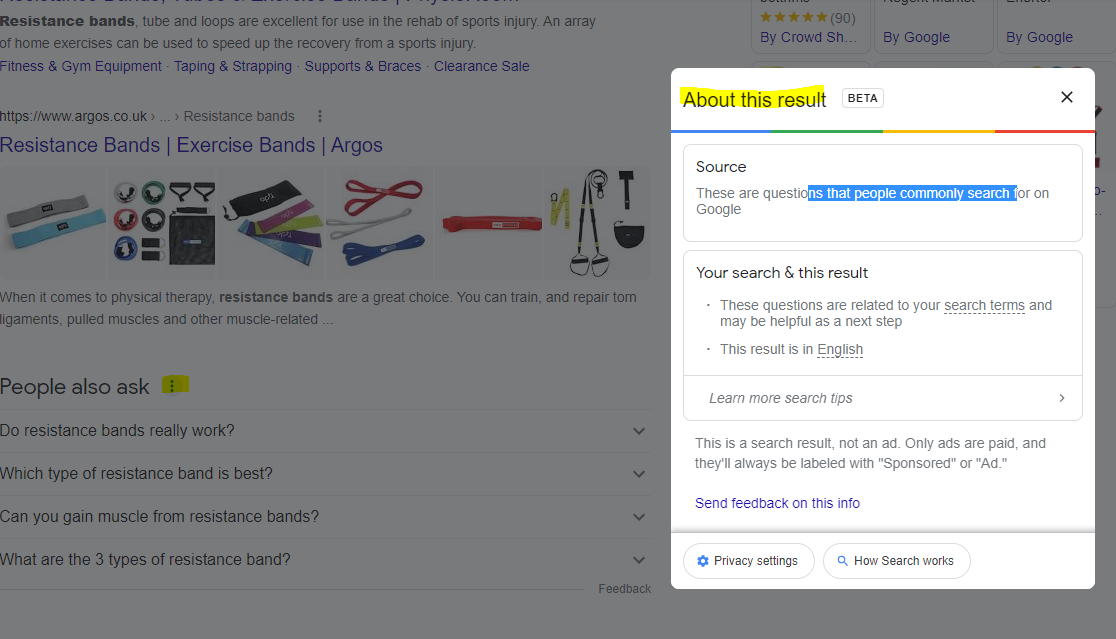
For any answer boxes or snippets, you can click the “3 dots” to get information about the results:

As well as the snippets, you can click the 3 dots next to any organic result. Here’s another result for “MMA training program pdf” with some additional information:

With this in mind – if you are looking to rank for “MMA training program pdf” then you will want to include the search terms highlighted in the “About this result” box: mma, training, program, pdf and ideally LSI keywords “workout” and “plan”.

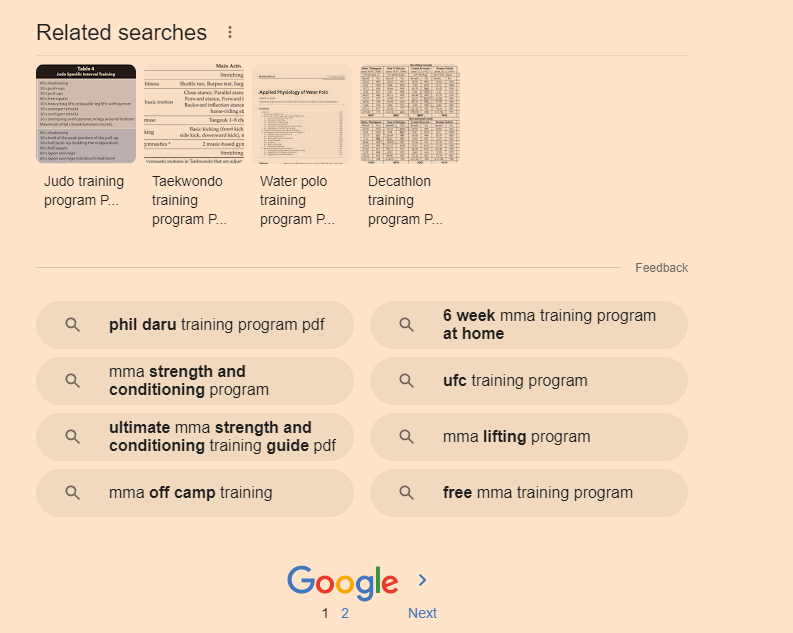
It’s also a good idea to scroll down to the bottom of the SERP and check out the “related searches”

Take a look too at any breadcrumb results that pull through below the organic listings. Combining all this information will give you a good idea as to what Google understands by your search query and what people are looking for too.

Semantic Search & NLP

This is a bit techy, but thankfully, the guy at SMA Marketing (thank you if you’re reading this) has put together a file/load of python code that does most of the work for us. You can find it here – https://colab.research.google.com/drive/1PI6JBn06i3xNUdEuHZ9xKPG3oSRi1AUm?usp=sharing#scrollTo=uatWEoHp5nxZ

Hover over [1] and click the play icon that appears (highlighted yellow in screenshot below)

When that section has finished loading and refreshing, scroll down to the “Installation tensorflow + transformers + pipelines” section and click the play icon there.

When that’s finished doing it’s thing, scroll down again, and add your search query to the uQuery_1: section:

add your query and then press the “play” button on the left hand side opposite the uQuery_1 line

You should then see the top 10 organic results from Google on the left hand side – in the form of a list of URLs

Next, you can scrape all the results by scrolling down to the “Scraping results with Trafilatura” section and hover over the “[ ]” and press play again:

Next, when the scraping of results is done – scroll down to “Analyze terms from the corpus of results” section and click the play button that appears when you hover over “[ ]”

Next! when that’s done click the play button on the section full of code starting with:

“df_1[‘top_result’] = [‘Top 3’ if x <= 3 else ‘Positions 4 – 10’ for x in df_1[‘position’]] # add top_result = True when position <=3 “

Finally – scroll down and click the play button on the left of the “Visualizing the Top Results” section.

On the right hand side where it says “Top Top 3” and lists a load of keywords/terms – these are frequent and meaningful (apparently) terms used in the top 3 results for your search term.

Below that, you can see the terms used in the results from 4-10

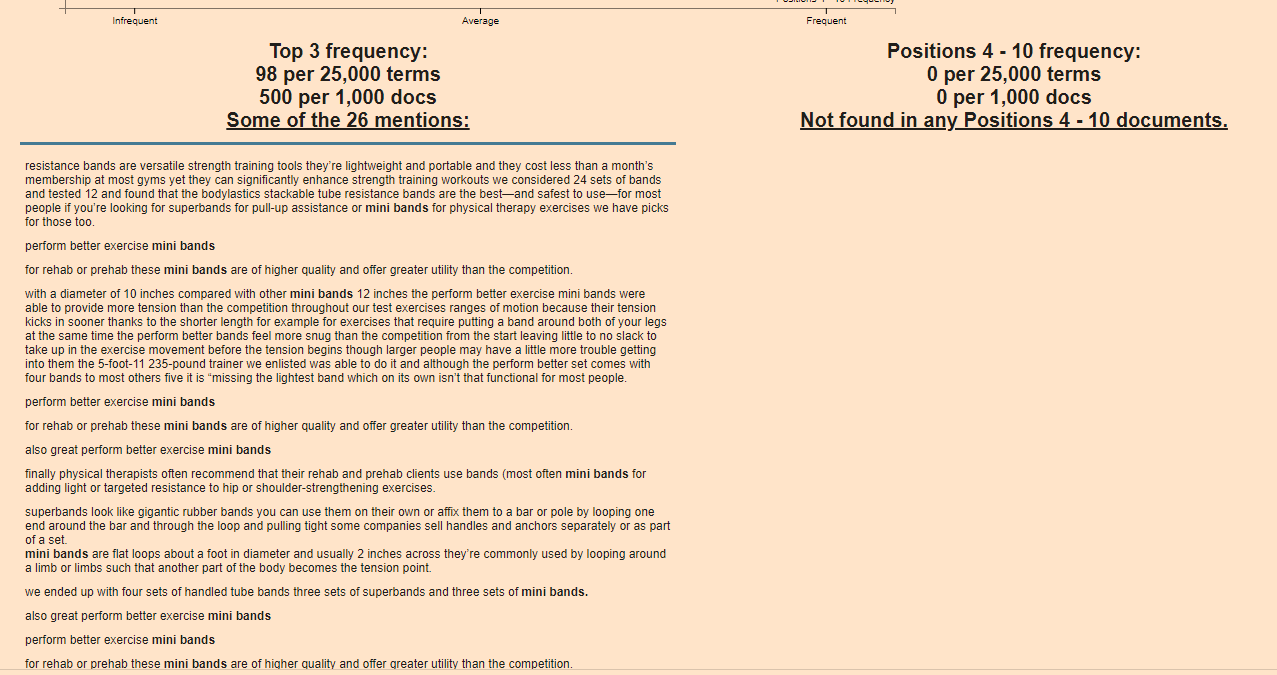
Terms at the top of the graph are used frequently in the top 3 results e.g. “Mini bands”

Terms on the right are used frequently by the results in positions 4-10

From the graph above, I can see that for the search term “resistance bands” the top 3 results are using some terms, not used by 4-10 – including “Mini bands”, “superbands” “pick bodylastics”

  • If you click on a term/keyword in the graph – a ton of information appears just below:

e.g. if I click “mini bands”

Google Colab TOol

It’s interesting that “mini bands” is not featured at all in the results positioned 4-10

If you were currently ranking in position 7 for example, you’d probably want to look at adding “mini bands” into your post or product page

You can now go to the left-side-bar and click “Top 25 Terms” and click the “play icon” to refresh the data:

Semantic SEO tool

Obviously – use your experience etc and take the results with a pinch of salt – some won’t be relevant.

Natural Language Processing

next click on “Natural Langauge Processing” in the side-menu

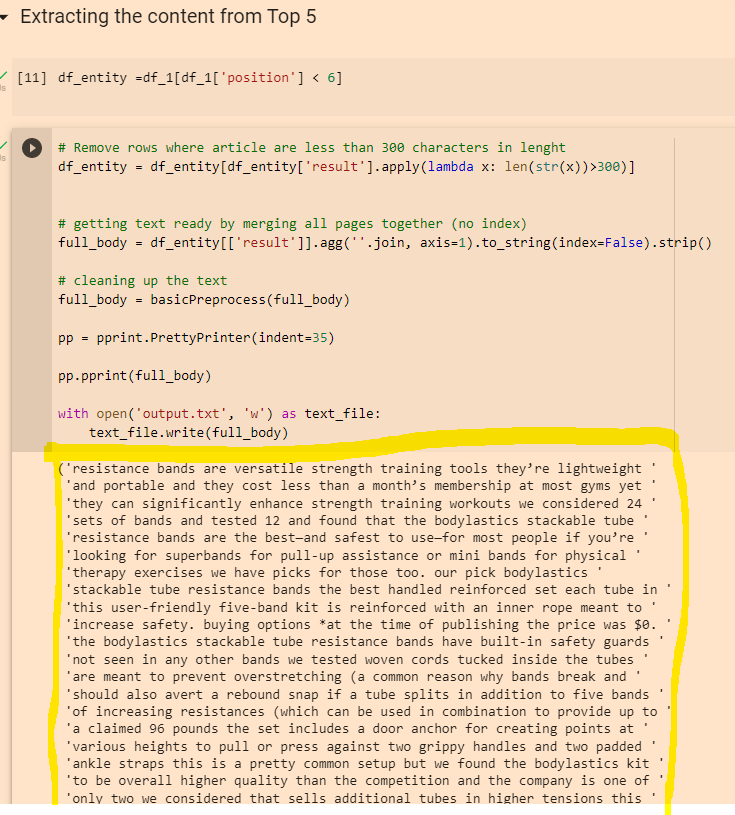
Click the “play” icons next to “df_entity =df_1[df_1[‘position’] < 6]” and the section below.

When they have finished running click the play icon next to “Extracting Entities”

Click “play” on the “remove duplicates” section and again on the “Visualising Data” section

This should present you with a colourful table, with more terms and keywords – although for me most of the terms weren’t relevant in this instance 😦

You can also copy the output from the “Extracting the content from Top 5” section:

Python Google Colab
Then paste it into the DEMO/API for NLP that Google have created here:

https://cloud.google.com/natural-language#section-2

You can then click the different tabs/headings and get some cool insights

Google NLP API

Remember to scroll right down to the bottom, as you’ll find some additional insights about important terms and their relevance

The Google NLP API is pretty interesting. You can also copy and paste your existing page copy into it, and see what Google categories different terms as, and how “salient” or important/relevant it thinks each term is. For some reason, it thinks “band” is an organisation in the above screenshot. You can look to improve the interpretations by adding relevant contextual copy around the term on the page, by using schema and internal links.

Data Studio – Quick Tips (Advanced)

Speed Up Data Studio Reports (Significantly) – Extract Data

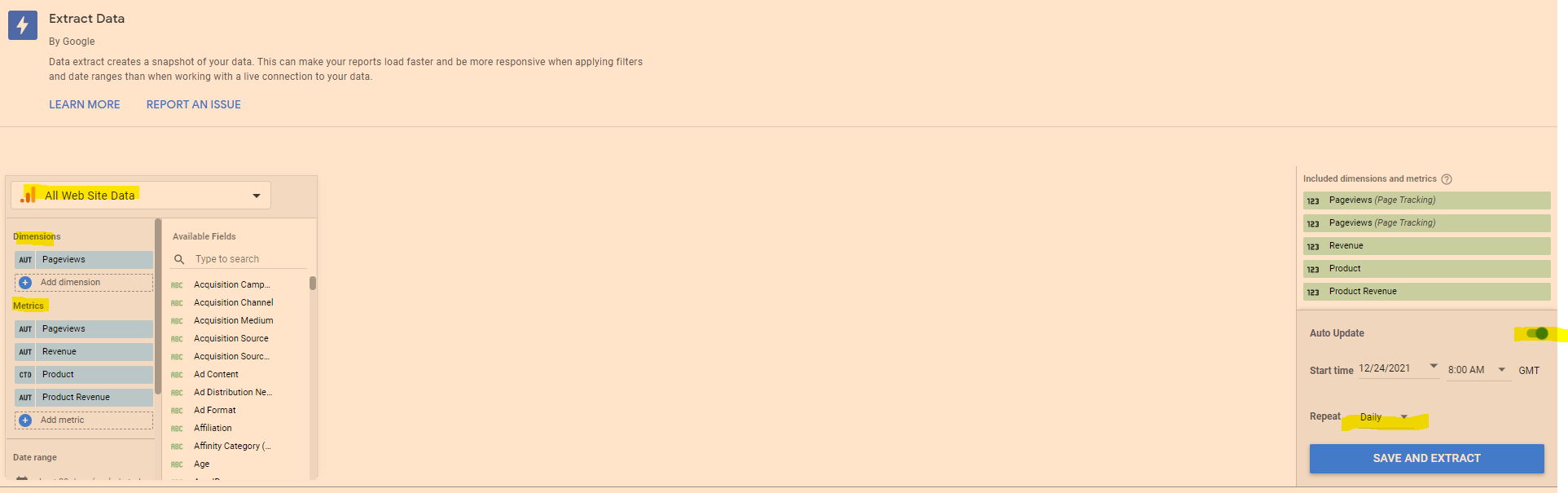
To speed up your reports – you can “Extract Data” and cache it.

It can help to have 2 copies of the report up – so you can see which metrics and dimensions you need to select when adding the data to extract and cache (also a good idea to test the extract data method on a copy of the report in case you faff anything up)

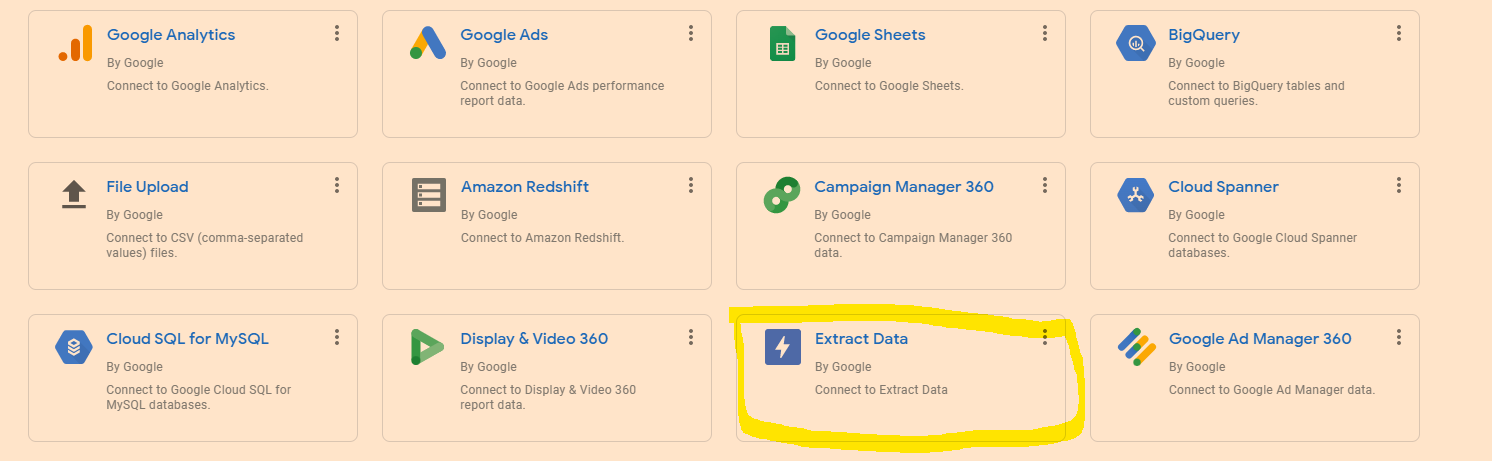
Go to “Add Data” in the top menu-bar

  • Click on “Extract Data”
  • Choose the data you need – eg Google Analytics
  • Add the dimensions and metrics you need for the report
  • On the Right hand side – click to turn “Auto Update” on
  • Select “daily”
  • Click “Save and Extract”

Sometimes you have to faff around a bit with the dimensions – Google Analytics doesn’t seem to like caching a dimension, but still goes super-quick if you cache the metrics only.

Edit in Bulk

If you want to edit all of the charts or tables on the page, in “Edit” mode, right click – go to “Select” and then choose “Tables on page” or whatever type of chart, scorecard or table you’ve selected.

This works instead of CTRL clicking or SHIFT clicking – but you can only change charts or visualisations of the same type at the same time. You can change the style, add a comparison date range etc.

Brand Colour Theme in Data Studio

Click on “Them and Layout” at the top of the screen and then, near the bottom right click “Extract Theme from Image” – you can then upload your logo and choose a theme with your brand colours.

If your shite at presentation like me, this is helpful.

Copy & Paste Styles

In Data Studio – If you want to copy a style from a chart or table, right click it, then choose “copy”

Click another chart/table and the right click – Paste Special – Paste Style Only

Add Chart Filters to an Entire Report

If you want to add a filter to all the data in a report, then it can be a pain going through the charts individually.

Right click on a blank part of the page –

  • Click “Current Page Settings”
  • On the right hand side – click “Create a Filter”
  • Choose or create a filter to apply to all the page

To add a filter to multiple pages

  • Right click on a blank part of the page
  • click “Report Settings”
  • click “Add a filter” in the right side-menu

Add Elements to All Pages of a Report in Data Studio

If you want to add a header and date range selector, for example, to all the pages in the report – add the elements to a page, then right click on the element – and choose “Make report-level”

Quickly Align Elements in Data Studio

Click and drag to select all the elements

Right click – choose “align” – “middle” to get everything inline horizontally

To get an equal space between all the elements, so they’re spaced evenly:

– click and drag to select the elements

– right click – select “Distribute”

– “horizontally” to space evenly across the page, or “vertically” to distribute evenly in a vertical manner.

You can also tidy up individual tables to align the columns vertically – right click and select “”Fit to data”

See our Data Studio Fields & Filters blog post – https://businessdaduk.com/2021/12/15/data-studio-fields-filters-notes/

Data Studio – Data Blending

Bit of a ball ache to work out

There are a few ways to blend data, here’s my fave:

  • Go to “Resources” in the main menu at the top
  • Click “manage blended data” option
  • Click “Add a Data View”
  • Choose a Data Source e.g. Search Console
  • Then “Add a Table” and include another data Source for blending – e.g. GA
    or click “blend data” on an existing table or chart – and select another data source
  • Choose a common “key” to both data sources e.g. “Date”
  • Choose the metrics you want from each Data Source – I wanted to get daily revenue into my search console reports:

Using the blended data above, I can now add Revenue from Google Analytics to my search console reports. I have to remember however, that the revenue is simply attributed to each day and not any queries

**Update to the screenshot –

add a table filter to get organic only revenue from GA.

To be able to filter Revenue to organic only – you need to add a “Dimension” to the table on the right – click the “+” next to “Add dimension” in the GA data and then “Default Channel Grouping” – you can then create a filter in the report:

Blending Search Console Data in Data Studio

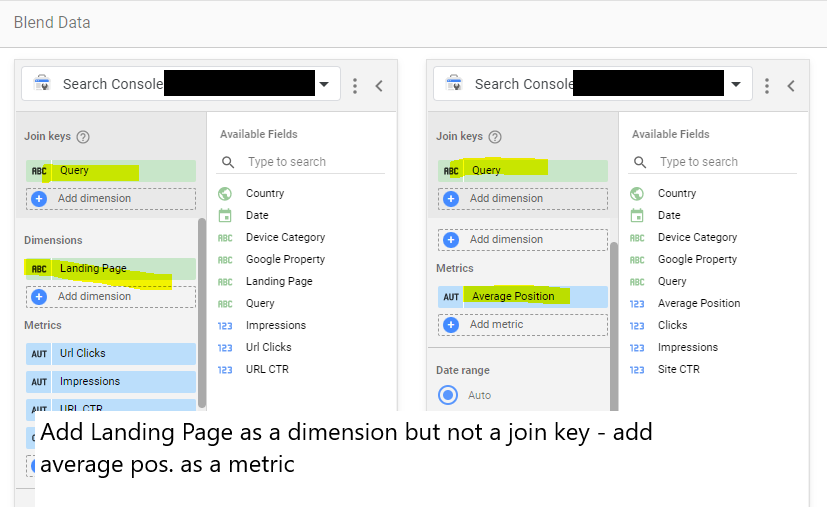
Another common reason to blend data – is to get average position data from Search Console “Site Impression reports, added to “URL Impression” data:

URL impression vs site impression

Incidentally –

the main difference between Data Studio Search Console URL Impression Vs Site Impression data – is that Site Impression contains the Average Position metric and URL Impression contains the Landing Page metric. So when you’re blending the data from both sources, make sure you have “Landing Page” as a metric and “Average Position”.

Data Studio Fields & Filters – Notes

Once you’ve created a field – add it to your chart as a Dimension

Mixed Case URLs

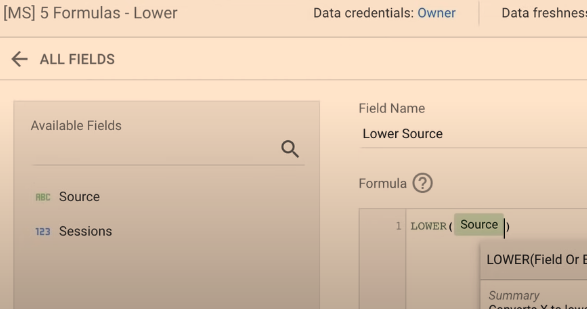
Having a mix of URL cases in the letters can faff with your data as D.S. might think each capitalisation variation is a new URL:

  • Click on the Data Tab to the right – then “Create new field” or “Add a Field”
  • Name the field “Lower Source” type in “LOWER(“
  • Then add “Source” from “Available Fields” to the left
  • Click “Save” and add “Lower Source” to the table as a Dimension

Concatenate Data

  • Create or “Add a Field”
  • In the Formula box type “CONCAT” and then select the fields you want to use
  • Close the formula with the final “)” and save it

Internal Site Searches – Extract Search Query

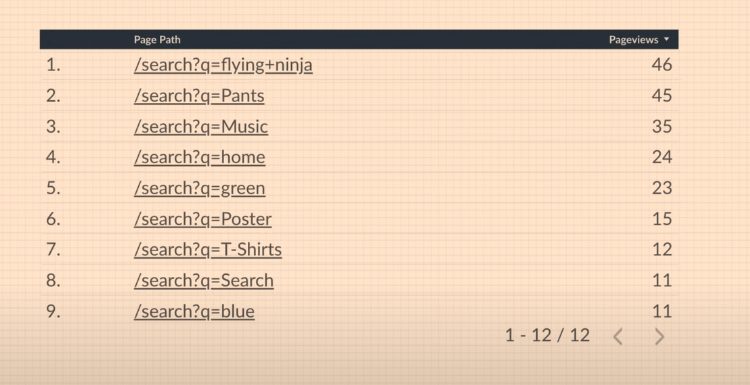
Make the data look nicer and get the search term on its own in the table.

  • Select to a “Add a Field”
  • Use REGEXP_EXTRACT formula to pull out the search terms and get rid of “/search?q”
  • Use the REGEX shown below:

Search Queries – Pull Out Questions – What, Why, When?

  • Create / Add a New Field
  • Add REGEX as shown below and save
  • Add New Field as a Dimension to the table
  • Create a table/data Filter so that you include only table rows that equate to “True” in the new dimension/column

CASE Formulas in Data Studio

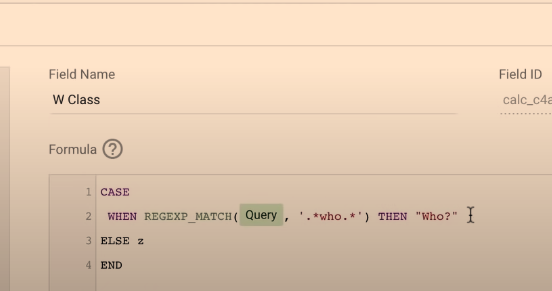
CASE formulas are basically “If this, then do that” formulas

When X happens, Then do Y

You can use the CASE Formula to classify and group channels together

For example:

WHEN query matches “who”, then display text “Who?” in the table

  • In the Formula – you need a “catch all” default for when nothing is true in the criteria
  • If the search doesn’t contain “who, what, why” etc. then:
    ELSE “others”

    So if the search term, doesn’t match any of the REGEX criteria – classify it as “others”
– Save the CASE statement
  • Add the new field – to the table or report

Date Ranges & Filter Controls

Taken me ages to work this out – I’ve only just twigged:

You can add Comparisons, Search Boxes, Drop Down Menus and all sorts to your Data Studio Reports

For controls and filters to work – you need the chart or table to have “Default Date Range” set to “Auto”

See my post about REGEX for SEO here.

Ta

If you want a pre-made Data Studio template, you can send me some money and hope for the best.

Online Marketing for New Businesses

Started a business?

Got a website?

Okay, now you need to look at building your brand and getting traffic and engagement on your website and social media accounts.

Website Checklist

  • Trust signals – include membership badges, university logos, awards ètc prominently
  • Humanize the site – include images and videos of people who work for the business
  • Social Proof – include reviews and testimonials. TrustPilot and video testimonials work well
  • Site Speed – make sure the site is quick and works perfectly on mobile devices
  • EAT – Expertise Authority & Trust – show your credentials on the about us page
  • Contact Form – Make it as easy as possible to be contacted
  • Trust & Transparency – Include full contact info if possible – address, tel number, email
  • Have you got Google Analytics & Search Console installed?

You will also need to think about the colour scheme and imagery.

Think about what mood you want to portray

https://www.bedtracks.com/blog/2017/6/15/how-to-coordinate-music-with-the-colour-in-your-video

For lead generation websites, if you are a local tradesman for example, you’ll want a Call to ACTION button on the homepage, and probably all of your other pages – a Contact Now button for example

Homepage Call to Action

  • Strong Call To Action

You will probably want a “Call to Action” or “CTA” button, such as “Buy Now”, “Learn More” or “Contact Us”

This CTA button is generally placed “above the fold” on most pages, so that people don’t have to scroll down or look for a way to get in touch or buy from you.

“Join Free for a Month” – is the CTA on Netflix’s homepage (at the time of writing)

For more expensive, high end or though-out purchases such as – buying a car or contacting a therapist, sometimes it’s better to have the CTA below the fold. The best thing to do is test it, with Google Optimize.

For more information about “Conversion Rate Opimization” (CRO), see this article:

https://blog.hubspot.com/marketing/conversion-rate-optimization-guide

For a full SEO (Search Engine Optimization) checklist for your website – to help get visibility on Google – see this article – https://backlinko.com/seo-checklist

Google My Business

Register your website and your office with Google My Business

You can go through the steps here:

https://www.google.com/intl/en_uk/business/

Google will send out a postcard to your office (or home) address

The postcard has a code – so you can confirm you are at that address

Local Directories

Register your business with high quality, local directories such as

  • Bing Places
  • Yelp
  • Yell
  • Free Index
  • Open Di

Try and get on any local government directories too.

Social Media & Captioned Videos

If relevant, register your business on:

  • Linkedin
  • Facebook
  • Instagram
  • TikTok


    Arguably the best way to get noticed on social media at the moment, is to create videos with captions – so they can be watched on mute.

Linkedin is said to have the greatest organic reach at the moment too – meaning you can get your video, image or text-post in front of more people, without paying for ads.

Social media sites like people posting videos too – because they drive a high rate of engagement and keep people on the site for longer.

  • Do NOT post to YouTube and then post a link on social media

Instead – upload your video direct to the platform.

For example, if you have a Facebook page, upload the video directly to Facebook, so that Facebook hosts the video and not YouTube.

Social media sites will tend to kill your reach if you post a link – they don’t want people to click and leave their website

YouTube is also showing on more and more Search Results Pages on Google.

Consider creating a YouTube channel with lots of informative, helpful and entertaining content.

You can then edit the videos and post to specific social media platforms.

Find out the pain point of your target audience and create video content that helps with those pain points.

Take long form videos and edit them into YouTube shorts, and shorter clips for social media.

If you work in b2b for example, you could do a webinar on digital marketing for small businesses, create some 1 minute highlights of the most informative points and create a YouTube short, and create lists of 30 second clips for tiktok, Facebook, twitter, Instagram and LinkedIn.

Make sure you add captions to your videos for social media!

80% of social media videos ate watched muted.

Jab, Jab, Jab – Right Hook

General principle of content and social media marketing by Gary V.

Identify your target market

Identify their issues and pain points

Post helpful content related to their pain points and problems

Do NOT constantly promote your business – slip in the odd “Right Hook”, every 3 or 4 posts

People do not want to be sold to constantly, they want helpful, insightful and funny content.

For example.

If you target market is small business owners, take a look on Quora and Reddit and see what people are talking about. If a common theme is Facebook advertising for example, make some helpful videos and blog posts about Facebook marketing.

SEO, PPC and More

The above is just a foundation.

If you have the time and resources, you will ideally produce lots of insightful blog content, earn lots of inbound links and work your way to the top of Google.

You will also want to consider “PPC” – Pay Per Click ads on Google, Facebook and Linkedin.

One beginner mistake to avoid with ads – is sending people to your homepage.

Have a specific “landing page” for each advertising campaign.

oh – make sure you have a good looking logo too. You can use Canva or hire someone on PeoplePerHour.com

Google ads is changing all the time, but generally speaking you’ll want to use exact match keywords and create very specific ads for each keyword or group of keywords.

A good place to start with SEO is to check your website using an On-Page SEO Checklist.

Videos can also be used as aa way to gain presen o Google.

Videos are great for social media, and YouTube is also starting to show more and more often in the Google results. I would personally have a good go at gaining an online presence using videos and social media – particularly Linkedin at the moment.

Build a Brand

Here’s a good article that some hero wrote about building your brand as a small business

  • Nail down your USP
  • Identify other propositions “why use me/us and not the competitor?”
  • Write down your brand story
  • Use high quality photography & videography (avoid stock pictures)

Consider making customer support a key element of your brand – this can help with online reviews too. Pre-purchase, purchase and post-purchase consumer stages are all opportunities to impress and help.

Get Content Ideas from Competitor Websites (SEMRush)

Requires:

  • SEMRush
  • A computer
  • The internet

If competitor has articles and blog posts inside a subfolder e.g. “buyers-guides” or “/blog” – make a note of the sub-folder name

  • Add Competitor’s homepage URL in “Search Bar” on SEMRush Homepage
  • Click “Organic Research”
  • Click on the “Positions” tab
  • Click on “Advanced Filter” and add the subfolder name e.g. “blog” as a URL filter
  • Export Results into Excel
  • Create a Pivot Table
  • Use the settings below – you’ll need to change position to “average” instead of “sum of”:
  • Tick the check-box for “URL” at the top
  • Drag search volume, traffic and position into “Values” box at the bottom right
  • Click the little arrow on the right of “Sum of Position” – go to “Value Field Settings” and choose “average”
  • Analyse which articles get the most traffic (approximately) and have most potential

Obvs. the URLs of my competitor have been blacked-out in the image above

If the competitor has all their articles at the root domain level e.g.

12 Best Weightlifting Belts of 2024 (Tested and Reviewed)

Just use SEMRush – Organic Research – Positions tab and download and pivot the pages data – no need for advanced filter

  • Once you’ve found the blog posts with the most traffic, you can analyse the “Exact URL” in SEMRush
  • This analysis, should show you the keywords on the page that generate most of the search traffic
  • I personally like to go after KWs with a Keyword Difficulty score of less than 20 for my personal blog and under 30 for my employer’s blog

You can also use Reddit & Quora for Content Ideas

Unsolicited #SEO tip: You can get great ideas for specific content ahead of features like PAAs being generated by using Google site operators with specific sites. For instance, I can use the command:

site:reddit[dot]com/r/amateur_boxing “how do i”

or

site:reddit.com/r/bootroom “how do i”

To search just the amateur boxing subreddit for questions starting with “how do I?” You can apply this on any niche or on other sites like Quora to get up to the minute questions people are asking.

https://www.linkedin.com/posts/markseo_seo-activity-6902220002146275329-MNVS/

Sorting XML Sitemap URLs by Folder Depth

This can be handy if for example, you only want a list of products and they reside on folders that are 3 “/” deep into your URLs/Domain

For example:

  • Myshop.com/categorypages/subcategorypage/productpage/

I only want the URLs that reside at the third level – i.e. /productpage/

  1. Go to your XML sitemap – usually at Myshop.com/sitemap.xml
  2. Right click and “save as” – save on your computer
  3. Open Excel
  4. Go to the Developer Tab (you might need to add this as it’s not there by default)
  5. Click “Import”
  6. Browse to find your sitemap.xml and import it into Excel
  7. This usually pulls all your URLs into column 1 and other info like priority into separate columns
  8. Delete all the columns except the first one with your URLs in it
  9. Remove the https:// from the URLs with “find and replace” – On “Home” tab under “Find & Select” on the right
  10. In cell B2 add the function: (change A2 – to the cell you have put the first URL in)
=LEN(A2)-LEN(SUBSTITUTE(A2,"/",""))

11. Drag the formula down the rest of column B

12. You can now order column B by the number of “/” found in each URL

If different categories have different folder structures then you can conditionally format and use different colours for different categories and then do a multiple criteria sort – by colour, then folder depth (column B)

You can download an example spreadsheet with the formula in here