Google Analytics 4 – Quick Notes & Introduction 

GA4

Image Source (google.com)

An Analytics account is your gateway to Analytics. An account can include multiple properties and property types, but a property can belong to only one Analytics account.

A property lives within an account. Properties are the containers for your reports based on the data you collect from your apps and sites. It’s the level at which Analytics processes data and where Analytics can connect with other Google products, like Google Ads.

A data stream lives within a property and is the source of data from your app or website. A property can have one or many data streams.

Info taken from the GA 4 Course here

The guiding principle of account structure

When structuring your Analytics account, remember this guiding principle: Each property should represent a specific user base.

Use separate properties to collect data from each user base you’re interested in understanding better — for example, a specific brand or region.

The new version of Google Analytics – Google Analytics 4 – has less pre-made reports and users are prompted to customise their own dashboards and use the search function.

You can literally ask questions, using the search bar. Which is fun.

Instead of pageviews and sessions, GA 4 is built around events.

Pre-configured reports are limited in GA 4. It’s a good idea to have Universal Analytics in addition to GA4

  • You can’t yet link GA 4 to Search Console
  • You can Can store raw data in BigQuery

when you install GA4 on your site, the reports don’t import data from GA universal – start from scratch – no historical data is passed over to GA4 when you install it on your site.

  • GA4 is Built Around Events.

Events:

You can track pageloads, elements clicked, product details, and loads more

Parameters:

Parameters are info that are sent to GA4 with the events. 

Eg. Pageview is sent to GA4 with URL of the page, page title and the referral details

Automatic Events:

First Visit – first time someone visits site (this even populates the new user report too)

Page View – same as normal pageviews

Session Start – new session after 30 mins of inactivity

User Engagement – starts whens someone on your site for at least 10 secs

Enhancement Measurement

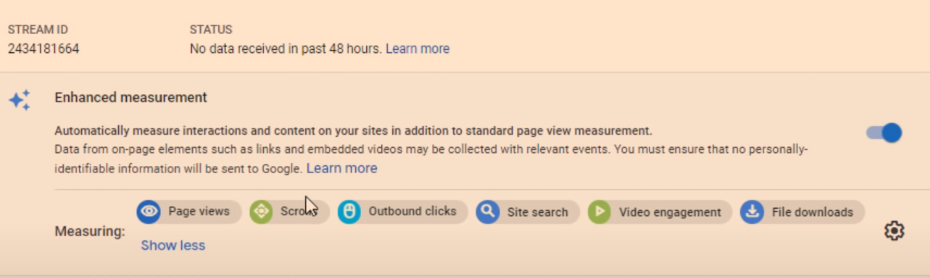
GA4  automatically tracks:

Scrolls – 90% of a page

Outbound Clicks –

Site Search – search queries

Video Engagement – for embedded YouTube videos

File Downloads
ga4 enhanced measurement

To edit the Enhancement Measurement reports go to “Data Streams” in the Admin area:

Google analytics 4 admin

Click on data stream and check to see that “Enhanced Measurement” is switched to the on position. If you click on the cog icon, you can then switch different measurements on and off.

They’ll be set to “on” by default.

There are advanced settings for pageviews and site search – just click “Show advanced settings”. 

Google provides a list of recommended events for all websites and apps, and then by industry.

Retail & eCommerce

Jobs, Education, Local Deals & Real Estate

Travel 

Games

Custom Events

Custom events allows you to name your events.

Google’s naming convention is probably best to copy – [action]_[object/item]

For example, if you create an event to track when people rate your website, call it:

Rate_item 

Instead of

Product-rate

Add parameters such as product, item_id and rating – so you know which product is rated and what rating the user gave it.

You’ll need to register the parameters as custom dimensions or metrics

To make a new event – in the left hand nav/side bar – click – 

Events – Create Event – Name the event

Enter the parameters to tell Google when to trigger the new event

E.g. page_location – contains – thank-you

Click “create” in top right corner.

You can create brand new events in Tag Manager – rather than basing them on existing events

Data Settings>Data Retention

By default GA4 only stores data for 2 months – in the Admin area, you can change this to 14 months.

Go to Admin>Data Settings>Data Retention and change it to 14 months on the drop down menu.


Brief Run Down of GA4 Reports (in the left hand side-menu)

REPORTS

Acquisition Reports – Where are visitors coming from? Looks at channels e.g. organic, and New Users Vs Returning Visitors

  • Click the “+” above the table, to add an additional dimension

    1. Click the + above the table on one of the reports:

2. Add an additional dimension to the table, e.g. Page/Screen > Landing Page

Engagement Reports – What are visitors doing on your site?

To see pageviews and users per page:

  • Reports>Engagement>Pages and Screens

Monetization – New term for eCommerce Reporting in GA 4

See what items people are buying and how much money their spending

Retention – Looks at new users/visitors and returning visitors. See what percentage of different cohorts come back to the site etc

Demographics – Where are people based and what type of people are coming to your site?

Tech – what computers, tablets and phones are people using?

EVENTS

Conversions – conversions can be customised. But typically include “Begin_checkout” and “purchase”

All Events – basically less important events – compared to conversions. Include clicks, scrolls etc.

EXPLORE

Analysis – There is a Template Gallery (top right of screen) 

You can look into funnels, acquisition etc and get cool reports

CONFIGURE 

Audiences – you can build different audiences by location, device etc and analyse them


Notes from the GA4 Course from Google

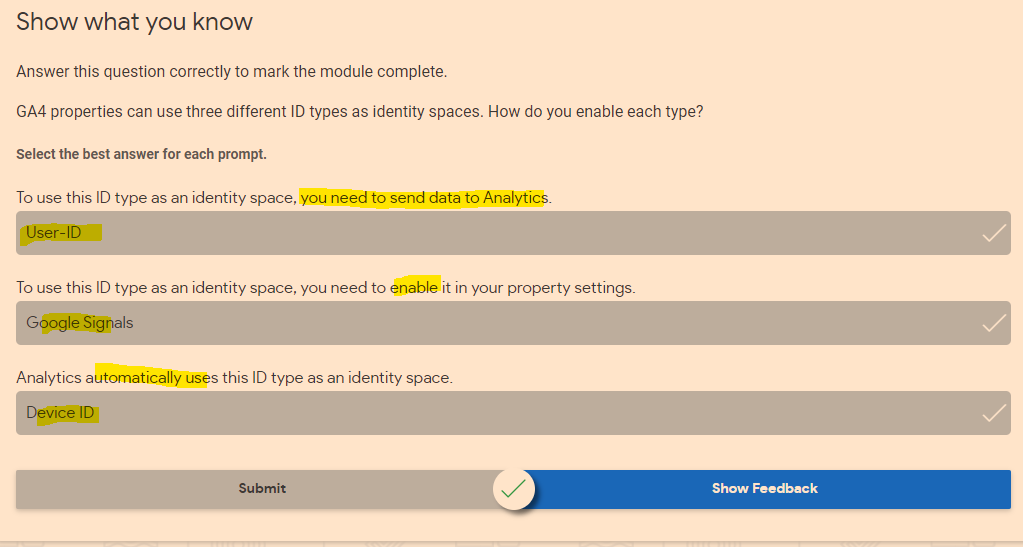
Google uses identity spaces to track users.

How to use data streams

Remember, a property is the container for your reports based on the data you collect from your apps and sites. 

A data stream lives within a property and is a source of data from your app or website.

Once you’ve identified a user base you’re trying to measure, create a property for that user base. 

Then create a data stream for each of the ways these users interact with your business. For example, if you’re an app developer, you could create one data stream for your iOS app, one for your Android app, and one for your app’s marketing website.
Conversions are events that are assigned a value – such as a purchase, a lead or a download.

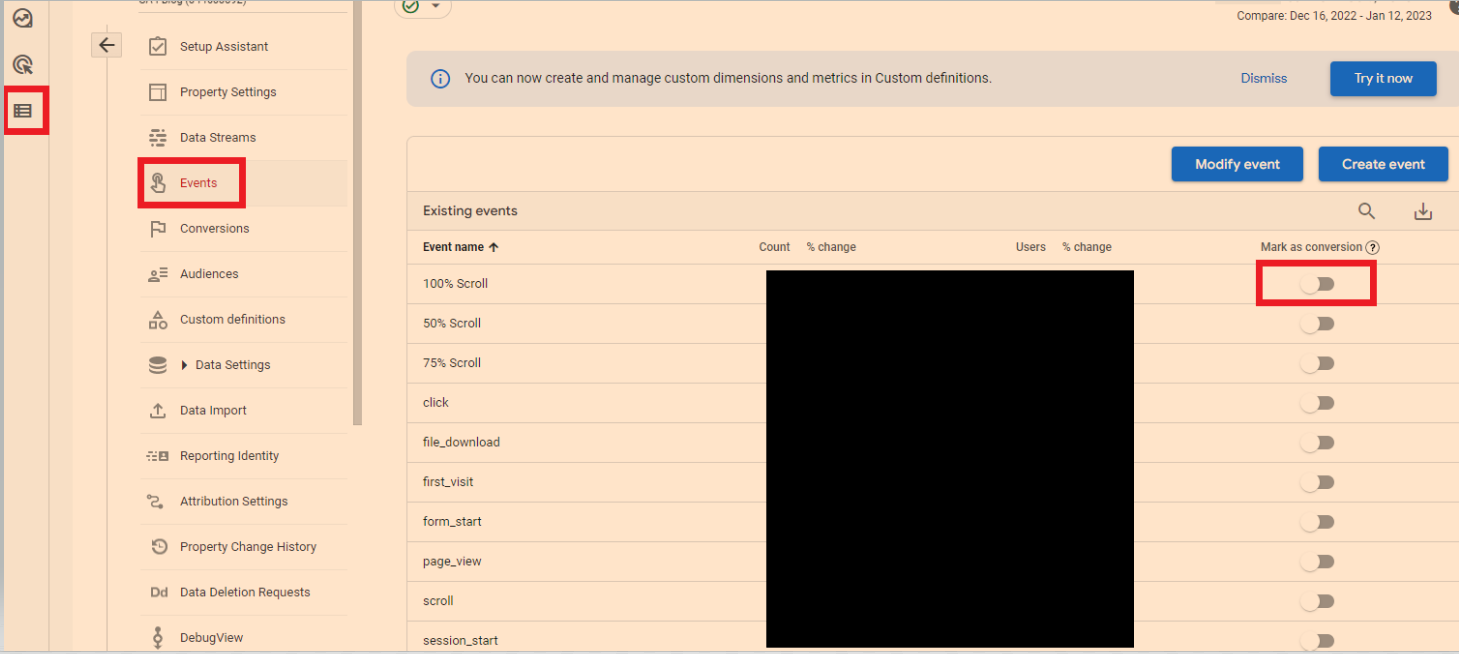
To mark events as conversions

In the left-hand side-menu, go to the bottom option “configure” – then “go to admin”

Click “events”

You can now turn on events like 100% scroll, to conversions.
Modelled Conversions

Browsers that don’t allow conversions to be measured with third-party cookies have conversions modeled based on a website’s traffic. Browsers that limit the time window for first-party cookies have conversions (beyond the window) modeled.

Some countries require consent to use cookies for advertising activities. When advertisers use consent mode, conversions are modeled for unconsented users.

Google

Identity Spaces

When trying to understand user journeys, Analytics can use several different user identifiers, such as the IDs you assign users logged into your website, Google signals, and device ID. These groups of identifiers are called identity spaces.

Reports & Explorations

Free From Exploration

The free form exploration allows you to visualize your data with flexibility and ease.

To conduct an ad hoc analysis, just drag and drop the variables you’re interested in onto a canvas to see instant visualizations of your data. Don’t see the variable you’re looking for? Select the plus icon to view the full list of dimensions and metrics you can use.

This tool presents your data in a cross-tab layout, where you can arrange the rows and columns as you like and add the metrics you’re most interested in. You can also apply different visualization styles, including bar charts, pie charts, line charts, scatter plots, and maps.

If you spot a significant data point, right-click on that data point to easily create an audience or segment from it and use it in other explorations. If you use the line chart visualization, you’ll see an automatic feature enabled called anomaly detection. This feature uses machine learning to identify outliers in your data according to your parameters.

Funnel Exploration

Funnel exploration lets you visualize the steps your users take toward a key task or conversion. This tool helps you identify sequences of key events and understand how your users navigate these steps. You’ll be able to see where users enter your funnels, as well as where they drop off.

You can use this information to improve your site or app and reduce inefficient or abandoned customer journeys. You can also easily create audiences of users based on where they enter or exit the funnels you define.

With this tool, you can define up to 10 steps in your funnels, up from five steps in UA properties’ Custom Funnels. Plus, you can now analyze both closed funnels (where users must enter at the beginning of the funnel) and open funnels (where users can enter the funnel at any point).

Path Exploration

Path exploration lets you understand how people progress from one stage in the customer journey to the next

Like funnel exploration, path exploration uncovers the steps users take through your site or app. But while funnels only analyze a single, predefined path, path exploration is free-flowing and can follow any number of undefined paths, even ones you weren’t aware of or didn’t intend. For example, it could uncover looping behavior, which may indicate users becoming stuck.

Plus, you can define paths using either a starting point or an ending point. This helps you understand how users got to a certain step on their journey and shows you what they did after.

Segment Overlap

Segment overlap lets you compare up to three user segments to quickly see how those segments overlap and relate to each other. This can help you isolate specific audiences based on complex conditions. You can then create new segments based on your findings, which you can apply to other exploration techniques and Google Analytics reports.

Copy taken from the Google Course here.
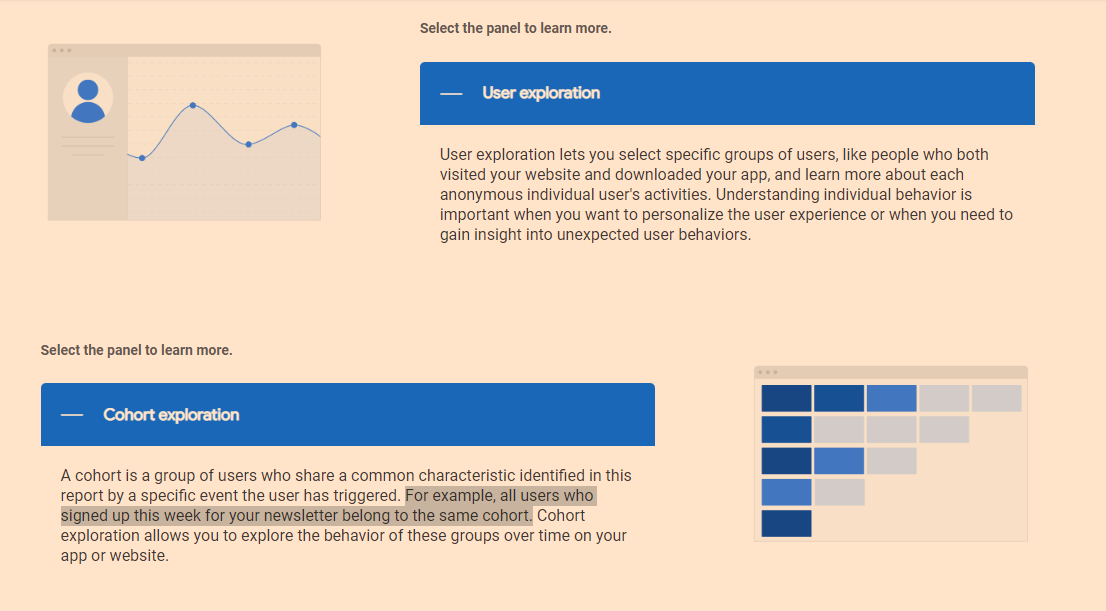
google analytics 4 user exploration

Explorations are private by default. If you’re the creator, only you can view and edit them unless you choose to share.

Understand the Analytics property structure

You can use GA4 properties exclusively for web data, exclusively for app data, or for both app and web data together. No matter what your setup is, it’s important to understand how to structure your new Analytics property.

Introducing data streams

Data streams are a feature of GA4 properties that allow you to connect a single Analytics property to the various places where your users interact with your business. For example, a company that has both a website and an app would need a separate data stream for each platform to combine their reporting and insights into a single Analytics property.

Once you have set up your GA4 property and data stream(s), you can add different events.

For an eCommerce store, Google recommends setting up:

Google Analytics 4 filters are applied at the property level, and affect data from all data streams in that property. All reports for a property use the same filtered data.
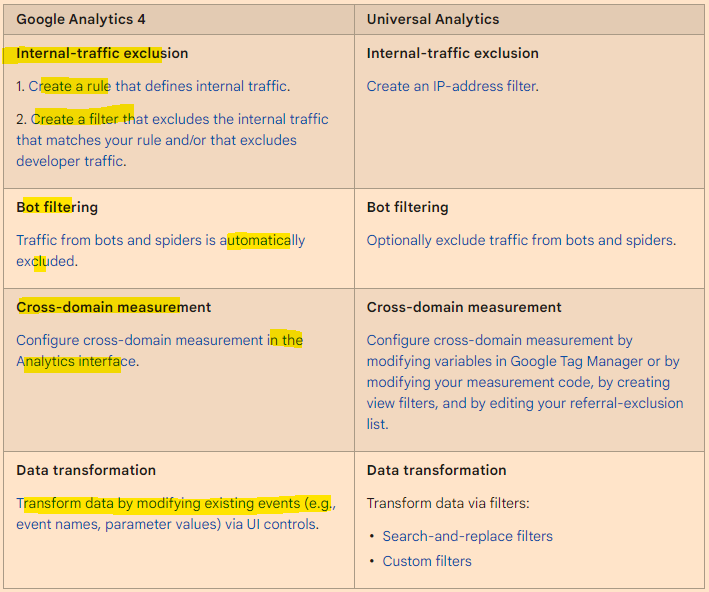
Analytics collects and stores user interactions with your website or your app as events. Events provide insight into what’s happening on your website or app, such as page views, button clicks, user actions, or system events.

Conversions

It’s easy to create conversions, from events.

Got to EVENTS in the side-bar/menu on the left of GA4, then “All events”.

You can then mark existing events as conversions:

See also:

GA 4 SEO Reports – for step by step instructions on setting up some useful SEO reports in Google Analytics 4
Data Studio – Quick Tips (Advanced)

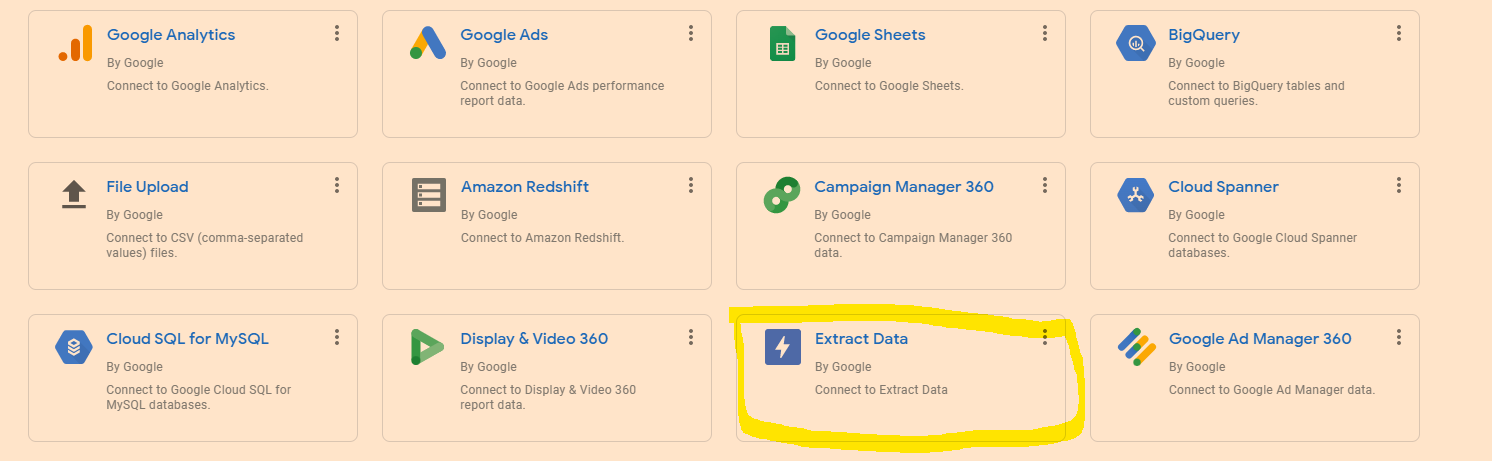
Speed Up Data Studio Reports (Significantly) – Extract Data

To speed up your reports – you can “Extract Data” and cache it.

It can help to have 2 copies of the report up – so you can see which metrics and dimensions you need to select when adding the data to extract and cache (also a good idea to test the extract data method on a copy of the report in case you faff anything up)

Go to “Add Data” in the top menu-bar

  • Click on “Extract Data”
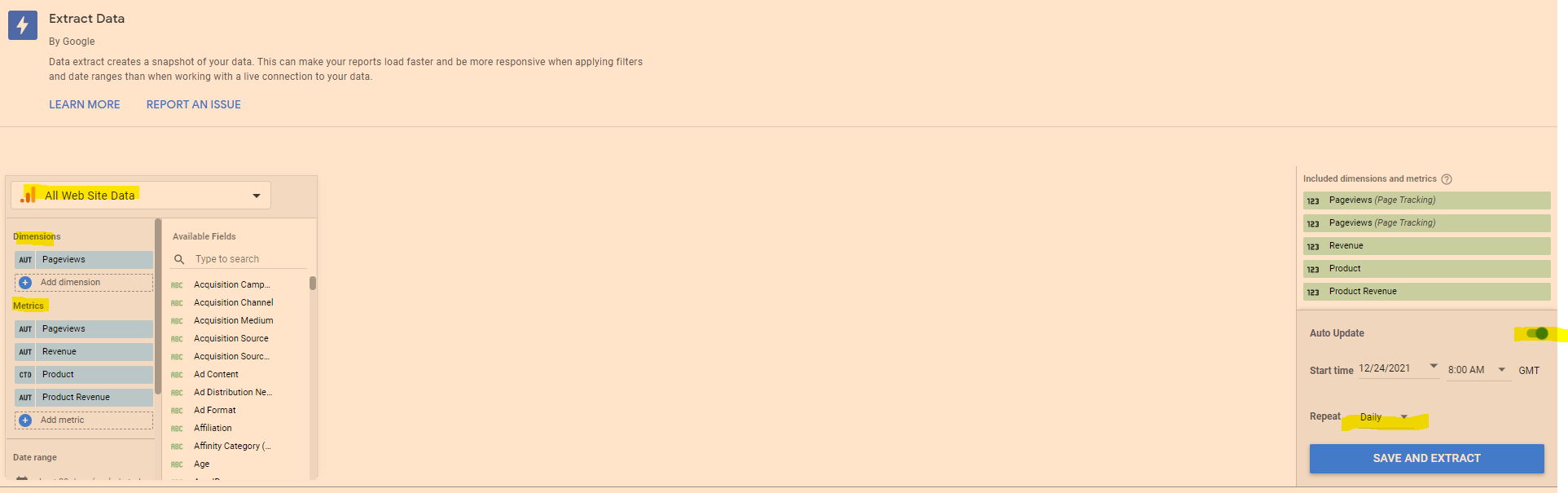
  • Choose the data you need – eg Google Analytics
  • Add the dimensions and metrics you need for the report
  • On the Right hand side – click to turn “Auto Update” on
  • Select “daily”
  • Click “Save and Extract”

Sometimes you have to faff around a bit with the dimensions – Google Analytics doesn’t seem to like caching a dimension, but still goes super-quick if you cache the metrics only.

Edit in Bulk

If you want to edit all of the charts or tables on the page, in “Edit” mode, right click – go to “Select” and then choose “Tables on page” or whatever type of chart, scorecard or table you’ve selected.

This works instead of CTRL clicking or SHIFT clicking – but you can only change charts or visualisations of the same type at the same time. You can change the style, add a comparison date range etc.

Brand Colour Theme in Data Studio

Click on “Them and Layout” at the top of the screen and then, near the bottom right click “Extract Theme from Image” – you can then upload your logo and choose a theme with your brand colours.

If your shite at presentation like me, this is helpful.

Copy & Paste Styles

In Data Studio – If you want to copy a style from a chart or table, right click it, then choose “copy”

Click another chart/table and the right click – Paste Special – Paste Style Only

Add Chart Filters to an Entire Report

If you want to add a filter to all the data in a report, then it can be a pain going through the charts individually.

Right click on a blank part of the page –

  • Click “Current Page Settings”
  • On the right hand side – click “Create a Filter”
  • Choose or create a filter to apply to all the page

To add a filter to multiple pages

  • Right click on a blank part of the page
  • click “Report Settings”
  • click “Add a filter” in the right side-menu

Add Elements to All Pages of a Report in Data Studio

If you want to add a header and date range selector, for example, to all the pages in the report – add the elements to a page, then right click on the element – and choose “Make report-level”

Quickly Align Elements in Data Studio

Click and drag to select all the elements

Right click – choose “align” – “middle” to get everything inline horizontally

To get an equal space between all the elements, so they’re spaced evenly:

– click and drag to select the elements

– right click – select “Distribute”

– “horizontally” to space evenly across the page, or “vertically” to distribute evenly in a vertical manner.

You can also tidy up individual tables to align the columns vertically – right click and select “”Fit to data”

See our Data Studio Fields & Filters blog post – https://businessdaduk.com/2021/12/15/data-studio-fields-filters-notes/

Data Studio Fields & Filters – Notes

Once you’ve created a field – add it to your chart as a Dimension

Mixed Case URLs

Having a mix of URL cases in the letters can faff with your data as D.S. might think each capitalisation variation is a new URL:

  • Click on the Data Tab to the right – then “Create new field” or “Add a Field”
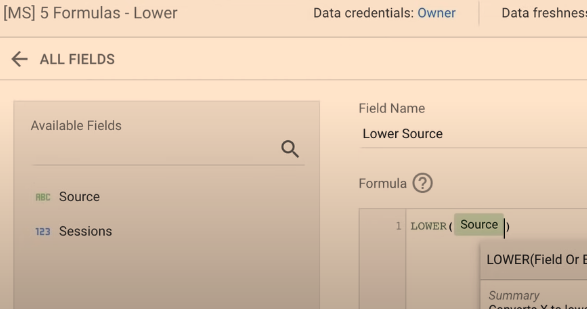
  • Name the field “Lower Source” type in “LOWER(“
  • Then add “Source” from “Available Fields” to the left
  • Click “Save” and add “Lower Source” to the table as a Dimension

Concatenate Data

  • Create or “Add a Field”
  • In the Formula box type “CONCAT” and then select the fields you want to use
  • Close the formula with the final “)” and save it

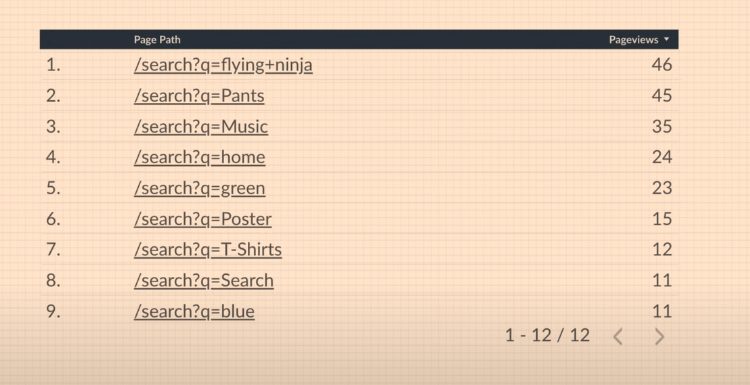
Internal Site Searches – Extract Search Query

Make the data look nicer and get the search term on its own in the table.

  • Select to a “Add a Field”
  • Use REGEXP_EXTRACT formula to pull out the search terms and get rid of “/search?q”
  • Use the REGEX shown below:

Search Queries – Pull Out Questions – What, Why, When?

  • Create / Add a New Field
  • Add REGEX as shown below and save
  • Add New Field as a Dimension to the table
  • Create a table/data Filter so that you include only table rows that equate to “True” in the new dimension/column

CASE Formulas in Data Studio

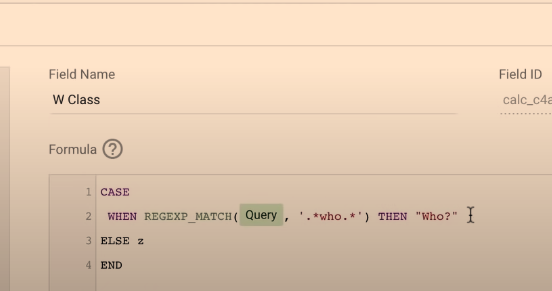
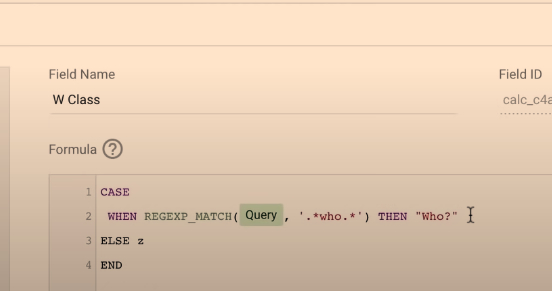
CASE formulas are basically “If this, then do that” formulas

When X happens, Then do Y

You can use the CASE Formula to classify and group channels together

For example:

WHEN query matches “who”, then display text “Who?” in the table

  • In the Formula – you need a “catch all” default for when nothing is true in the criteria
  • If the search doesn’t contain “who, what, why” etc. then:
    ELSE “others”

    So if the search term, doesn’t match any of the REGEX criteria – classify it as “others”
– Save the CASE statement
  • Add the new field – to the table or report

Date Ranges & Filter Controls

Taken me ages to work this out – I’ve only just twigged:

You can add Comparisons, Search Boxes, Drop Down Menus and all sorts to your Data Studio Reports

For controls and filters to work – you need the chart or table to have “Default Date Range” set to “Auto”

See my post about REGEX for SEO here.

Ta

If you want a pre-made Data Studio template, you can send me some money and hope for the best.

Online Marketing for New Businesses

Started a business?

Got a website?

Okay, now you need to look at building your brand and getting traffic and engagement on your website and social media accounts.

Website Checklist

  • Trust signals – include membership badges, university logos, awards ètc prominently
  • Humanize the site – include images and videos of people who work for the business
  • Social Proof – include reviews and testimonials. TrustPilot and video testimonials work well
  • Site Speed – make sure the site is quick and works perfectly on mobile devices
  • EAT – Expertise Authority & Trust – show your credentials on the about us page
  • Contact Form – Make it as easy as possible to be contacted
  • Trust & Transparency – Include full contact info if possible – address, tel number, email
  • Have you got Google Analytics & Search Console installed?

You will also need to think about the colour scheme and imagery.

Think about what mood you want to portray

https://www.bedtracks.com/blog/2017/6/15/how-to-coordinate-music-with-the-colour-in-your-video

For lead generation websites, if you are a local tradesman for example, you’ll want a Call to ACTION button on the homepage, and probably all of your other pages – a Contact Now button for example

Homepage Call to Action

  • Strong Call To Action

You will probably want a “Call to Action” or “CTA” button, such as “Buy Now”, “Learn More” or “Contact Us”

This CTA button is generally placed “above the fold” on most pages, so that people don’t have to scroll down or look for a way to get in touch or buy from you.

“Join Free for a Month” – is the CTA on Netflix’s homepage (at the time of writing)

For more expensive, high end or though-out purchases such as – buying a car or contacting a therapist, sometimes it’s better to have the CTA below the fold. The best thing to do is test it, with Google Optimize.

For more information about “Conversion Rate Opimization” (CRO), see this article:

https://blog.hubspot.com/marketing/conversion-rate-optimization-guide

For a full SEO (Search Engine Optimization) checklist for your website – to help get visibility on Google – see this article – https://backlinko.com/seo-checklist

Google My Business

Register your website and your office with Google My Business

You can go through the steps here:

https://www.google.com/intl/en_uk/business/

Google will send out a postcard to your office (or home) address

The postcard has a code – so you can confirm you are at that address

Local Directories

Register your business with high quality, local directories such as

  • Bing Places
  • Yelp
  • Yell
  • Free Index
  • Open Di

Try and get on any local government directories too.

Social Media & Captioned Videos

If relevant, register your business on:

  • Linkedin
  • Facebook
  • Instagram
  • TikTok


    Arguably the best way to get noticed on social media at the moment, is to create videos with captions – so they can be watched on mute.

Linkedin is said to have the greatest organic reach at the moment too – meaning you can get your video, image or text-post in front of more people, without paying for ads.

Social media sites like people posting videos too – because they drive a high rate of engagement and keep people on the site for longer.

  • Do NOT post to YouTube and then post a link on social media

Instead – upload your video direct to the platform.

For example, if you have a Facebook page, upload the video directly to Facebook, so that Facebook hosts the video and not YouTube.

Social media sites will tend to kill your reach if you post a link – they don’t want people to click and leave their website

YouTube is also showing on more and more Search Results Pages on Google.

Consider creating a YouTube channel with lots of informative, helpful and entertaining content.

You can then edit the videos and post to specific social media platforms.

Find out the pain point of your target audience and create video content that helps with those pain points.

Take long form videos and edit them into YouTube shorts, and shorter clips for social media.

If you work in b2b for example, you could do a webinar on digital marketing for small businesses, create some 1 minute highlights of the most informative points and create a YouTube short, and create lists of 30 second clips for tiktok, Facebook, twitter, Instagram and LinkedIn.

Make sure you add captions to your videos for social media!

80% of social media videos ate watched muted.

Jab, Jab, Jab – Right Hook

General principle of content and social media marketing by Gary V.

Identify your target market

Identify their issues and pain points

Post helpful content related to their pain points and problems

Do NOT constantly promote your business – slip in the odd “Right Hook”, every 3 or 4 posts

People do not want to be sold to constantly, they want helpful, insightful and funny content.

For example.

If you target market is small business owners, take a look on Quora and Reddit and see what people are talking about. If a common theme is Facebook advertising for example, make some helpful videos and blog posts about Facebook marketing.

SEO, PPC and More

The above is just a foundation.

If you have the time and resources, you will ideally produce lots of insightful blog content, earn lots of inbound links and work your way to the top of Google.

You will also want to consider “PPC” – Pay Per Click ads on Google, Facebook and Linkedin.

One beginner mistake to avoid with ads – is sending people to your homepage.

Have a specific “landing page” for each advertising campaign.

oh – make sure you have a good looking logo too. You can use Canva or hire someone on PeoplePerHour.com

Google ads is changing all the time, but generally speaking you’ll want to use exact match keywords and create very specific ads for each keyword or group of keywords.

A good place to start with SEO is to check your website using an On-Page SEO Checklist.

Videos can also be used as aa way to gain presen o Google.

Videos are great for social media, and YouTube is also starting to show more and more often in the Google results. I would personally have a good go at gaining an online presence using videos and social media – particularly Linkedin at the moment.

Build a Brand

Here’s a good article that some hero wrote about building your brand as a small business

  • Nail down your USP
  • Identify other propositions “why use me/us and not the competitor?”
  • Write down your brand story
  • Use high quality photography & videography (avoid stock pictures)

Consider making customer support a key element of your brand – this can help with online reviews too. Pre-purchase, purchase and post-purchase consumer stages are all opportunities to impress and help.

Get Content Ideas from Competitor Websites (SEMRush)

Requires:

  • SEMRush
  • A computer
  • The internet

If competitor has articles and blog posts inside a subfolder e.g. “buyers-guides” or “/blog” – make a note of the sub-folder name

  • Add Competitor’s homepage URL in “Search Bar” on SEMRush Homepage
  • Click “Organic Research”
  • Click on the “Positions” tab
  • Click on “Advanced Filter” and add the subfolder name e.g. “blog” as a URL filter
  • Export Results into Excel
  • Create a Pivot Table
  • Use the settings below – you’ll need to change position to “average” instead of “sum of”:
  • Tick the check-box for “URL” at the top
  • Drag search volume, traffic and position into “Values” box at the bottom right
  • Click the little arrow on the right of “Sum of Position” – go to “Value Field Settings” and choose “average”
  • Analyse which articles get the most traffic (approximately) and have most potential

Obvs. the URLs of my competitor have been blacked-out in the image above

If the competitor has all their articles at the root domain level e.g.

12 Best Weightlifting Belts of 2024 (Tested and Reviewed)

Just use SEMRush – Organic Research – Positions tab and download and pivot the pages data – no need for advanced filter

  • Once you’ve found the blog posts with the most traffic, you can analyse the “Exact URL” in SEMRush
  • This analysis, should show you the keywords on the page that generate most of the search traffic
  • I personally like to go after KWs with a Keyword Difficulty score of less than 20 for my personal blog and under 30 for my employer’s blog

You can also use Reddit & Quora for Content Ideas

Unsolicited #SEO tip: You can get great ideas for specific content ahead of features like PAAs being generated by using Google site operators with specific sites. For instance, I can use the command:

site:reddit[dot]com/r/amateur_boxing “how do i”

or

site:reddit.com/r/bootroom “how do i”

To search just the amateur boxing subreddit for questions starting with “how do I?” You can apply this on any niche or on other sites like Quora to get up to the minute questions people are asking.

https://www.linkedin.com/posts/markseo_seo-activity-6902220002146275329-MNVS/

How to Create a Topic Cluster for SEO

Using Ahrefs with Wikipedia

  • Find the most relevant Wikipedia page, for example:

https://en.wikipedia.org/wiki/Association_football

  • Add the Wikipedia URL and click “submit”
  • Click “Copy to Clipboard”
  • Paste all the keywords/topics into a Google Sheet and remove any that aren’t relevant
  • In Ahrefs (or a similar tool like SEMRush’s KW Manager) – go to KW explorer
  • Paste in the keywords/topics
  • In Ahrefs – click “matching terms” then “Questions”

Using SEMRush with UGC

  • Copy the homepage URL of a UGC* website such as Pinterest or Quora
  • Put the URL in the main “search bar” in SEMRush
  • Go to “Organic Research” using the sidebar
  • Click “Positions”
  • Add a Keyword to the “Filter by Keyword” search box
  • Click a relevant Keyword in the table of results
  • Under “Questions” click “View all….”
  • Go back and click other relevant keywords
  • Click the “Questions” tab again – make a note or download all the relevant questions
  • Organise KWs and questions into main pillar posts and “cluster content”

See Hubspot’s article about Pillar Pages and Cluster Content – here

*UGC – User Generated Content

Sorting XML Sitemap URLs by Folder Depth

This can be handy if for example, you only want a list of products and they reside on folders that are 3 “/” deep into your URLs/Domain

For example:

  • Myshop.com/categorypages/subcategorypage/productpage/

I only want the URLs that reside at the third level – i.e. /productpage/

  1. Go to your XML sitemap – usually at Myshop.com/sitemap.xml
  2. Right click and “save as” – save on your computer
  3. Open Excel
  4. Go to the Developer Tab (you might need to add this as it’s not there by default)
  5. Click “Import”
  6. Browse to find your sitemap.xml and import it into Excel
  7. This usually pulls all your URLs into column 1 and other info like priority into separate columns
  8. Delete all the columns except the first one with your URLs in it
  9. Remove the https:// from the URLs with “find and replace” – On “Home” tab under “Find & Select” on the right
  10. In cell B2 add the function: (change A2 – to the cell you have put the first URL in)
=LEN(A2)-LEN(SUBSTITUTE(A2,"/",""))

11. Drag the formula down the rest of column B

12. You can now order column B by the number of “/” found in each URL

If different categories have different folder structures then you can conditionally format and use different colours for different categories and then do a multiple criteria sort – by colour, then folder depth (column B)

You can download an example spreadsheet with the formula in here

Advanced SEO Technical Audit Template- 2023 [Downloadable Excel Checklist]

The idea of technical SEO is to minimise the work of bots when they come to your website to index it on Google and Bing. Look at the build, the crawl and the rendering of the site.

To get started:

  • Crawl with Screaming Frog with “Text” Rendering – check all the structured data options so you can check schema (under Configuration – Spider – Extraction)
  • Crawl site with Screaming Frog with “JavaScript” rendering also in a separate or second crawl
  • Don’t crawl the sitemap.xml

This allows you to compare the JS and HTML crawls to see if JS rendering is required to generate links, copy etc.

  • Download the sitemap.xml – import into Excel – you can then check sitemap URLs vs crawl URLs.
  • Check “Issues” report under Bulk Export menu for both crawls

Also download or copy and paste sitemap URLs into Screaming Frog in list mode – check they all result in 200 status

Full template in Excel here – https://businessdaduk.com/wp-content/uploads/2023/10/seo-tech-audit-template-12th-october-2023.xlsx

Schema Checking Google Sheet here

Hreflang sheet here (pretty unimpressive sheet to be honest)

Tools Required:

  • SEO Crawler such as Screaming Frog or DeepCrawl
  • Log File Analyzer – Screaming Frog has this too
  • Developer Tools – such as the ones found in Google Chrome – View>Developer>Developer Tools
  • Web Developer Toolbar – giving you the ability to turn off Javascript
  • Search Console
  • Bing Webmaster Tools – shows you geotargetting behaviour, gives you a second opinion on security etc.
  • Google Analytics – With onsite search tracking *

    *Great for tailoring copy and pages. Just turn it on and add query parameter

Summary:

Perform a crawl with Screaming Frog – In Configuration – Crawl – Rendering – Crawl once with Text only and once with JavaScript

Check indexation with site: searches including:

site:example.com -inurl:www

site:*.example.com -inurl:www

site:example.com -inurl:https

Search screaming frog crawl – for “http:” on the “internal” tab – to find any unsecure URLs

*Use a chrome plug in to disable JS and CSS*

Check pages with JS and CSS disabledAre all the page elements visible? Do Links work?

Configuration Checks

Check all the prefixes – http, https and www redirect (301) to protocol your using – e.g. https://www.

Does trailing slash added to URL redirect back to original URL structure?

Is there a 404 page?

Robots & Sitemap

Is Robots.txt present?

Is sitemap.xml present? (and in the sitemap)

Is Sitemap Submitted in S.C.?

X-robots present?

Are all the sitemaps naming conventions in lower case?

Are the URLs correct in the sitemap – correct domain and correct URL structure?

Do sitemap URLs all 200? (including images)
List Mode in Screaming Frog – “Upload” – Download sitemap – “ok”

For site migrations check – Old sitemap and Crawl Vs New – For example, Magento 1 website sitemap vs Magento 2 – anything missing or added – what are status codes?


Status Codes – any 404s or redirects in SCreaming Frog crawl?

Rendering Check – Screaming Frog – also check pages with JS and CSS disable. Check links are present and work

Are HTML Links and H1s in the rendered HTML – check URL Inspection in Search Console or Mobile Friendly text?

Do pages work with JS disabled – links and images visible etc?

What hreflang links are present on the site?

Schema – Check all schema reports in Screaming Frog for errors

Sitemap Checks
Are crawl URLs missing from the sitemap? (check sitemap Vs crawl URLs that 200 and are “indexable”

Site: scrape
How many pages are indexed?

Do all the scraped URLs result in a 200 status code?

H1s
Are any duplicate H1s?
Are any pages missing H1s?
Any multiple H1s?

Images
Are any images missing alt text?
Are any images too big in terms of KB?

Canonicals
Are there any non-indexable canonical URLs?

Check canonical URLs aren’t in the server header using http://www.rexswain.com/httpview.html or https://docs.google.com/spreadsheets/d/1A2GgkuOeLrthMpif_GHkBukiqjMb2qyqqm4u1pslpk0/edit#gid=617917090
More info here – https://www.oncrawl.com/technical-seo/http-headers-and-seo/

Are any canonicals canonicalised?
e.g. pages with different canonicals that arent simples/config products

URL structure Errors

Meta Descriptions
Are any meta descriptions too short?
Are anymeta descriptions too long?
Are any meta descriptions duplicated?

Meta Titles
Are any meta titles too short?
Are anymeta titles too long?
Are any meta titles duplicated?

Robots tags blocking any important pages?

Menu
Is the menu functioning properly?

Pagination
Functioning fine for UX?
Canonical to root page?


Check all the issues in the issues report in Screaming Frog

PageSpeed Checks
Lighthouse – check homepage plus 2 other pages

GTMetrix

pingdom

Manually check homepage, listing page, product page for speed

Dev Tools Checks (advanced)
Inspect main elements – are they visible in the inspect window? e.g. right click and inspect the Headings – check has meta title and desc
Check on mobile devices
Check all the elements result in a 200 – view the Network tab

Console tab – refresh page – what issues are flagged?
Unused JS in the elements tab – coverage

other Checks

Has redirect file been put in place?
Have hreflang tags for live sites been added?
Any meta-refresh redirects!?


Tech SEO 1 – The Website Build & Setup

The website setup – a neglected element of many SEO tech audits.

  • Storage
    Do you have enough storage for your website now and in the near future? you can work this out by taking your average page size (times 1.5 to be safe), multiplied by the number of pages and posts, multiplied by 1+growth rate/100

for example, a site with an average page size of 1mb with 500 pages and an annual growth rate of 150%

1mb X 1.5 X 500 X 1.5 = 1125mb of storage required for the year.

You don’t want to be held to ransom by a webhost, because you have gone over your storage limit.

  • How is your site Logging Data?
    Before we think about web analytics, think about how your site is storing data.
    As a minimum, your site should be logging the date, the request, the referrer, the response and the User Agent – this is inline with the W3 Extended Format.
log file analyzer

When, what it was, where it came from, how the server responded and whether it was a browser or a bot that came to your site.

  • Blog Post Publishing
    Can authors and copywriters add meta titles, descriptions and schema easily? Some websites require a ‘code release’ to allow authors to add a meta description.
  • Site Maintenance & Updates – Accessibility & Permissions
    Along with the meta stuff – how much access does each user have to the code and backend of a website? How are permissions built in?
    This could and probably should be tailored to each team and their skillset.

    For example, can an author of a blog post easily compress an image?
    Can the same author update a menu (often not a good idea)
    Who can access the server to tune server performance?

Tech SEO 2 – The Crawl

  • Google Index

Carry out a site: search and check the number of pages compared to a crawl with Screaming Frog.

With a site: search (for example, search in Google for site:businessdaduk.com) – don’t trust the number of pages that Google tells you it has found, scrape the SERPs using Python on Link Clump:

Too many or too few URLs being indexed – both suggest there is a problem.

  • Correct Files in Place – e.g. Robots.txt
    Check these files carefully. Google says spaces are not an issue in Robots.txt files, but many coders and SEOers suggest this isn’t the case.

XML sitemaps also need to be correct and in place and submitted to search console. Be careful with the <lastmod> directive, lots of websites have lastmod but don’t update it when they update a page or post.

  • Response Codes
    Checking response codes with a browser plugin or Screaming Frog works 99% of the time, but to go next level, try using curl and command line. Curl avoids JS and gives you the response header.

Type in Curl – I and then the URL

e.g.

curl – I https://businessdaduk.com/

You need to download cURL which can be a ball ache if you need IT’s permission etc.

Anyway, if you do download it and run curl, your response should look like this:

Next enter an incorrect URL and make sure it results in a 404.

  • Canonical URLs
    Each ‘resource’ should have a single canonical address.

common causes of canonical issues include – sharing URLs/shortened URLs, tracking URLs and product option parameters.

The best way to check for any canonical issues is to check crawling behaviour and do this by checking log files.

You can check log files and analyse them, with Screaming Frog – the first 1,000 log files can be analysed with the free version (at time of writing).

Most of the time, your host will have your logfiles in the cPanel section, named something like “Raw Access”. The files are normally zipped with gzip, so you might need a piece of software to unzip them or just allow you to open them – although often you can still just drag and drop the files into Screaming Frog.

The Screaming Frog log file analyser, is a different download to the SEO site crawler – https://www.screamingfrog.co.uk/log-file-analyser/

If the log files are in the tens of millions, you might need to go next level nerd and use grep in Linux command line

Read more about all things log file analysis-y on Ian Lurie’s Blog here.

This video tutorial about Linux might also be handy. I’ve stuck it on my brother’s old laptop. Probably should have asked first.

With product IDs, and other URL fragments, use a # instead of a ? to add tracking.

Using rel-canonical is a hint, not a directive. It’s a work around rather than a solution.

Remember also, that the server header, can override a canonical tag.

You can check your server headers using this tool – http://www.rexswain.com/httpview.html (at your own risk like)


Tech SEO 3 – Rendering & Speed

  • Lighthouse
    Use lighthouse, but use in with command line or use it in a browser with no browser add-ons.If you are not into Linux, use pingdom, GTMetrix and Lighthouse, ideally in a browser with no add-ons.

    Look out for too much code, but also invalid code. This might include things such as image alt tags, which aren’t marked up properly – some plugins will display the code just as ‘alt’ rather than alt=”blah”
  • Javascript
    Despite what Google says, all the SEO professionals that I follow the work of, state that client-side JS is still a site speed problem and potential ranking factor. Only use JS if you need it and use server-side JS.

    Use a browser add-on that lets you turn off JS and then check that your site is still full functional.

  • Schema

Finally, possibly in the wrong place down here – but use Screaming Frog or Deepcrawl to check your schema markup is correct.

You can add schema using the Yoast or Rank Math SEO plugins

The Actual Tech SEO Checklist (Without Waffle)

Basic Setup

  • Google Analytics, Search Console and Tag Manager all set up

Site Indexation

  • Sitemap & Robots.txt set up
  • Check appropriate use of robots tags and x-robots
  • Check site: search URLs vs crawl
  • Check internal links pointing to important pages
  • Check important pages are only 1 or 2 clicks from homepage

Site Speed

Tools – Lighthouse, GTMetrix, Pingdom

Check – Image size, domain & http requests, code bloat, Javascript use, optimal CSS delivery, code minification, browser cache, reduce redirects, reduce errors like 404s.

For render blocking JS and stuff, there are WordPress plugins like Autoptimize and the W3 Total Cache.

Make sure there are no unnecessary redirects, broken links or other shenanigans going on with status codes. Use Search Console and Screaming Frog to check.

Site UX

Mobile Friendly Test, Site Speed, time to interactive, consistent UX across devices and browsers

Consider adding breadcrumbs with schema markup.

Clean URLs

Image from Blogspot.com

Make sure URLs – Include a keyword, are short – use a dash/hyphen –

Secure Server HTTPS

Use a secure server, and make sure the unsecure version redirects to it

Allow Google to Crawl Resources

Google wants to crawl your external CSS and JS files. Use “Fetch as Google” in Search Console to check what Googlebot sees.

Hreflang Attribute

Check that you are using and implementing hreflang properly.

Tracking – Make Sure Tag Manager & Analytics are Working

Check tracking is working properly. You can check tracking coed is on each webpage with Screaming Frog.

Internal Linking

Make sure your ‘money pages’ or most profitable pages, get the most internal links

Content Audit

Redirect or unpublish thin content that gets zero traffic and has no links. **note on this, I had decent content that had no visits, I updated the H1 with a celebrity’s name and now it’s one of my best performing pages – so it’s not always a good idea to delete zero traffic pages**

Consider combining thin content into an in depth guide or article.

Use search console to see what keywords your content ranks for, what new content you could create (based on those keywords) and where you should point internal links.

Use Google Analytics data regarding internal site searches for keyword and content ideas 💡

Update old content

Fix meta titles and meta description issues – including low CTR

Find & Fix KW cannibalization

Optimize images – compress, alt text, file name

Check proper use of H1 and H2

See what questions etc. are pulled through into the rich snipetts and answer these within content

Do you have EAT? Expertise, Authority and Trust?

https://www.semrush.com/blog/seo-checklist/

You can download a rather messy Word Doc Template of my usual SEO technical checklist here:

https://businessdaduk.com/wp-content/uploads/2021/11/drewseotemplate.docx

You can also download the 2 Excel Checklists below:

https://businessdaduk.com/wp-content/uploads/2022/07/teechnicalseo_wordpresschecklist.xlsx

https://businessdaduk.com/wp-content/uploads/2022/07/finalseochecks.xlsx

Another Advanced SEO Template in Excel

It uses Screaming Frog, SEMRush and Search Console

These tools (and services) are pretty handy too:
https://tamethebots.com/tools

SEO – Use Search Console to Create Blog Posts that Rank

Go to search console

  • Click “Performance” in the side bar
  • Click “Position”
  • Click “Pages” (near the bottom-third of the page on the left)
  • Click on a high-performing post in terms of Impressions and Clicks in google
  • With the specific page/post selected, click on queries
  • Make a note of all relevant queries in the top 100
  • See if these queries can be added to the ranking post
  • Find any queries that are not directly related to your post
  • Create a new post specifically about this/these queries (if you rank for it without a specific post – you’ll rank better with a specific post for that query)
  • In the original post – put an internal link to the new post

How to Scrape Google SERPs (No Coding)

Add the Chrome Extension – Linkclump – https://chrome.google.com/webstore/detail/linkclump/lfpjkncokllnfokkgpkobnkbkmelfefj?hl=en

Go to the options in Linkclump – click “Edit” in the “Actions” section

Change to Copy links to Clipboard instead of open in new Tabs

Do your search

Zoom out to see more results

Change Google settings to see 100 results per page

Hold down Z and click and drag over results

Paste into a google sheet