| SEO Checklist: |
| Product Title Optimization |
| Include the main keyword naturally. |
| Keep titles concise but descriptive. |
| Meta Title and Meta Description |
| Write a compelling meta title (60-70 characters) with the main keyword. |
| Create a unique and engaging meta description (150-160 characters) with a call to action and relevant keywords. |
| URL Structure |
| Use clean and descriptive URLs with relevant keywords. |
| Avoid unnecessary parameters and ensure URLs are short. |
| Header Tags (H1, H2, H3, etc.) |
| Use one H1 tag for the product title. |
| Structure content with subheadings (H2, H3) for different sections. |
| High-Quality Product Descriptions |
| Write unique, engaging, and detailed product descriptions (300+ words). |
| Naturally incorporate relevant keywords. |
| Highlight features, benefits, and use cases. |
| Product Images and Alt Text |
| Use high-resolution, web-optimized images. |
| Add descriptive, keyword-rich alt text for images. |
| Include multiple angles or lifestyle images. |
| Structured Data Markup (Schema) |
| Implement product schema for price, availability, reviews, etc. |
| Use JSON-LD for structured data. |
| Internal Linking |
| Link to related products or categories. |
| Include “frequently bought together” and “related products” sections. |
| Mobile-Friendliness |
| Ensure the product page is fully responsive and optimized for mobile users. |
| Test on multiple devices. |
| Page Load Speed |
| Optimize images and use compression. |
| Minimize CSS, JavaScript, and HTML. |
| Use a content delivery network (CDN). |
| Canonical Tags |
| Implement canonical tags to prevent duplicate content issues. |
| Keyword Usage |
| Use keywords naturally in the title, description, URL, headings, and body text. |
| Avoid keyword stuffing. |
| User Reviews and Ratings |
| Display user-generated content like reviews and star ratings. |
| Use schema markup for review ratings. |
| Social Sharing Buttons |
| Provide social sharing options for easy promotion. |
| Breadcrumbs |
| Use breadcrumb navigation to enhance site structure and user experience. |
| UX Checklist: |
| Clear Call to Action (CTA) |
| Use prominent and persuasive “Add to Cart” or “Buy Now” buttons. |
| Ensure CTA buttons are highly visible. |
| Product Images |
| Include multiple images and zoom functionality. |
| Offer a gallery of images showing different angles and context. |
| Product Information |
| Display essential details (price, size, color, availability) prominently. |
| Offer accurate and up-to-date stock information. |
| Shipping Information |
| Provide clear and transparent shipping details, including delivery times and costs. |
| Product Variations |
| Offer a seamless selection process for colors, sizes, or other variations. |
| Use clear dropdown menus or buttons. |
| Customer Reviews and Ratings |
| Allow customers to leave reviews. |
| Include user-generated content for social proof. |
| Related Products |
| Display recommended, cross-sell, or upsell products. |
| Use “Customers Also Viewed” or “Frequently Bought Together” sections. |
| Return Policy Information |
| Clearly outline the return policy on the product page. |
| Trust Signals |
| Include security badges, accepted payment icons, and other trust symbols. |
| Show testimonials or guarantees if applicable. |
| Easy Navigation |
| Ensure intuitive breadcrumb trails. |
| Use filters and sorting options for larger catalogs. |
| User-Friendly Design |
| Use white space effectively to improve readability. |
| Ensure buttons and interactive elements are appropriately sized. |
| FAQ Section |
| Provide answers to common questions about the product. |
| Accessibility Compliance |
| Follow accessibility guidelines (e.g., alt text, ARIA labels). |
| Test for screen reader compatibility. |
| Wishlist or Save for Later Feature |
| Offer options to save the product for future reference. |
| Live Chat or Support Options |
| Provide real-time assistance through chat or customer support links. |
| Easy Checkout Process |
| Minimize steps to purchase. |
| Offer guest checkout and multiple payment options. |
| Stock Notifications |
| Include “Back in Stock” or “Low Stock” alerts. |
Category: seo
Scraping JSON Schema with Screaming Frog Custom Extraction [2025]
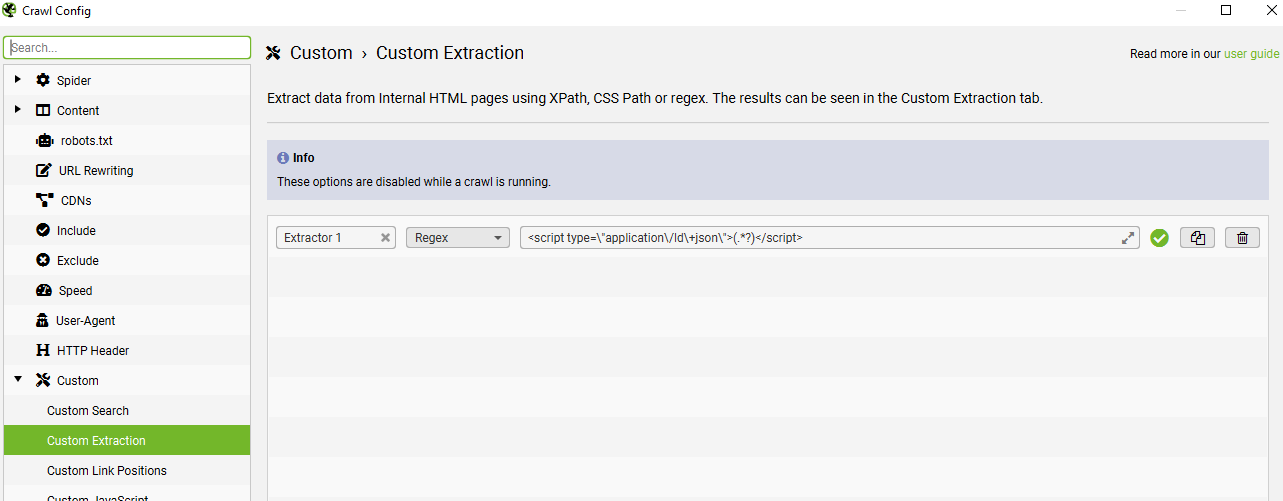
If you go to Menus – configuration > Custom > Custom Extraction

Click the +Add button on the bottom right and choose “Regex” from the drop-down menu, which is to the right of “Extractor 1” text box.
Add the code below, in the box/field to the right of “Regex”.
<script type=\"application\/ld\+json\">(.*?)</script>
I’m using the code below, to extract product schema only – I can export to excel and filter the URLs containing product schema, but don’t have the aggregaterating:
<script type=\"application\/ld\+json\">(.*?"@type":\s*"Product".*?)<\/script>
Scrape Product Schema & Identify Missing Fields
(Product Schema missing aggregateRating field in this case)
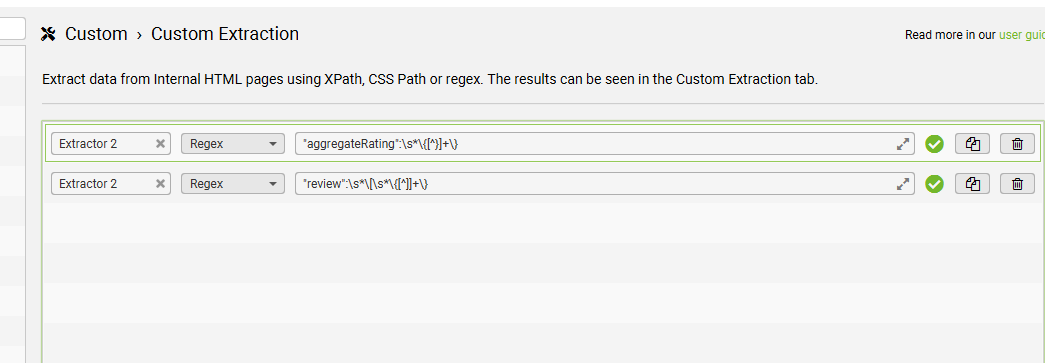
- Turned out easier to use this regex to identify all the URLs that have aggregateRating fields:
"aggregateRating":\s*\{[^}]+\}
- and set up a second custom extraction to check for URLs/pages with any reviews –
"review":\s*\[\s*\{[^]]+\}
If the page had review schema, but not aggregateRating – then we needed to fix them.

Config File Explained for Non-Coder [2024]
The Magento configuration file is a critical document that contains important settings and directives for the operation of the Magento website. It acts as a site control panel where relevant information is stored and managed. As an SEO professional, even without a strong background in coding or server management, a basic understanding of this file can enable you to understand how the various technical aspects of a website work.
Here is a division of its purpose and functionality:
Stores basic settings: The Magento configuration file records key information such as database details (including data on products, customers and orders), security protocols, and caching mechanisms that affect site speed.
Regulates functionality: Directs Magento behavior by specifying preferences such as the language used, the currency displayed, and the activation status of certain features.
SEO considerations: URL structure: Some configurations affecting URL generation on a site can be managed here, which contributes to a cleaner, more optimized URL layout.
MTPuTTY Explained for Beginners (non-coders)
MTPuTTY (Multi-Tabbed PuTTY) is a tool that helps manage multiple server connections at the same time.
Here’s how it works in a simple, non-technical way:
By allowing users to open several tabs, MTPuTTY streamlines the process of connecting to various remote servers without the hassle of switching between different windows or applications. This means that you can seamlessly work on multiple projects concurrently, enhancing productivity and efficiency. Each tab operates independently, so you don’t lose your connection when navigating between tasks. Additionally, MTPuTTY provides a user-friendly interface, making it easier for newcomers to grasp the basic functionalities, while still offering advanced features for experienced users. This combination of simplicity and versatility makes MTPuTTY an invaluable tool for anyone who needs to maintain numerous server connections at once.
- What is PuTTY?: PuTTY is software that enables developers or server administrators to connect to a server remotely, such as accessing the back-end of a Magento website to make changes or check performance.
- What does MTPuTTY do?: MTPuTTY is like an upgraded version of PuTTY that allows people to open multiple server connections at once in different tabs. It’s particularly useful for someone managing several servers, because it keeps everything organized and easily accessible.
- How is it relevant to you?:
- You won’t likely use it, but developers or technical SEO experts might. They use tools like this to access your website’s server and make behind-the-scenes optimizations that can impact website speed, performance, and security, all of which are important for SEO.
- For example, if your site is running slowly, they might use MTPuTTY to connect to your server and make improvements, which could help with SEO by improving site speed.
In summary: MTPuTTY is just a tool that helps manage technical tasks on servers. While you don’t need to know how to use it, it’s helpful to understand that your team might use this tool to maintain your website’s health, which indirectly affects SEO performance.
Google Search Console – Crawl Stats Report [2024]
Google follows links and sitemaps provided in search console to crawl websites.
Pages are revisited to check if they have changed
The crawlers needs to prioriterise what and when to crawl different pages, and different domains/websites.
Successfully crawled pages are passed to the index
Google computes crawl rate of your website – according to what traffic your site can handle.
Crawl Stats Report
Provides stats about Googles crawling of your site.
Looks out for errors and drops & spikes in graphs.

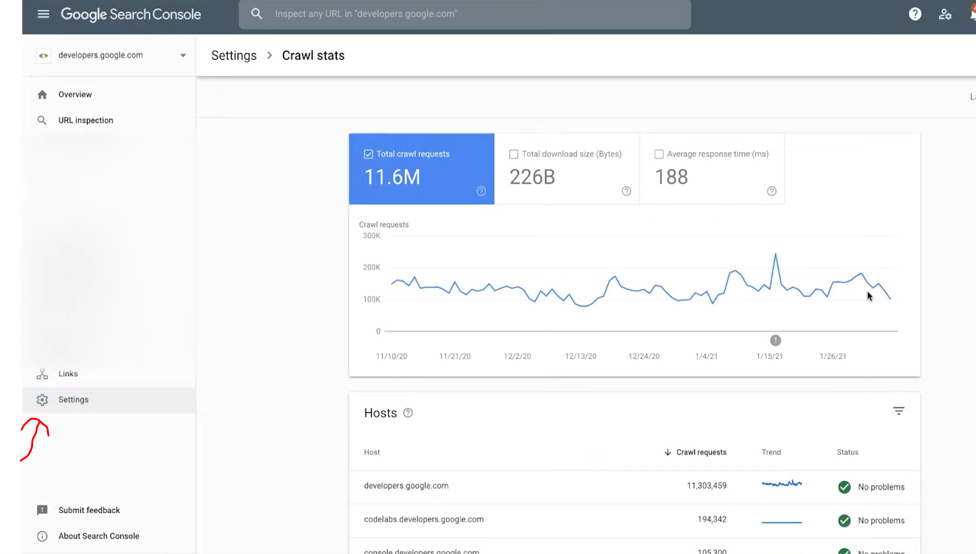
Login to Search Console and click on settings
THIS REPORT IS ONLY AVAILABLE FOR PROPERTIES AT THE DOMAIN LEVEL – that don’t include https etc in the address


Look for spikes and drops in the data
E.g. to determine if robots.txt has been updated incorrectly – if there’s a sudden drop.


That’s about it.
Oh, check your server/host is ‘working okay’ too –

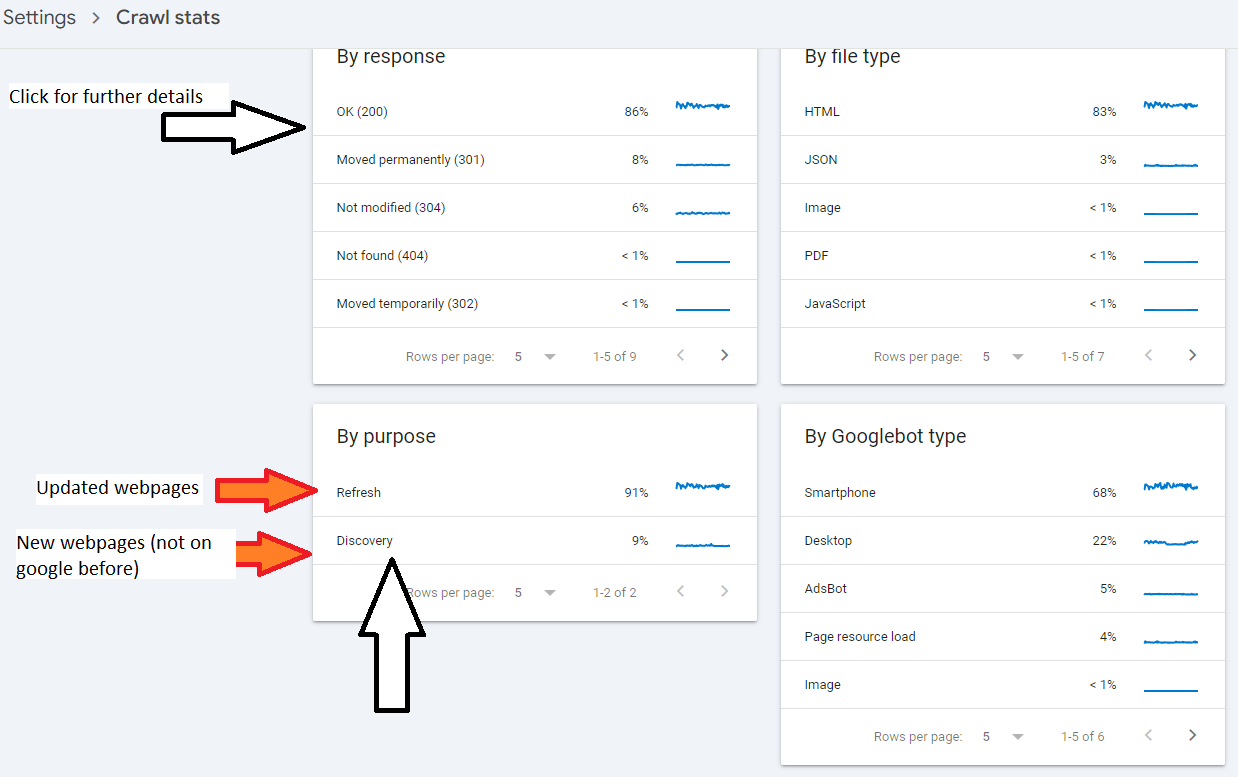
Find the above report by clicking “settings” on the left hand side-bar/menu > Crawl Stats > Choose a “host” in the middle panel (usually just your homepage address) > then “Host status”.
- It’s good to check crawl stats and average response time before and after a migration or redesign.
Average Response Time:
Under 200ms: Excellent. Site is well optimized for crawling by Google etc.
200ms-500ms: Acceptable. That’ll do pig, that’ll do.
500ms-1s: Slightly too slow, especially if your site is 1,000 pages+
Over 1 second: Too slow. You’re shit
SaleEvent Schema Example [2024]
Here’s an example for Black Friday:
It’s JSON format
{
"@context": "http://schema.org",
"@type": "SaleEvent",
"name": "Black Friday Mega Sale",
"startDate": "2024-11-29T00:00:00",
"endDate": "2024-11-29T23:59:59",
"eventAttendanceMode": "http://schema.org/OnlineEventAttendanceMode",
"location": {
"@type": "VirtualLocation",
"url": "https://www.yourstore.com/black-friday-sale"
},
"offers": {
"@type": "Offer",
"url": "https://www.yourstore.com/black-friday-sale",
"priceCurrency": "USD",
"price": "199.99",
"eligibleRegion": {
"@type": "Place",
"name": "United States"
},
"availability": "http://schema.org/InStock",
"validFrom": "2024-11-29T00:00:00"
},
"organizer": {
"@type": "Organization",
"name": "Your Store",
"url": "https://www.yourstore.com"
}
}
It’s listed as schema type recongised by Google, and it shows on SERPs

Business Audience Schema Example [2024]
{
"@context": "https://schema.org",
"@type": "WebPage",
"mainEntity": {
"@type": "BusinessAudience",
"audienceType": "Consumers",
"description": "Middle-class residents of the United Kingdom interested in purchasing t-shirts.",
"geographicArea": {
"@type": "AdministrativeArea",
"name": "United Kingdom"
},
"hasOfferCatalog": {
"@type": "OfferCatalog",
"name": "T-Shirts",
"itemListElement": [
{
"@type": "Offer",
"itemOffered": {
"@type": "Product",
"name": "T-Shirt"
}
}
]
},
"additionalType": "https://schema.org/Commerce",
"audience": {
"@type": "Audience",
"audienceType": "Middle-class",
"description": "Individuals with average to above-average income levels"
}
}
}
Here’s business Audience schema for a B2B business:
{
"@context": "https://schema.org",
"@type": "BusinessAudience",
"audienceType": "Business",
"numberOfEmployees": {
"@type": "QuantitativeValue",
"minValue": 50,
"maxValue": 500
},
"yearlyRevenue": {
"@type": "QuantitativeValue",
"minValue": 1000000,
"maxValue": 10000000
},
"geographicArea": {
"@type": "AdministrativeArea",
"name": "United States"
}
}
Crawling a Specific Folder / Part of Website with Screaming Frog (2026)
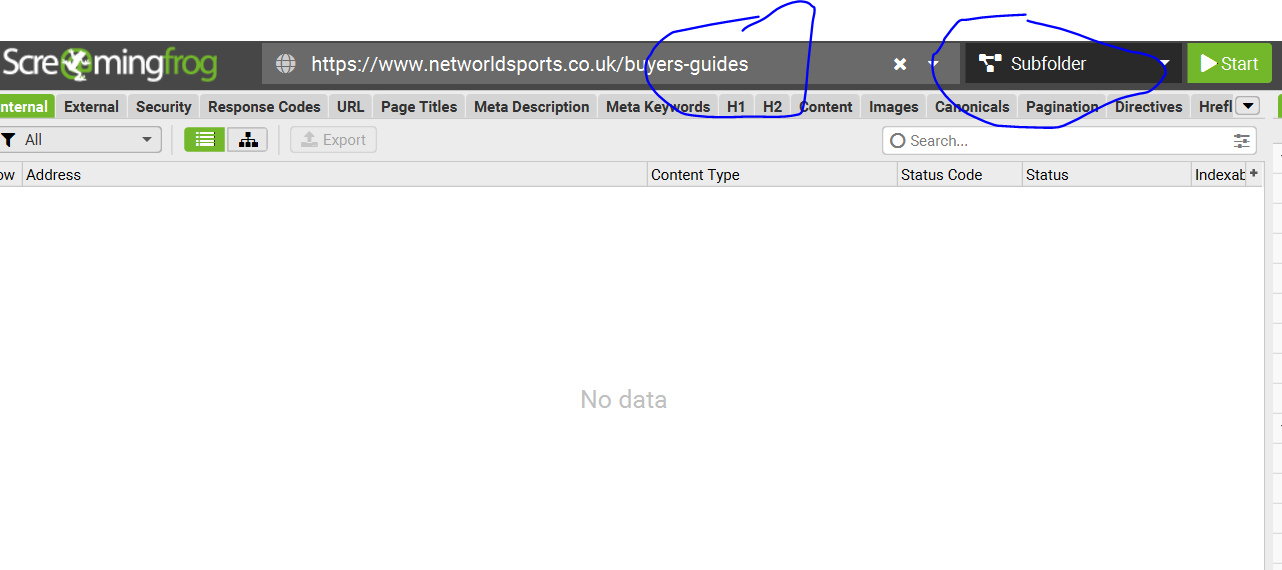
In normal crawl mode – add homepage URL to the main bar
In the top menu:
Click Configuration > Include and add folder with * at the end
E.g. to crawl just the cricket folder on a sports website add:
https://www.example.com/cricket.*


eCommerce Structured Data
E-commerce Example for Structured Data Carousels
Below are step by step instructions
You will need:
- A “summary” or “Product Listings Page” with structured data
- Structured data on the product pages themselves
At the time of writing, this feature is only available in EU countries.
Step 1: Choose and Implement a Summary Page
Create a summary page that lists multiple products, each linking to a detailed product page.
For example, a category page that lists “Top 5 Winter Coats.”
Step 2: Add Required Properties to the Summary Page
Add the ItemList structured data to your summary page. Here’s an example in JSON-LD format:
<html>
<head>
<title>Top 5 Winter Coats</title>
<script type="application/ld+json">
{
"@context": "https://schema.org",
"@type": "ItemList",
"itemListElement": [
{
"@type": "ListItem",
"position": 1,
"item": {
"@type": "Product",
"name": "Puffy Coat Series by Goat Coat",
"image": [
"https://example.com/photos/1x1/photo.jpg",
"https://example.com/photos/4x3/photo.jpg",
"https://example.com/photos/16x9/photo.jpg"
],
"offers": {
"@type": "AggregateOffer",
"lowPrice": 45.00,
"highPrice": 60.00,
"priceCurrency": "USD"
},
"aggregateRating": {
"@type": "AggregateRating",
"ratingValue": 4.9,
"reviewCount": 50
},
"url": "https://www.example.com/puffy-coats"
}
},
{
"@type": "ListItem",
"position": 2,
"item": {
"@type": "Product",
"name": "Wool Coat Series by Best Coats Around",
"image": [
"https://example.com/photos/1x1/photo.jpg",
"https://example.com/photos/4x3/photo.jpg",
"https://example.com/photos/16x9/photo.jpg"
],
"offers": {
"@type": "AggregateOffer",
"lowPrice": 189.00,
"highPrice": 200.00,
"priceCurrency": "USD"
},
"aggregateRating": {
"@type": "AggregateRating",
"ratingValue": 4.7,
"reviewCount": 827
},
"url": "https://www.example.com/wool-coats"
}
},
{
"@type": "ListItem",
"position": 3,
"item": {
"@type": "Product",
"name": "Antarctic Coat by Cold Coats",
"image": [
"https://example.com/photos/1x1/photo.jpg",
"https://example.com/photos/4x3/photo.jpg",
"https://example.com/photos/16x9/photo.jpg"
],
"offers": {
"@type": "Offer",
"price": 45.00,
"priceCurrency": "USD"
},
"aggregateRating": {
"@type": "AggregateRating",
"ratingValue": 4.9,
"reviewCount": 1290
},
"url": "https://www.example.com/antarctic-coat"
}
}
]
}
</script>
</head>
<body>
</body>
</html>
Step 3: Validate Your Code
- Rich Results Test: Validate your structured data using the Rich Results Test.
- URL Inspection Tool: Use the URL Inspection tool in Google Search Console to ensure your page is accessible and not blocked by
robots.txtornoindextags.
Step 4: Deploy Your Page
- Deploy your summary page and a few detail pages.
- Use the URL Inspection tool to request indexing of your new pages.
Step 5: Submit a Sitemap
- Create a sitemap including your summary and detail pages.
- Submit the sitemap through Google Search Console to ensure Google knows about all your pages.
Step 6: Follow Guidelines
- Ensure compliance with Search Essentials.
- Adhere to general structured data guidelines and specific requirements for carousel rich results.
Example Detail Pages
Each product linked from the summary page should have its own detail page with structured data. For example:
<html>
<head>
<title>Puffy Coat Series by Goat Coat</title>
<script type="application/ld+json">
{
"@context": "https://schema.org",
"@type": "Product",
"name": "Puffy Coat Series by Goat Coat",
"image": [
"https://example.com/photos/1x1/photo.jpg",
"https://example.com/photos/4x3/photo.jpg",
"https://example.com/photos/16x9/photo.jpg"
],
"description": "A stylish and warm puffy coat perfect for winter.",
"offers": {
"@type": "Offer",
"price": 45.00,
"priceCurrency": "USD",
"url": "https://www.example.com/puffy-coats"
},
"aggregateRating": {
"@type": "AggregateRating",
"ratingValue": 4.9,
"reviewCount": 50
}
}
</script>
</head>
<body>
</body>
</html>
That should be it!
Categorising Data – By Colour – In Excel (Using an IF statement)
Had to categorise some keywords, if there’s a quicker way of doing it – please let me know
- Paste keywords into column A
- In column D – Paste all relevant words for a category.
For example – I pasted all the words I could think of relating to gardening – such as “tree”, “fruit”, “garden”, “bush”, etc. – There were 18 words in total - In cell E2 paste the formula:
=IF(SUMPRODUCT(--ISNUMBER(SEARCH($D$1:$D$19,A2)))>0, "Contains value from range", "Does not contain value from range")
- Now drag the formula down
- Filter column E to “contains value for range”
- Colour in the keywords green – or a chosen, relevant colour

Add another list of relevant words – for example, above I have added sports, to highlight sports netting keywords.
Drag formula down and repeat
I found a quicker way – use Chat GPT and the prompt:
“please can you group these keywords by theme or words containing – e.g. keywords containing “golf”.
Please include the search volume.
The list is set out with a keyword – then a comma, – then the search volume for the keyword, – then a second comma – before the next keyword is listed
funny polo shirts , 170 ,
funny polo shirt , 30 ,
“
replace “funny polo shirts” with a list of your own keywords.