Reponsive Table

USA Goal Post Sizes by Age
AGEGOAL SIZE
UNDER 6/7/86FT X 4FT (1.8M X 1.2M)
UNDER 9/1018.5FT X 6.5FT (5.6M X 2M)
UNDER 11/1221FT X 7FT (6.4M X 2.1M)
12+ & SENIOR24FT X 8FT (7.3M X 2.4M)

This code appears to work:

 <!--table-->  
 <div style="margin-top: 30px; margin-bottom: 20px; width:570px; max-width: 100%;">
  <!--<div class="scroll-container scroll-x"> -->
   <div style="margin-top: 1px">
    <div>
    <table style= "margin-top: 0px; margin-bottom: 0px; padding-top: 0px; padding-bottom: 0px; text-align: center;     border-collapse: collapse; background-color:transparent; font-size: 13px; width:570px; max-width: 100%;">
    
   <tr>
     <th colspan="2" style="border: 1px solid #878681;background-color:transparent;font-size: 15px;"><strong>Maximum Goal Post Sizes by Age Recap
</strong></th></tr>
     <tr style=" border: 1px solid #878681;background-color:transparent; font-size: 14px;">
     <th style="border: 1px solid #878681;background-color:transparent;width:25%;">AGE</th>
     <th style="border: 1px solid #878681;background-color:transparent; width:25%;">GOAL SIZE</th>
   </tr>


   <tr style=" border: 1px solid #878681;background-color:transparent;">
    <td style="border: 1px solid #878681;background-color:#f8f8f8;">UNDER 6/7/8

</td>
    <td style="border: 1px solid #878681;background-color:transparent;">6FT X 4FT (1.8M X 1.2M)</td>     
   </tr>

   <tr style=" border: 1px solid #878681;background-color:transparent;">
    <td style="border: 1px solid #878681;background-color:#f8f8f8;">UNDER 9/10</td>
    <td style="border: 1px solid #878681;background-color:transparent;">18.5FT X 6.5FT (5.6M X 2M)</td>
    
   </tr>
   
   <tr style=" border: 1px solid #878681;background-color:transparent;">
    <td style="border: 1px solid #878681;background-color:#f8f8f8;">UNDER 11/12</td>
    <td style="border: 1px solid #878681;background-color:transparent;">21FT X 7FT (6.4M X 2.1M)</td>    
   </tr>

   <tr style=" border: 1px solid #878681;background-color:transparent;">
    <td style="border: 1px solid #878681;background-color:transparent;">12+ & SENIOR</td>
    <td style="border: 1px solid #878681;background-color:transparent;">24FT X 8FT (7.3M X 2.4M)

</td>
   </tr>


  </table>
    </div> 
  <!-- </div> -->
  </div>
 </div>
  
 <!--table-->       

Easy Way to Center-Align Elements, Like Images & shiz

Use margin:auto

For example:

<div style=”width: 45%; display: block; margin: auto;”>

Margin:auto – will automatically center align your element:

“Auto margin is used by Apple, Google, Stripe, and other design leaders as a way to horizontally center elements. By setting auto margin to an element that has a defined width, you can horizontally center the element within the boundary of its parent.”

Quote from Webflow

The width determines what percentage of the width of the page the element takes up

Not too sure what “block” does:

“display: block

An element that has the display property set to block starts on a new line and takes up the available screen width.”

Quote from freecodecamp

I think block helps make it responsive, not sure tho!

Just for fun, here’s the code and an example for a neatly aligned text and image layout:

New Logical Assignment Operators (2023)

Well, these were introduced in 2021, according to the Udemy course I am doing.

the “=” sign, assigns values to things

When there’s additional stuff, before the “=”, like “&&”; then some kind of logic has to be fulfilled before anything is assigned.

Two vertical lines, or pipes – “||” are the “OR” operators

Logical AND Assignment (&&=)

This logical assignment operator only assigns the value if the left-hand side is truthy.

In JavaScript, two ampersands (&&) in an assignment operator form a Logical AND assignment operator (&&=). This is a newer addition to JavaScript, introduced in ES2021.

Here’s how it works:

Let’s say we have two variables, a and b.

If we write a &&= b;, it is a shorter way of saying:

“If a is truthy, let’s assign the value of b to a.

If a is falsy, keep a as it is.”

A “truthy” value is a value that is considered true when evaluated in a Boolean context. All values are truthy unless they are defined as falsy—i.e., except for false, 0, -0, 0n, "", null, undefined, and NaN.

So, &&= is checking if the first value is truthy and if so, it assigns the second value to the first one. If the first value is falsy, it remains unchanged.

Screenshot from Geeksforgeeks

Logical OR Assignment (||=)

This logical assignment operator only assigns the value if the left-hand expression is falsy.

This can be useful in cases where we want to keep the existing value if it does not exist, otherwise we want to assign a default to it. 

The Logical OR Assignment (||=) is a shorthand way of performing a logical OR operation and an assignment in one step. This operator was introduced in JavaScript with the ES2021 specification.

Here’s a simple way to understand it:

Let’s say we have two variables, a and b. If we write a ||= b;, it’s a shorter way of saying: “If a is not truthy (meaning it’s false, null, undefined, 0, NaN, or an empty string ”), then assign the value of b to a. If a is truthy (meaning it has any value other than those falsy values), then keep a as it is.”

So, a ||= b; is essentially a shortcut for a = a || b;.

The Logical OR Assignment (||=) operator is a handy tool when you want to assign a default or fallback value to a variable if the initial value of the variable is not truthy.

screenshot source

Logical Nullish Assignment (??=)


I asked Chat GPT to explain the operator to me like I’m 10:

Alright kiddo, let’s have a little chat about this nifty tool in JavaScript called the Nullish Coalescing Assignment Operator, which is represented by ??=. Sounds pretty fancy, huh? Don’t worry, we’ll make it fun!

Imagine you’re playing a game of football with your mates. Now, you always need a ball to play, right? But sometimes, you might forget to bring your own ball to the game. In comes the Nullish Coalescing Assignment operator to save the day.

So, let’s say myBall is the ball you bring, and spareBall is a ball that’s always kept at the ground just in case. Now, you want to check if you’ve brought your ball. If you have, great, we use your ball (myBall) for the game. But, if you forgot your ball (meaning myBall is null or undefined), we then use the spareBall.

In JavaScript, we’d write this check as myBall ??= spareBall;. This means, “If I forgot my ball (myBall), let’s use the spareBall.”

So that’s it, bachgen (that’s ‘boy’ in Welsh)! The Nullish Coalescing Assignment Operator is like your safety net, always making sure you have a ball to kick around!

Screenshot from WisdomGeek

Logical Assignment OperatorsLogical Operators
x ||= yx || (x = y)
x &&= yx && (x = y)
x ??= yx ?? (x = y);

Nullish coalescing operator (??) in JavaScript (2023)

I asked chat GPT to explain the Nullish coalescing operator (??) to me, like I’m 10 years old:

Let’s imagine you have two boxes, one is called ‘boxA’ and the other is ‘boxB’.

Now, you’re told you can take a toy from boxA, but here’s the thing, sometimes boxA can be empty. If boxA is empty, you’re allowed to take a toy from boxB instead.

In JavaScript, this is what the nullish coalescing operator (??) does. If the value on its left side (boxA) is “null” or “undefined” (it’s empty), it’ll give you the value on the right side (boxB).

Let’s look at this in code:

let boxA = null;
let boxB = "Dinosaur Toy";

let myToy = boxA ?? boxB;
console.log(myToy);  // This will print: Dinosaur Toy

In this example, ‘boxA’ is null (it’s empty), so we move to ‘boxB’ and take the “Dinosaur Toy”.

But what if ‘boxA’ does have a toy?

let boxA = "Robot Toy";
let boxB = "Dinosaur Toy";

let myToy = boxA ?? boxB;
console.log(myToy);  // This will print: Robot Toy


Here, ‘boxA’ has a “Robot Toy”, so we take that and ignore what’s in ‘boxB’. It’s just like the rule we set at the start, we only check ‘boxB’ if ‘boxA’ is empty!

I hope that helps explain the nullish coalescing operator!

Notes from this video^

This operator works like the logical “or”, but is more strict

In this scenario, at the start of a game, the user has to provide the level of difficulty they want, and they also have the option of stating/providing at starting cash amount.

In this code, if they don’t provide a starting cash amount, they’ll get “500”

So the default for the “cash” is 500

If the user does provide a cash amount, then that gets used instead of the default.

Short Circuiting in JavaScript (2023)

I asked Chat GPT to explain Short Circuting in JavaScript to me like I was 10.
I also asked for some jokes to be thrown in the mix.

“Hey there kiddo! You know how when you’re playing video games and there’s a super long level, but you discover a secret shortcut and skip straight to the end? Well, that’s kinda what we do in Javascript with something called “Short Circuiting”.

We use two super cool signs, “&&” and “||“.

Okay, first let’s talk about the two “ands” – “&&”. It’s like you and your best friend are on a secret mission. You both need to do your parts for the mission to be successful. If one of you fails, the mission fails. In Javascript, both sides of “&&” must be true for the whole thing to be true.

If the first part is false, Javascript doesn’t even bother to check the second part, because it already knows the mission failed! (this is the short-circuiting – it just quits)

Now, let’s talk about the two “ors” – “||“. This is like saying, you can have an ice cream OR a cake for dessert. If you get ice cream, that’s great! You don’t need the cake anymore (although, cake is always good).

Similarly, in Javascript, if the first part of “||” is true, Javascript takes the shortcut and doesn’t bother checking the second part.

Here’s a geeky joke for you: Why don’t programmers like nature? It has too many bugs! And don’t forget, always be like Javascript’s “&&” and “||”. Take the shortest path and save your energy for more video games! 😉”

Yea, so after reading that, I’m none the wiser, so here’s some notes from a video that I found on YouTube…

If price is more than 500 and less than 2000

Then print “hello”

If both operands are true, then print hello.

The “short circuit” occurs, because if the first parameter is not true, then JavaScript won’t bother running the second one.

So if the price was 400, and wasn’t greater than 500, then the JS would stop running and not bother to evaluate if the price is also less than 2000

It’s the same with the “or” operands, or operators, whatever they are called.

If the first condition is true, then it won’t bother running or looking at the second one, because with the “or” operator, only one of them has to be true.

Rest Pattern and parameters in Javascript

https://www.udemy.com/course/the-complete-javascript-course/learn/lecture/22648543#learning-tools

I asked Chat GPT to explain the rest pattern and parameters in JS to me, like I was 11, and to add some welsh slang:

“Alright, kiddo, let’s chat about Rest Pattern and Parameters in JavaScript, tidy la?

It’s like when you’re at a sweet shop, and they’ve got all these fab sweets – Choc bars, bonbons, chewy toffees, and so on. But you don’t want to pick ’em all up one by one, do you? That’d take ages, innit? Instead, you want to scoop ’em up all at once, don’t you?

Well, in JavaScript, we’ve got this clever trick called the Rest Pattern. It’s like that sweetie scoop. Instead of grabbing arguments one by one, you can grab all of them at once. You can see this Rest Pattern when you see ‘…’ before a variable, like this: function fun(...args) { }. The ‘args’ here is like our sweetie bag, it’s holding all the arguments that were scooped up.

Now, these Rest Parameters, they’re proper tidy! Because all those arguments are now in one bag (or in an array, as we say in JavaScript), you can do things to the whole lot of them at once – like adding, subtracting, or whatever else you fancy.

So, remember, next time you want to scoop up a load of arguments in one go, the Rest Pattern and Parameters are your best mates, alright? Proper job, bach!”

Here’s some notes from medium and geekforgeeks

The rest parameter, introduced in ES2015 or ES6, provides an enhanced method to handle function parameters. This makes it easier to manage a varying number of inputs as parameters in a function. A rest parameter lets us represent an indefinite number of arguments as an array, meaning a function can be called with any number of arguments, regardless of its original definition.

The syntax looks like this:

// '...' represents the rest parameter
function functionname(...parameters) {
  // function statement;
}


Notice when ‘…’ is at the end of the function parameters, it’s recognized as the rest parameter and stores any number of parameters as an array.

For example, let’s say we have a function without a rest parameter:

function fun(a, b){
    return a + b;
}
console.log(fun(1, 2)); // Outputs: 3
console.log(fun(1, 2, 3, 4, 5)); // Outputs: 3 

In this case, we can pass more arguments than defined parameters without causing errors. However, only the first two arguments are evaluated. The rest parameter changes this by allowing us to collect any number of arguments into an array:

// Example using the rest parameter
function fun(...input){
    let sum = 0;
    for(let i of input){
        sum += i;
    }
    return sum;
}
console.log(fun(1,2)); // Outputs: 3
console.log(fun(1,2,3)); // Outputs: 6
console.log(fun(1,2,3,4,5)); // Outputs: 15 

Now, every argument is included when we call the ‘fun()’ function. The sum of all array elements is calculated using the ‘for..of’ loop.

Remember, the rest parameter must always be the last argument in a function, as it collects all remaining arguments into an array.

Here’s an example where the rest parameter is used with other arguments:

function fun(a,b,...c){
    console.log(`${a} ${b}`);
    console.log(c);
    console.log(c[0]);
    console.log(c.length);
    console.log(c.indexOf('Lionel'));
}
fun('Mukul','Latiyan','Lionel','Messi','Barcelona');

Output:


In this example, the rest parameter is passed as the third parameter. The first two arguments are treated normally, while the rest are collected by the rest parameter. Because the rest parameter produces an array, we can apply array methods provided by JavaScript.

Easy Way to Analyse DOM Size (For SEO Audits & Speed etc)

Add the chrome extension here – https://chrome.google.com/webstore/detail/dom-size-analyzer/mcneiimlodlbmohipgdbbglgbmaoojen

when you right click > Inspect

In the menu with the two arrows >> – you can click that and it has an option to analyze the DOM – which then gives you the number of elements and a few other bits

Just click the arrows, and then “Analyze DOM Size” and click the play icon

  • You can also right-click and inspect and type:

SEO Reports in Google Analytics 4 (GA4) [2023]

SEO Landing Page Report

Go to Reports > Engagement>Pages and screens

click the pencil icon to customize

Click Dimensions – search and add “Landing page + query string”

Delete other dimensions

Click APply

Click MEtrics

Remove “views”

Add “sessions”

Drag sessions to top.

Click Apply

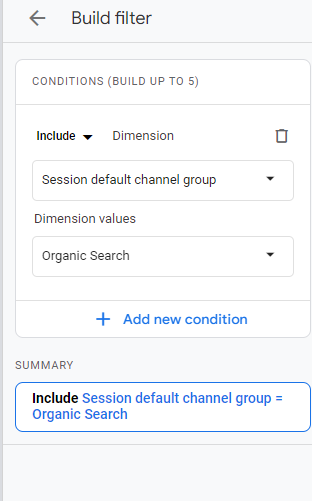
Click “Add filter” on the right

Search for/add “session default channel group”

Tick “organic”

Click “OK”

Click Save on the top middle-right

Click “Save as new report”

Name is “Landing Pages – Organic” or something

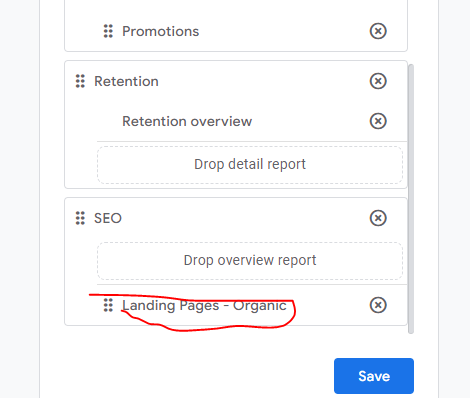
To get the report to appear in the sidebar menu

Click Reports in the left-side bar and then “Library “

Under “life cycle”

click “Edit collection”

Click “Create New Topic”

On the right search for the Landing Page – Organic report

Drag it into the new SEO folder you made (sometimes this doesn’t work as GA4 has a bug at the time of writing)

It worked for me when I dropped it into the second rectangle

Click “back” on the top left

and you should now see an SEO section to the reports.

“SEO Report 2 – Devices or Organic Search Traffic

Go to the Reports>User>Tech >Tech details

Click the Pencil icon to edit the report

Add a filter

Add “session default channel group”

and then Tick “organic” (search for it, if it’s not there for some reason)

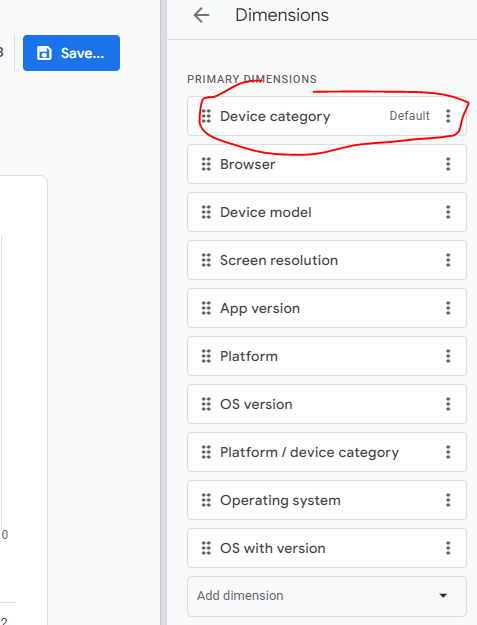
Go to Dimensions in the right side bar

Click the 3 dots next to “device category”

Choose “set as default”

Then drag “device category” to the top

Click “Apply”

Click “Save”

Save as a new report

Name it – “Tech details – Organic” or something

  • at the time of writing GA4 is buggy as f*ck, and it won’t let me save this report

Go back

Go to Reports > Library (folder icon near bottom)

Add to the Life Cycle collection

Drag the report into the SEO folder.

SEO Report 3 – Search Engines

Go to Reports>Acquisition>Traffic acquisition

Click the pencil icon to customise the report

Delete on the dimensions in the top right, except for “Session Source”

Click Apply

Add a filter – session default channel group and then select “organic Search”:

Go to reports – click “library” icon at the bottom

Edit the life cycle reports

drag in the new report to the “SEO” section you made for the first report

Google Search Console Reports

Link GA 4 to Search Console

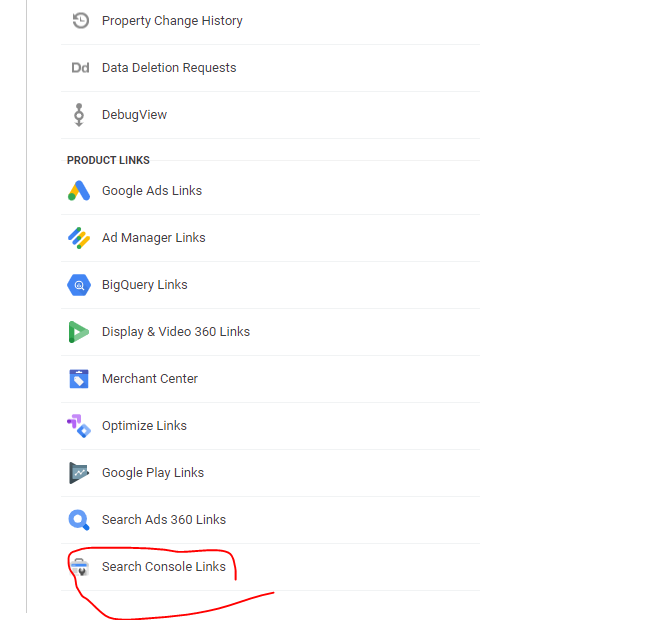
Go to Admin (blue and white cog incon on bottom left of screen)

On the bottom right click “search console links”

Choose the account and web stream and you’re done.

You might need to wait 24 hours for the data to get imported.

Go to Reports > Library (folder icon near bottom)

Life cycle – edit collection

In the top right search for “Google”

You should see 2 reports – Google organic saerch traffic and Queries: organic Google search queries

Click Save – save current collection

SEO Behaviour Exploration Report

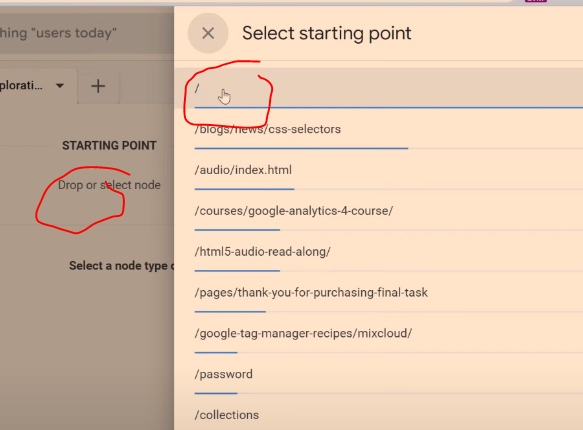
Go to “EXPLORE>Path exploration > Start over (top right)

Click the starting point and then select / for homepage

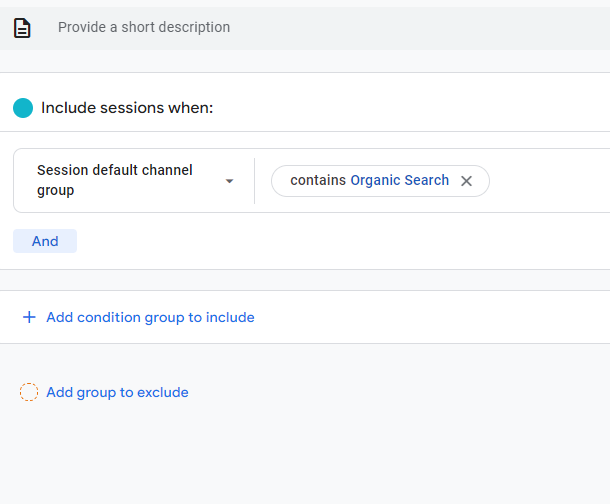
Filter to show organic traffic only

Go to SEGEMENTs (left hand side)

Click the + icon

Click “Session segment”

Click “Add new condition” on the left – add “session default channel group”

Add filter by clicking the box on the right – contains – organic search – click “apply”

Name is “organic search visitors” – “Save and apply”

You can’t add this report to the sidebar (sorry) – so to see it you’ll have to always click into the Explore section.

The Spread Operator in JavaScript (explained in cockney)

TLDR; – The Spread operator allows you to join strings or arrays together in one longer string or array

Image from Reddit

Good tutorial here

Right, guv’nor! Picture this. You’ve got yourself a box of LEGOs, like? Now in the world of JavaScript, this box is what we’d call an array. It’s a list of things, sorted and lined up all proper like.

Now, suppose you have another bigger box, crammed full of all sorts of knick-knacks. You fancy bunging your LEGOs in there, but not as a separate box. Nah, you want to spread ’em out so each LEGO is jumbled up with the other toys.

This is what the JavaScript spread operator is all about. It’s like taking your box of LEGOs and tipping ’em into the larger toy box.

Here’s a little squiz:

let legos = ['red', 'blue', 'green'];
let otherToys = ['doll', 'car', ...legos, 'ball'];

console.log(otherToys); 
// Output: ['doll', 'car', 'red', 'blue', 'green', 'ball']

In this case, ...legos is using the spread operator. It’s like we’re tipping out all the LEGO pieces (each colour) into the otherToys array. Job’s a good ‘un!

So the spread operator ... in JavaScript is like spilling the beans, it pulls all elements from an array (or all properties from an object), and scatters them into something else.

And remember, this operator doesn’t muck about with the original array (or your LEGO box). It’s like taking the LEGO pieces out for a bit of a lark. The original LEGO box is still there, untouched. Bob’s your uncle, Fanny’s your aunt!

Here are some other notes I’ve robbed from other websites (with references back to um tho)

Programiz.com

Spread Operator

The spread operator ... is used to expand or spread an iterable or an array. For example,

const arrValue = [‘My’, ‘name’, ‘is’, ‘Jack’];

console.log(arrValue); // [“My”, “name”, “is”, “Jack”]
console.log(…arrValue); // My name is Jack

In this case, the code:

console.log(...arrValue)

is equivalent to:

console.log('My', 'name', 'is', 'Jack')

Copy Array Using Spread Operator

You can also use the spread syntax ... to copy the items into a single array. For example,

const arr1 = ['one', 'two'];
const arr2 = [...arr1, 'three', 'four', 'five'];

console.log(arr2); 
//  Output:
//  ["one", "two", "three", "four", "five"]

You can run the code in the programiz code runner thing here

codingsumit

Destructing Arrays in JavaScript (2023)

Destructing an array sounds fun, but it’s not.

When we talk about “destructuring” an array, we’re referring to a process where we extract data from arrays, and assign them to variables in a single line. Here’s a basic example:


let array = [1, 2, 3, 4, 5];

// Destructuring the array
let [a, b, c, d, e] = array;

console.log(a); // Output: 1
console.log(b); // Output: 2
console.log(c); // Output: 3
console.log(d); // Output: 4
console.log(e); // Output: 5

In the above code, we’re taking an array of numbers, and using destructuring to assign each number to a variable (a, b, c, d, e).

You can also selectively choose which elements to extract. For example:

let array = ['apple', 'banana', 'cherry', 'dates', 'elderberry'];

// Destructuring the array
let [fruit1, , fruit3] = array;

console.log(fruit1); // Output: apple
console.log(fruit3); // Output: cherry

In this example, we're extracting the first and third elements from the array, while skipping the second element.

"Destructuring" can be particularly useful when you want to quickly access specific data in an array or an object without having to access them using their indexes or keys, respectively.

So, think about breaking the array apart, when you’re thinking about “destructing”

Examples from scaler.com

  • Array Destructuring:


var a, b;
[a, b] = [5, 10];
console.log(a); // 5
console.log(b); // 10
  • Object Destructuring:
({ a, b} = { a: 5, b: 10 });
console.log(a); // 5
console.log(b); // 10