Deleting White Space from Excel Cells

I had to use the VBA method at the bottom to remove whitespace from a Screaming Frog custom extraction:

Method 1: TRIM Function

The TRIM function removes all spaces from text except for single spaces between words.

  1. Suppose your text is in cell A1.
  2. In another cell, enter the following formula:excelCopy code=TRIM(A1)

Method 2: CLEAN and SUBSTITUTE Functions

If there are non-breaking spaces (which TRIM doesn’t remove), you can use the SUBSTITUTE function to replace them with regular spaces first.

  1. In a cell, enter the following formula:excelCopy code=SUBSTITUTE(A1, CHAR(160), " ") This replaces non-breaking spaces with regular spaces.
  2. Then, apply the TRIM function:excelCopy code=TRIM(SUBSTITUTE(A1, CHAR(160), " "))

Method 3: Find and Replace

You can also use the Find and Replace feature to remove extra spaces:

  1. Select the range of cells you want to clean.
  2. Press Ctrl + H to open the Find and Replace dialog box.
  3. In the “Find what” box, enter two spaces (press the space bar twice).
  4. In the “Replace with” box, enter one space.
  5. Click “Replace All.”
  6. Repeat the process until no double spaces are found.
  7. For leading and trailing spaces, you can remove them manually by replacing leading spaces with nothing and trailing spaces similarly.

Method 4: VBA Macro

For more advanced cleaning, you can use a VBA macro:

  1. Press Alt + F11 to open the VBA editor.
  2. Insert a new module by clicking Insert > Module.
  3. Copy and paste the following code into the module:

Sub RemoveSpaces()
    Dim cell As Range
    For Each cell In Selection
        If cell.HasFormula = False Then
            cell.Value = Trim(WorksheetFunction.Clean(cell.Value))
        End If
    Next cell
End Sub

  1. Close the VBA editor.
  2. Select the range of cells you want to clean.
  3. Press Alt + F8, select RemoveSpaces, and click Run.

By using these methods, you can efficiently remove unwanted whitespace from your cells in Excel.
Change a URL into a String of Words in Excel

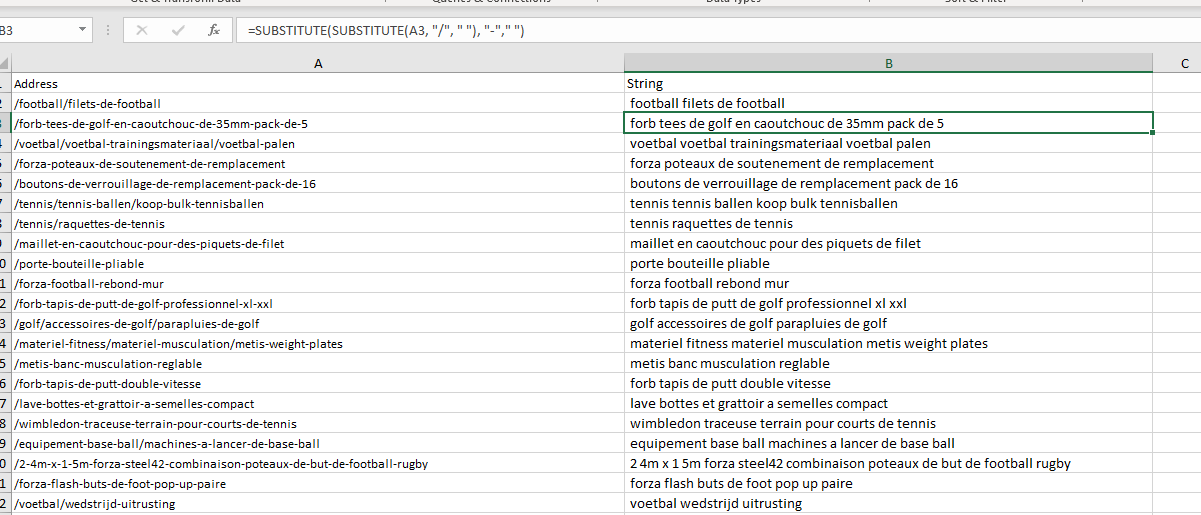
Put URLs into column A – Find and Replace – enter domain to find and replace with nothing

in column b – add a heading in B1 of “string of words”

in cell b2 enter the formula:

=SUBSTITUTE(SUBSTITUTE(A2, "/", " "), "-"," ")

^The formula will find and replace forward slashes with spaces and hyphens/dashes with spaces.

I used this, to then use the Google Sheets formula DETECTLANGUAGE to check URLs where in French / Dutch

Excel & SEO – Removing Folders in URL Paths (Just leaves page URN)

The easiest thing to do is use regex and the Search function

Remove text before a forward slash in Excel:

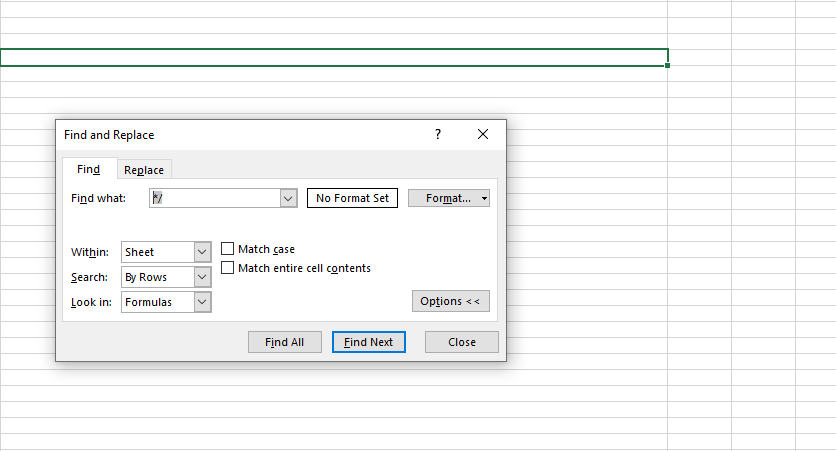
To remove text or URL paths after a slash, use find and replace then /*

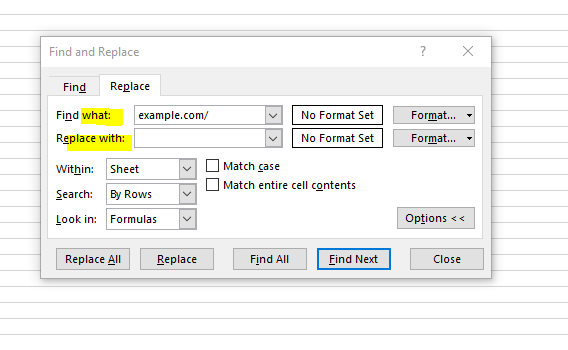
To remove the slash after the domain use Find and Replace – Example.com/ and replace with “nothing”:

You can then concatenate the domain back in place at the end, if you need to

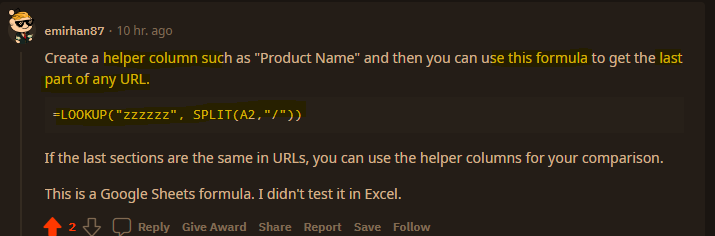
Also had this reply from Reddit

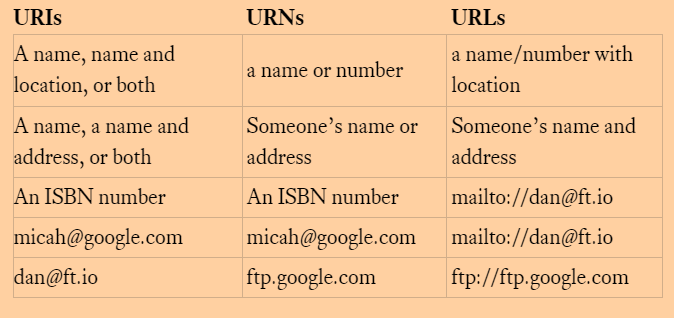
*I’ve never really got my head around URLs, URIs and URNs. I think the product-name that I’m after, is a URN.

https://myshop.com/category-folder/product-name

Image source

Image source

Extracting URLs from Page Code in Excel

Removing Code from the End of the URLs

If the links don’t have .html in the protocol (at the end of them), then first concatenate the URLs to add * at the end of them all.

If they do have .HTML, then find and replace .HTML with .html*

Next – use Text to Columns, use * as the “delimiter”

Removing code from the Start of the URLs

If the links are relative:

Use text to columns again and use / as the delimiter

If the links contain the full domain name, then concatenate * at the start of the domain name and use text to columns again to remove the code fro the start of the URLs

Alternative Method

Here is another method for doing it – https://businessdaduk.com/data/data-analysis-with-excel/getting-domains-from-a-list-of-urls/

Ensure all the domains have http:// prefix

Use the formula:

=IF(ISERROR(FIND("//www.",A2)), MID(A2,FIND(":",A2,4)+3,FIND("/",A2,9)-FIND(":",A2,4)-3), MID(A2,FIND(":",A2,4)+7,FIND("/",A2,9)-FIND(":",A2,4)-7))

The Textjoin function in Excel

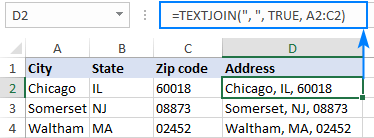
This is handy if you have data in different cells, that you want to put into a single cell, separated by a comma.

For example:

Image source ablebits.com

I needed a way of combining a load of commerce product identifier numbers into one cell, separated by columns.

You can download the spreadsheet with the formula here.

Textjoin Formula Example


TEXTJOIN(",",TRUE,F6:F35)

The comma in speech marks, adds the comma between the numbers
Not sure what “TRUE” does to be honest!
The F6:F35 is just the cells that the original list, that’s aligned vertically in this case, was in.

Sorting XML Sitemap URLs by Folder Depth

This can be handy if for example, you only want a list of products and they reside on folders that are 3 “/” deep into your URLs/Domain

For example:

  • Myshop.com/categorypages/subcategorypage/productpage/

I only want the URLs that reside at the third level – i.e. /productpage/

  1. Go to your XML sitemap – usually at Myshop.com/sitemap.xml
  2. Right click and “save as” – save on your computer
  3. Open Excel
  4. Go to the Developer Tab (you might need to add this as it’s not there by default)
  5. Click “Import”
  6. Browse to find your sitemap.xml and import it into Excel
  7. This usually pulls all your URLs into column 1 and other info like priority into separate columns
  8. Delete all the columns except the first one with your URLs in it
  9. Remove the https:// from the URLs with “find and replace” – On “Home” tab under “Find & Select” on the right
  10. In cell B2 add the function: (change A2 – to the cell you have put the first URL in)
=LEN(A2)-LEN(SUBSTITUTE(A2,"/",""))

11. Drag the formula down the rest of column B

12. You can now order column B by the number of “/” found in each URL

If different categories have different folder structures then you can conditionally format and use different colours for different categories and then do a multiple criteria sort – by colour, then folder depth (column B)

You can download an example spreadsheet with the formula in here

Excel – Paste Filtered Data into Filtered Cells

Filter the data so that it shows the cells that you want to paste

In the example below, we’ve filtered column B and want to paste in column E

  • Highlight the data in the cells/column you want to copy
  • At the same time, highlight the cells where you want to paste
    – so hold down CTRL so you can select the cells in column B as well as column E
  • Go to the menu/ribbon and on the right of the “Home” tab click “Fill”
  • Now click “Left” or “right” depending on where the column is in relation to the original data

So in the example above, we want to paste the data in a column to the right, so click on “right”

That should be the data pasted:

Video below shows how this is done. The demo begins at about 52 seconds:

Redirects – Check All URLs end with a slash

When doing redirects, for a new site –

sometimes, when you crawl the old/current site you will find a few rogue URLs that start with http: not https: and don’t end with a backslash.


If you’re doing a find and replace job, to create the destination URLs, this can mess with your final URLs.

Search “http:” to ensure, that if applicable, all the final URLs use the correct http protocol

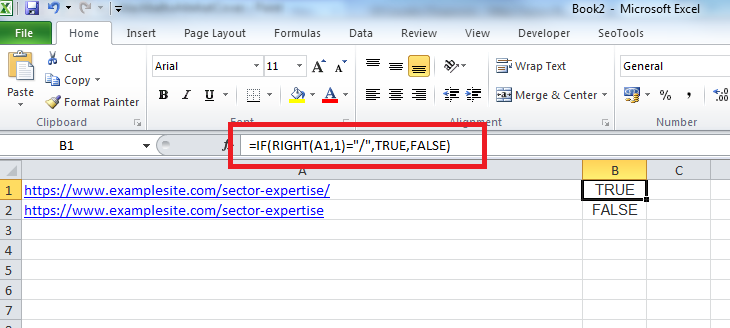
Then use the formula below, to check the all end with a backslash


=IF(RIGHT(A1,1)=”/”,TRUE,FALSE)


Excel_backslash_formula

Excel – Removing the last Character

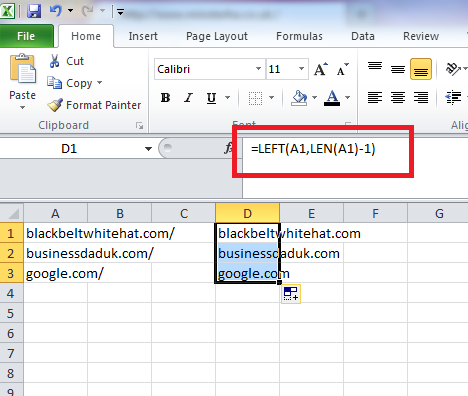
Let’s say you have a long list of websites, and you need to remove the trailing slash from the end of each of them…you can use this formula to do it:


=LEFT(A1,LEN(A1)-1)


Trim

This works a lot better than find and replace – especially if you have https:// in the URL still – as find and replace “/” will get rid of the all the “/”