I asked Chat GPT to explain Short Circuting in JavaScript to me like I was 10. I also asked for some jokes to be thrown in the mix.
“Hey there kiddo! You know how when you’re playing video games and there’s a super long level, but you discover a secret shortcut and skip straight to the end? Well, that’s kinda what we do in Javascript with something called “Short Circuiting”.
We use two super cool signs, “&&” and “||“.
Okay, first let’s talk about the two “ands” – “&&”. It’s like you and your best friend are on a secret mission. You both need to do your parts for the mission to be successful. If one of you fails, the mission fails. In Javascript, both sides of “&&” must be true for the whole thing to be true.
If the first part is false, Javascript doesn’t even bother to check the second part, because it already knows the mission failed! (this is the short-circuiting – it just quits)
Now, let’s talk about the two “ors” – “||“. This is like saying, you can have an ice cream OR a cake for dessert. If you get ice cream, that’s great! You don’t need the cake anymore (although, cake is always good).
Similarly, in Javascript, if the first part of “||” is true, Javascript takes the shortcut and doesn’t bother checking the second part.
Here’s a geeky joke for you: Why don’t programmers like nature? It has too many bugs! And don’t forget, always be like Javascript’s “&&” and “||”. Take the shortest path and save your energy for more video games! 😉”
Yea, so after reading that, I’m none the wiser, so here’s some notes from a video that I found on YouTube…
If price is more than 500 and less than 2000
Then print “hello”
If both operands are true, then print hello.
The “short circuit” occurs, because if the first parameter is not true, then JavaScript won’t bother running the second one.
So if the price was 400, and wasn’t greater than 500, then the JS would stop running and not bother to evaluate if the price is also less than 2000
It’s the same with the “or” operands, or operators, whatever they are called.
If the first condition is true, then it won’t bother running or looking at the second one, because with the “or” operator, only one of them has to be true.
I asked Chat GPT to explain the rest pattern and parameters in JS to me, like I was 11, and to add some welsh slang:
“Alright, kiddo, let’s chat about Rest Pattern and Parameters in JavaScript, tidy la?
It’s like when you’re at a sweet shop, and they’ve got all these fab sweets – Choc bars, bonbons, chewy toffees, and so on. But you don’t want to pick ’em all up one by one, do you? That’d take ages, innit? Instead, you want to scoop ’em up all at once, don’t you?
Well, in JavaScript, we’ve got this clever trick called the Rest Pattern. It’s like that sweetie scoop. Instead of grabbing arguments one by one, you can grab all of them at once. You can see this Rest Pattern when you see ‘…’ before a variable, like this: function fun(...args) { }. The ‘args’ here is like our sweetie bag, it’s holding all the arguments that were scooped up.
Now, these Rest Parameters, they’re proper tidy! Because all those arguments are now in one bag (or in an array, as we say in JavaScript), you can do things to the whole lot of them at once – like adding, subtracting, or whatever else you fancy.
So, remember, next time you want to scoop up a load of arguments in one go, the Rest Pattern and Parameters are your best mates, alright? Proper job, bach!”
The rest parameter, introduced in ES2015 or ES6, provides an enhanced method to handle function parameters. This makes it easier to manage a varying number of inputs as parameters in a function. A rest parameter lets us represent an indefinite number of arguments as an array, meaning a function can be called with any number of arguments, regardless of its original definition.
The syntax looks like this:
// '...' represents the rest parameter
function functionname(...parameters) {
// function statement;
}
Notice when ‘…’ is at the end of the function parameters, it’s recognized as the rest parameter and stores any number of parameters as an array.
For example, let’s say we have a function without a rest parameter:
In this case, we can pass more arguments than defined parameters without causing errors. However, only the first two arguments are evaluated. The rest parameter changes this by allowing us to collect any number of arguments into an array:
// Example using the rest parameter
function fun(...input){
let sum = 0;
for(let i of input){
sum += i;
}
return sum;
}
console.log(fun(1,2)); // Outputs: 3
console.log(fun(1,2,3)); // Outputs: 6
console.log(fun(1,2,3,4,5)); // Outputs: 15
Now, every argument is included when we call the ‘fun()’ function. The sum of all array elements is calculated using the ‘for..of’ loop.
Remember, the rest parameter must always be the last argument in a function, as it collects all remaining arguments into an array.
Here’s an example where the rest parameter is used with other arguments:
function fun(a,b,...c){
console.log(`${a} ${b}`);
console.log(c);
console.log(c[0]);
console.log(c.length);
console.log(c.indexOf('Lionel'));
}
fun('Mukul','Latiyan','Lionel','Messi','Barcelona');
Output:
In this example, the rest parameter is passed as the third parameter. The first two arguments are treated normally, while the rest are collected by the rest parameter. Because the rest parameter produces an array, we can apply array methods provided by JavaScript.
In the menu with the two arrows >> – you can click that and it has an option to analyze the DOM – which then gives you the number of elements and a few other bits
Just click the arrows, and then “Analyze DOM Size” and click the play icon
Right, guv’nor! Picture this. You’ve got yourself a box of LEGOs, like? Now in the world of JavaScript, this box is what we’d call an array. It’s a list of things, sorted and lined up all proper like.
Now, suppose you have another bigger box, crammed full of all sorts of knick-knacks. You fancy bunging your LEGOs in there, but not as a separate box. Nah, you want to spread ’em out so each LEGO is jumbled up with the other toys.
This is what the JavaScript spread operator is all about. It’s like taking your box of LEGOs and tipping ’em into the larger toy box.
In this case, ...legos is using the spread operator. It’s like we’re tipping out all the LEGO pieces (each colour) into the otherToys array. Job’s a good ‘un!
So the spread operator ... in JavaScript is like spilling the beans, it pulls all elements from an array (or all properties from an object), and scatters them into something else.
And remember, this operator doesn’t muck about with the original array (or your LEGO box). It’s like taking the LEGO pieces out for a bit of a lark. The original LEGO box is still there, untouched. Bob’s your uncle, Fanny’s your aunt!
Here are some other notes I’ve robbed from other websites (with references back to um tho)
When we talk about “destructuring” an array, we’re referring to a process where we extract data from arrays, and assign them to variables in a single line. Here’s a basic example:
In the above code, we’re taking an array of numbers, and using destructuring to assign each number to a variable (a, b, c, d, e).
You can also selectively choose which elements to extract. For example:
let array = ['apple', 'banana', 'cherry', 'dates', 'elderberry'];
// Destructuring the array
let [fruit1, , fruit3] = array;
console.log(fruit1); // Output: apple
console.log(fruit3); // Output: cherry
In this example, we're extracting the first and third elements from the array, while skipping the second element.
"Destructuring" can be particularly useful when you want to quickly access specific data in an array or an object without having to access them using their indexes or keys, respectively.
So, think about breaking the array apart, when you’re thinking about “destructing”
I asked Chat GPT this very question, and got this answer:
In JavaScript, a “for” loop is a control flow statement that allows you to execute a block of code a certain number of times. The “for” loop includes initialization, a condition, and incrementation/decrementation.
Here are some reasons and scenarios for using a “for” loop:
Iterating over arrays: You might use a “for” loop when you need to iterate over an array of elements. Each loop iteration corresponds to one element in the array, so you can do something with each individual item. Example: let arr = [1, 2, 3, 4, 5]; for (let i = 0; i < arr.length; i++) { console.log(arr[i]); // prints each element of the array }
Repetitive tasks: You would use a “for” loop when you need to perform a task a certain number of times. The “for” loop is a straightforward way to repeat a task.
Example: for (let i = 0; i < 10; i++) { console.log(i); // prints numbers 0 to 9 }
Traversing strings: Similar to arrays, you can use a “for” loop to traverse each character in a string.
Example: let str = "Hello, World!"; for (let i = 0; i < str.length; i++) { console.log(str[i]); // prints each character in the string }
Nested loops: You can use “for” loops inside other “for” loops when dealing with multi-dimensional data, such as a matrix or 2D array. Example: let matrix = [[1, 2, 3], [4, 5, 6], [7, 8, 9]]; for (let i = 0; i < matrix.length; i++) { for (let j = 0; j < matrix[i].length; j++) { console.log(matrix[i][j]); // prints each element in the matrix } }
Please note that while “for” loops are a classic control flow mechanism, there are other methods in JavaScript for similar use-cases, especially for arrays. This includes methods like Array.prototype.forEach, Array.prototype.map, Array.prototype.filter, and others, which might provide cleaner and more readable code in some scenarios. However, understanding the workings of a “for” loop is fundamental for programming in JavaScript and many other languages.
What are for loops?
Loops, by default, start at the beginning of an array, and work forwards, from variable/element 0 to element 10 – if an array has 10 elements.
Loops can also start at the end, say element 10 and work back to the first element.
for (let i = arrayname.length - 1; i>=0; i--)
In the code above. The counter called “i” will keep running along as the variable/element is greater than or equal to 0 (the variable number, as in it’s order starting from 0)
Every time the loop runs, instead of adding 1 to “i”, subtract 1.
To print the current element to the console.log, the code should be:
for (let i = arrayname.length - 1; i>=0; i--) {
console.log(jonas[i]);
}
This image from kodify.net explains the parts of a standard for loop quite nicely
Loop inside a Loop
Loops within loops, are sometimes called “nested loops”.
Oh, one more thing that might be useful, I asked Chat GPT to explain for loops like I’m 10 years old:
“Imagine you have a big box of Lego blocks, and you want to look at each block one by one. You would start from the first block, then move to the second, then the third, and so on, until you’ve seen all the blocks. A “for” loop in JavaScript is like doing that – it’s a way for your computer to look at or do something with each item in a list, one at a time, from start to finish.
Here’s a real-life example:
Let’s say you’re on a website that shows all the movies currently playing in theaters. When the website wants to show you all the movie names, it might have a list (in programming, we call this an array) of all those movies. But how does it get from a list of movies to showing each one on your screen? It can use a “for” loop!
In the code of the website, it might look something like this:
let movies = ["Toy Story 4", "The Lion King", "Frozen 2", "Star Wars: The Rise of Skywalker"]; // This is the list of movies.
for (let i = 0; i < movies.length; i++) {
console.log(movies[i]); // This will show each movie name, one after the other.
}
In this example, i is like a pointer that starts at the beginning of the list (0) and moves one step forward each time the loop runs (i++). The loop keeps going as long as i is less than the length of the list (i < movies.length). And in each loop, movies[i] is how we access each movie name.
This “for” loop helps the website to go through every movie in the list and do something with it – like showing it on your screen!”
Reports – Acquisition – Traffic Acquisition – see channels and revenue – Scroll right to see revenue column in table:
Useful Report 2 – Browser & Device
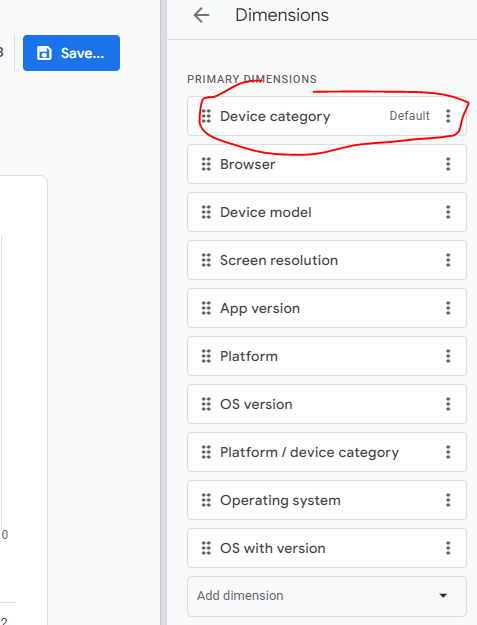
Reports – User – Tech – Tech details – Add filter for Device:
Useful Report 3 – Organic Landing Page Report in GA 4:
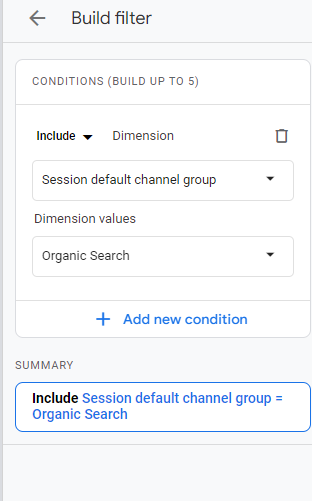
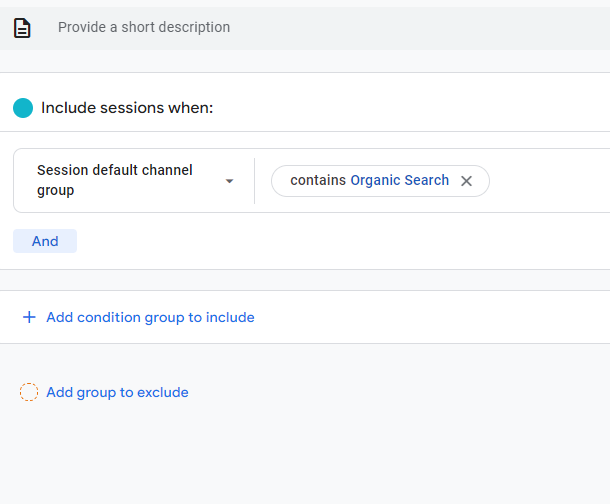
Reports – Acquisition – Engagement – Pages and screens – Add a filter by clicking top right “+” button Search for “session” and choose session default channel group – exactly matches – Organic search:
Reports – Life Cycle – Engagement – Pages and SCreens:
GA4 uses events for bloody everything.
You’ll need to set up one type of events – conversions, whilst others are set up for you.
Benefits of GA 4 Include:
You can track across app and website
Visualise buyer journeys easier
Easier to customise reports
BigQuery Exports
You can ask questions and get quick answers (in the search box at the top)
Things to note:
“bounce rate” in GA4 – is the opposite of engagement rate. So if engagement rate in GA4 is 60%, then bounce rate is 40%
Find Engagement rate in REPORTS > Acquisition > Traffic acquisition
You can add a filter (top left of screen – by the page title) – to filter to specific pages
GA4 Home screen
The home screen gives you a summary or snap shot of your websites performance.
On the top right are real time stats
On the second row, you have recently viewed reports
Below is “insights”, which help you interpret the data
Reports
Reports tab gives a number of prebuilt reports:
Lifecycle Reports
-Acquisition
Where visitors are coming from
-Engagement
What people are doing on the site
-Monetization
What people are buying (on eCommerce sites)
-Demographics and tech
Shows you stuff like visitor age, and what device they are using
EXPLORE SECTION
in this area you can create lots of visuals and insightful reports
ADVERTISING SECTION
purely for Google ads reports
CONFIGURATION SECTION
in the configure section, you can mark events as conversions, create audiences , set up custom dimensions and metrics, and access the debug view to test you’ve implemented stuff correctly.
Useful reports
Traffic sources – where are your visitors coming from, and where are the best visitors coming from
Reports- Acquisition > traffic acquisition
“Engaged traffic” an engaged session = been on your site more than 10 seconds, or visited 2 or more pages or converted
the traffic acquisition report let’s you see how engaged different source s of traffic are. For example, you can compare organic engagement rate vs paid ads.
in the Event Count, and conversions columns, you can click and choose from a dropdown menu which conversions you want to populate the data in the table.
EXPLORE
A good report to start out with in the explore section, is traffic sources.
Click “Free Form” to start.
On the default table, close the geo column by closing “town/city” on the left side of the screen
Go to DIMENSIONS on the left, click the +
Search for “default channel group” and tick the check box and click “IMPORT”
drag default channel grouping, into the rows area.
Now, for eCommerce, you’ll want to know the value each channel is bringing
On the left side, under VALUES, you’ll want to add transactions (scroll down to see VALUES, it’s below COLUMNS).
EXPLORE > FREE FROM
you can add country and other dimensions to the columns, and see which traffic source from which country (or town or something), drives the most value in terms of purchases or form submissions.
To learn more and isolate a channel, right click and select “include only selected”
for any referral traffic report, you can click the + above DIMENSIONS and search for and select “source”. You can then see which websites are referring the highest quality traffic
click the + icons to search for variables:
PATH EXPLORATION
see how people are journeying through you site
note “screens” is referring to mobile apps
e.g. the pages and screens report, “screens” refers to mobile apps
Useful premade reports:
REPORTING > ENGAGEMENT > PAGES AND SCREENS
“Scrolls” is an event that occurs when a user scrolls past 90% of the page
pretty much everything is an event, so event reports aren’t great. For example, exiting a website is an event.
to make thus report a bit better, we want “engagement rate” added to the table.
click the pencil icon in
REPORTS – Snapshot
You can add comparisons, by clicking “Add comparison +” at the top, or by clicking the “edit comparisons” icon which is near the top right:
REAL TIME
Real time reports are from the last 30 minutes (it was 5 mins in GA universal)
You can also add comparisons on realtime reports
ACQUISITION OVERVIEW
These report, show traffic sources that bring visitors to your site
“You can use the User acquisitionreport to get insights into how new users find your website or app for the first time. The report differs from the Traffic acquisition report, which focuses on where new sessions came from, regardless of whether the user is new or returning.”
In the traffic acquisition report, if a user comes from organic search, and then later from paid search, both those sessions will show in the traffic acquisition report, but only organic would should in the User Acquisition report.
ENGAGEMENT
Events – you will see automatic events, like “scroll”, and custom events that you have implemented.
Conversions – “more important events” are conversions – like a purchase. These need to be configured manually.
Pages and Screens – see what people are doing on which pages. “Screens” is a term for mobile apps.
MONETIZATION
Needs sales tracking implemented.
You can see most popular proucts that have sold, how much revenue has been generated etc.
User Retention – Show how many users come back to the site. Don’t trust the data 100% due to cookies being blocked or expiring.
A JavaScript function is a block of JavaScript code, that can be executed when “called” for.
For example, a function can be called when an event occurs, like when the user clicks a button.
A function in JavaScript is similar to a procedure—a set of statements that performs a task or calculates a value, but for a procedure to qualify as a function, it should take some input and return an output where there is some obvious relationship between the input and the output.
Function declarations A function definition (also called a function declaration, or function statement) consists of the function keyword, followed by:
The name of the function. A list of parameters to the function, enclosed in parentheses and separated by commas. The JavaScript statements that define the function, enclosed in curly brackets, { /* … */ }. For example, the following code defines a simple function named square:
function square(number) { return number * number; }
The function square takes one parameter, called number. The function consists of one statement that says to return the parameter of the function (that is, number) multiplied by itself. The statement return specifies the value returned by the function:
return number * number;
Parameters are essentially passed to functions by value — so if the code within the body of a function assigns a completely new value to a parameter that was passed to the function, the change is not reflected globally or in the code which called that function.
When you pass an object as a parameter, if the function changes the object’s properties, that change is visible outside the function, as shown in the following example:
function myFunc(theObject) { theObject.make = “Toyota”; }
Differences between functions and methods (taken from Geeks for Geeks)
Function
Method
A JavaScript function is a block of code designed to perform a particular task.
The javascript method is an object property that has a function value.
Syntax of Function is -:function functionName(parameters) { // Content }
Syntax of Method is -:object = { methodName: function() { // Content } };object.methodName()
A function can pass the data that is operated and may return the data.
The method operates the data contained in a Class.
Data passed to a function is explicit.
A method implicitly passes the object on which it was called.
A function lives on its own.
A method is a function associated with an object property.
A function can be called directly by its name
A method consists of a code that can be called by the name of its object and its method name using dot notation or square bracket notation.
Functions are helpful because it increases the reusability of the code.
Javascript includes some in-built methods also for example -: parseInt() Method
The () Operator is used to Invoke the Function
We can access object method by the following the syntax -:objectName.methodName()
External JavaScript Advantages
Javascript can also be placed in the <body> of a HTML document and in external sheets with the file extension .js (not sure why I thought this was relevant, but there you go!) Placing scripts in external files has some advantages:
It separates HTML and code It makes HTML and JavaScript easier to read and maintain Cached JavaScript files can speed up page loads
JavaScript’s interaction with HTML is handled through events that occur when the user or the browser manipulates a page.
When the page loads, it is called an event. When the user clicks a button, that click too is an event. Other examples include events like pressing any key, closing a window, resizing a window, etc.
Developers can use these events to execute JavaScript coded responses, which cause buttons to close windows, messages to be displayed to users, data to be validated, and virtually any other type of response imaginable.
Events are a part of the Document Object Model (DOM) Level 3 and every HTML element contains a set of events which can trigger JavaScript Code.
Please go through this small tutorial for a better understanding HTML Event Reference. Here we will see a few examples to understand a relation between Event and JavaScript −
onclick Event Type
This is the most frequently used event type which occurs when a user clicks the left button of his mouse. You can put your validation, warning etc., against this event type.
<html>
<head>
<script type = "text/javascript">
<!--
function sayHello() {
alert("Hello World")
}
//-->
</script>
</head>
<body>
<p>Click the following button and see result</p>
<form>
<input type = "button" onclick = "sayHello()" value = "Say Hello" />
</form>
</body>
</html>
More info at Tutorialspoint (includes a massive list of event types)
This – references the object that is executing the current function
If the function is part of an object, we call that function a method.
“This” will reference that object
if the function is a regular function
“This” will reference the global / window object
in case, like me, you’ve forgotten what an object is, Mozilla describes it as
“In JavaScript, an object is a standalone entity, with properties and type. Compare it with a cup, for example. A cup is an object, with properties. A cup has a color, a design, weight, a material it is made of, etc. The same way, JavaScript objects can have properties, which define their characteristics.”
In the example above, thisrefers to the person object. Because the function is in an object
Some more notes about the This Keyword, robbed from around the web:
In general, the thisreferences the object of which the function is a property. In other words, the this references the object that is currently calling the function.
If you assign a property to this object in the global context, JavaScript will add the property to the global object as shown in the following example:
In most cases, the value of this is determined by how a function is called (runtime binding). It can’t be set by assignment during execution, and it may be different each time the function is called. The bind() method can set the value of a function’s this regardless of how it’s called, and arrow functions don’t provide their own this binding (it retains the this value of the enclosing lexical context).
In non–strict mode, this is always a reference to an object. In strict mode, it can be any value. For more information on how the value is determined, see the description below.
Inside a function, the value of this depends on how the function is called. Think about this as a hidden parameter of a function — just like the parameters declared in the function definition, this is a binding that the language creates for you when the function body is evaluated.
For a typical function, the value of this is the object that the function is accessed on. In other words, if the function call is in the form obj.f(), then this refers to obj. For example: