Actionable SEO & PPC News This Week (23rd February 2024)

SEO and Digital Marketing News Summary – February 2024

  1. Google Ads API Version 16 Launch: Introduces new capabilities for tracking campaign performance.
  2. Instagram Expands Creator Marketplace: Now available in eight new markets, facilitating connections between brands and creators for ads.
  3. Performance Max Campaigns Update: Google Ads emphasizes Performance Max with new call-to-action features, aiming to streamline campaign setups.
  4. Google Analytics 4 Enhancements: Updates to the Advertising workspace simplify reporting for marketers, focusing on campaign tracking and behavioral insights.
  5. Reddit and Google’s AI Content Licensing Deal: A significant move that could impact search visibility and content strategy.
  6. Link Building Strategies for 2024: Fresh insights on effective backlinking practices to maximize website potential.
  7. SEO Integration in Multichannel Marketing: Highlighting the importance of SEO in building brand visibility across various marketing channels.
  8. Custom GPTs for SEO: The introduction of SEO-focused ChatGPT plugins in the GPT Store for content optimization and keyword analysis.
  9. Pinterest Launches Cooking Series with Shoppable Experience: A novel approach to integrating content and commerce.
  10. Local Search Trends and Tactics for 2024: Emphasizing the importance of local SEO strategies for location-based businesses.

1. Leverage New Google Ads Features

Actionable Tip: Familiarize yourself with the latest features of Google Ads API Version 16. Specifically, look into new capabilities for tracking campaign performance and efficiency improvements.

  • Where to Find More Information: Visit the Google Ads Developer Blog for detailed release notes and guides on utilizing the new features of Version 16.

2. Optimize for Performance Max

Actionable Tip: Use the new call-to-action features in Performance Max campaigns to create more compelling and effective ads. Focus on designing ads that directly address your target audience’s needs and interests.

3. Simplify Your Reporting with GA4 Enhancements

Actionable Tip: Take advantage of GA4’s updated Advertising workspace to gain insights into your campaigns. Use the dedicated spaces for tracking and analyzing campaigns and for behavioral insights to refine your marketing strategies.

4. Incorporate AI Content Strategies

Actionable Tip: Explore how AI-generated content can enhance your content marketing efforts. Use AI for content ideation, drafting initial content outlines, and optimizing existing content for SEO.

  • Resources: OpenAI’s GPT-3 Examples page showcases various applications of AI in content creation, providing inspiration for marketers.

5. Focus on Quality Backlinks

Actionable Tip: Prioritize acquiring backlinks from authoritative and relevant websites. Use tools like Ahrefs or Moz to identify potential backlink sources and monitor your backlink profile’s health.

  • Example and Resources: Moz’s guide on Link Building offers strategies for earning high-quality backlinks, including guest blogging and influencer outreach.

More info –
https://moz.com/blog/link-building-okrs (OKRs are Objectives & Key Results)

Good tip for link building – is generate your own research with Google Surveys etc – people love to link to statistics

Create Linkable Assets


6. Harmonize SEO with Other Channels

Actionable Tip: Ensure your SEO strategy complements your social media, email, and PPC campaigns. For example, use insights from PPC campaigns to inform your SEO keyword strategy and vice versa.

  • Resources: HubSpot’s Marketing Blog provides numerous articles on integrating SEO with other digital marketing channels.

7. Utilize SEO-focused ChatGPT Plugins

Actionable Tip: Explore the GPT Store for plugins specifically designed for SEO tasks, such as content optimization and keyword research. These tools can help streamline your SEO workflow and enhance content quality.

  • Where to Find More Information: Visit the GPT Store and search for SEO-related plugins to find tools that can assist with your specific needs.

Some of the best Chat GPT SEO Plugins include

  • Automated Writer by OctaneAI 
  • Bramework SEO Booster by Bramework
  • SEO by Elevate
  • Outrank Article by aiseo.ai
  • Scraper by hqdata.com
  • SEOmator Free Keyword Research & SERP Analyzer GPT by seomator.com

8. Experiment with Shoppable Content

Actionable Tip: Create content that directly links to products or services, making it easy for readers to make a purchase. Use platforms like Instagram and Pinterest to showcase shoppable posts and stories.

9. Enhance Your Local SEO

Actionable Tip: Claim and optimize your Google My Business listing, focus on acquiring local backlinks, and encourage customers to leave positive reviews. Use local keywords in your website’s content and metadata.

  • Resources: Google’s Manage your Business Profile page provides step-by-step instructions on optimizing your listing for better local search visibility.

https://www.linkedin.com/pulse/local-seo-tips-small-businesses-getting-found-locally-usnof/?trk=article-ssr-frontend-pulse_more-articles_related-content-card

10. Stay Informed and Adaptable

Actionable Tip: Regularly read industry blogs and attend webinars to stay updated on the latest SEO and digital marketing trends. Websites like Search Engine Journal, Moz Blog, and Search Engine Land are excellent resources for the latest news and insights.

References

Search Engine Land
Backlinko

Using Google Translate in Google Sheet [2024]

With my copy in column B, starting in cell B2, and with the language short codes “en” for the original language and “no” for Norwegian – what I want to translate the English into, in cells E1 and F1 respectively, the code I place in cell D2 is:
=GOOGLETRANSLATE(B2,$E$1,$F$1)

I can drag the formula down to translate all the English in column B.

That’s it really

🙂

By the way – if you have a site that’s randomly in 2 languages, or more – you can use detect language Google Sheets function

=DETECTLANGUAGE(“cellnumber”)

Product Schema Example (with review schema) 2024

Here’s an example:

<script type="application/ld+json">	
{
"@context": "http://schema.org",
"@type": "Product",
"description": "The best pads you can buy online for MMA and boxing. Made with leather, manufactured by BJJ black belts and elves.",
"gtin8": "sdfdfsf3w5455",
"name": "Boxing and MMA Pads ",
"image": "https://cdnfake.com/media/catalog/product/m/i/boxing-pads-solo.jpg",
"sku": "boxing-mini-pads-only",
"url": "https://www.blackbeltwhitehat.co.uk/nice-mma-target-pads-boxing-only.html"
"brand": "Nice MMA",
"offers": [
{
"@type": "Offer",
"itemCondition": "http://schema.org/NewCondition",
"price": "89.99",
"availability": "InStock",
"priceCurrency": "GBP",
"url": "https://www.blackbeltwhitehat.co.uk/nice-mma-target-pads-boxing-only.html"

}
]
,
"review": [
{
"@type": "Review",
"author": {
"@type": "Person",
"name": "DAVE MACDONALD"
},
"datePublished": "2017-27-07",
"description": "Grandson loves using these",
"name": "ALFFI-JAC MACDONALD",
"reviewRating": {
"@type": "Rating",
"bestRating": "5",
"ratingValue": "5", "worstRating": "1"
}
} ]
,
"aggregateRating": {
"@type": "AggregateRating",
"ratingValue": "5",
"reviewCount": "1"
}
}
</script>

I use these tools to check schema

https://classyschema.org/Visualisation
https://search.google.com/test/rich-results
https://validator.schema.org/

and use – https://www.diffchecker.com/ to check an existing schema, that I know works and is validated, to another one that I’m testing.

Here’s another example I just found within the Google ‘documentation‘

 <html>
  <head>
    <title>Executive Anvil</title>
    <script type="application/ld+json">
    {
      "@context": "https://schema.org/",
      "@type": "Product",
      "name": "Executive Anvil",
      "description": "Sleeker than ACME's Classic Anvil, the Executive Anvil is perfect for the business traveler looking for something to drop from a height.",
      "review": {
        "@type": "Review",
        "reviewRating": {
          "@type": "Rating",
          "ratingValue": 4,
          "bestRating": 5
        },
        "author": {
          "@type": "Person",
          "name": "Fred Benson"
        }
      },
      "aggregateRating": {
        "@type": "AggregateRating",
        "ratingValue": 4.4,
        "reviewCount": 89
      }
    }
    </script>
  </head>
  <body>
  </body>
</html>

Enjoy!

How to make a Song with AI

This is how i made a rap video, for my review of lookers vauxhall ellesmere port.

Use Google Bard to create a rhyming poem or song based on a certain topic.

bard.google.com

use eleven Labs to change text to voice -elevenlabs.io

use music trap to create music to go with the voice

Music video:

download stock videos from pexels and pixabay

use canva video creator to put videos in order and add images etc.

Heres the review video:

Reponsive Table

USA Goal Post Sizes by Age
AGEGOAL SIZE
UNDER 6/7/86FT X 4FT (1.8M X 1.2M)
UNDER 9/1018.5FT X 6.5FT (5.6M X 2M)
UNDER 11/1221FT X 7FT (6.4M X 2.1M)
12+ & SENIOR24FT X 8FT (7.3M X 2.4M)

This code appears to work:

 <!--table-->  
 <div style="margin-top: 30px; margin-bottom: 20px; width:570px; max-width: 100%;">
  <!--<div class="scroll-container scroll-x"> -->
   <div style="margin-top: 1px">
    <div>
    <table style= "margin-top: 0px; margin-bottom: 0px; padding-top: 0px; padding-bottom: 0px; text-align: center;     border-collapse: collapse; background-color:transparent; font-size: 13px; width:570px; max-width: 100%;">
    
   <tr>
     <th colspan="2" style="border: 1px solid #878681;background-color:transparent;font-size: 15px;"><strong>Maximum Goal Post Sizes by Age Recap
</strong></th></tr>
     <tr style=" border: 1px solid #878681;background-color:transparent; font-size: 14px;">
     <th style="border: 1px solid #878681;background-color:transparent;width:25%;">AGE</th>
     <th style="border: 1px solid #878681;background-color:transparent; width:25%;">GOAL SIZE</th>
   </tr>


   <tr style=" border: 1px solid #878681;background-color:transparent;">
    <td style="border: 1px solid #878681;background-color:#f8f8f8;">UNDER 6/7/8

</td>
    <td style="border: 1px solid #878681;background-color:transparent;">6FT X 4FT (1.8M X 1.2M)</td>     
   </tr>

   <tr style=" border: 1px solid #878681;background-color:transparent;">
    <td style="border: 1px solid #878681;background-color:#f8f8f8;">UNDER 9/10</td>
    <td style="border: 1px solid #878681;background-color:transparent;">18.5FT X 6.5FT (5.6M X 2M)</td>
    
   </tr>
   
   <tr style=" border: 1px solid #878681;background-color:transparent;">
    <td style="border: 1px solid #878681;background-color:#f8f8f8;">UNDER 11/12</td>
    <td style="border: 1px solid #878681;background-color:transparent;">21FT X 7FT (6.4M X 2.1M)</td>    
   </tr>

   <tr style=" border: 1px solid #878681;background-color:transparent;">
    <td style="border: 1px solid #878681;background-color:transparent;">12+ & SENIOR</td>
    <td style="border: 1px solid #878681;background-color:transparent;">24FT X 8FT (7.3M X 2.4M)

</td>
   </tr>


  </table>
    </div> 
  <!-- </div> -->
  </div>
 </div>
  
 <!--table-->       

Deleting a webpage – 404s and that

Had to do this today, would have helped to have a bit of a process written down…

  • Check if page ranks for anything
  • if it does, then consider redirecting (301ing) to most relevant/related page (in regards to what it ranks for)
  • 410 is better than 404 according to Yoast – for a deleted page
  • Remove internal links from page copy etc and menus (crawl site if poss)

https://yoast.com/deleting-pages-from-your-site/

Adding a New Sub-Category in M2

Main menu thing

Got to Catalog – Categories

Pick a store (leave on all store views put pick a store from the folders below)

Pick a folder –> click “Add Subcategory”

Include in menus – Off canvas & All Sports – don’t include in All Sports if it’s a level 3 sub-sub category – e.g. equipment – kits – men’s kits wouldn’t go in All Sports.

Enable category – No

  • INCLUDE IN MAIN MENU – NO (unless a main sport top-category page e.g. /cricket or football main page
  • Category Description Placement – Show at bottom

  • Category Name – Add H1

Leave menu settings

  • CONTENT

Add thumbnail image if you have one

Description – Edit with Page Builder – > Apply Template -> Search for “product” -> Use Product Description

APPLY

Click cog icon

Put <p> </p> tags and paste in description for page

SAVE

close full screen with two arrows in top right.

Display settings – Select Price

  • SEARCH ENGINE OPTIMISATION

Add URL, meta title and meta desc.

URL doesn’t need .HTML at the end.

****hreflang****

— Don’t enable foreign sites! and put in clickup

CSS and Text for Beginners [2022]

Font Colour (color)

You can style a tag such as p (paragraph) with:

p {
color: #fff;
}

…and the font colour within the paragraph will be white (fff is hexadecimal shorthand for white)

Font-size

Font-size can be used to dictate the size of the text. You can use pixels (absolute measurements), but you can use rems and ems/

Rem

“the rem unit means “The root element’s font-size” (rem stands for “root em”)”

Text source

Em

“ the em unit means “my parent element’s font-size” in the case of typography”

Percentages

The thing with percentages is that they are always set relative to some other value. For example, if you set an element’s font-size as a percentage, it will be a percentage of the font-size of the element’s parent. If you use a percentage for a width value, it will be a percentage of the width of the parent.

Text-Align

By default, in UK, USA etc. the text will be left aligned.

“text-align: center;” will align the text in the middle of the page or the element

text-align: justify;


Text-align: justify, will stretch the text across the page. Sounds weird but usually looks quite nice. I used to use this in Word for my uni assignments.

CSS justify text

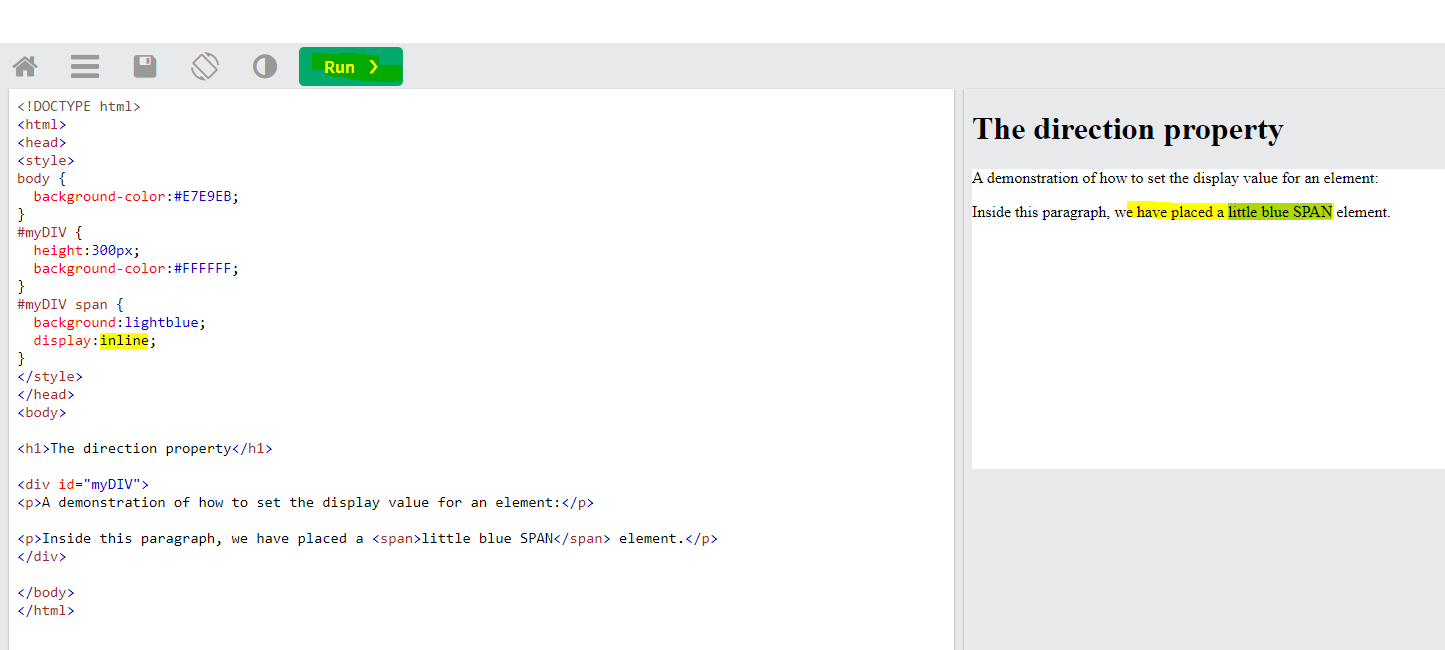
Display:inline

There are lots of ways to use “display” to present the text on your webpage.

W3 schools has a table full of all the values, including “inline” which is a pretty popular option

https://www.w3schools.com/cssref/pr_class_display.php

The easiest way to get familiar with the main “display” values, is probably to use this editor tool, thingy on W3 schools:

https://www.w3schools.com/cssref/tryit.php?filename=trycss_play_display

Change the value after “display:” to see the different effects:

Remember to click the green button “Run” at the top if you make changes to the code

Importing Google Fonts

Google fonts is a free service, that lets you choose from a wide range of fonts for your webpages.

How to import Google Fonts:

  1. Go to https://fonts.google.com/
  2. Find the font you like and click it (a card with the font), then, click “+ Select this style”. On the right side, you’ll see a container with the name “Selected family”.
  3. Click “Embed” and choose <link> or @import depending on where you need to add the font (in HTML or CSS).
  4. Copy/paste the codes you need.

If for example, you choose the “Muli” for the body of your webpage/html and “Quicksand” font for your h1s,

Import the font using the following code taken from Google Fonts:


@import url('https://fonts.googleapis.com/css?family=Muli&display=swap');
@import url('https://fonts.googleapis.com/css?family=Quicksand&display=swap');

Declare the Muli font in your body CSS

body {
font-family: ‘Muli’, sans-serif;
}


Declare the Quicksand fault in your h1 styles/stylesheet:

h1 {

font-family: ‘Quicksand’, sans-serif;

}

Insert Blank Rows at Regular Intervals

Need to:

Hold down Alt & F11 to bring up VBA.

Add below code:

Sub InsertRowsAtIntervals()
'Updateby20150707
Dim Rng As Range
Dim xInterval As Integer
Dim xRows As Integer
Dim xRowsCount As Integer
Dim xNum1 As Integer
Dim xNum2 As Integer
Dim WorkRng As Range
Dim xWs As Worksheet
xTitleId = "KutoolsforExcel"
Set WorkRng = Application.Selection
Set WorkRng = Application.InputBox("Range", xTitleId, WorkRng.Address, Type:=8)
xRowsCount = WorkRng.Rows.Count
xInterval = Application.InputBox("Enter row interval. ", xTitleId, 1, Type:=1)
xRows = Application.InputBox("How many rows to insert at each interval? ", xTitleId, 1, Type:=1)
xNum1 = WorkRng.Row + xInterval
xNum2 = xRows + xInterval
Set xWs = WorkRng.Parent
For i = 1 To Int(xRowsCount / xInterval)
    xWs.Range(xWs.Cells(xNum1, WorkRng.Column), xWs.Cells(xNum1 + xRows - 1, WorkRng.Column)).Select
    Application.Selection.EntireRow.Insert
    xNum1 = xNum1 + xNum2
Next
End Sub

Press F5 to run code

Correcting Hunched Shoulders From Working at Desk All Day


Quick post on this which I will update at a later date…


Take a muscle relaxant like Magnesium glycinate

All magnesium is good for relaxing tense muscles, but glycinate is the only form which won’t give you the trots in high doses. It can make you sleepy, so take it in the evenings.


Stretch your Chest

The easiest way to stretch your chest is against a door frame, take a look at the video below for some ideas

Band Exercises

Maintain or increase your range of movement with band exercises. You use it or lose it with flexibility.


Rear Delt Flyes

Perform slowly with a squeeze and hold at the top of the movement


Invest in a Foam Roller

Lacrosse or cricket balls are good too for getting into particularly tight spots.


Hip Flexor Stretches

If you have hunched shoulders, there is a good chance that you have tight hip flexors and a titled pelvis from sitting down all day.
Make sure to stretch your hip flexors every day!

The reverse hyper machine is also excellent for correcting poor posture. It decompresses the spine and promotes blood supply to the lower back. The motion of extending the hips is also good for poor posture which results from sitting down all day.