OfferCatalog Schema Example for eCommerce Product-Listing / Category Page [2024]

Below is an example for a webpage which lists different soccer balls for sale:

<script type="application/ld+json">

{
@context: "https://schema.org/",
@type: "OfferCatalog",
name: "Cakes for Sale",
description: "A catalog of cakes offered by our online store",
url: "https://www.example.com/all-cakes",
numberOfItems: 2,
itemListOrder: "https://schema.org/ItemListOrderAscending",
itemListElement: [{
@type: "Offer",
itemOffered: {
@type: "Product",
name: "Cake1",
image: "https://www.example.com/images/product1.jpg",
description: "Description of cake 1",
sku: "sku1",
manufacturer: "Manufacturer 1",
brand: "Brand 1",
offers: {
@type: "Offer",
price: "9.99",
priceCurrency: "USD",
availability: "https://schema.org/InStock"
}
}
}, {
@type: "Offer",
itemOffered: {
@type: "Product",
name: "Product 2",
image: "https://www.example.com/images/product2.jpg",
description: "Description of product 2",
sku: "sku2",
manufacturer: "Manufacturer 2",
brand: "Brand 2",
offers: {
@type: "Offer",
price: "199.99",
priceCurrency: "USD",
availability: "https://schema.org/InStock"
}
}
}]
}
</script>

once you’ve done your own code, you can check it using the schema testing sheet – https://docs.google.com/spreadsheets/d/1dDqJ9_qrTVoJOZRxieJDp9XE3Q1TCq4ixNVudVtgp2M/edit#gid=0

Here’s another example:

<script type="application/ld+json">

{

"@context": "http://schema.org",

"@type": "OfferCatalog",

"name": "Competition Tennis Balls",

"description": "High-quality competition tennis balls for professional and amateur players.",

"url": "https://www.example.com/tennis-la/balls/competition-tennis-balls.html",

"itemListElement": [

{

"@type": "Offer",

"itemOffered": {

"@type": "Product",

"name": "Pro Tournament Tennis Ball",

"image": "https://www.example.com/images/pro_tournament_tennis_ball.jpg",

"description": "Premium quality tennis ball designed for professional tournaments.",

"brand": "example Pro",

"sku": "NWPRO123",

"offers": {

"@type": "Offer",

"priceCurrency": "USD",

"price": "20.00",

"availability": "http://schema.org/InStock",

"url": "https://www.example.com/pro-tournament-tennis-ball.html"

}

}

},

{

"@type": "Offer",

"itemOffered": {

"@type": "Product",

"name": "Championship Level Tennis Ball",

"image": "https://www.example.com/images/championship_level_tennis_ball.jpg",

"description": "High-performance tennis ball suitable for championship level play.",

"brand": "Example La",

"sku": "NWCHAMP456",

"offers": {

"@type": "Offer",

"priceCurrency": "USD",

"price": "15.00",

"availability": "http://schema.org/InStock",

"url": "https://www.example.com/championship-level-tennis-ball.html"

}

}

}

]

}

</script>

Instead of Offercatalog, you may want to consider using CollectionPage schema…

Here’s an example of CollectionPage Schema for an eCommerce category page:

<script type="application/ld+json">


{

"@context": "http://schema.org",

"@type": "CollectionPage",

"name": "Shopify Apps",

"url": "https://sherpas.design/pages/shopify-apps",

"description": "We build apps that function and feel natively Shopify",

"image": "https://cdn.shopify.com/s/files/1/0085/8515/0560/files/logox2_500x500.png?v=1555661781",

"isPartOf": {

"@type": "WebSite",

"name": "Sherpas Design",

"url": "https://sherpas.design"

},

"relatedLink": [

"https://sherpas.design/about-us",

"https://sherpas.design/contact"

],

"mainEntity": {

"@type": "ItemList",

"itemListElement": [

{

"@type": "ListItem",

"position": 1,

"url": "http://example.com/coffee_cake.html",

"name": "Coffee Cake",

"image": "http://example.com/images/coffee_cake.jpg",

"description": "product is yummy",

"brand": "NanesBakes"

},

{

"@type": "ListItem",

"position": 2,

"url": "http://example.com/apple_pie.html",

"name": "Apple Pie",

"image": "http://example.com/images/apple_pie.jpg",

"description": "product is yummy",

"brand": "MumsCakesYo"

},

{

"@type": "ListItem",

"position": 3,

"url": "http://example.com/blueberry-pie.html",

"name": "Blueberry Pie",

"image": "http://example.com/images/blueberry_pie.jpg",

"description": "product is yummy",

"brand": "NanesBakes"

}

]

}

}

</script>

More info on CollectionPage Schema for eCommerce in my other blog post here.
Auditing Canonicals With Screaming Frog [2024]

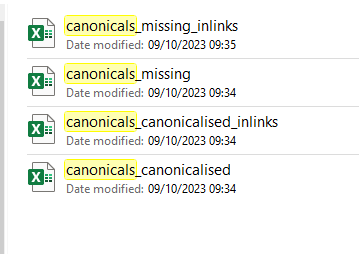
  • TL;DR – Go to the “issues” reports – Bulk Report – Issues – All –> Export into a folder
  • View canonicals canonicalized reports

Some of the names of the reports can be confusing:

  • The “canonicals missing inlinks” report – is a list of the pages missing canonical URLs, and the inlinks to those pages
  • Canonicals Missing report – as you’d expect – shows you the pages without canonical URLs/tags
  • Canonicals Canonicalised – has pages with canonical to a different URL. So you might have example.com/help/contact – canonicalised to example.com/help – which may or may not be a problem.
  • Canonicals canonicalised inlinks – those pages with canonicals different to their own URL – the inlinks to those pages.

  • Check canonical with JS turned off (using Developer Chrome Extension) & check it remains the same
  • Check the View Source Code with and Without JS turned on – check canonical remains the same
  • Check canonical is not added using JS – this is not idea – more info here
  • Check for multiple canonical URLs using Screaming Frog and check visually in the view source code (JS rendering might be required to see all cononicals)

  • For paginated pages – check if you want each page indexed, that each different page has it’s own canonical URL
  • Check that faceted/filters on pages don’t change the canonical URL (generally you dont want them to)

Exclude these/filter out by, in this instance adding a filter in Excel – does not contain – +

Check this blog post too about auditing canonicals and Hreflang tags

Tools & Checklist for Schema [2023]

I’ve put together a spreadsheet for SEO schema checks here:

https://docs.google.com/spreadsheets/d/1dDqJ9_qrTVoJOZRxieJDp9XE3Q1TCq4ixNVudVtgp2M/edit#gid=0

Use https://classyschema.org/Visualisation and import a URL – test using different URLs, especially for eCommerce websites – like homepage, about page, product page, category pages

Test also with:

https://search.google.com/test/rich-results – add any issues in column C of sheet

and

https://validator.schema.org/ – add issues in Column D

  • Put your “to do” list in columns E and F

When using validator, make sure you’re schema has all the relevant parameters.

The separate sheets on the Google Sheet linked above, has some examples for you to check against – written in JSON-LD

Finally, if the site is already live, check the schema reports in Search Console for any errors

If you have Screaming Frog, I’d also recommend running a crawl –

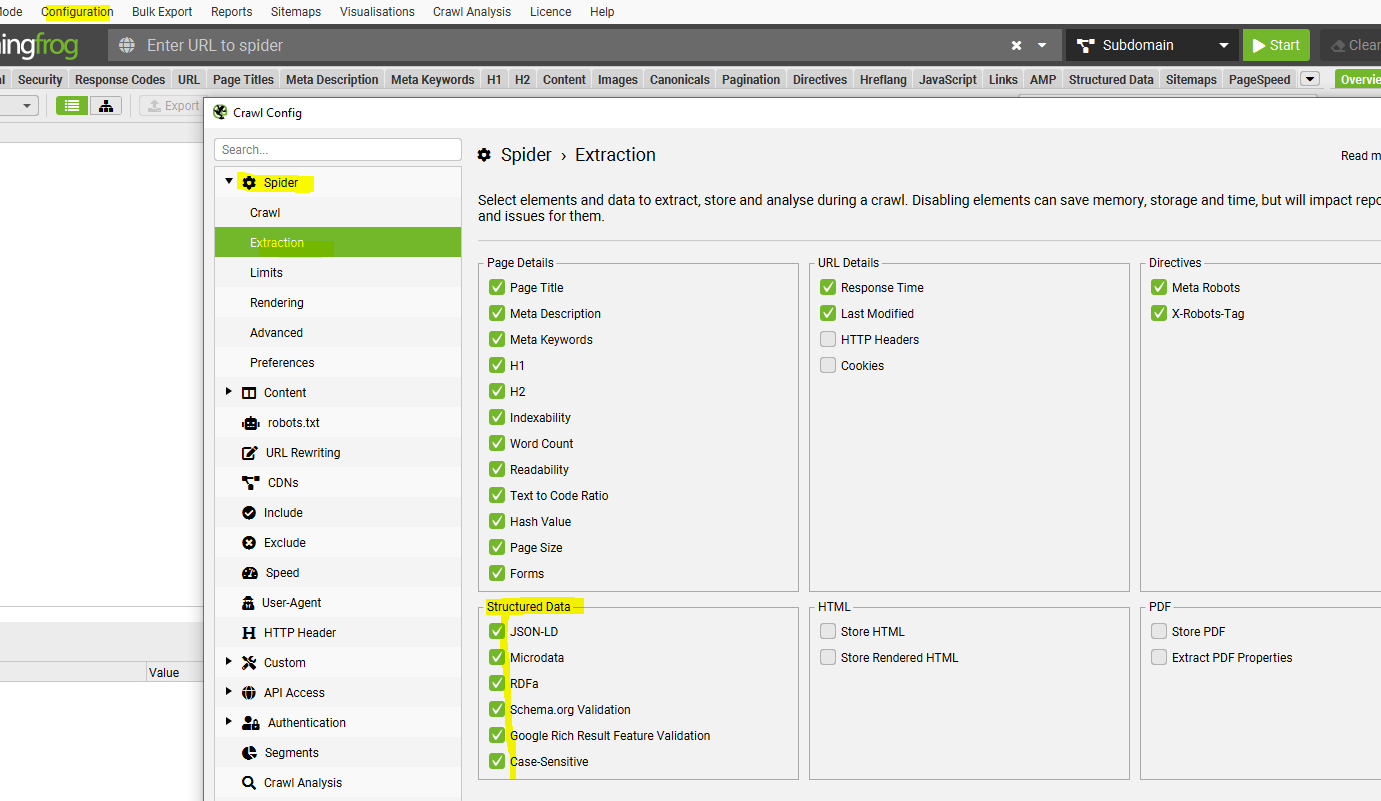
Go to Configuration – Spider – Crawl – and tick all the “Structured Data” boxes:

crawl schema in screaming frog

Then when the crawl has run – go to Reports – Structured Data and download each report

Finally, you can also check individual pages using the Ryte Structured Data Helper for Chrome –

Check with CHrome plugin – Ryte structured data helper
https://chrome.google.com/webstore/detail/ryte-structured-data-help/ndodccbbcdpcmabmiocobdnfiaaimgnk/related

Organic Landing Page Report in GA4

Go to

Reports > Engagement > Pages and Screens

You can change the first column drop down menu to “Page Path and Screen Class”

  • Add a comparison by clicking the plus icon near the top left

Type in “session dimension” to the search box that appears on the right

Then

Exactly Matches

“organic”

You can then delete “all users” if you want to see just organic landing pages (near the top left of the screen)

How to Use the GA4 Add-On in Google Sheets (2023)

To use the add-on:

Open Google Sheets and a new sheet

Click on “Extensions” in the top menu bar (to the right)

Click “Get add-ons”

Search for “GA4 Reports Builder for Google Analytics”

Select Google’s Add On and click Install and allow access to data (at your own risk etc)

You might have to wait a minute or two for the add on to install – refresh the page if it’s not found in the “Extensions” menu at the top of the page

Once installed – click “Extensions”

Select the “GA4 Reports Builder for Google Analytics” extension

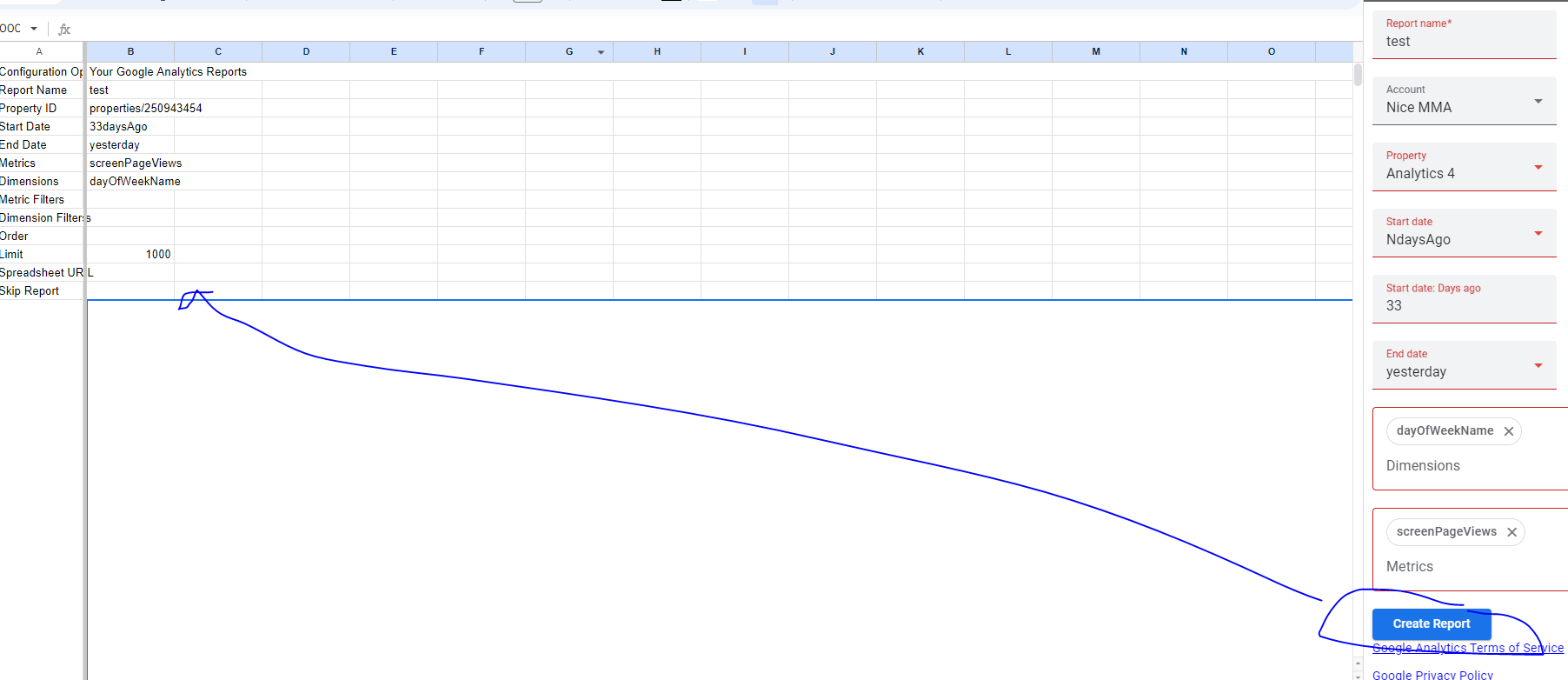
Click “create new report”

Fill in the “table” of drop down menus on the right hand side with the GA4 property you want and the dimensions and metrics

click “Create Report”

Select the GA4 Add on in the Extensions Menu again

Click “Run Report” in the side-menu that pops up when you hover/select the GA4 add-on under “Extensions” menu

You’ll be give a table of data.

Highlight the table of data and all it’s cells

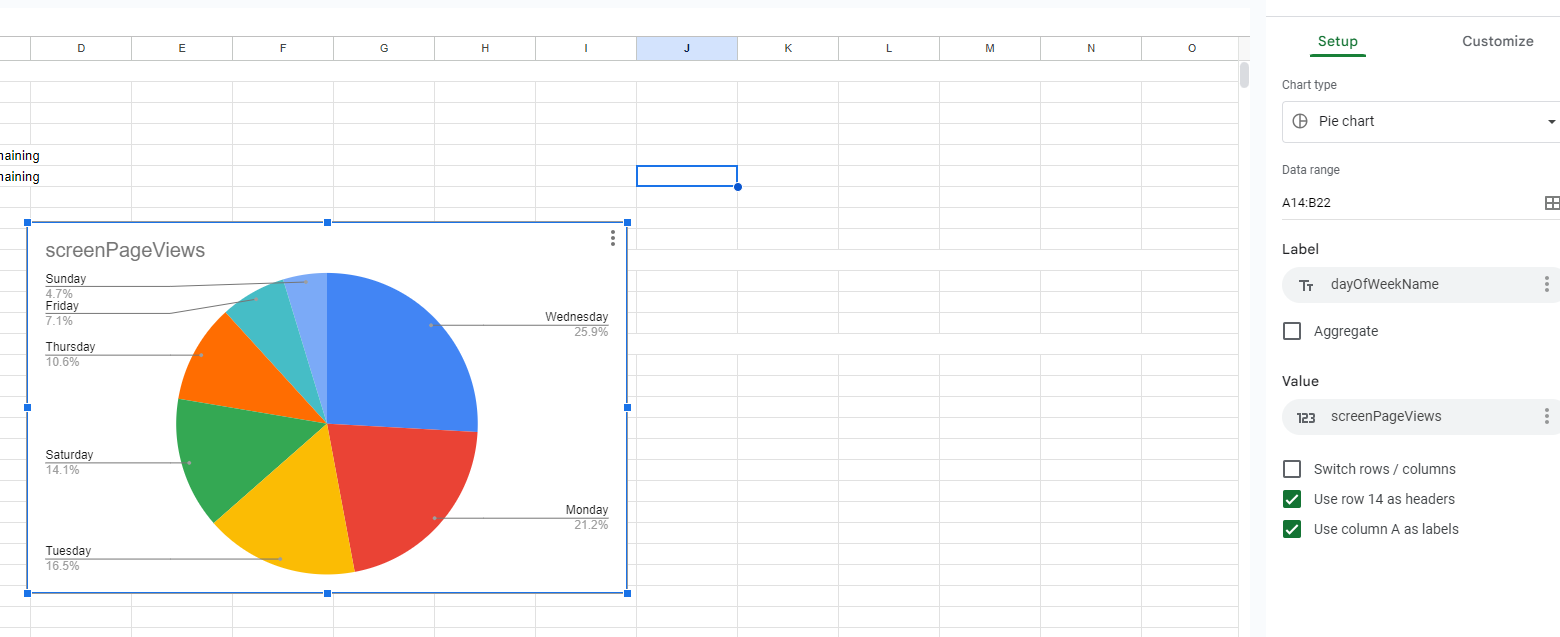
Click “Insert” from top menu bar and then – Chart

Right click the chart and you can change the Chart Type and design.

When you click “Create Report” you should see a load of data in the Sheet about the property etc ^

(if you don’t try again in a new Sheet)

Click “Extensions” menu again – choose the GA4 Add-on and click “run report”:

Select the table of data – right click – go to “Insert” menu and choose “Chart”:

Right click the chart – click “chart style” than click “setup” to change the chart type:

ga4 add on

Making a CSS or element responsive on Mobile

This is what I used to make a container ‘work’ on mobile – it was working fine on desktop, but the text was overlaying the image on mobile:

<style>
  @media screen and (max-width:768px) {
    .name-of-div-container {
      position: relative;
      transform: none;
    }
  }
</style>

On screens that are 768px or less (i.e. mobile phones),
The “name-of-div-container” should be positioned relative with no transform styling.

This is quite specific code for the example I was using but you can replace position relative and transform none with whatever you want the element to do on a mobile device.

Table with Responsive Horizontal Scroll Bar – HTML & CSS

This is what I’ve just used.

The table in the <body> on the HTML doc:

 <!--table-->  
  <div class="content-text section" style="padding-top: 0px; padding-bottom: 1vh; margin-top: 1rem; width:870px; max-width: 100%;">
<!--<div class="scroll-container scroll-x">-->
  <div style="clear: both;">
    <div class="scroll-container">
    <div class="content-2 section " style="margin-top: 1px">
     <div>
    <table class="brand-p1" style= "margin-top: 0px; margin-bottom: 0px; padding-top: 0px; padding-bottom: 0px; text-align: center;     border-collapse: collapse; background-color:transparent; font-size: 13px; width:870px; max-width: 100%;">
    
   <tr>
     <th colspan="8" style="border: 1px solid #878681;background-color:transparent;font-size: 15px;"><strong>Regulation Lacrosse Ball Dimensions &amp; Properties Recap</strong></th></tr>
     <tr style=" border: 1px solid #878681;background-color:transparent; font-size: 14px;">
     <th style="border: 1px solid #878681;background-color:transparent;">Width</th>
     <th style="border: 1px solid #878681;background-color:transparent;">Radius</th>
     <th style="border: 1px solid #878681;background-color:transparent;">Weight</th>
     <th style="border: 1px solid #878681;background-color:transparent;">Colour</th>
     <th style="border: 1px solid #878681;background-color:transparent;">Material</th>
   </tr>

    <tr style=" border: 1px solid #878681;background-color:transparent;">
    <td style="border: 1px solid #878681;background-color:transparent; ">7.75 - 8 inches (19.69 - 20.32cm)</td>
    <td style="border: 1px solid #878681;background-color:transparent; ">2.47 -2.55 inches (6.27 - 6.47cm)</td>
    <td style="border: 1px solid #878681;background-color:transparent; ">5.0 -5.25 oz (141.75 - 155.92g)</td>
    <td style="border: 1px solid #878681;background-color:transparent; ">White, Yellow or Orange</td>
    <td style="border: 1px solid #878681;background-color:transparent; ">Vulcanised rubber</td>
   </tr>

   
     </table>
    </div> 
   </div> 
  </div>
  </div>
    </div>

 <!--table-->       

And then this CSS:

<style>
/* Default - For larger screens */
.scroll-container {
    overflow-x: hidden;
}

/* For screens with a max-width of 600px */
@media screen and (max-width: 600px) {
    .scroll-container {
        overflow-x: scroll;
    }
}
</style>  

CollectionPage Schema Markup Example (eCommerce)

Here’s an eCommerce example, that I found on StackOverflow:

<script type="application/ld+json">
{
  "@context" : "http://schema.org",
  "@type": "CollectionPage",
  "name": "Shopify Apps",
  "url": "https://sherpas.design/pages/shopify-apps",
  "description": "We build apps that function and feel natively Shopify",
  "image": "https://cdn.shopify.com/s/files/1/0085/8515/0560/files/logox2_500x500.png?v=1555661781",
  "mainEntity" : {
    "@type":"ItemList",
    "itemListElement":[
      {
        "@type":"ListItem",
        "position":1,
        "url":"http://example.com/coffee_cake.html",
         "name":"coffee cake"

      },
      {
        "@type":"ListItem",
        "position":2,
        "url":"http://example.com/apple_pie.html",
        "name":"apple pie"
      },
      {
        "@type":"ListItem",
        "position":3,
        "url":"http://example.com/blueberry-pie.html"
         "name":"blueberry pie"
      }
    ]
  }
}
</script>

(Thanks stackoverflow and sherpa.design)

You can add an image URL below “name” too^

Here’s an example with elatedLink and IsPartOf schema elements:

<script type="application/ld+json">

{
@context: "http://schema.org",
@type: "CollectionPage",
name: "Shopify Apps",
url: "https://sherpas.design/pages/shopify-apps",
description: "We build apps that function and feel natively Shopify",
image: "https://cdn.shopify.com/s/files/1/0085/8515/0560/files/logox2_500x500.png?v=1555661781",
isPartOf: {
@type: "WebSite",
name: "Sherpas Design",
url: "https://sherpas.design"
},
relatedLink: [
https: //sherpas.design/about-us,
https: //sherpas.design/contact
],
mainEntity: {
@type: "ItemList",
itemListElement: [{
@type: "ListItem",
position: 1,
url: "http://example.com/coffee_cake.html",
name: "Coffee Cake",
image: "http://example.com/images/coffee_cake.jpg"
}, {
@type: "ListItem",
position: 2,
url: "http://example.com/apple_pie.html",
name: "Apple Pie",
image: "http://example.com/images/apple_pie.jpg"
}, {
@type: "ListItem",
position: 3,
url: "http://example.com/blueberry-pie.html",
name: "Blueberry Pie",
image: "http://example.com/images/blueberry_pie.jpg"
}]
}
}
</script>

Here’s an example with a “description” and “brand” – please note – Brand should really be used with Product Schema:

<script type="application/ld+json">

{
"@context": "http://schema.org",
"@type": "CollectionPage",
"name": "Shopify Apps",
"url": "https://sherpas.design/pages/shopify-apps",
"description": "We build apps that function and feel natively Shopify",
"image": "https://cdn.shopify.com/s/files/1/0085/8515/0560/files/logox2_500x500.png?v=1555661781",
"isPartOf": {
"@type": "WebSite",
"name": "Sherpas Design",
"url": "https://sherpas.design"
},
"relatedLink": [
"https://sherpas.design/about-us",
"https://sherpas.design/contact"
],
"mainEntity": {
"@type": "ItemList",
"itemListElement": [
{
"@type": "ListItem",
"position": 1,
"url": "http://example.com/coffee_cake.html",
"name": "Coffee Cake",
"image": "http://example.com/images/coffee_cake.jpg",
"description": "product is yummy",
"brand": "NanesBakes"
},
{
"@type": "ListItem",
"position": 2,
"url": "http://example.com/apple_pie.html",
"name": "Apple Pie",
"image": "http://example.com/images/apple_pie.jpg",
"description": "product is yummy",
"brand": "MumsCakesYo"
},
{
"@type": "ListItem",
"position": 3,
"url": "http://example.com/blueberry-pie.html",
"name": "Blueberry Pie",
"image": "http://example.com/images/blueberry_pie.jpg",
"description": "product is yummy",
"brand": "NanesBakes"
}
]
}
}
</script>

You can add products as the ‘listitems”, although I’m not 100% sure this is best practice:

<script type="application/ld+json">

{
"@context": "http://schema.org",
"@type": "CollectionPage",
"name": "Shopify Apps",
"url": "https://sherpas.design/pages/shopify-apps",
"description": "We build apps that function and feel natively Shopify",
"image": "https://cdn.shopify.com/s/files/1/0085/8515/0560/files/logox2_500x500.png?v=1555661781",
"isPartOf": {
"@type": "WebSite",
"name": "Sherpas Design",
"url": "https://sherpas.design"
},
"relatedLink": [
"https://sherpas.design/about-us",
"https://sherpas.design/contact"
],
"mainEntity": {
"@type": "ItemList",
"itemListElement": [
{
"@type": "Product",
"position": 1,
"url": "http://example.com/coffee_cake.html",
"name": "Coffee Cake",
"image": "http://example.com/images/coffee_cake.jpg",
"description": "product is yummy",
"brand": "NanesBakes"
},
{
"@type": "Product",
"position": 2,
"url": "http://example.com/apple_pie.html",
"name": "Apple Pie",
"image": "http://example.com/images/apple_pie.jpg",
"description": "product is yummy",
"brand": "MumsCakesYo"
},
{
"@type": "Product",
"position": 3,
"url": "http://example.com/blueberry-pie.html",
"name": "Blueberry Pie",
"image": "http://example.com/images/blueberry_pie.jpg",
"description": "product is yummy",
"brand": "NanesBakes"
}
]
}
}
</script>

If you are going to embed “Product” schema within itemlist – validator suggests removing the “position” element:

<script type="application/ld+json">

{

"@context": "http://schema.org",

"@type": "CollectionPage",

"name": "Shopify Apps",

"url": "https://sherpas.design/pages/shopify-apps",

"description": "We build apps that function and feel natively Shopify",

"image": "https://cdn.shopify.com/s/files/1/0085/8515/0560/files/logox2_500x500.png?v=1555661781",

"isPartOf": {

"@type": "WebSite",

"name": "Sherpas Design",

"url": "https://sherpas.design"

},

"relatedLink": [

"https://sherpas.design/about-us",

"https://sherpas.design/contact"

],

"mainEntity": {

"@type": "ItemList",

"itemListElement": [

{

"@type": "Product",

"url": "http://example.com/coffee_cake.html",

"name": "Coffee Cake",

"image": "http://example.com/images/coffee_cake.jpg",

"description": "product is yummy",

"brand": "NanesBakes"

},

{

"@type": "Product",

"url": "http://example.com/apple_pie.html",

"name": "Apple Pie",

"image": "http://example.com/images/apple_pie.jpg",

"description": "product is yummy",

"brand": "MumsCakesYo"

},

{

"@type": "Product",

"url": "http://example.com/blueberry-pie.html",

"name": "Blueberry Pie",

"image": "http://example.com/images/blueberry_pie.jpg",

"description": "product is yummy",

"brand": "NanesBakes"

}

]

}

}

</script>


Here’s is another example – but with more “Product” schema categories/elements – This is now pretty comprehensive, but we could also include “Review”review” “aggregateRating” and “PriceValidUntil”

<script type="application/ld+json">

{
"@context": "http://schema.org",
"@type": "CollectionPage",
"name": "Cakes",
"url": "https://food.com/all-cakes",
"description": "We build cakes that function and feel natively welsh",
"image": "https://cdn.shopify.com/s/files/1/0085/8515/0560/files/logox2_500x500.png?v=1555661781",
"isPartOf": {
"@type": "WebSite",
"name": "Sherpas Design",
"url": "https://sherpas.design"
},
"relatedLink": ["https://food.design/about-us", "https://food.design/contact"],
"mainEntity": {
"@type": "ItemList",
"itemListElement": [{
"@type": "Product",
"url": "http://example.com/coffee_cake.html",
"name": "Coffee Cake",
"image": "http://example.com/images/coffee_cake.jpg",
"description": "product is yummy",
"brand": "NanesBakes",
"sku": "sku1",
"manufacturer": "Manufacturer 1",
"offers": {
"@type": "Offer",
"price": "99.99",
"priceCurrency": "USD",
"availability": "https://schema.org/InStock"
}
}, {
"@type": "Product",
"url": "http://example.com/apple_pie.html",
"name": "Apple Pie",
"image": "http://example.com/images/apple_pie.jpg",
"description": "product is yummy",
"brand": "MumsCakesYo",
"sku": "sku2",
"manufacturer": "Manufacturer 2",
"offers": {
"@type": "Offer",
"price": "99.99",
"priceCurrency": "USD",
"availability": "https://schema.org/InStock"
}
}, {
"@type": "Product",
"url": "http://example.com/blueberry-pie.html",
"name": "Blueberry Pie",
"image": "http://example.com/images/blueberry_pie.jpg",
"description": "product is yummy",
"brand": "NanesBakes",
"sku": "sku3",
"manufacturer": "Manufacturer 3",
"offers": {
"@type": "Offer",
"price": "99.99",
"priceCurrency": "USD",
"availability": "https://schema.org/InStock"
}
}]
}
}
</script>

What is Optional Chaining in JavaScript? (2023)

I asked Chat GPT to explain optional chaining in JavaScript to me like I’m 5:

Alright kiddo, imagine you have a big toy box. Inside this toy box, there are smaller boxes, and inside those, even smaller boxes. Some boxes might be empty, and others might have a toy or another smaller box inside.

Let’s say you want to find a tiny toy car, but you’re not sure which box it’s in. You start with the big toy box, then you open a smaller box inside, and then another one, and so on, until you either find the toy car or reach an empty box.

But there’s a problem. What if you try to open a box and there’s no box inside? You can’t keep looking, right? You’d stop there and say, “Oops! There’s no box here to open.”

In JavaScript, when you want to access something deep inside an object (like our big toy box), you might run into a similar problem. The thing you’re looking for might not be there, and if you try to access it, you’ll get an error.

JavaScript’s optional chaining is like a magic tool that helps with this. Instead of going box by box, and risking an error if something isn’t there, optional chaining lets you say, “Hey, if there’s a box here, open it. If not, that’s okay, just tell me there’s nothing there.”

In code, it looks like this:

let toy = bigToyBox?.smallBox?.tinyBox?.toyCar;

If any of the boxes don’t exist, JavaScript won’t get mad. It’ll just say undefined, meaning “I didn’t find it.” And that’s how optional chaining keeps our toy search safe and error-free!

Optional chaining is an operation in JS that let’s us access values, inside of an object.

Being able to use ?. – allows you to optionally chain things.

It will only try to access the nested value, if the first value existed.

if something doesnt’ exist – it will just return “undefined”

The optional chaining is helpful when working with a database and lots of data, so that you don’t have to manage a load of “if statements”

Optional chaining is a convenient way to access values inside of objects, when working with dynamic data its important that you avoid errors and crashing. Optional chaining can help with this!