
Summary
For an SEO Audit
You want to check that href links and H1s etc are in the source and the rendered HTML
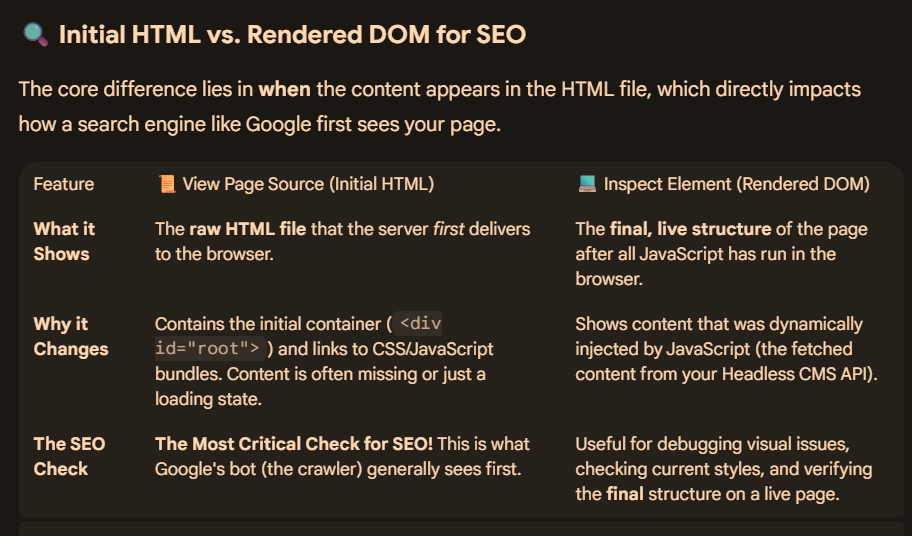
- Rendered HTML, is basically HTML after all the JS has run.
You can view rendered HTML using right click and “inspect” from the drop down menu
This shows the Live DOM, which includes changes made by JavaScript.
- Source HTML – is static HTML, as it was sent from the server to your browser.
This is the raw HTML before anyclient-side JavaScript has been run/executed.
You also want to check that the rendered HTML is not too different to the source HTML.
View the site with JS turned off. Ideally images should still be there and href links should definitely still work with JS turned off.
Rendering process – start with the source HTML and CSS.
The browser parses the source html and CSS which creates the DOM and CSSOM.
The DOM is more important for SEO
The browser creates a DOM tree to identify elements on the website and where everything belongs and relates
The browsers takes the DOM and CSSOM and creates a render tree to lay everything out.
The tree is then used to create the actual pixels and layout of what you see.
JS may then be added to manipulate the DOM
You can turn the final DOM Tree, back into HTML – this is Rendered HTML

When you click View Source in your browser
This shows the SOURCE HTML
Developer Tools – Sources – SOURCE HTML
Network Tab in developer tools – SOURCE HTML
In the elements tab in Chrome in Dev Tools – you get the current DOM Content

https://support.google.com/webmasters/answer/11626894?hl=en
Overview
When you visit a page, the website sends HTML code to your browser. Often this source code includes additional resources such as scripts, which must be loaded, and which may alter the page code.
How to view Source HTML (Ctrl + U)
Right-clicking “show source” typically shows only the original page code returned to the browser, before scripts and other resources have been loaded and run. But there are many instances, particularly when troubleshooting your page, when you need to see the code of the final, rendered page on the browser, after all resources have been loaded, and any scripts run. For example:
- To search for Google Analytics or Google Tag Manager tags used in verification.
- To debug page loading and display (that is, to check that all libraries and other resources that you want to be loaded are).
- To look at structured data on the served page.
How to view the rendered source (Inspect Element)
Here are a few methods to view the rendered source code for a web page:
- In the Chrome browser: Right-click any part of the page and select Inspect to see all the HTML from the rendered page. Search for items in the rendered HTML with
Control + F(Windows) orCommand + F(Mac). - For a page on your own site:
- Inspect the URL, either by entering the URL directly in the URL Inspection tool, or by clicking an inspection link
next to a URL shown in most Search Console reports.
- Click Test live URL > View tested page.
- The HTML tab shows the rendered HTML for the page.
- Inspect the URL, either by entering the URL directly in the URL Inspection tool, or by clicking an inspection link
- For a page on any site, not just a site that you own:
- Open the Mobile-friendly Test.
- Enter the URL of the page. The page must be available to Google without a login, and not blocked by robots.txt.
- Click View tested page.
- The HTML tab shows the rendered HTML for the page.

 Small Business Dad
You can also just use the View Rendered Source extension to do this with a click. It will even compare the pre-rendered source with the rendered version and show you the differences. Very handy!
LikeLike