
Last Updated – a few days ago (probably)
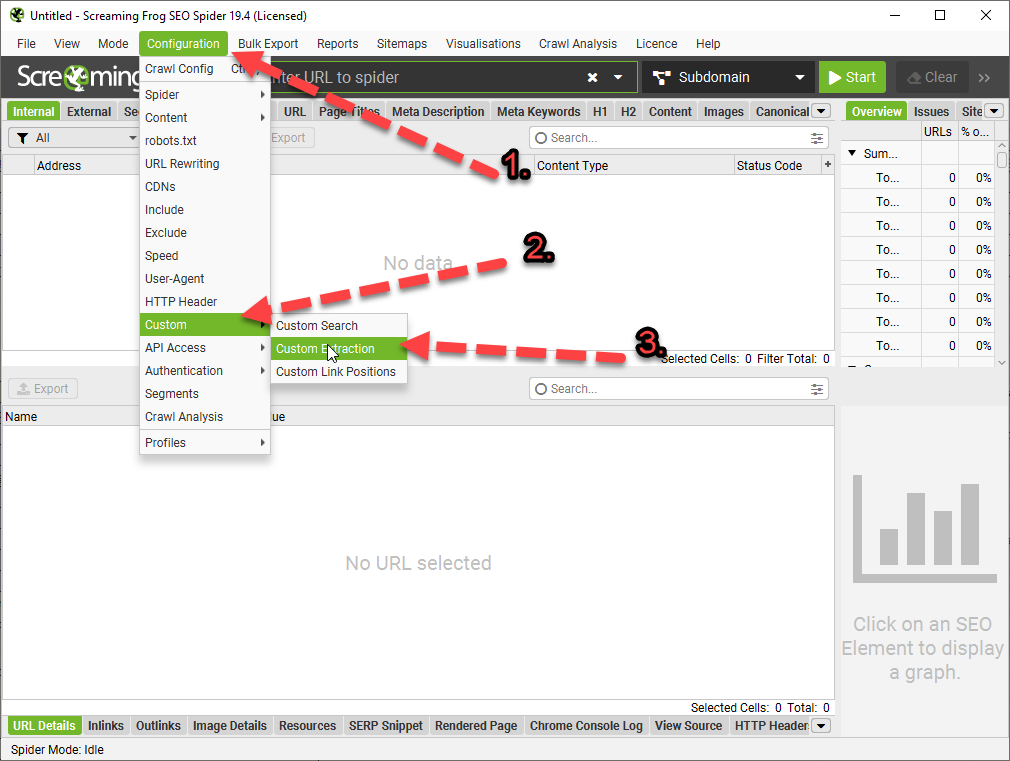
- Open Screaming Frog
- Go to Configuration in the top menu
- Custom > Custom Extraction


- Use Inspect Element (right click on the copy and choose “inspect” if you use Chrome browser) – to identify the name, class or ID of the div or element the page copy is contained in:
In this example the Div class is “prose” (f8ck knows why)

- You can copy the Xpath instead – but it appears to do the same thing as just entering the class or id of the div:

- The following will scrape any text in the div called “prose”:

*Click Image to enlarge^
Once you are in the Custom Extraction Window – Choose:
- Extractor 1
- X Path
- In the next box enter –> //div[@class=’classofdiv‘] —->
in this example – //div[@class=’prose’] - Extract Text
//div[@class='prose']

^Enter the above into the 3rd 'box' in the custom extraction window/tab.
Replace "prose" with the name of the div you want to scrape.
If you copy the Xpath using Inspect Element – select the exact element you want. For example, don’t select the Div that contains text you want to scrape – select the text itself:

Here are some more examples:
How to Extract Common HTML Elements
(Please Note – the formatting changes the single quote marks ‘ ‘ – you may need to override them manually with single quotes using your keyboard, before adding to Screaming Frog. For example
//div[@class=’read-more’]
Should be:
//div[@class='read-more']| XPath | Output |
|---|---|
| //h1 | Extract all H1 tags |
| //h3[1] | Extract the first H3 tag |
| //h3[2] | Extract the second H3 tag |
| //div/p | Extract any <p> contained within a <div> |
| //div[@class=’author’] | Extract any <div> with class “author” (remember to check ‘ quote marks are correct) |
| //p[@class=’bio’] | Extract any <p> with class “bio” |
| //*[@class=’bio’] | Extract any element with class “bio” |
| //ul/li[last()] | Extract the last <li> in a <ul> |
| //ol[@class=’cat’]/li[1] | Extract the first <li> in a <ol> with class “cat” |
| count(//h2) | Count the number of H2’s (set extraction filter to “Function Value”) |
| //a[contains(.,’click here’)] | Extract any link with anchor text containing “click here” |
| //a[starts-with(@title,’Written by’)] | Extract any link with a title starting with “Written by” |
How to Extract Common HTML Attributes
| XPath | Output |
|---|---|
| //@href | Extract all links |
| //a[starts-with(@href,’mailto’)]/@href | Extract link that starts with “mailto” (email address) |
| //img/@src | Extract all image source URLs |
| //img[contains(@class,’aligncenter’)]/@src | Extract all image source URLs for images with the class name containing “aligncenter” |
| //link[@rel=’alternate’] | Extract elements with the rel attribute set to “alternate” |
| //@hreflang | Extract all hreflang values |
How to Extract Meta Tags (including Open Graph and Twitter Cards)
I recommend setting the extraction filter to “Extract Inner HTML” for these ones.
Extract Meta Tags:
| XPath | Output |
|---|---|
| //meta[@property=’article:published_time’]/@content | Extract the article publish date (commonly-found meta tag on WordPress websites) |
Extract Open Graph:
| XPath | Output |
|---|---|
| //meta[@property=’og:type’]/@content | Extract the Open Graph type object |
| //meta[@property=’og:image’]/@content | Extract the Open Graph featured image URL |
| //meta[@property=’og:updated_time’]/@content | Extract the Open Graph updated time |
Extract Twitter Cards:
| XPath | Output |
|---|---|
| //meta[@name=’twitter:card’]/@content | Extract the Twitter Card type |
| //meta[@name=’twitter:title’]/@content | Extract the Twitter Card title |
| //meta[@name=’twitter:site’]/@content | Extract the Twitter Card site object (Twitter handle) |
How to Extract Schema Markup in Microdata Format
If it’s in JSON-LD format, then jump to the section on how to extract schema markup with regex.
Extract Schema Types:
| XPath | Output |
|---|---|
| //*[@itemtype]/@itemtype | Extract all of the types of schema markup on a page |
References:
Update:
If the ‘shorter code’ in the tables above doesn’t work for some reason, you may have to right click – inspect and copy the full Xpath code to be more specific with what you want to extract:

For sections of text like paragraphs and on page descriptions, select the actual text in the inspect window before copying the Xpath.
Update 2
We wanted to compare the copy and internal links before and after a site-migration to a new CMS.
To see the links in HTML format – you just need to check “Extract Text” to “Extract Inner HTML” in the final drop down:
(click image to enlarge)

On the new CMS, it was easier to just copy the XPath

Why Use Custom Extraction with Screaming Frog?
I’m glad you asked.
We used it to check that page copy had migrated properly to a new CMS.
We also extracted the HTML within the copy, to check the internal links were still present.
One cool thing you can do – is scrape reviews and then analyse the reviews to see key feedback/pain points that could inform superior design.
Here’s a good way to use custom extraction/search to find text that you want to use for anchor text for internal links:

I’m still looking into how to analyse the reviews – but this tool is a good starting point: https://seoscout.com/tools/text-analyzer
Throw the reviews in and see what words are repeated etc
This tool is also very good:
Or – just paste into Chat GPT and ask for insights and pain-points to help develop a better product.
I asked Chat GPT and Google Gemini why I would want to scrape copy from sites and got these responses:
Monitoring Competitors
Content Strategy Insights: Gather headings, titles, and meta descriptions from competitor websites to gain insights into their content strategies and how they optimize for search engines.
Pricing Information: For e-commerce platforms, you can use custom extraction to keep an eye on competitors’ pricing strategies by pulling prices for similar products.
Promotional Strategies: Collect details on promotions, discounts, or special offers from competitors’ sites to evaluate how they stack up against your own promotional efforts.
Keyword Usage: Identify specific keywords from competitors’ content to understand how they are targeting particular topics or niches.
Backlink Analysis: While Screaming Frog isn’t primarily a backlink tool, you can utilize custom extraction to pinpoint external links on a page, providing insights into a competitor’s backlink strategy.
Optimizing Your Own Website
Content Optimization: Employ custom extraction to review your own site’s headings, titles, meta descriptions, and keyword usage to spot areas that need improvement.
Structural Data: Extract and assess structured data (like Schema markup) across your site to ensure proper implementation and identify potential enhancement opportunities.
Internal Linking: Analyze internal linking structures to understand the flow of page authority throughout your site and to find orphan pages or those with insufficient internal link support.
Audit Forms and Calls to Action (CTAs): Extract form action URLs and CTA links to verify they are working correctly and to optimize their placement and wording.
Identify Outdated Content: Use custom extraction to locate dates and timestamps on your content, which can help you identify articles or pages that may require updates.
Gemini said:
Reasons to Use Custom Extraction in Screaming Frog:
The custom extraction feature in Screaming Frog provides numerous advantages for website analysis and data collection. Here are some important reasons to utilize it:
- Extract Specific Data:
Go beyond basic SEO metrics: While Screaming Frog offers valuable insights, custom extraction enables you to focus on specific data points that may not be easily accessible, such as product prices, article publish dates, or user reviews.
Gain deeper competitor insights: Extract information on competitor pricing strategies, product descriptions, or content structures to compare with your own website.
Gather information for internal analysis: Monitor specific elements on your site, like call to action (CTA) button text or internal linking structures, to observe changes and assess their impact.
- Automate Data Collection:
Save time and effort: Collecting data manually can be labor-intensive and prone to errors. Custom extraction streamlines the process, allowing you to efficiently gather information across numerous pages.
Maintain consistent data: By setting up automated data extraction, you ensure uniform data collection over time, which facilitates better trend analysis and comparisons.
- Enhance Reporting and Analysis:
Combine extracted data with existing Screaming Frog metrics: Merge the extracted data with other SEO parameters such as page titles, meta descriptions, and internal links for a more thorough analysis.
Create custom reports: Use the extracted data to generate tailored reports for specific purposes, like competitor pricing comparisons or evaluations of content performance.
Monitoring Competitors:
Custom extraction serves as a valuable tool for competitor monitoring in various ways:
Extract competitor pricing data: Keep track of competitor pricing trends, identify potential gaps in your own pricing strategy, and make informed pricing decisions.
Analyze competitor content structure and keywords: Learn how competitors format their content, pinpoint their targeted keywords, and gain insights to enhance your own strategy.
Note for self – for Magento 2, Hyva theme Sub-category page copy – scrape using:
//div[@id='descriptionDiv']

Product page descriptions upper and lower divs -

//div[@class="product-description"]

//*[@id="specifications"]/div/div[2]/div/div/div/div/div

//*[@id="description"]/div/div[2]
 Small Business Dad