How Google Bot Crawls JavaScript [2025]

Ever wondered how Google turns your lovingly handcrafted website into a ranking somewhere below a Reddit thread from 2013? It’s not magic, it’s just a long queue of tiny robot librarians fetching HTML, executing JavaScript, and occasionally having nervous breakdowns when they hit your React app.

This is the life cycle of a webpage inside Google’s digestive system: crawl, render, index, panic. Let’s go step by step before your sitemap starts crying.

1. Crawling: getting the raw HTML

1.1 URL discovery & crawl queue

Googlebot first has to discover your URLs. That can happen via:

  • Links from other pages
  • XML sitemaps
  • Manual submit / “Inspect URL → Request indexing” in Search Console
  • Other Google systems (e.g. feeds, previous crawls)

Discovered URLs go into a crawl queue with priority based on things like page importance and your site’s crawl budget.

1.2 robots.txt and basic checks

Before requesting the URL, Googlebot:

  1. Fetches robots.txt
  2. Checks if the URL (and key resources like JS/CSS) are allowed
  3. Applies host load limits and crawl budget rules

If the page or important JS/CSS files are blocked in robots.txt, Google:

  • Won’t crawl them
  • Won’t be able to fully render your JS content later

Practical implication: Never block /js/, /static/, /assets/, etc. in robots.txt.

1.3 Fetching the HTML (“first wave”)

Googlebot makes a normal HTTP request (like a browser without UI):

  • Gets the initial HTML (without having run JS yet)
  • Parses head tags (title, meta description, canonical, meta robots, hreflang, etc.)
  • Extracts links from the HTML and adds them to the crawl queue
  • Notes references to resources (JS, CSS, images)

At this stage, only what’s in the raw HTML is visible. If your content is 100% client-side rendered (React, Vue, etc.), Google might see almost nothing yet.

Google can sometimes do basic indexing directly from the HTML (e.g. if content is already there), but JS-heavy pages need the next phase.


2. Rendering: running your JavaScript

Google describes the JS pipeline as: Crawling → Rendering → Indexing. Rendering happens in a separate system using an evergreen version of Chromium (a headless Chrome kept relatively up-to-date) called the Web Rendering Service.

2.1 The render queue (“second wave”)

After the initial crawl:

  1. Google adds the page to a render queue.
  2. When resources allow, that queue feeds URLs into the rendering system.
  3. Until rendering happens, Google only “knows” what was in the raw HTML.

This is why people talk about “two waves of indexing” for JavaScript:

  • Wave 1: Index from HTML (if possible)
  • Wave 2: Index updated content after JS has run

Modern research suggests the process is smoother and faster than years ago, but there is still a render queue and potential delay for JS content.

2.2 How Google’s renderer behaves

When a page reaches the renderer:

  1. Google loads it in an evergreen Chromium environment (no UI).
  2. It fetches JS, CSS, and other resources (subject to robots.txt, CORS, etc.).
  3. It executes JavaScript for a limited amount of time (shorter than a user session).
  4. JS can:
    • Modify the DOM
    • Inject content
    • Fetch JSON/XHR/data and add it to the page
    • Add structured data (application/ld+json) dynamically

Important constraints (from Google’s docs & tests):

  • No user interactions: Google doesn’t click, type, or scroll like a user.
  • Time limits: Long chains of async calls may never complete before the renderer stops.
  • Resource limits: Heavily blocking scripts or endless network calls can break rendering.
  • “Noindex = no render” effect: If a page is noindex, Google generally won’t bother rendering it.

2.3 Post-render snapshot

Once JS finishes (or time runs out), Google:

  1. Takes the final DOM snapshot (what a user would see after JS).
  2. Extracts:
    • Visible text content
    • Links added by JS (e.g. SPA navigation)
    • Structured data present in the DOM
    • Meta tags if they are changed or added by JS

This rendered snapshot is what feeds into the real indexing stage.


3. Indexing: storing & scoring the rendered content

With the rendered HTML/DOM in hand, Google moves to indexing.

3.1 Understanding the content

From the rendered DOM, Google:

  • Tokenizes and stores text (words, phrases, headings).
  • Maps entities, topics, and relationships.
  • Reads links (anchor text + target URL) added by your JS navigation.
  • Parses structured data (schema.org, etc.) that JS may have injected.

This is the version of the page that can now rank for queries matching that content.

3.2 Canonicals, duplicates & signals

Indexing also handles:

  • Canonical selection (HTML tags, redirects, link signals).
  • Duplicate / near-duplicate detection, especially if JS rewrites similar pages.
  • Applying meta robots and HTTP headers from the final state after JS (for most cases).

If Google decides another URL is the canonical, your rendered JS content might be stored but not shown as the main result.

3.3 Final result: searchable document

After indexing, the document is:

  • Stored in Google’s index with:
    • Content (from rendered DOM)
    • Links
    • Structured data
    • Various quality & relevance signals
  • Ready to be retrieved and ranked when a user searches for related queries.

4. Where JavaScript sites usually break this flow

Because JS adds extra moving parts, a bunch of things can go wrong between crawl → render → index:

  1. Blocked JS/CSS in robots.txt
    Google can’t render layout or content if the files are disallowed.
  2. Content only after interaction
    If key text appears only after a click/scroll or in a modal that never opens, Google won’t see it.
  3. Too slow or broken rendering
    Heavy JS, long waterfalls, or failing XHR calls mean the DOM never contains the content when Google takes the snapshot.
  4. Infinite scroll / SPA routing without proper URLs
    If content is loaded endlessly on one URL without crawlable links or pagination (e.g. no ?page=2, no anchor links), Googlebot may only see the initial “page”.
  5. Client-side only structured data that doesn’t materialise in time
    If JS injects JSON-LD but too slowly (or fails), rich results won’t trigger.

5. How to see what Google sees (JS-specific)

To understand how your JS is being processed:

  • Use URL Inspection“View crawled page” & “Screenshot” in Search Console to see the rendered DOM.
  • Compare “HTML” vs “Rendered HTML” to spot what content only appears post-JS.
  • Use “Test live URL” if you suspect render-queue delay.
  • Check Coverage / Pages report for “Crawled – currently not indexed” patterns that often show render/index issues.

So there you have it — from lazy bots fetching half your HTML to a headless Chrome pretending to be a real user for 0.3 seconds. Somewhere in that chaos, your content might actually get indexed.

If your JavaScript site isn’t showing up, don’t blame Google just yet — try unblocking your own files and giving the crawler half a chance. Think of it as SEO mindfulness: eliminate obstacles, breathe deeply, and let the bots eat your content in peace.


Explained in simpler terms – How Googlebot Crawls Javascript –

Stage 1 – Discovery & Crawling: “Finding your page and grabbing the first copy”

1. Google finds your URL

Google finds pages from things you already know:

  • Links on other sites
  • Your internal links
  • Your XML sitemap
  • Stuff you submit in Search Console

It puts those URLs in a big to-do list (crawl queue).


2. robots.txt check

Before visiting a URL, Google checks your robots.txt file:

  • If the page or important files (JS/CSS) are blocked, Google is basically told: “Don’t look here.”
  • If they’re allowed, it moves on.

Simple rule for you:
Never block your JS/CSS folders in robots.txt.


3. Google downloads the HTML (Wave 1)

Google now requests the page, just like a browser:

  • It gets the basic HTML (before any JavaScript runs).
  • From that HTML it grabs:
    • Title, meta description, canonical, meta robots, etc.
    • Any plain text that’s already there
    • Links to other pages
    • Links to JS/CSS/images

At this point, Google has not run your JavaScript yet.

If your important content is already in the HTML (e.g. server-side rendered), Google can often index it right away from this “first wave”.


Stage 2 – Rendering: “Actually running your JavaScript”

Now Google needs to know what your page looks like after JS runs – like a real user would see it.

Because this is heavy work, Google doesn’t do it instantly for every URL.

4. Render queue (waiting line)

After the first crawl, JavaScript pages go into a render queue:

  • Think of it like: “We’ve saved the HTML. When we have time, we’ll come back and run the JS.”

So for a while, Google might only know the bare HTML version of your page.


5. Headless Chrome renders the page

When your page reaches the front of the queue, Google loads it in something like Chrome without a screen (headless browser).

This browser:

  • Downloads JS/CSS (if not blocked)
  • Executes the JS for a short amount of time
  • Lets JS:
    • Change the DOM (the page structure)
    • Insert more text
    • Add more links
    • Inject structured data (JSON-LD)

Then it takes a snapshot of the final page – the “after JS” version.

This is basically:

“What a user would see if they opened your page and waited a bit.”


6. Things that can go wrong here

This is where JS sites often break:

  • Blocked JS/CSS → Google can’t see the layout or content properly.
  • Very slow JS → content appears after Google stops waiting.
  • Content only after a click/scroll → Google doesn’t usually click buttons or scroll like a human.
  • Broken scripts / errors → content never appears at all.

Result: Google’s snapshot may miss your main content.


Stage 3 – Indexing: “Filing your page in the library”

Now Google has:

  • Version 1: HTML-only (first wave)
  • Version 2: Rendered DOM (after JS runs)

7. Understanding the rendered page

From the rendered snapshot Google:

  • Reads all the visible text
  • Sees headings and structure
  • Follows any extra links added by JS
  • Reads structured data (schema)
  • Applies canonical tags / meta robots, etc.

This updated information is used to update your page in the index (second wave).


8. Search results

When someone searches:

  1. Google looks through its index of pages (which contains that rendered version).
  2. It decides which pages are most relevant.
  3. It shows your URL in the results.
  4. When the user clicks it, they go to your live site, not to Google’s stored copy.

Quick “JS SEO” checklist for you

If you remember nothing else, remember these:

  1. Can I see my main content in the raw HTML?
    • If yes → you’re mostly safe (e.g. SSR or hybrid).
    • If no → you’re relying heavily on rendering; be extra careful.
  2. Are JS & CSS allowed in robots.txt?
    • They should be.
  3. Does important content require a click/scroll?
    • Try to have key text and links visible without interaction, or use proper URLs for loaded content.
  4. Is the page reasonably fast?
    • If it takes ages for content to appear, Google may bail before seeing it.
  5. Use Search Console’s URL Inspection → “View crawled page”
    • Compare:
      • HTML Google saw
      • Rendered HTML
    • If you don’t see your text in the rendered version → that’s a problem.

Scraping Reviews with Screaming Frog? [2025]

You can scrape reviews if they are :

– In Schema
– Have their own specific class of <p> tag

e.g. class=”review-tex text-base font-secondary”

Can you scrape the reviews then?

Yes, you can scrape the reviews if they are formatted in schema markup (like Review, AggregateRating, etc.) or if they belong to a specific class. Screaming Frog’s Custom Extraction feature will allow you to do this.

✅ How to Scrape Reviews in Schema or Specific HTML Classes Using Screaming Frog

1️⃣ Enable Structured Data Extraction (for Schema Reviews) If the reviews are in schema markup (JSON-LD, Microdata, or RDFa), Screaming Frog can directly extract them:

✔ Open Screaming Frog SEO Spider.

✔ Navigate to Configuration > Spider > Enable Structured Data.

✔ Start a crawl, and Screaming Frog will pull JSON-LD, Microdata, and RDFa formats.

✔ Once the crawl is finished, go to Reports > Structured Data > Review Schema to export the data.

2️⃣ Extract Reviews from a Specific Class (e.g., class=”review-text text-base font-secondary”) If the reviews are located within a specific tag that has a class, you can use Custom Extraction to get them:

✔ Open Screaming Frog and go to Configuration > Custom Extraction.

✔ Select XPath or CSS Selector based on your data structure. ✔ Use these extraction methods: 📝 Option 1: Using CSS Selector (Ideal for Class-Based Extraction) css Copy Edit p.review-text.text-base.font-secondary ✔

This will retrieve all tags that have the class review-text text-base font-secondary. 📝 Option 2: Using XPath (For More Complex Queries) xpath Copy Edit //p[contains(@class, ‘review-text text-base font-secondary’)] ✔

This will locate all elements with a class that includes “review-text text-base font-secondary”.

3️⃣ Run the Crawl and Export the Review Data

✔ Start the crawl and allow Screaming Frog to extract the reviews.

✔ After it’s done, go to Custom Extraction > Export Data.

✔ Open the resulting file in Excel or Google Sheets for further analysis. 🚀 Alternative Approach: Scraping JSON-LD Schema Reviews If the reviews are included in JSON-LD schema markup, you can extract them using: Custom Extraction (JSON-LD): xpath //script[@type=’application/ld+json’]/text()
✔ This extracts all JSON-LD data, which you can filter for reviews.
✔ Use JSON formatting tools (like jq or Python json.loads()) to clean and parse the data.

🔹 Summary: Can Screaming Frog Scrape Reviews?
✅ YES, if reviews are inside Schema Markup (JSON-LD, Microdata, RDFa).
✅ YES, if they have a specific class, using Custom Extraction.
✅ YES, if the reviews are static HTML, meaning they exist in the page source.
❌ NO, if reviews are loaded dynamically via JavaScript (use Selenium instead).

What’s the Point of Having a Business Blog? [2025]

Last Updated – A few days ago (probably)

Having a high-quality, high-traffic blog in the same niche can significantly enhance the organic rankings of an eCommerce site for commercial terms like “buy football goals.” Here’s how:

  1. Increased Topical Authority

Search engines such as Google prioritise specific knowledge and expertise. A blog that focuses on football-related topics showcases expertise and builds authority within the niche. This can enhance the credibility of the eCommerce site as a reliable source for football equipment.

If you have 30 excellent, well written, detailed posts about football, then for an array of reasons from topical authority to social shares and backlinks, the eCommerce ‘section’ of your site will tend to rank a lot higher for commercial terms.

Top tip – include your own research and data. People love to link back to statistics. A good example with the NOW Foods 3rd party lab testing of creatine gummies – showing half of them had hardly any creatine in them.

  1. Internal Linking Opportunities

A well-organized blog provides the chance to link to your product pages (e.g., “buy football goals”) using keyword-rich anchor text. This not only drives traffic to those pages but also indicates to search engines the relevance of your product pages for specific keywords.

  1. Improved Backlink Profile

Blogs tend to attract more backlinks than product pages because they offer valuable, non-commercial content. These backlinks to your blog can transfer authority to your eCommerce site if you effectively link the blog to your product pages.

  1. Keyword Coverage

Blogs enable you to target informational keywords like “how to set up a football goal” or “best football training drills,” which may not fit well on product pages. Once users visit these blog pages, you can direct them toward related products, creating a smooth transition from information to purchase.

  1. Increased Dwell Time

High-quality content keeps users engaged on your site for longer periods. This increased dwell time signals to search engines that your site offers valuable content, which can positively influence rankings across the board, including for commercial terms.

  1. Capture Users at Different Stages of the Sales Funnel

Blogs can attract users who are in the awareness or consideration stages of their buying journey. For instance:

A post titled “5 Things to Consider When Buying Football Goals” can inform users while subtly promoting your products.

If they choose to buy, they’re already on your site and more likely to make a purchase.

  • Use exit intent pop-ups to build an email list – incentivise sign ups with discounts
  • Have a sticky banner with a special offer
  • Make the brand stand out in images and banners

Brand Awareness!

Anybody can set up a website and sell stuff, and create some ads – but you won’t get direct visitors and people searching for your brand (a HUGE SEO ranking factor) if you haven’t built your brand.

Brand bias is also huge on products – take trainers, football boots and clothes for example. A top quality blog with good content can help build your brand awareness massively.

Establishes Authority & Expertise

Marketing bellends call this “thought leadership” and other contrived BS terms to make it sound impressive. But, at the end of the day, if you read a local PT’s blog about fitness and nutrition and it’s amazing, and references meta-analysis and robust research; you’ll probably be inclined to contact him or her if you are looking for a PT in the future? Especially if they display other EAT – Expertise, Authority and Trustworthiness, like a PhD in Exercise Physiology and 20 years experience as a Navy Seal fitness instructor and 10 years as a Premier League Physiotherapy – just to give you a realistic example.

Gives You an Idea of What Your Audience Wants More of

Use search console to see what your blog posts rank for. Take note of any quasi-relevant search terms.

For example, my MMA diet plan, was ranking for Boxing Diet Plan – so I created a new page for this second search term.

In addition to expanding your offerings in terms of content and products, see which are your most popular posts, and if these posts can inspire more content or products. Especially true if the posts related to pain-points of your target audience.

Ranking in Google’s Free Organic Product Listings & Grids [2025]

The free Shopping listings currently take the form of

  • Organic Product Grids
  • Product knowledge panels
  • Image search results
  • Shopping tab

Reports to Check for Free Shopping Listings

GA4 – Acquisition – User Acquisition > organic SHopping (Keep in mind the recent non-PDP auto-tagging changes – might need customisation in GA4)

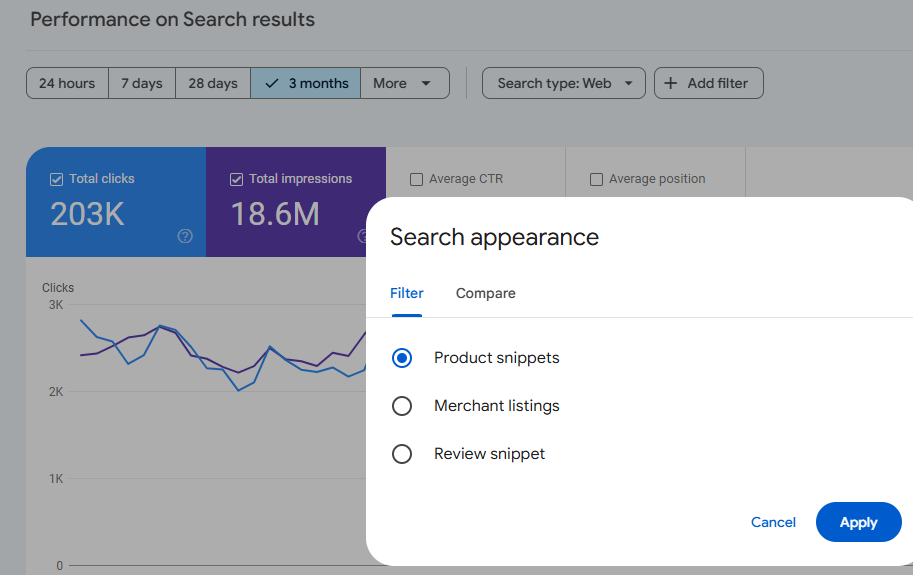
Search Console – > Performance Report > Add Filter > Merchant Listings
(There are reports for Search type: Web and Search Type: Image – just add the Search Appearance filter

Optimizing Your Product Feed

A well-optimized product feed is crucial for ranking in free Shopping listings. Focus on these key attributes:

  • Image link
  • Description
  • Brand
  • GTIN
  • MPN
  • Color
  • Size
  • Material
  • Title (highly influential for free listings and CTR)

Leveraging Merchant Features

To stand out in free shopping grids, optimise and complete the following merchant features:

  • Seller ratings (aim for 5-star reviews within the last 12 months)
  • Top quality score
  • Promotions (e.g., coupon codes)
  • Local free listings
  • “Buy Now” button
  • Payment options (PayPal, Google Pay)
  • Loyalty programs
  • Competitive pricing
  • Clear shipping and returns policies

Free Shopping Grids & Structured Data

Products with the best price tend to rank highest

Shipping policy & returns policy – can affect rankings significantly

In Search console there are warnings that show if u don’t have these set up in merchant center or in structured data.can ignore the warnings sometimes tho

Structured data – although we have seen google may unify product feeds and structured data in the near future

Influence for Free Shopping Grids & Listing – 

*Most influential* Website content →Product Feeds→ structured data. *Least influential*

Case Study: Improving Eligibility with Schema Changes

A recent case study demonstrated the impact of schema optimization:

  • Problem: Aggregate offer schema prevented merchant listing eligibility
  • Solution: Switched to ProductGroup schema
  • Result: Increased eligibility for product grids and boosted revenue

Additional Tips for Organic Google Shopping Success

  1. Optimize product titles with relevant keywords & attributes
  2. Use high-quality, unique product images – lifestyle usually best but A/B test
  3. Keep your product feed up-to-date and as accurate as possible
  4. Encourage customer reviews to improve seller ratings – might be wise to pick and choose if possible!
  5. Implement proper category mapping in your product feed
  6. Use custom labels to organize and group products effectively
  7. Optimize your landing pages – A/B test them
  8. Monitor and address any warnings in Google Search Console
  9. A/B test descriptions to improve click-through rates
  10. Regularly analyze competitor listings

Key Takeaways

  1. Use the tools – Search Console, Merchant Center, and GA4
  2. Sort out Search Console first, then monitor with GA4 and Merchant Center
  3. Implement an extensive set of product feed attributes
  4. Optimize product titles for maximum impact
  5. Highlight your unique selling propositions (price, returns, shipping, etc.) & strong selling points too
  6. Fix and address any warnings in Google Search Console
  7. Maintain consistency across your website, product feed, and structured data
  8. A/B test everything you can – if you have enough data etc!

eCommerce Product Page – SEO & UX Checklist

SEO Checklist:
Product Title Optimization
Include the main keyword naturally.
Keep titles concise but descriptive.
Meta Title and Meta Description
Write a compelling meta title (60-70 characters) with the main keyword.
Create a unique and engaging meta description (150-160 characters) with a call to action and relevant keywords.
URL Structure
Use clean and descriptive URLs with relevant keywords.
Avoid unnecessary parameters and ensure URLs are short.
Header Tags (H1, H2, H3, etc.)
Use one H1 tag for the product title.
Structure content with subheadings (H2, H3) for different sections.
High-Quality Product Descriptions
Write unique, engaging, and detailed product descriptions (300+ words).
Naturally incorporate relevant keywords.
Highlight features, benefits, and use cases.
Product Images and Alt Text
Use high-resolution, web-optimized images.
Add descriptive, keyword-rich alt text for images.
Include multiple angles or lifestyle images.
Structured Data Markup (Schema)
Implement product schema for price, availability, reviews, etc.
Use JSON-LD for structured data.
Internal Linking
Link to related products or categories.
Include “frequently bought together” and “related products” sections.
Mobile-Friendliness
Ensure the product page is fully responsive and optimized for mobile users.
Test on multiple devices.
Page Load Speed
Optimize images and use compression.
Minimize CSS, JavaScript, and HTML.
Use a content delivery network (CDN).
Canonical Tags
Implement canonical tags to prevent duplicate content issues.
Keyword Usage
Use keywords naturally in the title, description, URL, headings, and body text.
Avoid keyword stuffing.
User Reviews and Ratings
Display user-generated content like reviews and star ratings.
Use schema markup for review ratings.
Social Sharing Buttons
Provide social sharing options for easy promotion.
Breadcrumbs
Use breadcrumb navigation to enhance site structure and user experience.
UX Checklist:
Clear Call to Action (CTA)
Use prominent and persuasive “Add to Cart” or “Buy Now” buttons.
Ensure CTA buttons are highly visible.
Product Images
Include multiple images and zoom functionality.
Offer a gallery of images showing different angles and context.
Product Information
Display essential details (price, size, color, availability) prominently.
Offer accurate and up-to-date stock information.
Shipping Information
Provide clear and transparent shipping details, including delivery times and costs.
Product Variations
Offer a seamless selection process for colors, sizes, or other variations.
Use clear dropdown menus or buttons.
Customer Reviews and Ratings
Allow customers to leave reviews.
Include user-generated content for social proof.
Related Products
Display recommended, cross-sell, or upsell products.
Use “Customers Also Viewed” or “Frequently Bought Together” sections.
Return Policy Information
Clearly outline the return policy on the product page.
Trust Signals
Include security badges, accepted payment icons, and other trust symbols.
Show testimonials or guarantees if applicable.
Easy Navigation
Ensure intuitive breadcrumb trails.
Use filters and sorting options for larger catalogs.
User-Friendly Design
Use white space effectively to improve readability.
Ensure buttons and interactive elements are appropriately sized.
FAQ Section
Provide answers to common questions about the product.
Accessibility Compliance
Follow accessibility guidelines (e.g., alt text, ARIA labels).
Test for screen reader compatibility.
Wishlist or Save for Later Feature
Offer options to save the product for future reference.
Live Chat or Support Options
Provide real-time assistance through chat or customer support links.
Easy Checkout Process
Minimize steps to purchase.
Offer guest checkout and multiple payment options.
Stock Notifications
Include “Back in Stock” or “Low Stock” alerts.

SEO News & Tips – September 2024

Actionable Points:

  1. Impact Assessment:
    • Analyze Core Update Impacts: If your site was affected, investigate potential causes such as relevance adjustments, intent shifts, or quality issues.
    • Run Delta Reports: Isolate dropped queries and landing pages using delta reports to identify the reasons for traffic decline.**
  2. Content Strategy:
    • Reassess Content Strategy: Move away from generic content aimed at search engines (SEO-first) and focus on user-first content that aligns with intent and provides real value.
    • Avoid Overloading Pages: Do not overload pages with excessive information. Make them clear and relevant to user intent.
  3. Quality Over Quantity:
    • Holistic Quality Evaluation: Improve overall site quality, including UX, ads, presentation, and sources. It’s not just about content but the experience as a whole.
    • Long-Term Quality Improvements: Use a “kitchen sink” approach—continuous, holistic improvements to demonstrate significant quality enhancement over time.
  4. Utilize User Engagement Data:
    • Measure User Engagement: Focus on engagement metrics like click-through rates (CTR), time on page, and interactions (Navboost signals) to improve rankings.
  5. Consider the Intent Shifts:
    • Study Intent Shifts: Understand changes in user intent. Ensure your content targets the appropriate search intent, whether transactional, informational, or navigational.
    • Use Natural Language Processing (NLP) Tools: Leverage NLP tools to analyze how well your content aligns with searcher intent.*
  6. RankBrain and Vector Search:
    • Optimize for RankBrain: Vector search re-ranks results based on intent. Focus on improving content relevancy through quality rater feedback and actual user interactions.
  7. Monitor Industry-Specific Trends:
    • Industry Trends: Be aware of specific industry shifts (e.g., pet insurance, tech products) and adjust your SEO strategy accordingly. Specialized retailers and informational sites are gaining over commercial giants like Amazon.
  8. Consider Site Authority:
    • Balance Domain and Brand Authority: Tom Capper’s study suggests sites with higher brand authority (BA) performed better than those relying solely on domain authority (DA). Focus on building brand recognition alongside traditional SEO efforts.
  9. Core Update Response:
    • Future-Proofing: Continue producing high-quality, intent-driven content as Google aims to reward helpful content over SEO-first strategies. Sites that improve post-HCU or core updates will continue to see gains.
  10. Action for Content Creators:
  • Engage with the Community: Marie plans to collaborate with SB Pro members to develop a system for scoring intent alignment, potentially enlisting community support to study core update effects.

Marie also encourages community engagement, suggesting that producing authentic, user-focused content will be a key driver of success in the evolving search landscape.

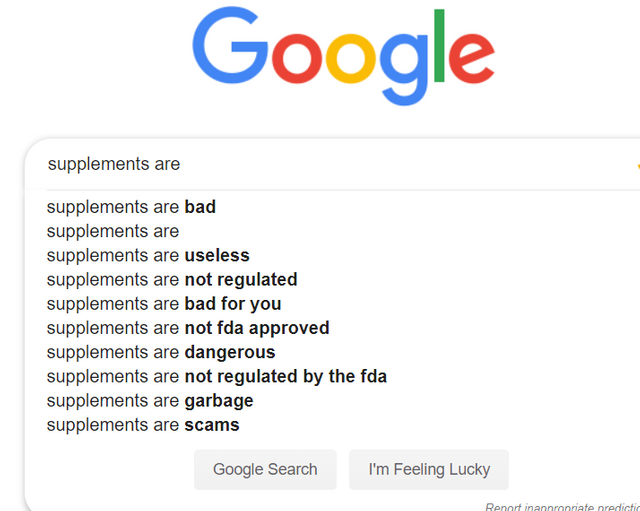
supplements are bad

*1. Use Natural Language Processing (NLP) Tools to Analyze Content Alignment with Searcher Intent

What is NLP?

Natural Language Processing (NLP) is a branch of artificial intelligence that focuses on the interaction between computers and humans through natural language. In the context of SEO and content creation, NLP tools help analyze and understand the nuances of language, enabling better alignment of your content with what users are searching for.

Why Align Content with Searcher Intent?

Searcher intent refers to the primary goal a user has when typing a query into a search engine. Understanding and aligning your content with this intent ensures that your pages meet the needs of your audience, leading to higher engagement, better rankings, and increased conversions.

How to Leverage NLP Tools:

  1. Identify Searcher Intent:
    • Types of Intent:
      • Informational: Users seeking information (e.g., “How to fix a leaky faucet”).
      • Navigational: Users looking to reach a specific website or page (e.g., “Facebook login”).
      • Transactional: Users intending to make a purchase or complete a transaction (e.g., “Buy iPhone 14”).
      • Commercial Investigation: Users researching products or services before making a decision (e.g., “Best DSLR cameras 2024”).
  2. Analyze Your Content:
    • Keyword Analysis:
      • Use NLP tools to analyze the keywords and phrases within your content to determine if they align with the identified searcher intent.
    • Content Structure:
      • Ensure your content is structured in a way that directly addresses the user’s query. For instance, use clear headings, bullet points, and concise paragraphs for better readability and relevance.
    • Semantic Analysis:
      • Assess the context and relationships between words to ensure your content comprehensively covers the topic.
  3. Optimize Content Based on Insights:
    • Content Gap Analysis:
      • Identify areas where your content may be lacking in addressing certain aspects of the searcher intent and enhance those sections.
    • Content Enrichment:
      • Add relevant information, multimedia elements, or interactive features to better satisfy user needs.
    • Language Refinement:
      • Adjust the tone, complexity, and style of your content to match the preferences and expectations of your target audience.

Recommended NLP Tools:

  1. Google Natural Language API:
    • Offers powerful text analysis capabilities, including sentiment analysis, entity recognition, and syntax analysis.
    • Google Cloud Natural Language
  2. IBM Watson Natural Language Understanding:
    • Provides comprehensive text analysis features such as keyword extraction, concept tagging, and emotion analysis.
    • IBM Watson NLU
  3. Ahrefs Content Gap Tool:
    • While not a pure NLP tool, it helps identify content gaps by comparing your site with competitors, which can be complemented with NLP analysis.
    • Ahrefs Content Gap
  4. Surfer SEO:
    • Integrates NLP techniques to optimize content structure and keyword usage based on top-ranking pages.
    • Surfer SEO
  5. Clearscope:
    • Uses NLP to provide keyword suggestions and content optimization recommendations to improve relevancy.
    • Clearscope

Implementation Steps:

  1. Choose the Right NLP Tool:
    • Select a tool that fits your technical expertise and specific needs. For instance, Google Natural Language API is highly customizable but may require more technical setup compared to user-friendly platforms like Surfer SEO.
  2. Conduct a Content Audit:
    • Use the chosen NLP tool to analyze your existing content. Look for metrics like keyword density, semantic relevance, and sentiment alignment with user intent.
  3. Map Content to Search Intent:
    • Categorize your pages based on the primary search intent they fulfill. Ensure each page clearly aligns with its intended user goal.
  4. Optimize and Update Content:
    • Based on the analysis, make necessary adjustments to improve alignment. This could involve rewriting sections, adding new information, or restructuring content for better clarity and relevance.
  5. Monitor and Iterate:
    • After optimization, continuously monitor your content’s performance. Use analytics to assess improvements in rankings, engagement metrics, and conversions, and iterate as needed.

*2. Run Delta Reports: Isolate Dropped Queries and Landing Pages to Identify Reasons for Traffic Decline

What are Delta Reports?

Delta reports in SEO are comparative analyses that track changes in your website’s performance metrics over specific periods. By comparing data before and after a Google core update (or any significant change), you can identify which queries and landing pages experienced fluctuations in traffic.

Why Run Delta Reports?

Running Delta reports helps you pinpoint the exact areas of your website that are affected by algorithm changes. Understanding these changes allows you to take targeted actions to recover lost traffic and optimize your site for future updates.

How to Run Delta Reports:

  1. Gather Data:
    • Time Frames:
      • Pre-Update Period: Data from a period before the core update (e.g., two weeks before).
      • Post-Update Period: Data from a period after the core update has been fully rolled out (e.g., two weeks after).
    • Metrics to Collect:
      • Organic traffic
      • Impressions
      • Click-through rates (CTR)
      • Average position
  2. Use SEO Tools:
    • Google Search Console (GSC):
      • Provides comprehensive data on search performance, including queries and landing pages.
      • Google Search Console
    • Google Analytics:
      • Offers insights into overall traffic patterns and user behavior.
      • Google Analytics
    • Third-Party SEO Tools:
      • Tools like SEMrush, Ahrefs, and Moz can provide additional data and more sophisticated reporting features.
      • SEMrush
      • Ahrefs
      • Moz
  3. Generate Comparative Reports:
    • Google Search Console Steps:
      1. Access Performance Report:
        • Navigate to Performance > Search Results.
      2. Set Date Range:
        • Select a date range that covers both pre-update and post-update periods.
      3. Export Data:
        • Export the performance data for both periods to a spreadsheet for easier comparison.
      4. Calculate Delta:
        • Use formulas to calculate the percentage change in impressions, clicks, CTR, and average position for each query and landing page.
  4. Analyze the Data:
    • Identify Drops and Gains:
      • Highlight queries and pages that saw significant drops or gains in traffic.
    • Segment the Data:
      • Break down the data by categories such as content type, topic, or user intent to identify patterns.
    • Look for Correlations:
      • Determine if there are common factors among the affected queries/pages, such as content quality, relevance, or technical issues.
  5. Identify Potential Causes:
    • Relevancy Issues:
      • Content may no longer align with the updated search intent or relevancy criteria.
    • Technical Problems:
      • Issues like slow page speed, mobile usability problems, or broken links can impact rankings.
    • Content Quality:
      • Thin content, outdated information, or lack of depth can lead to declines.
    • Competitor Improvements:
      • Competitors may have enhanced their content, earning higher rankings.
    • User Experience (UX):
      • Poor UX, intrusive ads, or difficult navigation can negatively affect rankings.
  6. Develop an Action Plan:
    • Content Optimization:
      • Revise and enhance content to better match searcher intent and improve quality.
    • Technical SEO Fixes:
      • Address any identified technical issues to improve site performance.
    • Improve UX:
      • Enhance the overall user experience to keep visitors engaged and reduce bounce rates.
    • Monitor Competitors:
      • Analyze top-performing competitors to understand what changes they made that may have contributed to their gains.
    • Continuous Monitoring:
      • Regularly update and monitor Delta reports to track the effectiveness of your optimizations and stay ahead of future updates.

Tools and Techniques for Delta Reporting:

  1. Google Search Console (GSC):
    • Export and Compare:
      • Export performance data before and after the update and use spreadsheet tools to calculate differences.
    • Filtering Options:
      • Use filters to narrow down specific queries or pages for detailed analysis.
  2. Google Analytics:
    • Custom Reports:
      • Create custom reports to compare traffic sources, user behavior, and conversion metrics across different periods.
    • Annotations:
      • Use annotations to mark the date of the core update, helping correlate changes in data with the update rollout.
  3. SEO Platforms:
    • SEMrush’s Position Tracking:
      • Track keyword rankings over time and compare pre- and post-update positions.
    • Ahrefs’ Site Explorer:
      • Analyze backlink profiles and organic search traffic changes.
    • Moz’s Rank Tracker:
      • Monitor keyword performance and identify ranking fluctuations.
  4. Spreadsheet Analysis:
    • Pivot Tables:
      • Use pivot tables to summarize and analyze large datasets effectively.
    • Visualization:
      • Create charts and graphs to visualize traffic trends and identify significant changes.

Best Practices for Delta Reporting:

  • Consistent Time Frames:
    • Ensure the comparison periods are equivalent in length and cover similar days of the week to account for any variability.
  • Account for Seasonality:
    • Be aware of seasonal trends that might affect traffic independently of the core update.
  • Focus on Significant Changes:
    • Prioritize queries and pages with substantial traffic drops or gains to address the most impactful issues first.
  • Iterative Analysis:
    • Continuously refine your analysis by incorporating additional data points or adjusting your reporting criteria as needed.

Putting It All Together: Enhancing Your SEO Strategy

By integrating NLP-based content analysis and Delta reporting, you can create a robust SEO strategy that not only aligns your content with user intent but also allows you to proactively identify and address issues arising from algorithm updates. Here’s a step-by-step approach to combining these strategies:

  1. Initial Content Audit:
    • Use NLP tools to assess the alignment of your existing content with searcher intent.
    • Identify content areas that need enhancement or restructuring.
  2. Post-Update Performance Analysis:
    • After a core update, run Delta reports to identify affected queries and pages.
    • Cross-reference these findings with your NLP analysis to understand if misalignment with search intent contributed to the declines.
  3. Optimization and Implementation:
    • Optimize affected content based on insights from both NLP analysis and Delta reports.
    • Enhance content quality, adjust for better intent alignment, and fix any technical issues identified.
  4. Continuous Monitoring and Improvement:
    • Regularly use NLP tools to keep your content aligned with evolving search intents.
    • Continuously monitor your site’s performance with Delta reports to stay ahead of any negative trends.
  5. Community Engagement and Learning:
    • Engage with SEO communities (like the Search Bar Pro Community mentioned in your summary) to share insights and learn from others’ experiences.
    • Stay updated with the latest SEO trends and algorithm changes to adapt your strategy accordingly.

Additional Resources

  • Google’s Search Quality Evaluator Guidelines:
  • Moz’s Beginner’s Guide to SEO:
  • Ahrefs’ SEO Learning Center:
    • Offers tutorials and articles on various SEO topics, including content optimization and performance analysis.
    • Ahrefs Learning Center
  • Surfer SEO’s Guides:
    • Detailed guides on using their tools for content optimization and SEO analysis.
    • Surfer SEO Guides

Implementing these strategies effectively can lead to improved search rankings, better user engagement, and sustained organic growth. By continuously aligning your content with user intent and proactively monitoring your site’s performance, you can navigate algorithm updates with greater confidence and resilience.

If you have any further questions or need assistance with specific tools or techniques, feel free to ask!

eCommerce Structured Data

E-commerce Example for Structured Data Carousels

Below are step by step instructions

You will need:

  • A “summary” or “Product Listings Page” with structured data
  • Structured data on the product pages themselves

At the time of writing, this feature is only available in EU countries.

Step 1: Choose and Implement a Summary Page

Create a summary page that lists multiple products, each linking to a detailed product page.

For example, a category page that lists “Top 5 Winter Coats.”

Step 2: Add Required Properties to the Summary Page

Add the ItemList structured data to your summary page. Here’s an example in JSON-LD format:

<html>
  <head>
    <title>Top 5 Winter Coats</title>
    <script type="application/ld+json">
      {
        "@context": "https://schema.org",
        "@type": "ItemList",
        "itemListElement": [
          {
            "@type": "ListItem",
            "position": 1,
            "item": {
              "@type": "Product",
              "name": "Puffy Coat Series by Goat Coat",
              "image": [
                "https://example.com/photos/1x1/photo.jpg",
                "https://example.com/photos/4x3/photo.jpg",
                "https://example.com/photos/16x9/photo.jpg"
              ],
              "offers": {
                "@type": "AggregateOffer",
                "lowPrice": 45.00,
                "highPrice": 60.00,
                "priceCurrency": "USD"
              },
              "aggregateRating": {
                "@type": "AggregateRating",
                "ratingValue": 4.9,
                "reviewCount": 50
              },
              "url": "https://www.example.com/puffy-coats"
            }
          },
          {
            "@type": "ListItem",
            "position": 2,
            "item": {
              "@type": "Product",
              "name": "Wool Coat Series by Best Coats Around",
              "image": [
                "https://example.com/photos/1x1/photo.jpg",
                "https://example.com/photos/4x3/photo.jpg",
                "https://example.com/photos/16x9/photo.jpg"
              ],
              "offers": {
                "@type": "AggregateOffer",
                "lowPrice": 189.00,
                "highPrice": 200.00,
                "priceCurrency": "USD"
              },
              "aggregateRating": {
                "@type": "AggregateRating",
                "ratingValue": 4.7,
                "reviewCount": 827
              },
              "url": "https://www.example.com/wool-coats"
            }
          },
          {
            "@type": "ListItem",
            "position": 3,
            "item": {
              "@type": "Product",
              "name": "Antarctic Coat by Cold Coats",
              "image": [
                "https://example.com/photos/1x1/photo.jpg",
                "https://example.com/photos/4x3/photo.jpg",
                "https://example.com/photos/16x9/photo.jpg"
              ],
              "offers": {
                "@type": "Offer",
                "price": 45.00,
                "priceCurrency": "USD"
              },
              "aggregateRating": {
                "@type": "AggregateRating",
                "ratingValue": 4.9,
                "reviewCount": 1290
              },
              "url": "https://www.example.com/antarctic-coat"
            }
          }
        ]
      }
    </script>
  </head>
  <body>
  </body>
</html>

Step 3: Validate Your Code

  1. Rich Results Test: Validate your structured data using the Rich Results Test.
  2. URL Inspection Tool: Use the URL Inspection tool in Google Search Console to ensure your page is accessible and not blocked by robots.txt or noindex tags.

Step 4: Deploy Your Page

  1. Deploy your summary page and a few detail pages.
  2. Use the URL Inspection tool to request indexing of your new pages.

Step 5: Submit a Sitemap

  1. Create a sitemap including your summary and detail pages.
  2. Submit the sitemap through Google Search Console to ensure Google knows about all your pages.

Step 6: Follow Guidelines

  1. Ensure compliance with Search Essentials.
  2. Adhere to general structured data guidelines and specific requirements for carousel rich results.

Example Detail Pages

Each product linked from the summary page should have its own detail page with structured data. For example:

<html>
  <head>
    <title>Puffy Coat Series by Goat Coat</title>
    <script type="application/ld+json">
      {
        "@context": "https://schema.org",
        "@type": "Product",
        "name": "Puffy Coat Series by Goat Coat",
        "image": [
          "https://example.com/photos/1x1/photo.jpg",
          "https://example.com/photos/4x3/photo.jpg",
          "https://example.com/photos/16x9/photo.jpg"
        ],
        "description": "A stylish and warm puffy coat perfect for winter.",
        "offers": {
          "@type": "Offer",
          "price": 45.00,
          "priceCurrency": "USD",
          "url": "https://www.example.com/puffy-coats"
        },
        "aggregateRating": {
          "@type": "AggregateRating",
          "ratingValue": 4.9,
          "reviewCount": 50
        }
      }
    </script>
  </head>
  <body>
  </body>
</html>

That should be it!


Finding & Fixing 404s with Screaming Frog [2024]

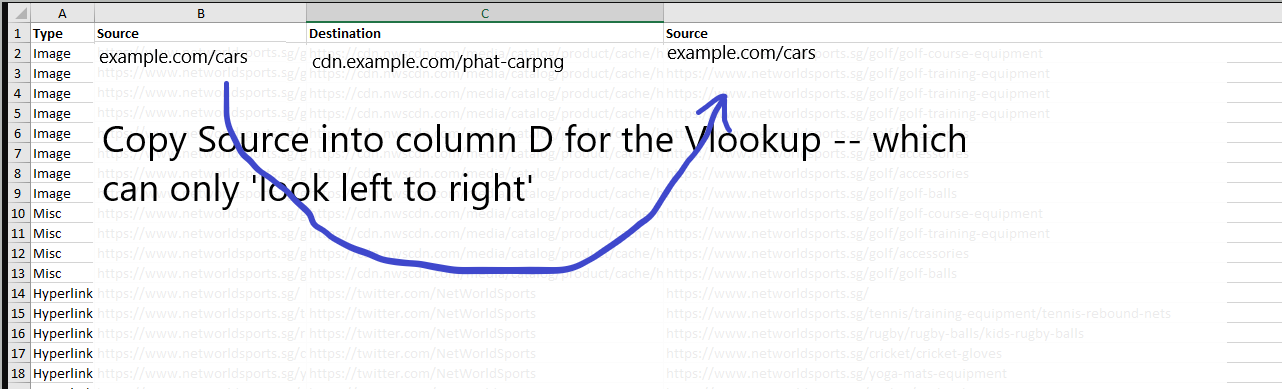
Export the 404 Inlinks Report into Excel

The best report in Screaming Frog to see the source and destination of all 404s – is to go to Bulk Export at the top menu:

And then Response Codes – Client Error Inlinks

In the Exported Excel Sheet:

Copy the “destination” column

Paste into a new sheet/tab – In Column B

Remove duplicates

Back in the first sheet – Paste “Source”, into column D to the right of “destination” in first tab/sheet


In the second sheet –
Do a vlookup in the second sheet/tab – to import a source URL to each unique “destination” URL
Add the word “source” to cell C1 in the second sheet

I think you have to click the file name to download the example sheet below:

Sheet / Tab 1 should look like this:

The Second Sheet / Tab should look like this:

The Lookup Value in Cell C2, in the sheet above is:

=VLOOKUP(Sheet1!B2,’1 – Client Error (4xx) Inlinks’!C:D,2,0)

Just double click / drag it down to complete the lookup

You can add more lookups and columns to provide more details about the link location.

Just copy and paste values on the last Vlookup.

Paste another column like “Anchor” into column D on the first Tab

Paste the vlookup into the adjacent column

“0” means nothing found – i.e. no anchor text etc

Update –

404s found in the Navigation or “Aside” tend to be site-wide, so you can find one instance of this and update the 404 and Bob’s your uncle.

If a 404 is within the page content/copy however, they are possibly unique and need fixing individually. So take a look the Content 404s separately. They probably only have 1 source URL so no need to faff with vlookups etc.

Semantic Search & SEO – Using Python and Google Colab

Semantic search adds context and meaning to search results. For example, if someone is searching for “Lego” – do they want to buy Lego toys, or see a Lego movie or TV show (Ninjago is great). Another example might be “Tesla” – do people want to see the latest self-driving car, or learn more about Tesla the scientist and inventor?

  • Make sure you understand search intent and any confusing searches like Tesla(inventor or car?), Jaguar (car or animal?), etc
  • Look for structured data opportunities
  • Optimise internal links – especially if you are using a “Pillar Post” and “Cluster Page” structure
  • Follow traditional on page SEO best practices with headers, meta titles, alt tags etc

SMA Marketing have done a cool YouTube video about Semantic Search and they recommend tools including:

  • Wordlift
  • Frase
  • Advanced Custom Fields for WordPress
  • Google Colab with a SpaCy

Before you publish a post – look at the search results for the keyword(s) you are optimising the post for. Check in incognito in Chrome to remove most of the personalisation of the results.

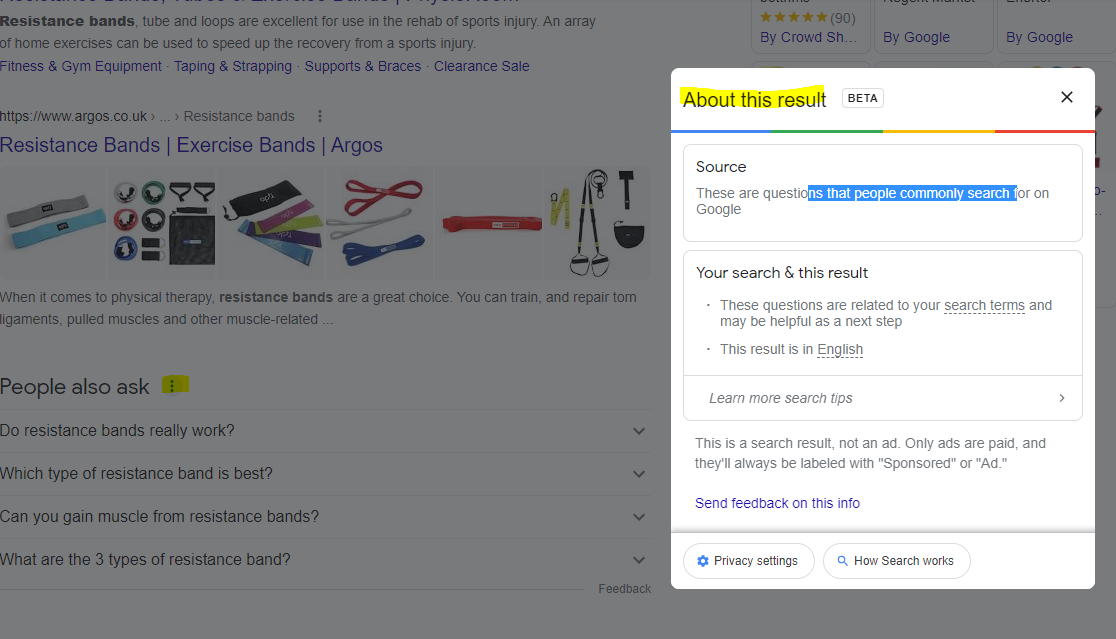
For any answer boxes or snippets, you can click the “3 dots” to get information about the results:

As well as the snippets, you can click the 3 dots next to any organic result. Here’s another result for “MMA training program pdf” with some additional information:

With this in mind – if you are looking to rank for “MMA training program pdf” then you will want to include the search terms highlighted in the “About this result” box: mma, training, program, pdf and ideally LSI keywords “workout” and “plan”.

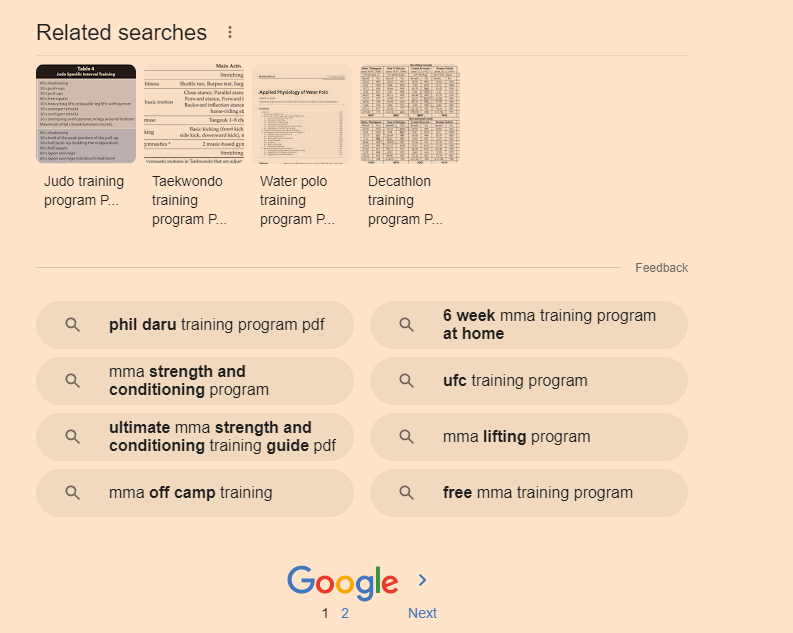
It’s also a good idea to scroll down to the bottom of the SERP and check out the “related searches”

Take a look too at any breadcrumb results that pull through below the organic listings. Combining all this information will give you a good idea as to what Google understands by your search query and what people are looking for too.

Semantic Search & NLP

This is a bit techy, but thankfully, the guy at SMA Marketing (thank you if you’re reading this) has put together a file/load of python code that does most of the work for us. You can find it here – https://colab.research.google.com/drive/1PI6JBn06i3xNUdEuHZ9xKPG3oSRi1AUm?usp=sharing#scrollTo=uatWEoHp5nxZ

Hover over [1] and click the play icon that appears (highlighted yellow in screenshot below)

When that section has finished loading and refreshing, scroll down to the “Installation tensorflow + transformers + pipelines” section and click the play icon there.

When that’s finished doing it’s thing, scroll down again, and add your search query to the uQuery_1: section:

add your query and then press the “play” button on the left hand side opposite the uQuery_1 line

You should then see the top 10 organic results from Google on the left hand side – in the form of a list of URLs

Next, you can scrape all the results by scrolling down to the “Scraping results with Trafilatura” section and hover over the “[ ]” and press play again:

Next, when the scraping of results is done – scroll down to “Analyze terms from the corpus of results” section and click the play button that appears when you hover over “[ ]”

Next! when that’s done click the play button on the section full of code starting with:

“df_1[‘top_result’] = [‘Top 3’ if x <= 3 else ‘Positions 4 – 10’ for x in df_1[‘position’]] # add top_result = True when position <=3 “

Finally – scroll down and click the play button on the left of the “Visualizing the Top Results” section.

On the right hand side where it says “Top Top 3” and lists a load of keywords/terms – these are frequent and meaningful (apparently) terms used in the top 3 results for your search term.

Below that, you can see the terms used in the results from 4-10

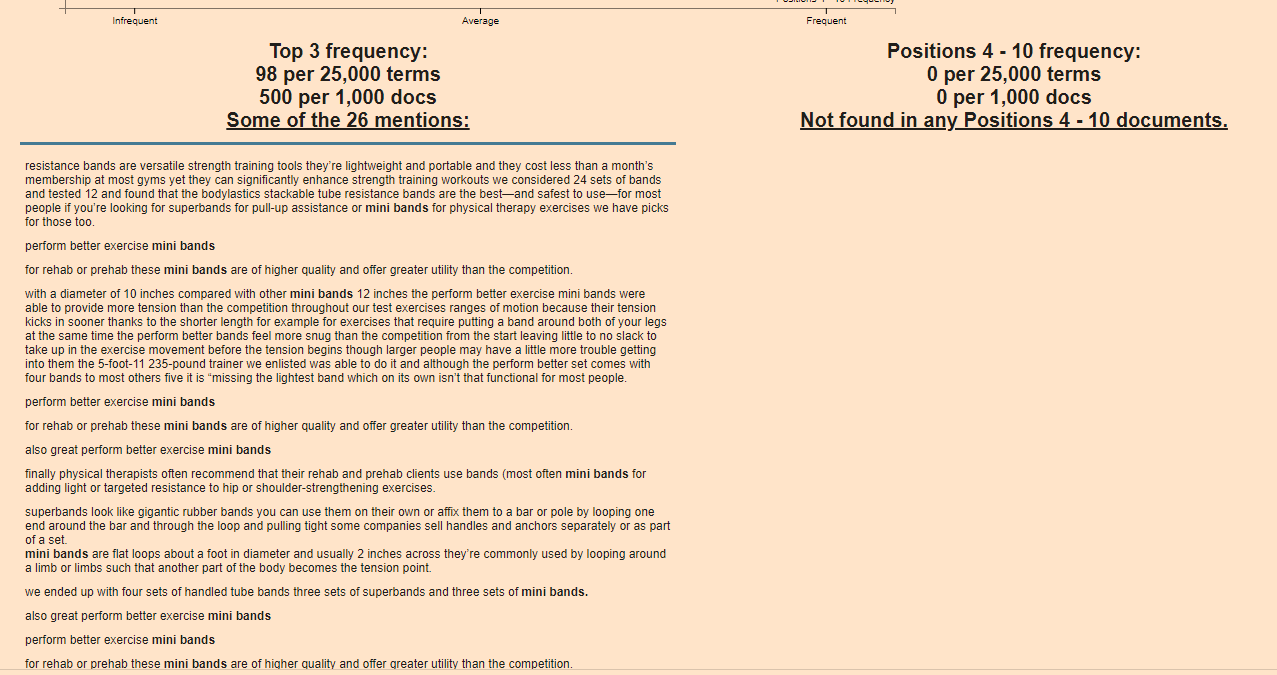
Terms at the top of the graph are used frequently in the top 3 results e.g. “Mini bands”

Terms on the right are used frequently by the results in positions 4-10

From the graph above, I can see that for the search term “resistance bands” the top 3 results are using some terms, not used by 4-10 – including “Mini bands”, “superbands” “pick bodylastics”

  • If you click on a term/keyword in the graph – a ton of information appears just below:

e.g. if I click “mini bands”

Google Colab TOol

It’s interesting that “mini bands” is not featured at all in the results positioned 4-10

If you were currently ranking in position 7 for example, you’d probably want to look at adding “mini bands” into your post or product page

You can now go to the left-side-bar and click “Top 25 Terms” and click the “play icon” to refresh the data:

Semantic SEO tool

Obviously – use your experience etc and take the results with a pinch of salt – some won’t be relevant.

Natural Language Processing

next click on “Natural Langauge Processing” in the side-menu

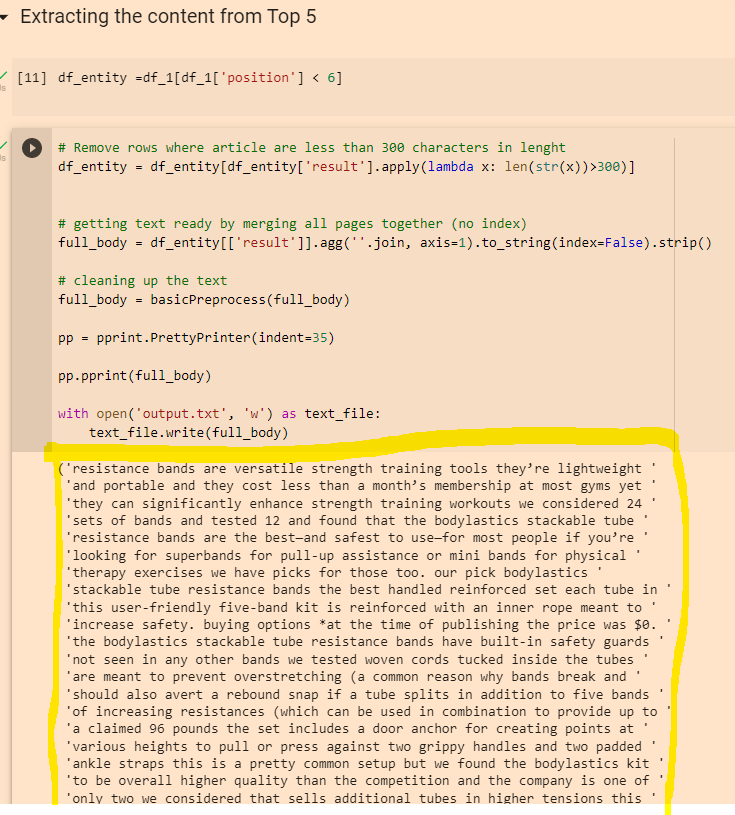
Click the “play” icons next to “df_entity =df_1[df_1[‘position’] < 6]” and the section below.

When they have finished running click the play icon next to “Extracting Entities”

Click “play” on the “remove duplicates” section and again on the “Visualising Data” section

This should present you with a colourful table, with more terms and keywords – although for me most of the terms weren’t relevant in this instance 😦

You can also copy the output from the “Extracting the content from Top 5” section:

Python Google Colab
Then paste it into the DEMO/API for NLP that Google have created here:

https://cloud.google.com/natural-language#section-2

You can then click the different tabs/headings and get some cool insights

Google NLP API

Remember to scroll right down to the bottom, as you’ll find some additional insights about important terms and their relevance

The Google NLP API is pretty interesting. You can also copy and paste your existing page copy into it, and see what Google categories different terms as, and how “salient” or important/relevant it thinks each term is. For some reason, it thinks “band” is an organisation in the above screenshot. You can look to improve the interpretations by adding relevant contextual copy around the term on the page, by using schema and internal links.

Quickly Scrape SERP Results for SEO

Go to Google.com

Press CTRL+D to bookmark the page

Add it to your bookmarks bar if possible

Copy the code below:

javascript:var a = document.getElementsByTagName('a'), arr = '';for(var i=0; i<a.length; i++) if (a[i].ping && !a[i].href.includes('google'))arr +=('<p>' + a[i].href + '</p>');var newWindow = window.open();newWindow.document.write(arr);newWindow.document.close();


Right click on the bookmark and click “Edit”

Where it says “URL” paste in the code

Rename the bookmark “URL Extractor”

Save the bookmark

That’s it!

Test the URL Extractor – do a Google Search and then click on the Bookmark you’ve just created

You should now have a new tab with all of the URLs listed in it

Change your Google Search settings to show 100 results – you can just copy and paste the tab full of extracted URLS into Google Sheets

Once in Google Sheets, you can easily extract the Meta Titles, Descriptions and keywords

You just need to find and replace the URL in these formulas:

=importxml("https://blackbeltwhitehat.com","//title")
=importxml("https://blackbeltwhitehat.com/","//meta[@name='description']/@content")
=importxml("https://blackbeltwhitehat.com/","//meta[@name='keywords']/@content")

=IMPORTXML("https://blackbeltwhitehat.com/","//h1")