How Google Bot Crawls JavaScript [2025]

Ever wondered how Google turns your lovingly handcrafted website into a ranking somewhere below a Reddit thread from 2013? It’s not magic, it’s just a long queue of tiny robot librarians fetching HTML, executing JavaScript, and occasionally having nervous breakdowns when they hit your React app.

This is the life cycle of a webpage inside Google’s digestive system: crawl, render, index, panic. Let’s go step by step before your sitemap starts crying.

1. Crawling: getting the raw HTML

1.1 URL discovery & crawl queue

Googlebot first has to discover your URLs. That can happen via:

  • Links from other pages
  • XML sitemaps
  • Manual submit / “Inspect URL → Request indexing” in Search Console
  • Other Google systems (e.g. feeds, previous crawls)

Discovered URLs go into a crawl queue with priority based on things like page importance and your site’s crawl budget.

1.2 robots.txt and basic checks

Before requesting the URL, Googlebot:

  1. Fetches robots.txt
  2. Checks if the URL (and key resources like JS/CSS) are allowed
  3. Applies host load limits and crawl budget rules

If the page or important JS/CSS files are blocked in robots.txt, Google:

  • Won’t crawl them
  • Won’t be able to fully render your JS content later

Practical implication: Never block /js/, /static/, /assets/, etc. in robots.txt.

1.3 Fetching the HTML (“first wave”)

Googlebot makes a normal HTTP request (like a browser without UI):

  • Gets the initial HTML (without having run JS yet)
  • Parses head tags (title, meta description, canonical, meta robots, hreflang, etc.)
  • Extracts links from the HTML and adds them to the crawl queue
  • Notes references to resources (JS, CSS, images)

At this stage, only what’s in the raw HTML is visible. If your content is 100% client-side rendered (React, Vue, etc.), Google might see almost nothing yet.

Google can sometimes do basic indexing directly from the HTML (e.g. if content is already there), but JS-heavy pages need the next phase.


2. Rendering: running your JavaScript

Google describes the JS pipeline as: Crawling → Rendering → Indexing. Rendering happens in a separate system using an evergreen version of Chromium (a headless Chrome kept relatively up-to-date) called the Web Rendering Service.

2.1 The render queue (“second wave”)

After the initial crawl:

  1. Google adds the page to a render queue.
  2. When resources allow, that queue feeds URLs into the rendering system.
  3. Until rendering happens, Google only “knows” what was in the raw HTML.

This is why people talk about “two waves of indexing” for JavaScript:

  • Wave 1: Index from HTML (if possible)
  • Wave 2: Index updated content after JS has run

Modern research suggests the process is smoother and faster than years ago, but there is still a render queue and potential delay for JS content.

2.2 How Google’s renderer behaves

When a page reaches the renderer:

  1. Google loads it in an evergreen Chromium environment (no UI).
  2. It fetches JS, CSS, and other resources (subject to robots.txt, CORS, etc.).
  3. It executes JavaScript for a limited amount of time (shorter than a user session).
  4. JS can:
    • Modify the DOM
    • Inject content
    • Fetch JSON/XHR/data and add it to the page
    • Add structured data (application/ld+json) dynamically

Important constraints (from Google’s docs & tests):

  • No user interactions: Google doesn’t click, type, or scroll like a user.
  • Time limits: Long chains of async calls may never complete before the renderer stops.
  • Resource limits: Heavily blocking scripts or endless network calls can break rendering.
  • “Noindex = no render” effect: If a page is noindex, Google generally won’t bother rendering it.

2.3 Post-render snapshot

Once JS finishes (or time runs out), Google:

  1. Takes the final DOM snapshot (what a user would see after JS).
  2. Extracts:
    • Visible text content
    • Links added by JS (e.g. SPA navigation)
    • Structured data present in the DOM
    • Meta tags if they are changed or added by JS

This rendered snapshot is what feeds into the real indexing stage.


3. Indexing: storing & scoring the rendered content

With the rendered HTML/DOM in hand, Google moves to indexing.

3.1 Understanding the content

From the rendered DOM, Google:

  • Tokenizes and stores text (words, phrases, headings).
  • Maps entities, topics, and relationships.
  • Reads links (anchor text + target URL) added by your JS navigation.
  • Parses structured data (schema.org, etc.) that JS may have injected.

This is the version of the page that can now rank for queries matching that content.

3.2 Canonicals, duplicates & signals

Indexing also handles:

  • Canonical selection (HTML tags, redirects, link signals).
  • Duplicate / near-duplicate detection, especially if JS rewrites similar pages.
  • Applying meta robots and HTTP headers from the final state after JS (for most cases).

If Google decides another URL is the canonical, your rendered JS content might be stored but not shown as the main result.

3.3 Final result: searchable document

After indexing, the document is:

  • Stored in Google’s index with:
    • Content (from rendered DOM)
    • Links
    • Structured data
    • Various quality & relevance signals
  • Ready to be retrieved and ranked when a user searches for related queries.

4. Where JavaScript sites usually break this flow

Because JS adds extra moving parts, a bunch of things can go wrong between crawl → render → index:

  1. Blocked JS/CSS in robots.txt
    Google can’t render layout or content if the files are disallowed.
  2. Content only after interaction
    If key text appears only after a click/scroll or in a modal that never opens, Google won’t see it.
  3. Too slow or broken rendering
    Heavy JS, long waterfalls, or failing XHR calls mean the DOM never contains the content when Google takes the snapshot.
  4. Infinite scroll / SPA routing without proper URLs
    If content is loaded endlessly on one URL without crawlable links or pagination (e.g. no ?page=2, no anchor links), Googlebot may only see the initial “page”.
  5. Client-side only structured data that doesn’t materialise in time
    If JS injects JSON-LD but too slowly (or fails), rich results won’t trigger.

5. How to see what Google sees (JS-specific)

To understand how your JS is being processed:

  • Use URL Inspection“View crawled page” & “Screenshot” in Search Console to see the rendered DOM.
  • Compare “HTML” vs “Rendered HTML” to spot what content only appears post-JS.
  • Use “Test live URL” if you suspect render-queue delay.
  • Check Coverage / Pages report for “Crawled – currently not indexed” patterns that often show render/index issues.

So there you have it — from lazy bots fetching half your HTML to a headless Chrome pretending to be a real user for 0.3 seconds. Somewhere in that chaos, your content might actually get indexed.

If your JavaScript site isn’t showing up, don’t blame Google just yet — try unblocking your own files and giving the crawler half a chance. Think of it as SEO mindfulness: eliminate obstacles, breathe deeply, and let the bots eat your content in peace.


Explained in simpler terms – How Googlebot Crawls Javascript –

Stage 1 – Discovery & Crawling: “Finding your page and grabbing the first copy”

1. Google finds your URL

Google finds pages from things you already know:

  • Links on other sites
  • Your internal links
  • Your XML sitemap
  • Stuff you submit in Search Console

It puts those URLs in a big to-do list (crawl queue).


2. robots.txt check

Before visiting a URL, Google checks your robots.txt file:

  • If the page or important files (JS/CSS) are blocked, Google is basically told: “Don’t look here.”
  • If they’re allowed, it moves on.

Simple rule for you:
Never block your JS/CSS folders in robots.txt.


3. Google downloads the HTML (Wave 1)

Google now requests the page, just like a browser:

  • It gets the basic HTML (before any JavaScript runs).
  • From that HTML it grabs:
    • Title, meta description, canonical, meta robots, etc.
    • Any plain text that’s already there
    • Links to other pages
    • Links to JS/CSS/images

At this point, Google has not run your JavaScript yet.

If your important content is already in the HTML (e.g. server-side rendered), Google can often index it right away from this “first wave”.


Stage 2 – Rendering: “Actually running your JavaScript”

Now Google needs to know what your page looks like after JS runs – like a real user would see it.

Because this is heavy work, Google doesn’t do it instantly for every URL.

4. Render queue (waiting line)

After the first crawl, JavaScript pages go into a render queue:

  • Think of it like: “We’ve saved the HTML. When we have time, we’ll come back and run the JS.”

So for a while, Google might only know the bare HTML version of your page.


5. Headless Chrome renders the page

When your page reaches the front of the queue, Google loads it in something like Chrome without a screen (headless browser).

This browser:

  • Downloads JS/CSS (if not blocked)
  • Executes the JS for a short amount of time
  • Lets JS:
    • Change the DOM (the page structure)
    • Insert more text
    • Add more links
    • Inject structured data (JSON-LD)

Then it takes a snapshot of the final page – the “after JS” version.

This is basically:

“What a user would see if they opened your page and waited a bit.”


6. Things that can go wrong here

This is where JS sites often break:

  • Blocked JS/CSS → Google can’t see the layout or content properly.
  • Very slow JS → content appears after Google stops waiting.
  • Content only after a click/scroll → Google doesn’t usually click buttons or scroll like a human.
  • Broken scripts / errors → content never appears at all.

Result: Google’s snapshot may miss your main content.


Stage 3 – Indexing: “Filing your page in the library”

Now Google has:

  • Version 1: HTML-only (first wave)
  • Version 2: Rendered DOM (after JS runs)

7. Understanding the rendered page

From the rendered snapshot Google:

  • Reads all the visible text
  • Sees headings and structure
  • Follows any extra links added by JS
  • Reads structured data (schema)
  • Applies canonical tags / meta robots, etc.

This updated information is used to update your page in the index (second wave).


8. Search results

When someone searches:

  1. Google looks through its index of pages (which contains that rendered version).
  2. It decides which pages are most relevant.
  3. It shows your URL in the results.
  4. When the user clicks it, they go to your live site, not to Google’s stored copy.

Quick “JS SEO” checklist for you

If you remember nothing else, remember these:

  1. Can I see my main content in the raw HTML?
    • If yes → you’re mostly safe (e.g. SSR or hybrid).
    • If no → you’re relying heavily on rendering; be extra careful.
  2. Are JS & CSS allowed in robots.txt?
    • They should be.
  3. Does important content require a click/scroll?
    • Try to have key text and links visible without interaction, or use proper URLs for loaded content.
  4. Is the page reasonably fast?
    • If it takes ages for content to appear, Google may bail before seeing it.
  5. Use Search Console’s URL Inspection → “View crawled page”
    • Compare:
      • HTML Google saw
      • Rendered HTML
    • If you don’t see your text in the rendered version → that’s a problem.

Business Audience Schema Example [2024]


{
  "@context": "https://schema.org",
  "@type": "WebPage",
  "mainEntity": {
    "@type": "BusinessAudience",
    "audienceType": "Consumers",
    "description": "Middle-class residents of the United Kingdom interested in purchasing t-shirts.",
    "geographicArea": {
      "@type": "AdministrativeArea",
      "name": "United Kingdom"
    },
    "hasOfferCatalog": {
      "@type": "OfferCatalog",
      "name": "T-Shirts",
      "itemListElement": [
        {
          "@type": "Offer",
          "itemOffered": {
            "@type": "Product",
            "name": "T-Shirt"
          }
        }
      ]
    },
    "additionalType": "https://schema.org/Commerce",
    "audience": {
      "@type": "Audience",
      "audienceType": "Middle-class",
      "description": "Individuals with average to above-average income levels"
    }
  }
}

Here’s business Audience schema for a B2B business:

{
  "@context": "https://schema.org",
  "@type": "BusinessAudience",
  "audienceType": "Business",
  "numberOfEmployees": {
    "@type": "QuantitativeValue",
    "minValue": 50,
    "maxValue": 500
  },
  "yearlyRevenue": {
    "@type": "QuantitativeValue",
    "minValue": 1000000,
    "maxValue": 10000000
  },
  "geographicArea": {
    "@type": "AdministrativeArea",
    "name": "United States"
  }
}

Responsive Images with Inline CSS

Use width in pixels for desktop size and then add max-width:100% so it can’t go wider than mobile viewport:

<div class="content-item brand-space-top-small" style="margin-bottom:1.7rem;">      

<img src="https://nwscdn.com/media/wysiwyg/buyersguide/US_goal_sizes.jpg" style="width:1000px; max-width: 100%;" alt="US Soccer goal sizes" />
</div>

Aligning Text to the side of an image – with inline CSS and HTML

Had to do this using inline styles to override stuff in the stylesheet etc

<div class="responsive-container" style="display: flex; flex-wrap: wrap; align-items: flex-start; margin-top: 0px; margin-bottom: 0rem;">
  <div class="text-container" style="flex: 1; min-width: 0; margin-right: 20px;">
    <h3 style="margin-bottom: 0.4rem;">FIFA Basic</h3>
    <p>
      Gyda nod ansawdd FIFA Basic, mae Pêl-droed Clwb FORZA yn opsiwn cost-effeithiol ar gyfer timau pêl-droed o bob lefel ar gyllideb. Ar gael mewn meintiau 3, 4, a 5, mae'r peli hyn yn addas ar gyfer pob oed. Mae'r bledren butyl wedi'i amgylchynu gan chwe phanel wedi'i wasgu â gwres gyda deunydd polywrethan 1.2mm o drwch, i helpu'r bêl i gadw ei siâp ar ôl effeithiau dirifedi, yn ogystal â gwneud y bêl-droed o ansawdd gêm yn gwrthsefyll rhwyg ac yn gwrthsefyll y tywydd ym mhob cyflwr. Mae Pêl-droed Clwb FORZA ar gael mewn pecynnau o naill ai 1, 3, neu 30 pêl, ac mewn dau gyfuniad lliw (Gwyn a Glas neu Gwyn a Phinc).
    </p>
  </div>
  <img class="responsive-image" src="https://nwscdn.com/media/wysiwyg/buyersguide/FIFA-Basic-Logo.png" style="max-width: 100%; flex-shrink: 0; width: 250px; align-self: flex-start;">
</div>

<style>
  @media (max-width: 768px) {
    .responsive-container {
      flex-direction: column;
    }
    .text-container {
      margin-right: 0;
    }
    .responsive-image {
      width: 100%;
      max-width: 100%;
      margin-top: 20px;
      align-self: center;
    }
  }
</style>

Obviously, you probably want to change the parapraph text in the <p> and </p> tags and the header in <h3> tags and the image URL

I couldn’t do it all with inline styles in the end – media query had to be put in <style> tags in the HTML doc.

If you’re using a normal webpage – you want the style tags in the <head>

Table with Responsive Horizontal Scroll Bar – HTML & CSS

This is what I’ve just used.

The table in the <body> on the HTML doc:

 <!--table-->  
  <div class="content-text section" style="padding-top: 0px; padding-bottom: 1vh; margin-top: 1rem; width:870px; max-width: 100%;">
<!--<div class="scroll-container scroll-x">-->
  <div style="clear: both;">
    <div class="scroll-container">
    <div class="content-2 section " style="margin-top: 1px">
     <div>
    <table class="brand-p1" style= "margin-top: 0px; margin-bottom: 0px; padding-top: 0px; padding-bottom: 0px; text-align: center;     border-collapse: collapse; background-color:transparent; font-size: 13px; width:870px; max-width: 100%;">
    
   <tr>
     <th colspan="8" style="border: 1px solid #878681;background-color:transparent;font-size: 15px;"><strong>Regulation Lacrosse Ball Dimensions &amp; Properties Recap</strong></th></tr>
     <tr style=" border: 1px solid #878681;background-color:transparent; font-size: 14px;">
     <th style="border: 1px solid #878681;background-color:transparent;">Width</th>
     <th style="border: 1px solid #878681;background-color:transparent;">Radius</th>
     <th style="border: 1px solid #878681;background-color:transparent;">Weight</th>
     <th style="border: 1px solid #878681;background-color:transparent;">Colour</th>
     <th style="border: 1px solid #878681;background-color:transparent;">Material</th>
   </tr>

    <tr style=" border: 1px solid #878681;background-color:transparent;">
    <td style="border: 1px solid #878681;background-color:transparent; ">7.75 - 8 inches (19.69 - 20.32cm)</td>
    <td style="border: 1px solid #878681;background-color:transparent; ">2.47 -2.55 inches (6.27 - 6.47cm)</td>
    <td style="border: 1px solid #878681;background-color:transparent; ">5.0 -5.25 oz (141.75 - 155.92g)</td>
    <td style="border: 1px solid #878681;background-color:transparent; ">White, Yellow or Orange</td>
    <td style="border: 1px solid #878681;background-color:transparent; ">Vulcanised rubber</td>
   </tr>

   
     </table>
    </div> 
   </div> 
  </div>
  </div>
    </div>

 <!--table-->       

And then this CSS:

<style>
/* Default - For larger screens */
.scroll-container {
    overflow-x: hidden;
}

/* For screens with a max-width of 600px */
@media screen and (max-width: 600px) {
    .scroll-container {
        overflow-x: scroll;
    }
}
</style>  

Float Image to Left & Put Text Underneath – HTML & CSS

If you want to put text underneath an image that “floats” to the left (or right), you can use this code:

<div style="margin-bottom:0;">
    <div style="float: left;">
        <img src="https://nwscdn.com/media/wysiwyg/FORZA/MenHandballSize_Chart2.png" style="width: 700px;" alt="mens & boys handball size by age"/>
    </div>
    <div style="clear: both;">
        text text text
    </div>
</div>

For personal reference, this is the code I need with the correct class for my website:

<div class="content-item" style="margin-bottom:0;">
    <div style="float: left;">
        <img src="https://nwscdn.com/media/wysiwyg/FORZA/MenHandballSize_Chart2.png" style="width: 700px;" alt="mens & boys handball size by age"/>
    </div>
    <div style="clear: both;">
        text text text
    </div>
</div>

Reponsive Table

USA Goal Post Sizes by Age
AGEGOAL SIZE
UNDER 6/7/86FT X 4FT (1.8M X 1.2M)
UNDER 9/1018.5FT X 6.5FT (5.6M X 2M)
UNDER 11/1221FT X 7FT (6.4M X 2.1M)
12+ & SENIOR24FT X 8FT (7.3M X 2.4M)

This code appears to work:

 <!--table-->  
 <div style="margin-top: 30px; margin-bottom: 20px; width:570px; max-width: 100%;">
  <!--<div class="scroll-container scroll-x"> -->
   <div style="margin-top: 1px">
    <div>
    <table style= "margin-top: 0px; margin-bottom: 0px; padding-top: 0px; padding-bottom: 0px; text-align: center;     border-collapse: collapse; background-color:transparent; font-size: 13px; width:570px; max-width: 100%;">
    
   <tr>
     <th colspan="2" style="border: 1px solid #878681;background-color:transparent;font-size: 15px;"><strong>Maximum Goal Post Sizes by Age Recap
</strong></th></tr>
     <tr style=" border: 1px solid #878681;background-color:transparent; font-size: 14px;">
     <th style="border: 1px solid #878681;background-color:transparent;width:25%;">AGE</th>
     <th style="border: 1px solid #878681;background-color:transparent; width:25%;">GOAL SIZE</th>
   </tr>


   <tr style=" border: 1px solid #878681;background-color:transparent;">
    <td style="border: 1px solid #878681;background-color:#f8f8f8;">UNDER 6/7/8

</td>
    <td style="border: 1px solid #878681;background-color:transparent;">6FT X 4FT (1.8M X 1.2M)</td>     
   </tr>

   <tr style=" border: 1px solid #878681;background-color:transparent;">
    <td style="border: 1px solid #878681;background-color:#f8f8f8;">UNDER 9/10</td>
    <td style="border: 1px solid #878681;background-color:transparent;">18.5FT X 6.5FT (5.6M X 2M)</td>
    
   </tr>
   
   <tr style=" border: 1px solid #878681;background-color:transparent;">
    <td style="border: 1px solid #878681;background-color:#f8f8f8;">UNDER 11/12</td>
    <td style="border: 1px solid #878681;background-color:transparent;">21FT X 7FT (6.4M X 2.1M)</td>    
   </tr>

   <tr style=" border: 1px solid #878681;background-color:transparent;">
    <td style="border: 1px solid #878681;background-color:transparent;">12+ & SENIOR</td>
    <td style="border: 1px solid #878681;background-color:transparent;">24FT X 8FT (7.3M X 2.4M)

</td>
   </tr>


  </table>
    </div> 
  <!-- </div> -->
  </div>
 </div>
  
 <!--table-->       

JavaScript – What is the DOM & DOM Manipulation? [2023]

The Document Object Model – is a structured representation of an HTML document.

You can use the DOM to “connect” HTML to CSS and JS.

The DOM is often said to have a tree structure or a hierarchy like a family with children and parents

Image source

Selecting & Manipulating Elements with JavaScript

You can use “document” to ‘enter’ the document – as in the top level of the HTML document as shown in the tree diagram above.

  • use “querySelector” to select a specific element in the DOM.

For example document.querySelector(‘.message’).textContent

Will select the text content of the element with the class of “message”

Once you have selected the content, use the equals sign = to update it.

document.querySelector(‘.message’).textContent = ‘Correct Number!’

The ‘code’ on the line above, will change the text-content found in the element .message to “Correct Number!”

“textContent” will only work if the element is something like a paragraph, that holds content.

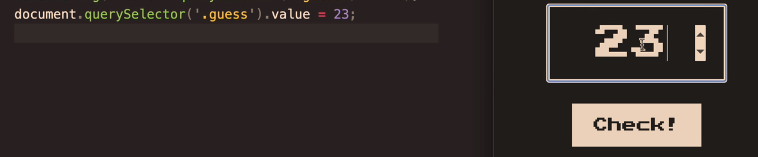
If you have a value input field, like on a form or something similar, you may have to use .value instead of .textContent

document.querySelector(‘.guess’).value = 23;

The code on the left, adds “23” as the input value to the form/input field on the right^

Screenshot from The Complete JavaScript Course

Handling Click Events

In this example, the button has a class of “check”

document.querySelector(‘.check’) – will select the button with the class of “check”

Then we need to use the addEventListener() method. The addEventListener method, basically looks out for events such as button clicks.

Image Source

Event Listener ^looks out for events such as button clicks.

We can add the event we want to look out for, in this example a click:

addEventListener(‘click’)

  • Now we need to tell the event listener what to do what it observers a click

addEventListener(‘click’ function () {
console.log(document.querySelector(‘.guess’).value);});

The code in bold, will take the value from the element called “guess” and print it to the “console.log”.

Screenshot from The Complete JavaScript Course

The code above prints 9 to the console.log

the element with the class of “guess” is the form input field containing the number 9:

Adding “Game Logic”

The aim of game in the screenshot above – guess the secret number

We need to randomly create a number and then tell the user when the number they guess is too high, too low or correct.

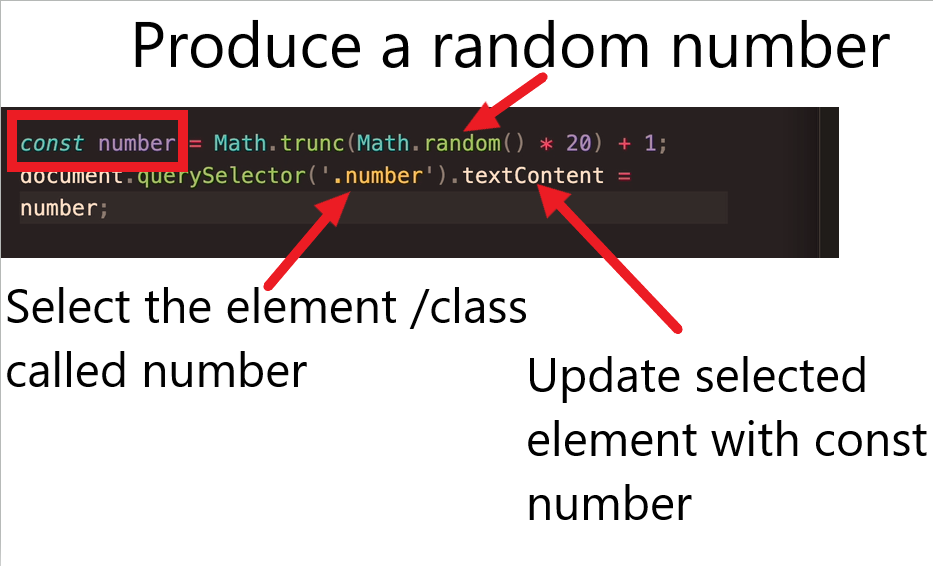
  • Producing the secret number

const number = (Math.truncMath.random()*20)

Math.random gives a number between 0 and 1

Match.trunc rounds up or down the number to the nearest whole number.

Multiplting the random number by 20 makes the number, well, larger

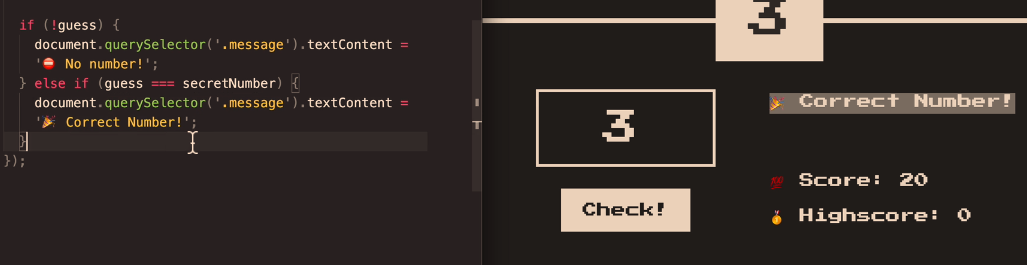
  • Checking the User Input Vs the Secret Number

if (!guess) {

document.querySelector(‘.message’).textContent = ‘No Number’;}

else if (guess === secretNumber) {

document.querySelector(‘.message‘).textContent = ‘Correct Number!’;

}

The code above will print “No number” if a number isn’t entered into the relevant form field.

if the number entered (the guess), is equal to the secretNumber – then the code will print “Correct Number!” – to the element with the class of “message“.

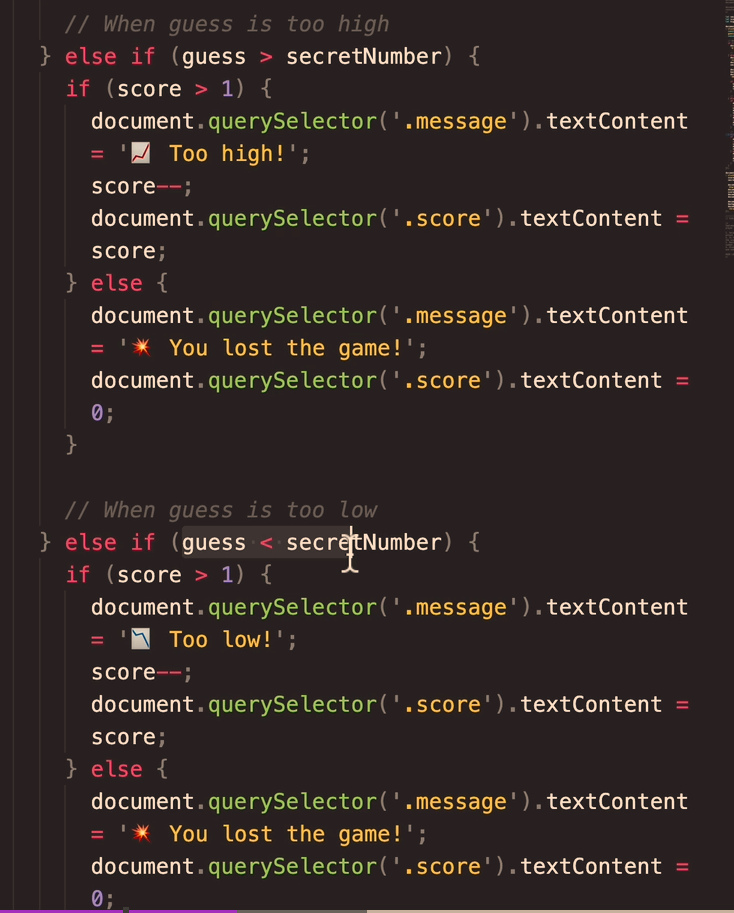
What if the guess is greater than the Secret Number?

else if (guess > secretNumber) {

document.querSelector(‘.message’).textContent=’Too high!’

and if it’s too low:

else if (guess < secretNumber) {

document.querSelector(‘.message’).textContent=’Too low!’

So all the code together will look like:

Adding a Score to The Game

The score will start at 20 and decrease for every wrong guess.

So, if the user guesses too low, reduce the score by 1

We also need to add a variable for the original/starting score, after the secretNumber is declared (or the code to create the secretNumber anyway)

Declare the score with:

let score = 20;

The score is part of the “application state”. The score is available in the code and not just in the DOM

Game Over

To tell the player when they’ve lost the game, we need to add a condition related to the score variable:

if (score > 1) {

https://www.udemy.com/course/the-complete-javascript-course/learn/lecture/22648419#learning-tools

Manipulating CSS When Player Wins- Change Background Colour

First select the whole <body> element

document.querySelector(‘body’).style.backgroundColor = ‘#60347’;

Implementing a High Score ‘Box’

Just like the regular, current score, we need to store the high-score in a variable.

use the code

let highscore = 0;

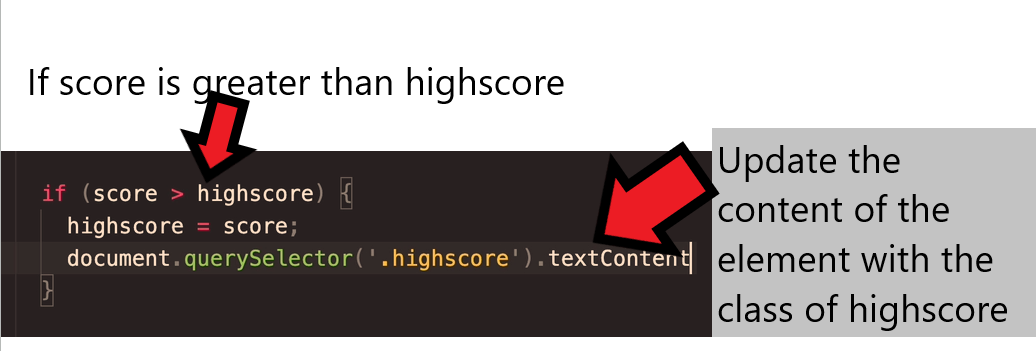
We need to check if the current score is greater than the existing game’s score

if (score > highscore) {

highscore = score;

}

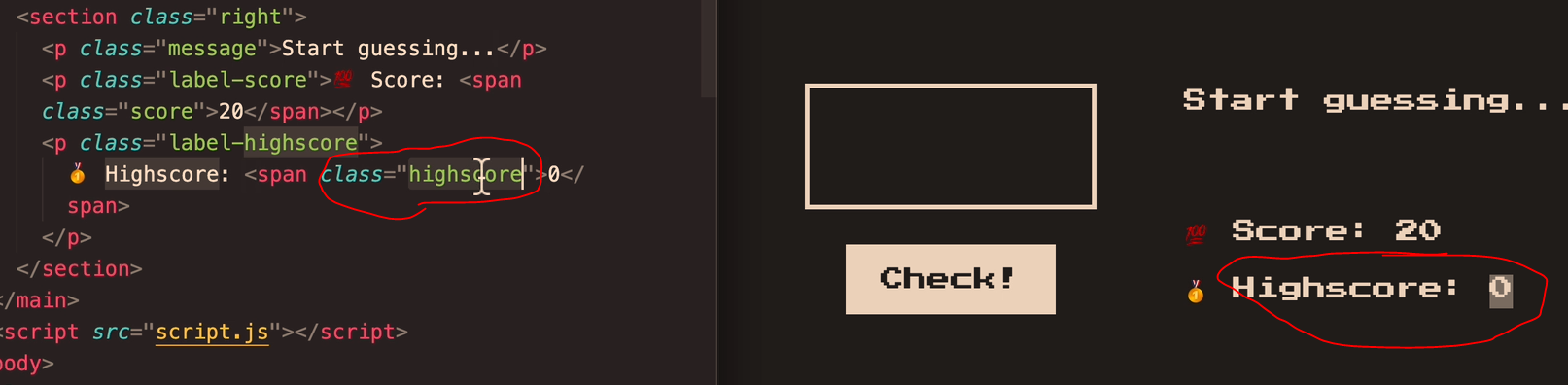
Assuming the “HighScore” Box has already been made – we need to check what the class is.

In the this case, the class = “highscore”

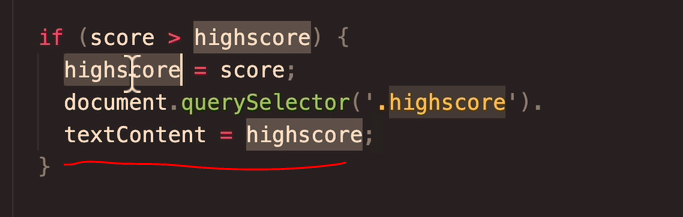
Now we need a way to update the highscore, when the current score is greater.

document.querySelector(‘.highscore’).

textContent = highscore;

https://www.udemy.com/course/the-complete-javascript-course/learn/lecture/22648427#learning-tools

Getting Rid of Duplicate Code (DRY Principle)

The code if the guess is too high, or if the guess is too low code is pretty much duplicate code

Remember

Dont Repeat Yourself DRY

There’s no problem starting out with repeated code, and then refactor the code once it’s all working

  • ID duplicate or close-duplicate code
  • Refactor the facker

Change the code above, to a “when guess is wrong” code block.

Use a ternary operator

Javascript Functions for Beginners

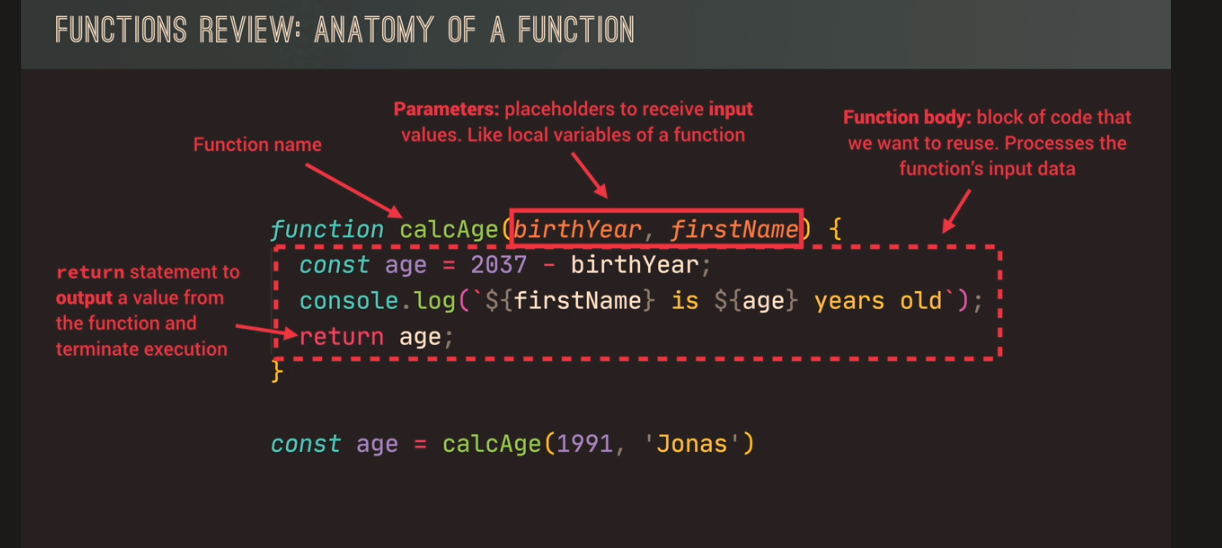
A function is a piece of code, that can be reused.

It’s similar to a variable but doesn’t hold a value like a variable does. So it’s not that much like a variable, but kind of is.

Screenshots are from the brilliant Javascript Course on Udemy here

The code on lines 16 and 17 shown in the image above, creates the function. It is named “logger”.

the shorter code logger(); is used to/for “invoke”, “running”, or “calling” the function.

Function Declerations Vs Expressions

Function Declerations

When you create a function with a name, then it is a function decleration.

Function statements, declare a function. A declared function can be used later when it is “invoked” or “called”.

Function declerations must start with “function”.

For example:

function mma() {

return 8;

}

The functioned mma is declared. to invoke it use the code mma();

You can call function declerations, above the code that creates it.

Function Expressions (good article here)

A JavaScript function can also be defined using an expression.

A function expression can be stored in a variable:

Image source

Function expressions are invoked to avoid polluting the global scope. Instead of your program being aware of many different functions, when you keep them anonymous, they are used and forgotten immediately.

To summarize, function declarations are utilized when you desire to establish a function in the global scope that can be accessed anywhere in your code. On the other hand, function expressions are employed to confine the accessibility of the function, reduce the weight of the global scope, and maintain a neat syntax.

JavaScript Arrow Function

Arrow functions have shorter syntax

They are best suited to non-method functions

source

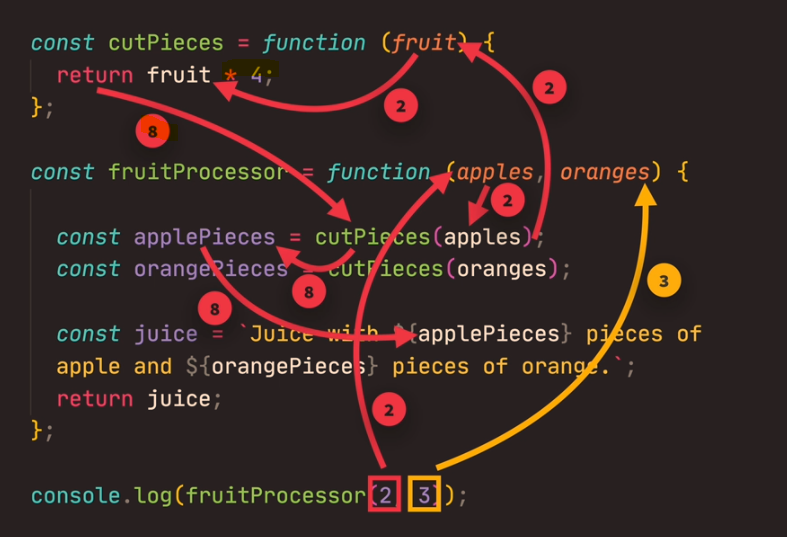
Functions Calling Other Functions

An example, might be a function that cuts up fruit pieces, and then sends the result to a function that blends it into a smoothie.

The start function used above, will print out “I am first bo! 222222!!!”

Functions Summary

A function is like a procedure. It has tasks and calculates a value.

A function requires input and must return an output.

Functions need to be defined with the word “function” and brackets ()

Brackets can also be called paranthesies, and the input is sometimes called “arguments” or “parameters”.

Image source

Image Source

Finding & Fixing 404s with Screaming Frog [2024]

Export the 404 Inlinks Report into Excel

The best report in Screaming Frog to see the source and destination of all 404s – is to go to Bulk Export at the top menu:

And then Response Codes – Client Error Inlinks

In the Exported Excel Sheet:

Copy the “destination” column

Paste into a new sheet/tab – In Column B

Remove duplicates

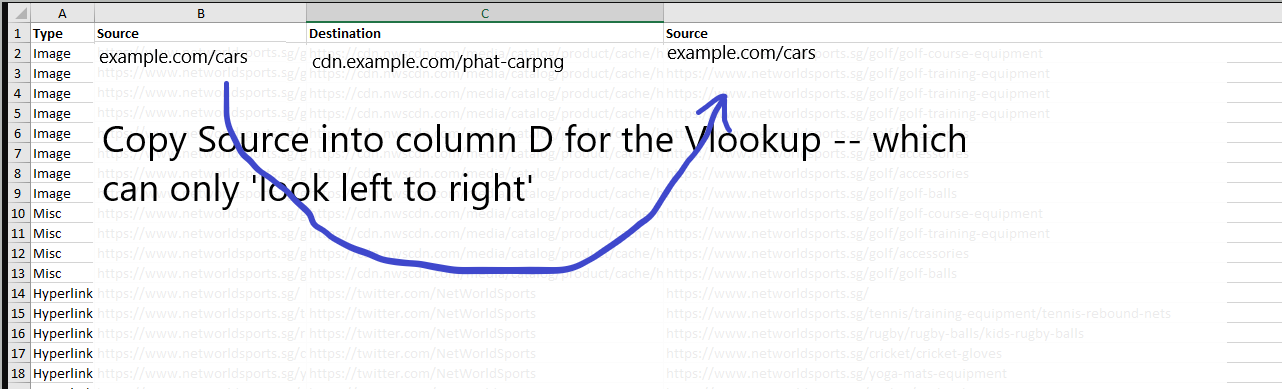
Back in the first sheet – Paste “Source”, into column D to the right of “destination” in first tab/sheet


In the second sheet –
Do a vlookup in the second sheet/tab – to import a source URL to each unique “destination” URL
Add the word “source” to cell C1 in the second sheet

I think you have to click the file name to download the example sheet below:

Sheet / Tab 1 should look like this:

The Second Sheet / Tab should look like this:

The Lookup Value in Cell C2, in the sheet above is:

=VLOOKUP(Sheet1!B2,’1 – Client Error (4xx) Inlinks’!C:D,2,0)

Just double click / drag it down to complete the lookup

You can add more lookups and columns to provide more details about the link location.

Just copy and paste values on the last Vlookup.

Paste another column like “Anchor” into column D on the first Tab

Paste the vlookup into the adjacent column

“0” means nothing found – i.e. no anchor text etc

Update –

404s found in the Navigation or “Aside” tend to be site-wide, so you can find one instance of this and update the 404 and Bob’s your uncle.

If a 404 is within the page content/copy however, they are possibly unique and need fixing individually. So take a look the Content 404s separately. They probably only have 1 source URL so no need to faff with vlookups etc.