eCommerce Structured Data

E-commerce Example for Structured Data Carousels

Below are step by step instructions

You will need:

  • A “summary” or “Product Listings Page” with structured data
  • Structured data on the product pages themselves

At the time of writing, this feature is only available in EU countries.

Step 1: Choose and Implement a Summary Page

Create a summary page that lists multiple products, each linking to a detailed product page.

For example, a category page that lists “Top 5 Winter Coats.”

Step 2: Add Required Properties to the Summary Page

Add the ItemList structured data to your summary page. Here’s an example in JSON-LD format:

<html>
  <head>
    <title>Top 5 Winter Coats</title>
    <script type="application/ld+json">
      {
        "@context": "https://schema.org",
        "@type": "ItemList",
        "itemListElement": [
          {
            "@type": "ListItem",
            "position": 1,
            "item": {
              "@type": "Product",
              "name": "Puffy Coat Series by Goat Coat",
              "image": [
                "https://example.com/photos/1x1/photo.jpg",
                "https://example.com/photos/4x3/photo.jpg",
                "https://example.com/photos/16x9/photo.jpg"
              ],
              "offers": {
                "@type": "AggregateOffer",
                "lowPrice": 45.00,
                "highPrice": 60.00,
                "priceCurrency": "USD"
              },
              "aggregateRating": {
                "@type": "AggregateRating",
                "ratingValue": 4.9,
                "reviewCount": 50
              },
              "url": "https://www.example.com/puffy-coats"
            }
          },
          {
            "@type": "ListItem",
            "position": 2,
            "item": {
              "@type": "Product",
              "name": "Wool Coat Series by Best Coats Around",
              "image": [
                "https://example.com/photos/1x1/photo.jpg",
                "https://example.com/photos/4x3/photo.jpg",
                "https://example.com/photos/16x9/photo.jpg"
              ],
              "offers": {
                "@type": "AggregateOffer",
                "lowPrice": 189.00,
                "highPrice": 200.00,
                "priceCurrency": "USD"
              },
              "aggregateRating": {
                "@type": "AggregateRating",
                "ratingValue": 4.7,
                "reviewCount": 827
              },
              "url": "https://www.example.com/wool-coats"
            }
          },
          {
            "@type": "ListItem",
            "position": 3,
            "item": {
              "@type": "Product",
              "name": "Antarctic Coat by Cold Coats",
              "image": [
                "https://example.com/photos/1x1/photo.jpg",
                "https://example.com/photos/4x3/photo.jpg",
                "https://example.com/photos/16x9/photo.jpg"
              ],
              "offers": {
                "@type": "Offer",
                "price": 45.00,
                "priceCurrency": "USD"
              },
              "aggregateRating": {
                "@type": "AggregateRating",
                "ratingValue": 4.9,
                "reviewCount": 1290
              },
              "url": "https://www.example.com/antarctic-coat"
            }
          }
        ]
      }
    </script>
  </head>
  <body>
  </body>
</html>

Step 3: Validate Your Code

  1. Rich Results Test: Validate your structured data using the Rich Results Test.
  2. URL Inspection Tool: Use the URL Inspection tool in Google Search Console to ensure your page is accessible and not blocked by robots.txt or noindex tags.

Step 4: Deploy Your Page

  1. Deploy your summary page and a few detail pages.
  2. Use the URL Inspection tool to request indexing of your new pages.

Step 5: Submit a Sitemap

  1. Create a sitemap including your summary and detail pages.
  2. Submit the sitemap through Google Search Console to ensure Google knows about all your pages.

Step 6: Follow Guidelines

  1. Ensure compliance with Search Essentials.
  2. Adhere to general structured data guidelines and specific requirements for carousel rich results.

Example Detail Pages

Each product linked from the summary page should have its own detail page with structured data. For example:

<html>
  <head>
    <title>Puffy Coat Series by Goat Coat</title>
    <script type="application/ld+json">
      {
        "@context": "https://schema.org",
        "@type": "Product",
        "name": "Puffy Coat Series by Goat Coat",
        "image": [
          "https://example.com/photos/1x1/photo.jpg",
          "https://example.com/photos/4x3/photo.jpg",
          "https://example.com/photos/16x9/photo.jpg"
        ],
        "description": "A stylish and warm puffy coat perfect for winter.",
        "offers": {
          "@type": "Offer",
          "price": 45.00,
          "priceCurrency": "USD",
          "url": "https://www.example.com/puffy-coats"
        },
        "aggregateRating": {
          "@type": "AggregateRating",
          "ratingValue": 4.9,
          "reviewCount": 50
        }
      }
    </script>
  </head>
  <body>
  </body>
</html>

That should be it!


Helpful Core Update – March 2024

Core Update and Helpful Content System:

  • As the name suggests, Google’s March 2024 core update aims to prioritise useful information over content that seems optimized for search engines. In theory, spammy shite should be dropped in the rankings. In theory. Hopefully the twats at hydragun who keep robbing my MMA blogs content will get a spanking.
  • The helpful content system is revamped and integrated into the core ranking algorithm to better identify genuinely helpful content and reduce unoriginal content.
  • The guys in the know, expect the rollout to take a month, with significant ranking fluctuations during this period.
  • Google aims to reduce low-quality, unoriginal content in search results by 40%. Not 100%, updates begin at 40.

Actionable To-Do List:

  1. Review Content Quality: Assess your website’s content for originality and usefulness to real users, not just for SEO.
  2. Write from experience, and in the first person.  Unless you’re a big brand, then do what you like.
  3. Monitor Rankings: Prepare for fluctuations in search rankings as the update rolls out. Use this time to identify areas for improvement.
  4. Update Content Strategy: Focus on creating high-quality, original content that addresses your audience’s needs and questions. Use forums and social media groups to identify your customers pain points and common questions. Your CS and sales teams can also provide insights. Also get chat gpt to put keywords into themes of different queries.
  5. Avoid Spam Tactics: Steer clear of expired domain abuse, scaled content abuse, and site reputation abuse to avoid penalties.
  6. Build your brand. Branded searches and search volumes, make a massive difference, in my experience (see what I did there?).

It generally helps, in theory, to write from experience rather than just giving an overview that anyone could scrape and rewrite from the internet. Include your own images, videos etc.

I don’t have any images of Google updates, see here’s a pic of my dog:


Big brands will still probably have a massive advantage regardless of what they do.

Spam Updates:

  • Significant changes to spam handling will start on May 5, 2024, affecting sites through algorithmic adjustments or manual actions.
  • New spam policies target expired domain abuse, scaled content abuse (especially AI-generated content), and site reputation abuse.

General Recommendations:

  • Recognize the shift towards rewarding authoritative and genuinely helpful content.
  • Anticipate a more significant impact from updates targeting spam and low-quality content.
  • Understand that recovery from these updates may require fundamental changes beyond SEO, focusing on building a reputable and sought-after brand for quality content.

Image from BBC

Actionable SEO News Summary – 23rd-1st March 2024

SEO News Summary from the Last 7 Days

Over the past week, the SEO and PPC landscape has seen several significant updates and insights:

  1. Google Structured Data Carousels (Beta):
    Google introduced new documentation for what it calls host carousels within Google Search, aiming to enhance content visibility and interaction.

    More info from google here

  2. Performance Max Campaigns: Concerns have been raised about Google’s lack of transparency around Performance Max (PMax) performance data, with advertisers criticizing the platform for not showing channel-specific KPIs.

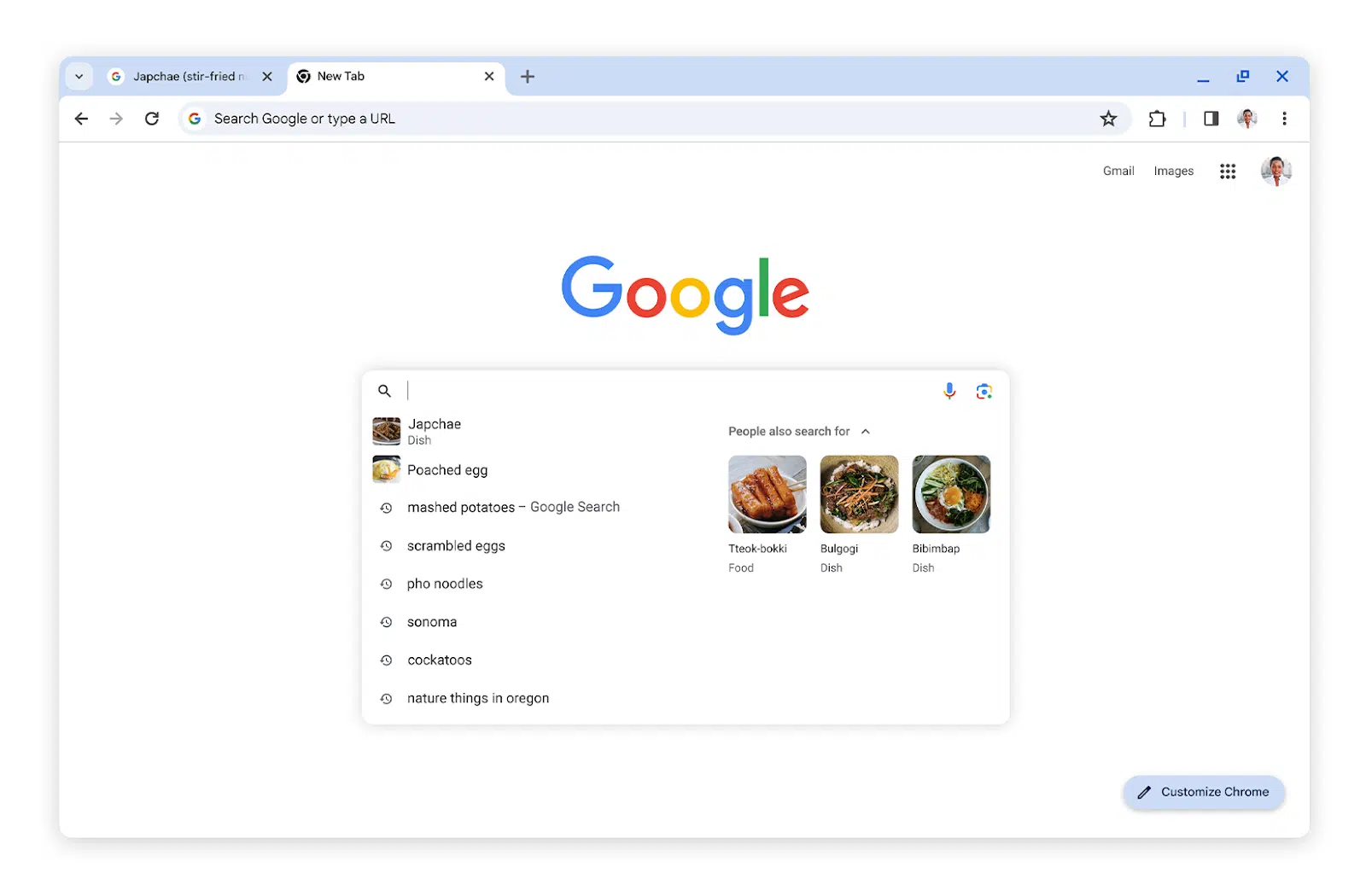
  3. Google Chrome Search Suggestions Update: Google Chrome now offers enhanced search suggestions, including what others are searching for and more image thumbnails in the search box*


  4. AI Content and GPTBot: Discussions around AI-generated content and the use of OpenAI’s GPTBot for crawling websites have been prominent. The consensus is that embracing GPTBot can offer more benefits than drawbacks, with advice on improving AI content to avoid generic writing and plagiarism.


  5. Video SEO and Site Migrations: Advanced techniques for video SEO were highlighted, including the debate between self-hosting versus YouTube embedding. Additionally, AI-powered redirect mapping was discussed as a method to speed up site migrations.


  6. Legal and Policy Updates: Google faces a $2.27 billion lawsuit from European publishers over advertising practices, and reminders were issued about Google enforcing stricter rules for consumer finance ad targeting.


  7. Digital Marketing Trends for SMBs: A new report sheds light on the digital marketing approaches of small and medium-sized businesses (SMBs) in 2024, focusing on key trends, goals, and challenges.


*Google Search Suggestions Update:

google search suggestions

Actionable Points for SEO and Digital Marketing

Based on the recent SEO news, here are some actionable recommendations:

  1. Embrace Google’s New Features: Experiment with Google’s structured data carousels and update your site’s structured data accordingly to take advantage of these new search features.
  2. Transparency with Performance Max Campaigns: Closely monitor PMax performance data and consider diversifying your ad strategies to mitigate risks associated with opaque KPIs.
  3. Optimize for Google Chrome’s Enhanced Search Suggestions: Ensure your website’s content is optimized for search suggestions, including the use of relevant keywords and high-quality images.
  4. Unblock GPTBot and Improve AI Content: Do not block GPTBot from crawling your site; instead, focus on creating high-quality, insightful AI-generated content that avoids generic writing and plagiarism.
  5. Advanced Video SEO Techniques: Explore advanced video SEO techniques, such as deciding between self-hosting and YouTube embedding based on your content strategy and ensuring your videos are properly indexed.
  6. AI-Powered Site Migration: Utilize AI for efficient redirect mapping during site migrations to save time and reduce errors, ensuring a smooth transition to a new CMS.
  7. Stay Informed on Legal and Policy Changes: Keep abreast of legal and policy updates affecting digital advertising to ensure your marketing practices remain compliant and effective.

Actionable SEO Tips

Advanced Video SEO Techniques and AI Copy Creation

For advanced video SEO, focus on:

  • Choosing the Right Hosting Platform: Decide between self-hosting and platforms like YouTube based on your goals (e.g., traffic vs. engagement).
  • Optimizing Video Metadata: Ensure titles, descriptions, and tags are keyword-rich and descriptive.
  • Creating Engaging Thumbnails: Use compelling thumbnails to increase click-through rates.
  • Leveraging Video Transcripts: Improve accessibility and indexability by including transcripts.

To create helpful AI copy that ranks well, focus on:

  • Providing Detailed Instructions: Give the AI specific, detailed prompts that align with your content goals.
  • Emphasizing Value and Originality: Instruct the AI to generate content that offers unique insights or solutions.
  • Incorporating SEO Best Practices: Include keywords and SEO strategies within your prompts to guide the AI in producing SEO-friendly content.

Example Prompts for AI Copy Creation

Becoming a Full Stack Developer:

  • “Write an introductory guide for beginners on becoming a full stack developer, focusing on essential skills and languages.”
  • “List the top resources for learning full stack development, including online courses, books, and communities.”
  • “Explain the importance of project-based learning in full stack development and provide examples of beginner-friendly projects.”

Tech SEO Audit and Site Migration Checklist:

  • “Create a comprehensive checklist for conducting a technical SEO audit, covering site speed, mobile-friendliness, and on-page SEO factors.”
  • “Outline the steps for a successful site migration to a new CMS, emphasizing SEO considerations like URL structure and 301 redirects.”
  • “Discuss common pitfalls in site migrations and how to avoid them, focusing on maintaining search rankings and user experience.”

These prompts are designed to guide AI in producing detailed, valuable content that addresses specific user needs and adheres to SEO best practices.

Product Schema Example (with review schema) 2024

Here’s an example:

<script type="application/ld+json">	
{
"@context": "http://schema.org",
"@type": "Product",
"description": "The best pads you can buy online for MMA and boxing. Made with leather, manufactured by BJJ black belts and elves.",
"gtin8": "sdfdfsf3w5455",
"name": "Boxing and MMA Pads ",
"image": "https://cdnfake.com/media/catalog/product/m/i/boxing-pads-solo.jpg",
"sku": "boxing-mini-pads-only",
"url": "https://www.blackbeltwhitehat.co.uk/nice-mma-target-pads-boxing-only.html"
"brand": "Nice MMA",
"offers": [
{
"@type": "Offer",
"itemCondition": "http://schema.org/NewCondition",
"price": "89.99",
"availability": "InStock",
"priceCurrency": "GBP",
"url": "https://www.blackbeltwhitehat.co.uk/nice-mma-target-pads-boxing-only.html"

}
]
,
"review": [
{
"@type": "Review",
"author": {
"@type": "Person",
"name": "DAVE MACDONALD"
},
"datePublished": "2017-27-07",
"description": "Grandson loves using these",
"name": "ALFFI-JAC MACDONALD",
"reviewRating": {
"@type": "Rating",
"bestRating": "5",
"ratingValue": "5", "worstRating": "1"
}
} ]
,
"aggregateRating": {
"@type": "AggregateRating",
"ratingValue": "5",
"reviewCount": "1"
}
}
</script>

I use these tools to check schema

https://classyschema.org/Visualisation
https://search.google.com/test/rich-results
https://validator.schema.org/

and use – https://www.diffchecker.com/ to check an existing schema, that I know works and is validated, to another one that I’m testing.

Here’s another example I just found within the Google ‘documentation

 <html>
  <head>
    <title>Executive Anvil</title>
    <script type="application/ld+json">
    {
      "@context": "https://schema.org/",
      "@type": "Product",
      "name": "Executive Anvil",
      "description": "Sleeker than ACME's Classic Anvil, the Executive Anvil is perfect for the business traveler looking for something to drop from a height.",
      "review": {
        "@type": "Review",
        "reviewRating": {
          "@type": "Rating",
          "ratingValue": 4,
          "bestRating": 5
        },
        "author": {
          "@type": "Person",
          "name": "Fred Benson"
        }
      },
      "aggregateRating": {
        "@type": "AggregateRating",
        "ratingValue": 4.4,
        "reviewCount": 89
      }
    }
    </script>
  </head>
  <body>
  </body>
</html>

Enjoy!

Extracting URLs from Page Code in Excel

Removing Code from the End of the URLs

If the links don’t have .html in the protocol (at the end of them), then first concatenate the URLs to add * at the end of them all.

If they do have .HTML, then find and replace .HTML with .html*

Next – use Text to Columns, use * as the “delimiter”

Removing code from the Start of the URLs

If the links are relative:

Use text to columns again and use / as the delimiter

If the links contain the full domain name, then concatenate * at the start of the domain name and use text to columns again to remove the code fro the start of the URLs

Alternative Method

Here is another method for doing it – https://businessdaduk.com/data/data-analysis-with-excel/getting-domains-from-a-list-of-urls/

Ensure all the domains have http:// prefix

Use the formula:

=IF(ISERROR(FIND("//www.",A2)), MID(A2,FIND(":",A2,4)+3,FIND("/",A2,9)-FIND(":",A2,4)-3), MID(A2,FIND(":",A2,4)+7,FIND("/",A2,9)-FIND(":",A2,4)-7))

CSS Grid for Beginners [2022]

CSS Grid allows you to layout items in 2 dimensions. It is similar to Flexbox but in 2D, instead of 1D (apparently).

You have a grid container, like in Flexbox. It is like a square perimeter around all the items or elements.

Grid has lines or tracks between the elements.

Getting Started with CSS Grid

You’ll want a code editor thingy, like Sublime Text, Visual Studio or if you’re old school, Notepad.

The easiest way to do this is to use codepen, but if you have Visual Studio, that’s ideal as you can test your code in real time.

Unless your using inline styles, you’ll want to create an HTML doc and a separate CSS sheet.

  • Getting started

If you want to follow along, you’ll want to add the <HTML> tags to declare you’re created a webpage with HTML, and add a <head>, a page title in <title> </title> tags and a <body> to add your content.

You should then save the HTML doc as something like “index.html”, just make sure it has .HTML at the end of the name.

In a separate doc/sheet, create your style sheet and save it as “styles.css”

You can then link to/connect your HTML doc to your CSS sheet in the <head> of the HTML doc with the code in bold:

<html>
 <head>
 <link rel="stylesheet" href="styles.css">
 <title>Grid Example</title>
 </head>
 <body>
 
 </body>
</html>
  1. In your HTML, create a container to wrap all your items in.

You can create a div to wrap all your items or elements within*

<div class = "grid-container">

2. You also need a div (or tag of some kind) to put yo grid items in

<div class="grid-item grid-item-1"> </div>
<div class="grid-item grid-item-2"> </div>
<div class="grid-item grid-item-3"> </div>

So now your HTML doc should look something like this:

<html>
 <head>
 <link rel="stylesheet" href="background_styles.css">
 <title>Grid Example</title>
 </head>
 <body>
  <div class = "grid-container">
   <div class="grid-item grid-item-1"> </div>
   <div class="grid-item grid-item-2"> </div>
   <div class="grid-item grid-item-3"> </div>
  </div>
 </body>
</html>

In your Styles.css sheet, you now need to declare the CSS Grid stuff.

.grid container {
 display: grid;
}

The code above just tells CSS lords that you are going to use grid, now you need to style the columns or rows.

We’ll declare the grid column sizes. You can use pixels, rems, percentages and all sorts. Pixels is prob the easiest.

To create a table/grid with 2 columns, the first being 200px wide and the second 100px, use the CSS code:

.grid container {
 display: grid;
 grid-template-columns: 200px 100px;
}

Because we declared 3 grid items in our CSS, the 3rd item will be put onto a second row:

css grid example

CSS Grid Fractions

People like to use “fractions” for CSS columns. Keeps things relative and simple.

.grid container {
 display: grid;
 grid-template-columns: 2fr 1fr;
}

The code above, would produce the same output as the first example.

we’ve used a total of 3fr’s. 2 thirds are used to set the width of the first column, and 1 third for the final column.

CSS Grid Repeats

If you wanted to have 4 columns, all 100px wide, instead of typing 100px out x 4, you can just use the repeat command (

.grid-container {
  display: grid;
  grid-template-columns: repeat(4, 100px);

CSS Grid Auto-Rows

If you don’t know how big your table or whatever will be, you can use:

grid-auto-rows: 150px;

Now, all the rows that are created, will be 150px tall

If you want to make sure you content, copy or images or whatever, fit in the rows, you can use the MinMax thing.

grid-auto-rows: minmax (150px, auto);

CSS Grid Gaps

If grid is a table, then the gaps are the thicknesses of the lines of the table.

You can use “grid-gap: 10px;” to set both the row and column gap width, or

grid-row-gap: 20px;
grid-column-gap:10px;

To set the row gaps to 20px and the column gap to 10px.

Grid template areas

You can name and define different rows with “grid template areas”

CSS sheet


.grid-container {

grid-template-areas:
 
   "header header"
   "sidebar content"
   "sidebar content"
   "sidebar content"
}

More info here – https://www.w3schools.com/cssreF/tryit.php?filename=trycss_grid-template-areas3

The video should start at the grid template areas section:

Grid Alignment

Works similar to flexbox when it comes to aligning items.

  justify-content: center;

justify-content: center; will place all the items in the middle of the page

Centred Grid

To place the content to the left:

  justify-content: start;
justify-content: space-evenly;

Space-evenly, will spread the grid items evenly across the page:

*Everyone tends to use divs, but according to W3 (the internet police) you should be using divs as a last resort. More info here

Instead of <div class =classname>, you could for example, use <article class=”classname”> or <section class = “classname”>

***Remember to add specific styles to the .grid-container in the CSS sheet, and text-specific styles, such as text-align, in the grid.item styles section***

E.g. put this in the .grid-item styles, not the .grid-container:

.grid-item {
background: green;
text-align: center;
}

Styling a Single Grid Item

Let’s say you have made a grid, with 6 items, but you want the first one to be different to the rest. Probably the easiest way to achieve this, is to add a “.grid-item-1” styles section, below the CSS you’ve created for the rest of the grid items.

CSS Grid Layout Generator

The Grid Layout Generator that I find easiest to use, is the try it yourself grid layout tool on w3 schools – https://www.w3schools.com/css/tryit.asp?filename=trycss_grid

I find it easier, as the HTML and CSS is divided nicely to .grid-container and .grid-items.

I made this by copying and pasting the code from the W3schools try it yourself grid tool and adding column and row gaps.

If you use the W3 try it yourself tool, remember to click “Run” on the top left, as the code doesn’t update real time.

css grid equal height rows

If you add the value/property thing in CSS, to the .grid-container section of the CSS (assuming you’ve named the class of your container .grid-container) to “grid-auto-rows: 1fr;” – then all the rows should be equal height. Or you could just set the heights to 100px each

css grid background color

In this codepen example, the line

 background-color: #2196F3;

sets the background colour to blue.

The Textjoin function in Excel

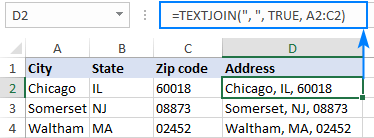
This is handy if you have data in different cells, that you want to put into a single cell, separated by a comma.

For example:

Image source ablebits.com

I needed a way of combining a load of commerce product identifier numbers into one cell, separated by columns.

You can download the spreadsheet with the formula here.

Textjoin Formula Example


TEXTJOIN(",",TRUE,F6:F35)

The comma in speech marks, adds the comma between the numbers
Not sure what “TRUE” does to be honest!
The F6:F35 is just the cells that the original list, that’s aligned vertically in this case, was in.

Responsive Youtube IFrame Embed

Go to a YouTube video – on YouTube.com

  • Click “Share” then “Embed” and grab the code

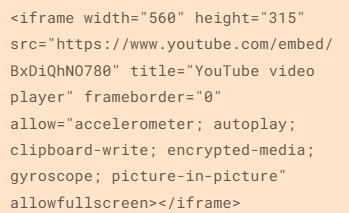
Default Embed Code:

DEafult Youtube iframe embed HTML code


I changed the default width="560" at the start to width="100%"
Also added style="max-width: 600px;" - after allowfullscreen:


I can’t show an example unfortunately, as my Free WordPress.com blog doesn’t allow to add any code. The embed above isn’t fully responsive.

Semantic Search & SEO – Using Python and Google Colab

Semantic search adds context and meaning to search results. For example, if someone is searching for “Lego” – do they want to buy Lego toys, or see a Lego movie or TV show (Ninjago is great). Another example might be “Tesla” – do people want to see the latest self-driving car, or learn more about Tesla the scientist and inventor?

  • Make sure you understand search intent and any confusing searches like Tesla(inventor or car?), Jaguar (car or animal?), etc
  • Look for structured data opportunities
  • Optimise internal links – especially if you are using a “Pillar Post” and “Cluster Page” structure
  • Follow traditional on page SEO best practices with headers, meta titles, alt tags etc

SMA Marketing have done a cool YouTube video about Semantic Search and they recommend tools including:

  • Wordlift
  • Frase
  • Advanced Custom Fields for WordPress
  • Google Colab with a SpaCy

Before you publish a post – look at the search results for the keyword(s) you are optimising the post for. Check in incognito in Chrome to remove most of the personalisation of the results.

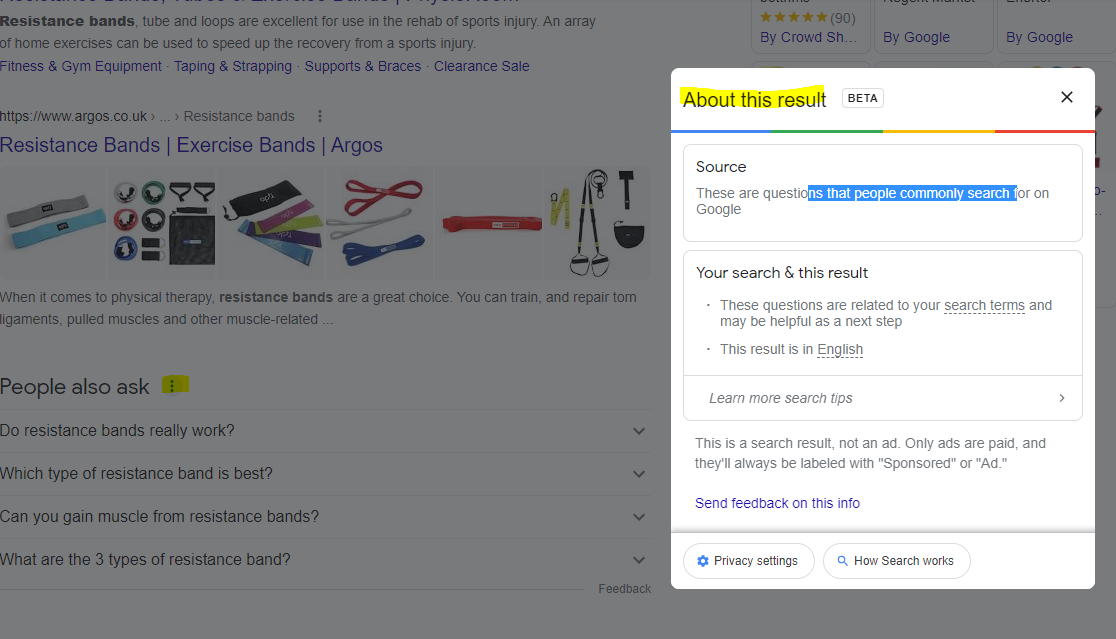
For any answer boxes or snippets, you can click the “3 dots” to get information about the results:

As well as the snippets, you can click the 3 dots next to any organic result. Here’s another result for “MMA training program pdf” with some additional information:

With this in mind – if you are looking to rank for “MMA training program pdf” then you will want to include the search terms highlighted in the “About this result” box: mma, training, program, pdf and ideally LSI keywords “workout” and “plan”.

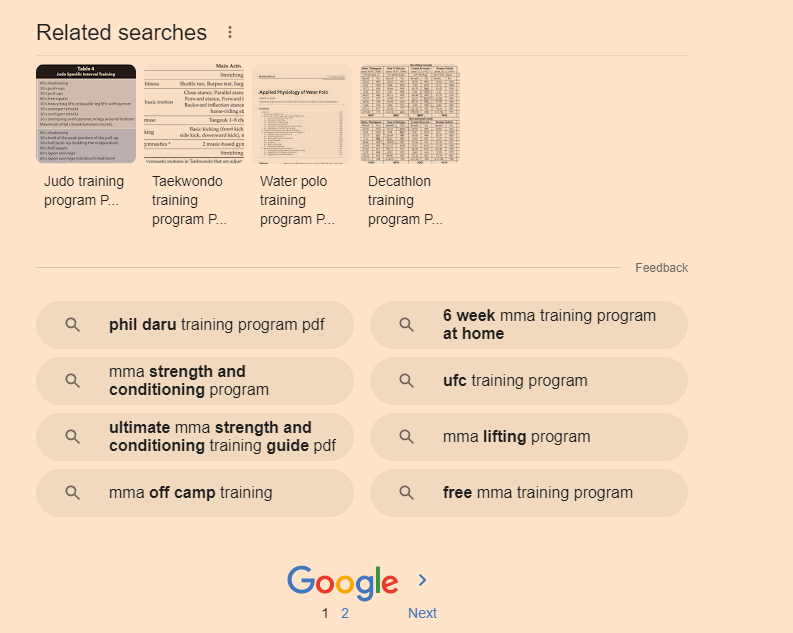
It’s also a good idea to scroll down to the bottom of the SERP and check out the “related searches”

Take a look too at any breadcrumb results that pull through below the organic listings. Combining all this information will give you a good idea as to what Google understands by your search query and what people are looking for too.

Semantic Search & NLP

This is a bit techy, but thankfully, the guy at SMA Marketing (thank you if you’re reading this) has put together a file/load of python code that does most of the work for us. You can find it here – https://colab.research.google.com/drive/1PI6JBn06i3xNUdEuHZ9xKPG3oSRi1AUm?usp=sharing#scrollTo=uatWEoHp5nxZ

Hover over [1] and click the play icon that appears (highlighted yellow in screenshot below)

When that section has finished loading and refreshing, scroll down to the “Installation tensorflow + transformers + pipelines” section and click the play icon there.

When that’s finished doing it’s thing, scroll down again, and add your search query to the uQuery_1: section:

add your query and then press the “play” button on the left hand side opposite the uQuery_1 line

You should then see the top 10 organic results from Google on the left hand side – in the form of a list of URLs

Next, you can scrape all the results by scrolling down to the “Scraping results with Trafilatura” section and hover over the “[ ]” and press play again:

Next, when the scraping of results is done – scroll down to “Analyze terms from the corpus of results” section and click the play button that appears when you hover over “[ ]”

Next! when that’s done click the play button on the section full of code starting with:

“df_1[‘top_result’] = [‘Top 3’ if x <= 3 else ‘Positions 4 – 10’ for x in df_1[‘position’]] # add top_result = True when position <=3 “

Finally – scroll down and click the play button on the left of the “Visualizing the Top Results” section.

On the right hand side where it says “Top Top 3” and lists a load of keywords/terms – these are frequent and meaningful (apparently) terms used in the top 3 results for your search term.

Below that, you can see the terms used in the results from 4-10

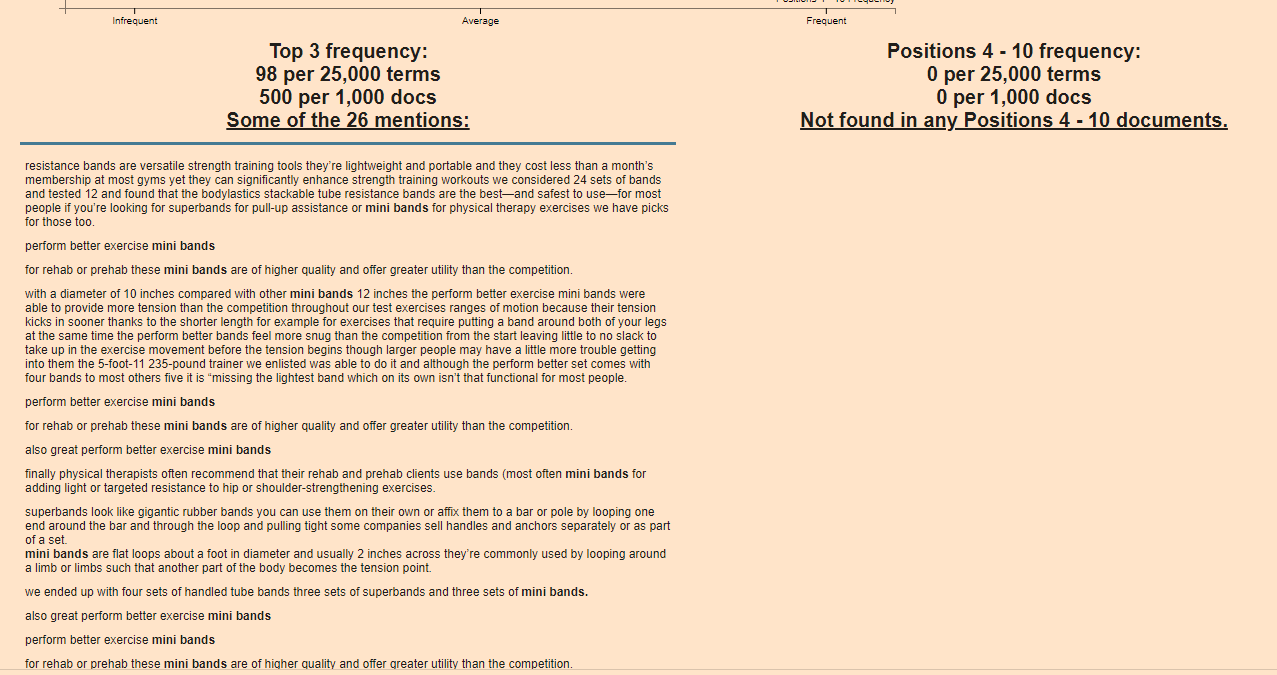
Terms at the top of the graph are used frequently in the top 3 results e.g. “Mini bands”

Terms on the right are used frequently by the results in positions 4-10

From the graph above, I can see that for the search term “resistance bands” the top 3 results are using some terms, not used by 4-10 – including “Mini bands”, “superbands” “pick bodylastics”

  • If you click on a term/keyword in the graph – a ton of information appears just below:

e.g. if I click “mini bands”

Google Colab TOol

It’s interesting that “mini bands” is not featured at all in the results positioned 4-10

If you were currently ranking in position 7 for example, you’d probably want to look at adding “mini bands” into your post or product page

You can now go to the left-side-bar and click “Top 25 Terms” and click the “play icon” to refresh the data:

Semantic SEO tool

Obviously – use your experience etc and take the results with a pinch of salt – some won’t be relevant.

Natural Language Processing

next click on “Natural Langauge Processing” in the side-menu

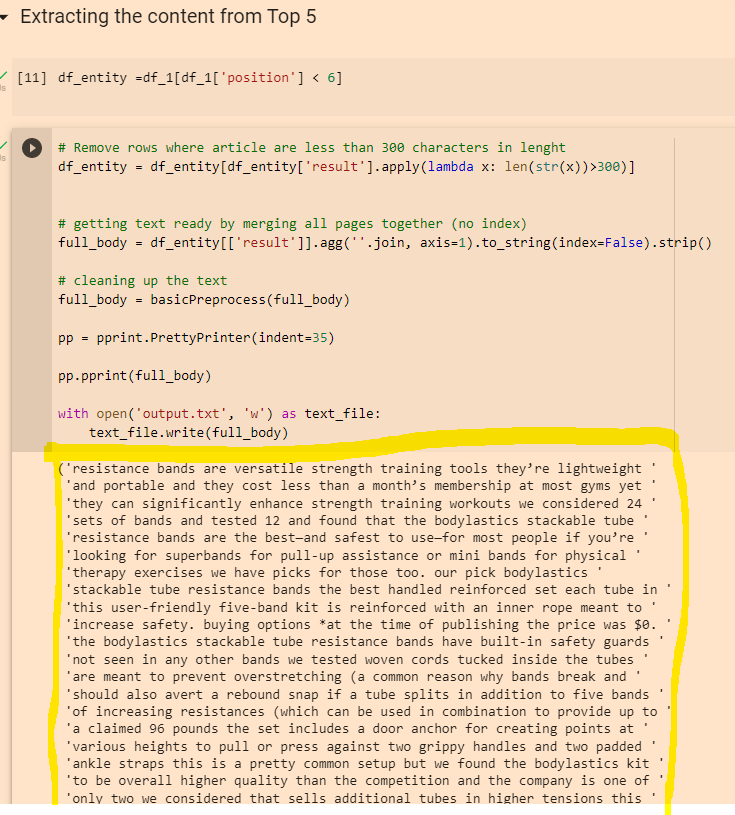
Click the “play” icons next to “df_entity =df_1[df_1[‘position’] < 6]” and the section below.

When they have finished running click the play icon next to “Extracting Entities”

Click “play” on the “remove duplicates” section and again on the “Visualising Data” section

This should present you with a colourful table, with more terms and keywords – although for me most of the terms weren’t relevant in this instance 😦

You can also copy the output from the “Extracting the content from Top 5” section:

Python Google Colab
Then paste it into the DEMO/API for NLP that Google have created here:

https://cloud.google.com/natural-language#section-2

You can then click the different tabs/headings and get some cool insights

Google NLP API

Remember to scroll right down to the bottom, as you’ll find some additional insights about important terms and their relevance

The Google NLP API is pretty interesting. You can also copy and paste your existing page copy into it, and see what Google categories different terms as, and how “salient” or important/relevant it thinks each term is. For some reason, it thinks “band” is an organisation in the above screenshot. You can look to improve the interpretations by adding relevant contextual copy around the term on the page, by using schema and internal links.

Data Studio – Quick Tips (Advanced)

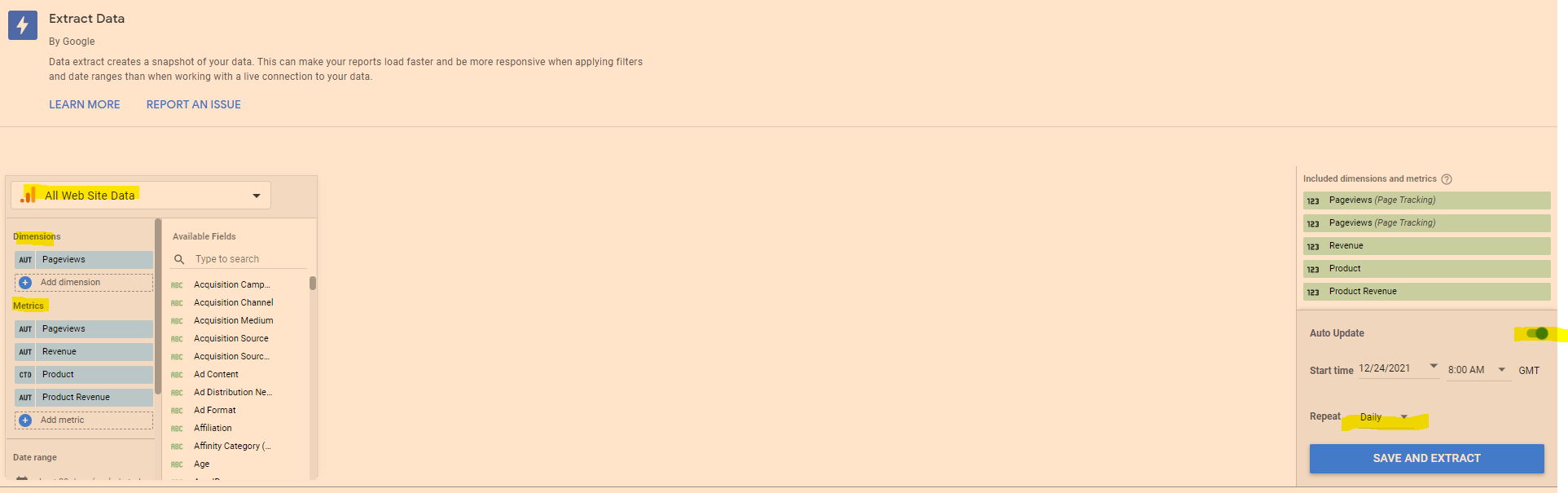
Speed Up Data Studio Reports (Significantly) – Extract Data

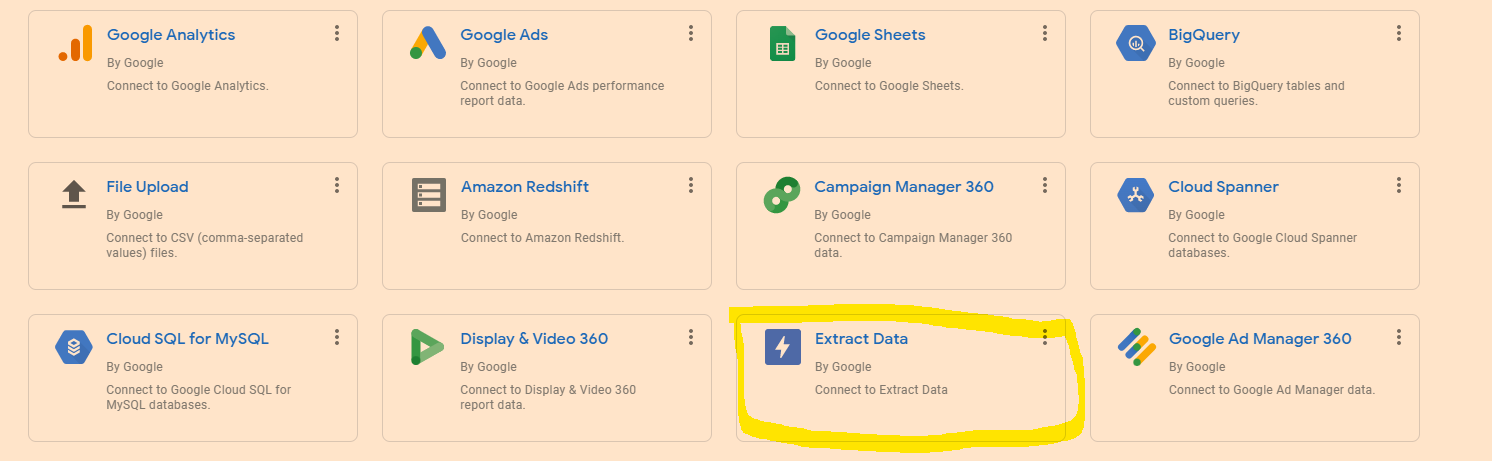
To speed up your reports – you can “Extract Data” and cache it.

It can help to have 2 copies of the report up – so you can see which metrics and dimensions you need to select when adding the data to extract and cache (also a good idea to test the extract data method on a copy of the report in case you faff anything up)

Go to “Add Data” in the top menu-bar

  • Click on “Extract Data”
  • Choose the data you need – eg Google Analytics
  • Add the dimensions and metrics you need for the report
  • On the Right hand side – click to turn “Auto Update” on
  • Select “daily”
  • Click “Save and Extract”

Sometimes you have to faff around a bit with the dimensions – Google Analytics doesn’t seem to like caching a dimension, but still goes super-quick if you cache the metrics only.

Edit in Bulk

If you want to edit all of the charts or tables on the page, in “Edit” mode, right click – go to “Select” and then choose “Tables on page” or whatever type of chart, scorecard or table you’ve selected.

This works instead of CTRL clicking or SHIFT clicking – but you can only change charts or visualisations of the same type at the same time. You can change the style, add a comparison date range etc.

Brand Colour Theme in Data Studio

Click on “Them and Layout” at the top of the screen and then, near the bottom right click “Extract Theme from Image” – you can then upload your logo and choose a theme with your brand colours.

If your shite at presentation like me, this is helpful.

Copy & Paste Styles

In Data Studio – If you want to copy a style from a chart or table, right click it, then choose “copy”

Click another chart/table and the right click – Paste Special – Paste Style Only

Add Chart Filters to an Entire Report

If you want to add a filter to all the data in a report, then it can be a pain going through the charts individually.

Right click on a blank part of the page –

  • Click “Current Page Settings”
  • On the right hand side – click “Create a Filter”
  • Choose or create a filter to apply to all the page

To add a filter to multiple pages

  • Right click on a blank part of the page
  • click “Report Settings”
  • click “Add a filter” in the right side-menu

Add Elements to All Pages of a Report in Data Studio

If you want to add a header and date range selector, for example, to all the pages in the report – add the elements to a page, then right click on the element – and choose “Make report-level”

Quickly Align Elements in Data Studio

Click and drag to select all the elements

Right click – choose “align” – “middle” to get everything inline horizontally

To get an equal space between all the elements, so they’re spaced evenly:

– click and drag to select the elements

– right click – select “Distribute”

– “horizontally” to space evenly across the page, or “vertically” to distribute evenly in a vertical manner.

You can also tidy up individual tables to align the columns vertically – right click and select “”Fit to data”

See our Data Studio Fields & Filters blog post – https://businessdaduk.com/2021/12/15/data-studio-fields-filters-notes/