Responsive Images with Inline CSS

Use width in pixels for desktop size and then add max-width:100% so it can’t go wider than mobile viewport:

<div class="content-item brand-space-top-small" style="margin-bottom:1.7rem;">      

<img src="https://nwscdn.com/media/wysiwyg/buyersguide/US_goal_sizes.jpg" style="width:1000px; max-width: 100%;" alt="US Soccer goal sizes" />
</div>

Aligning Text to the side of an image – with inline CSS and HTML

Had to do this using inline styles to override stuff in the stylesheet etc

<div class="responsive-container" style="display: flex; flex-wrap: wrap; align-items: flex-start; margin-top: 0px; margin-bottom: 0rem;">
  <div class="text-container" style="flex: 1; min-width: 0; margin-right: 20px;">
    <h3 style="margin-bottom: 0.4rem;">FIFA Basic</h3>
    <p>
      Gyda nod ansawdd FIFA Basic, mae Pêl-droed Clwb FORZA yn opsiwn cost-effeithiol ar gyfer timau pêl-droed o bob lefel ar gyllideb. Ar gael mewn meintiau 3, 4, a 5, mae'r peli hyn yn addas ar gyfer pob oed. Mae'r bledren butyl wedi'i amgylchynu gan chwe phanel wedi'i wasgu â gwres gyda deunydd polywrethan 1.2mm o drwch, i helpu'r bêl i gadw ei siâp ar ôl effeithiau dirifedi, yn ogystal â gwneud y bêl-droed o ansawdd gêm yn gwrthsefyll rhwyg ac yn gwrthsefyll y tywydd ym mhob cyflwr. Mae Pêl-droed Clwb FORZA ar gael mewn pecynnau o naill ai 1, 3, neu 30 pêl, ac mewn dau gyfuniad lliw (Gwyn a Glas neu Gwyn a Phinc).
    </p>
  </div>
  <img class="responsive-image" src="https://nwscdn.com/media/wysiwyg/buyersguide/FIFA-Basic-Logo.png" style="max-width: 100%; flex-shrink: 0; width: 250px; align-self: flex-start;">
</div>

<style>
  @media (max-width: 768px) {
    .responsive-container {
      flex-direction: column;
    }
    .text-container {
      margin-right: 0;
    }
    .responsive-image {
      width: 100%;
      max-width: 100%;
      margin-top: 20px;
      align-self: center;
    }
  }
</style>

Obviously, you probably want to change the parapraph text in the <p> and </p> tags and the header in <h3> tags and the image URL

I couldn’t do it all with inline styles in the end – media query had to be put in <style> tags in the HTML doc.

If you’re using a normal webpage – you want the style tags in the <head>

Making a CSS or element responsive on Mobile

This is what I used to make a container ‘work’ on mobile – it was working fine on desktop, but the text was overlaying the image on mobile:

<style>
  @media screen and (max-width:768px) {
    .name-of-div-container {
      position: relative;
      transform: none;
    }
  }
</style>

On screens that are 768px or less (i.e. mobile phones),
The “name-of-div-container” should be positioned relative with no transform styling.

This is quite specific code for the example I was using but you can replace position relative and transform none with whatever you want the element to do on a mobile device.

Table with Responsive Horizontal Scroll Bar – HTML & CSS

This is what I’ve just used.

The table in the <body> on the HTML doc:

 <!--table-->  
  <div class="content-text section" style="padding-top: 0px; padding-bottom: 1vh; margin-top: 1rem; width:870px; max-width: 100%;">
<!--<div class="scroll-container scroll-x">-->
  <div style="clear: both;">
    <div class="scroll-container">
    <div class="content-2 section " style="margin-top: 1px">
     <div>
    <table class="brand-p1" style= "margin-top: 0px; margin-bottom: 0px; padding-top: 0px; padding-bottom: 0px; text-align: center;     border-collapse: collapse; background-color:transparent; font-size: 13px; width:870px; max-width: 100%;">
    
   <tr>
     <th colspan="8" style="border: 1px solid #878681;background-color:transparent;font-size: 15px;"><strong>Regulation Lacrosse Ball Dimensions &amp; Properties Recap</strong></th></tr>
     <tr style=" border: 1px solid #878681;background-color:transparent; font-size: 14px;">
     <th style="border: 1px solid #878681;background-color:transparent;">Width</th>
     <th style="border: 1px solid #878681;background-color:transparent;">Radius</th>
     <th style="border: 1px solid #878681;background-color:transparent;">Weight</th>
     <th style="border: 1px solid #878681;background-color:transparent;">Colour</th>
     <th style="border: 1px solid #878681;background-color:transparent;">Material</th>
   </tr>

    <tr style=" border: 1px solid #878681;background-color:transparent;">
    <td style="border: 1px solid #878681;background-color:transparent; ">7.75 - 8 inches (19.69 - 20.32cm)</td>
    <td style="border: 1px solid #878681;background-color:transparent; ">2.47 -2.55 inches (6.27 - 6.47cm)</td>
    <td style="border: 1px solid #878681;background-color:transparent; ">5.0 -5.25 oz (141.75 - 155.92g)</td>
    <td style="border: 1px solid #878681;background-color:transparent; ">White, Yellow or Orange</td>
    <td style="border: 1px solid #878681;background-color:transparent; ">Vulcanised rubber</td>
   </tr>

   
     </table>
    </div> 
   </div> 
  </div>
  </div>
    </div>

 <!--table-->       

And then this CSS:

<style>
/* Default - For larger screens */
.scroll-container {
    overflow-x: hidden;
}

/* For screens with a max-width of 600px */
@media screen and (max-width: 600px) {
    .scroll-container {
        overflow-x: scroll;
    }
}
</style>  

Float Image to Left & Put Text Underneath – HTML & CSS

If you want to put text underneath an image that “floats” to the left (or right), you can use this code:

<div style="margin-bottom:0;">
    <div style="float: left;">
        <img src="https://nwscdn.com/media/wysiwyg/FORZA/MenHandballSize_Chart2.png" style="width: 700px;" alt="mens & boys handball size by age"/>
    </div>
    <div style="clear: both;">
        text text text
    </div>
</div>

For personal reference, this is the code I need with the correct class for my website:

<div class="content-item" style="margin-bottom:0;">
    <div style="float: left;">
        <img src="https://nwscdn.com/media/wysiwyg/FORZA/MenHandballSize_Chart2.png" style="width: 700px;" alt="mens & boys handball size by age"/>
    </div>
    <div style="clear: both;">
        text text text
    </div>
</div>

Responsive Padding in CSS (2023)

Instead of using pixels (px) you can use %

Better still, us viewport width and viewport height.

padding: 1vw – 1% of viewport width
padding: 1vh – 1% of viewport height
padding: 1vmin – 1vw or 1vh, whichever is smaller
padding: 1vmax – 1vw or 1vh, whichever is larger

For inline css:

style="padding-top:2vw;"

For style sheets or <style> tags:

div-container{

        padding-left: 12%;
        padding-top: 0.5%;
    }

Use % or vw and vh

Reponsive Table

USA Goal Post Sizes by Age
AGEGOAL SIZE
UNDER 6/7/86FT X 4FT (1.8M X 1.2M)
UNDER 9/1018.5FT X 6.5FT (5.6M X 2M)
UNDER 11/1221FT X 7FT (6.4M X 2.1M)
12+ & SENIOR24FT X 8FT (7.3M X 2.4M)

This code appears to work:

 <!--table-->  
 <div style="margin-top: 30px; margin-bottom: 20px; width:570px; max-width: 100%;">
  <!--<div class="scroll-container scroll-x"> -->
   <div style="margin-top: 1px">
    <div>
    <table style= "margin-top: 0px; margin-bottom: 0px; padding-top: 0px; padding-bottom: 0px; text-align: center;     border-collapse: collapse; background-color:transparent; font-size: 13px; width:570px; max-width: 100%;">
    
   <tr>
     <th colspan="2" style="border: 1px solid #878681;background-color:transparent;font-size: 15px;"><strong>Maximum Goal Post Sizes by Age Recap
</strong></th></tr>
     <tr style=" border: 1px solid #878681;background-color:transparent; font-size: 14px;">
     <th style="border: 1px solid #878681;background-color:transparent;width:25%;">AGE</th>
     <th style="border: 1px solid #878681;background-color:transparent; width:25%;">GOAL SIZE</th>
   </tr>


   <tr style=" border: 1px solid #878681;background-color:transparent;">
    <td style="border: 1px solid #878681;background-color:#f8f8f8;">UNDER 6/7/8

</td>
    <td style="border: 1px solid #878681;background-color:transparent;">6FT X 4FT (1.8M X 1.2M)</td>     
   </tr>

   <tr style=" border: 1px solid #878681;background-color:transparent;">
    <td style="border: 1px solid #878681;background-color:#f8f8f8;">UNDER 9/10</td>
    <td style="border: 1px solid #878681;background-color:transparent;">18.5FT X 6.5FT (5.6M X 2M)</td>
    
   </tr>
   
   <tr style=" border: 1px solid #878681;background-color:transparent;">
    <td style="border: 1px solid #878681;background-color:#f8f8f8;">UNDER 11/12</td>
    <td style="border: 1px solid #878681;background-color:transparent;">21FT X 7FT (6.4M X 2.1M)</td>    
   </tr>

   <tr style=" border: 1px solid #878681;background-color:transparent;">
    <td style="border: 1px solid #878681;background-color:transparent;">12+ & SENIOR</td>
    <td style="border: 1px solid #878681;background-color:transparent;">24FT X 8FT (7.3M X 2.4M)

</td>
   </tr>


  </table>
    </div> 
  <!-- </div> -->
  </div>
 </div>
  
 <!--table-->       

Easy Way to Center-Align Elements, Like Images & shiz

Use margin:auto

For example:

<div style=”width: 45%; display: block; margin: auto;”>

Margin:auto – will automatically center align your element:

“Auto margin is used by Apple, Google, Stripe, and other design leaders as a way to horizontally center elements. By setting auto margin to an element that has a defined width, you can horizontally center the element within the boundary of its parent.”

Quote from Webflow

The width determines what percentage of the width of the page the element takes up

Not too sure what “block” does:

“display: block

An element that has the display property set to block starts on a new line and takes up the available screen width.”

Quote from freecodecamp

I think block helps make it responsive, not sure tho!

Just for fun, here’s the code and an example for a neatly aligned text and image layout:

Making CSS Padding Responsive [2024]

  • TLD;R – I just set everything in “rem” units instead of pixels and it keeps padding etc relatively-relative on all devices

First – you may want to use “padding-block:” – which is the padding for the top and the bottom only.

You can also use a “min()” statement or line of code, or whatever it’s called in CSS

If you type:

section {

padding-block: min(10vh, 10rem)

Min, Max & Clamp

Min

To use “min” – you may for example have a back-ground colour, with width:70% and max width:500px

width: min(500px, 70%)

Min will “look” for the smallest value – either 500px, or 70%

Min will choose the smallest value.

If you are on a mobile for example, 70% width, is less than 500px – so on mobile the background will be 70% of the viewport for a mobile.

If you are on a desktop computer, 500px will be less than 70% of the screen width – so the background will be 500px wide.

Responsive Equal Padding Top & Bottom

If you wanted to pad the top and bottom of text in the background:

padding-block: min (30px; 10%) ;

Max

width: max(500px, 70%)

max is the opposite – now it will use the maximum value.

on Mobile, 500px will be the largest

On Desktop – 70% will be the largest.

Padding with a Percentage

Calc Rem + VW

Yet another way to add padding, is to use “calc” and then add parameters/values for rem and vw

Rem (short for “root-em”) units dictate an element’s font size relative to the size of the root element. By default, most browsers use a font size value of 16px. 

The full form of VW is viewport width. It works like the percentage unit. Specifying 10vw is equivalent to occupying 10% of entire visible screen width.

This code works okay by the looks of it:

padding-block: calc(0.75rem + 0.5vw);
padding-left:  calc(0.75rem + 0.5vw);
padding-right: calc(0.75rem + 0.5vw);

Image & Text Aligned Side by Side Using CSS Grid

Here’s an example, that uses “padding: 2rem;” and “gap: 1rem:” to space the image and the

If you click on the CSS tab/button – everything below @media, is to provide a separate style and effect on mobile devices

To be honest, I having got a fecking clue with CSS Grid, I need a refresher – here’s a blog post I did earlier – https://businessdaduk.com/2022/11/21/css-grid-for-beginners-2022/

CSS Flexbox for Beginners [2022]

Flexbox helps you to align elements. It’s much easier and better than Float etc

Flexbox is generally used for small-scale layouts, whereas Grid is used for larger stuff.

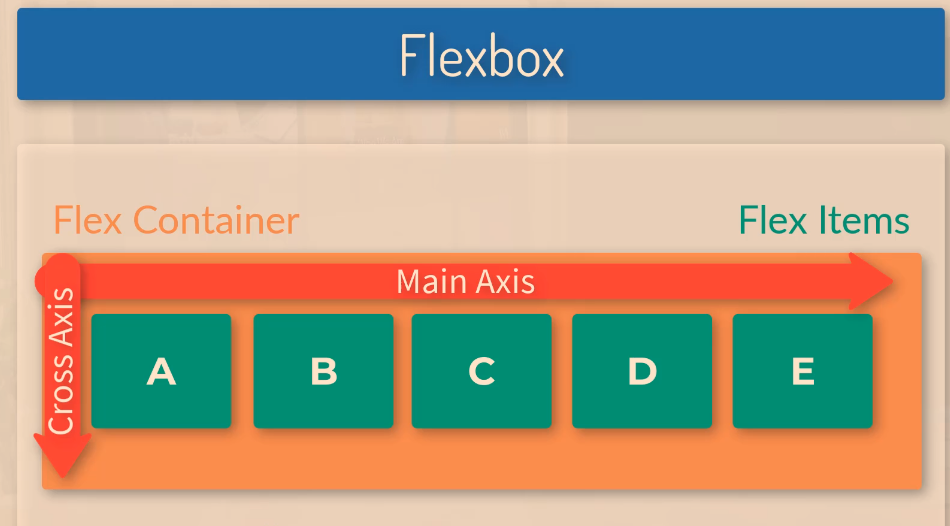
Flexbox has 2 axes. The main axes and the cross axes.

The main axis is defined by the flex-direction property.

The cross axis will automatically run perpendicular to the main axis.

Image Source

Flexbox Main Axis

The main axis is defined by flex-direction.

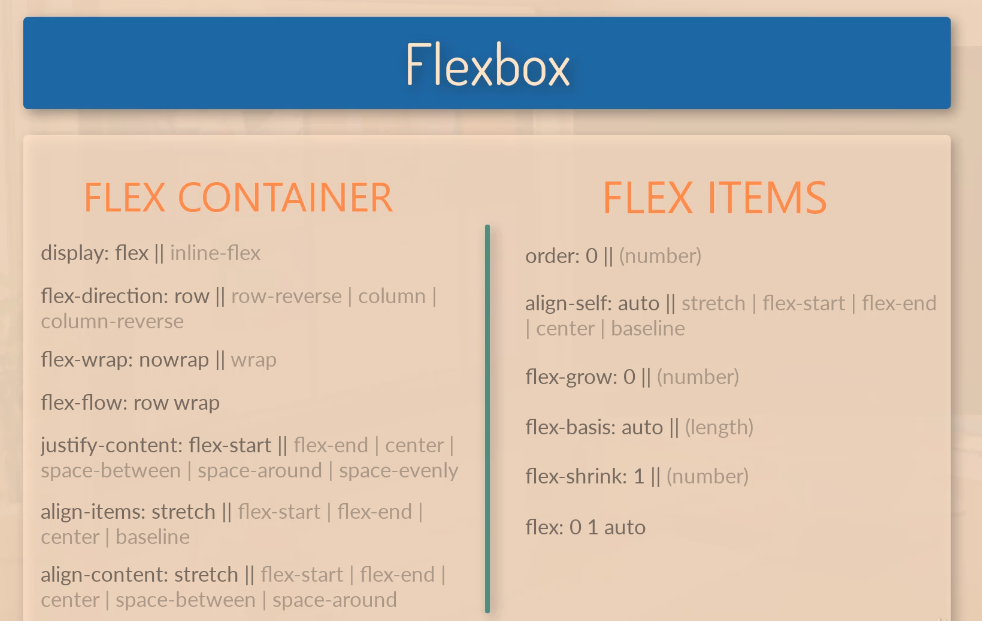
Flex-direction has 4 possible values:

  • Row
  • Row-reverse
  • Column
  • Column-reverse

In the screenshot below,

display:flex makes container-1 a flex item

flex:1 – for each of the boxes, makes them evenly distributed in terms of their width. As all the flex items are given a value of 1, they are all the same size.

If you were to change the flex value for .box-1 to 4, then box-1 would take up four-sixths (4/6) of the page:

Change the order of Flex Items

With flexbox you can change the order of the flex-items, (the boxes) without changing the HTML.

To do this use the “order” property.

The code below will put box-1 in the second position, left to right.

Flex-direction: Column

By giving the container the flex-direction property, with a value of “column”, the boxes / flex items will stack on top of each other

Justify-Content

You can use the “justify-content” property to align the boxes within the flex container.

justify-content: flex-end; will push all the flex items to the right

Justify-content:center; will place the boxes in the centre of the container

Justify-content:space-between;

Aligns the content spaced evenly across the entire width of the container, with margins in between:

Space-around will add some “space around” the items, so that they have margins in between the items and also to the sides of the left-most and right-most items:

Flex Grow

If after the dimensions of the flex-items have been set, they leave room or space, you can use the “flex-grow” property.

If you give each flex item a flex grow value of 1, then the items will take up an equal amount of the remaining space.

It could be 1, or 100, it won’t make a difference if all the items have the same value.

Below, flex item “one”, is the only flex item with a “flex grow” property, and it therefore takes up all the space that was left over from left to right by the 3 boxes.