
Screaming Frog is the greatest SEO tool of all time. Possibly the greatest tool of all time, closely followed by the George Foreman grill.
There’s a free version and if you have massive ecommerce website, with thousands of URLs, the posh paid version is well cheap too – if I remember rightly, is only about £200.
Absolute bargain.
Scheduling a Report / Crawl
Before you start – create a crawl config file.
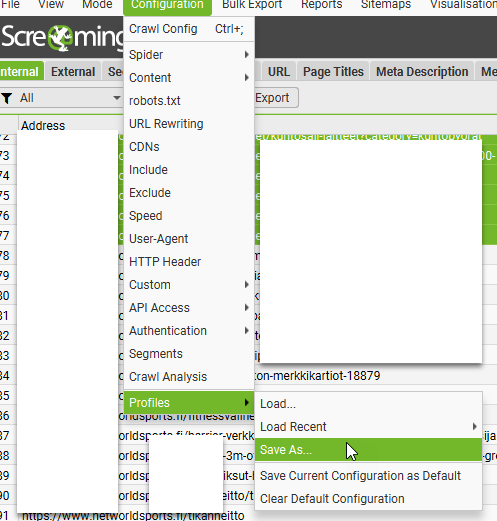
I usually go with default settings, plus exclude cart pages and follow redirects.
You’ll also need to create a Google Drive and Looker Studio Account.
Schedule a Screaming Frog Crawl
File > Scheduling:

click “+Add”

Give the scheduled crawl a name and set the time and date you want the first crawl to run
Also choose the frequency.
Note —> if you have a computer with a decent processor, that runs fine when you are crawling with Screaming Frog and you’re still able to do you work, then just set it for a date and time when you’ll be in work and on your computer.
However, if you have a slower computer, and running Screaming Frog at the same time as trying to do your normal work slows the computer down too much, you’ll probably want to set the crawl overnight, or at your lunchtime.
You can set windows computers to “wake up”, as long as they are plugged in. So that you’re able to run a crawl before or after work.
Although your IT department might not like it – computer running unattended with a battery etc could be in theory a fire harzard etc.
More on how to wake up your computer, later…
Back to scheduling on Screaming Frog:
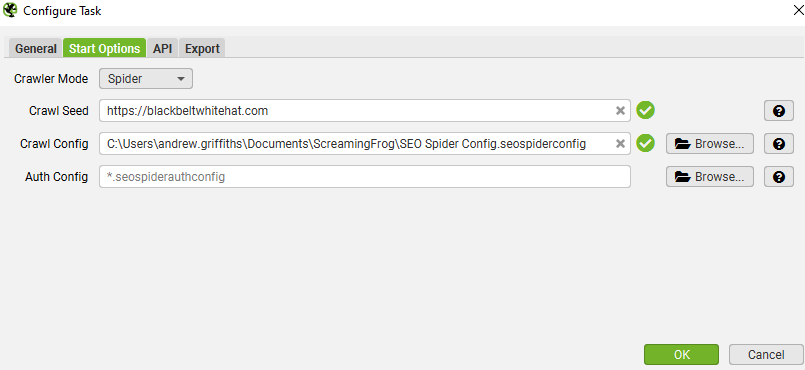
On the start options tab, enter the URL you want to crawl and select your config file
I didn’t choose anything for “auth config”
For crawl config – upload the config file you saved earlier
In the Export – choose a folder on your computer and your Google Drive account:

- Click the configure icon for “Export for Looker Studio” at the bottom.
- Click the 3 arrows to populate everything >>

By default, your crawl will go in a sheet in Google Drive at:
‘My Drive > Screaming Frog SEO Spider > Project Name > [task_name]_custom_summary_report’.
- Make a copy of SF’s looker studio template – https://datastudio.google.com/reporting/484b14ec-aed1-40de-ab2f-2b248980ac86/page/rJxg

When asked – choose Google Sheets as a data source:
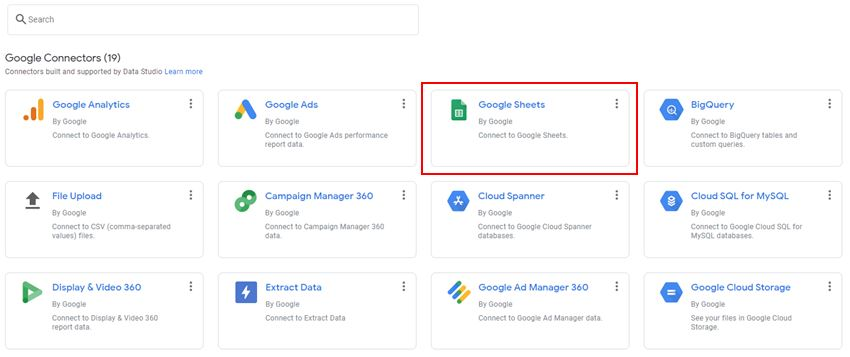
Ensure the ‘use first rows as headers’ option is ticked and select ‘Connect’ in the top-right.

- Add the Data Source to Each Table in the Report in Looker Studio
You can probably do this in bulk somehow, but I went to each table/graph and added the Google Sheet as the data source:

- When the scheduled crawl, crawls – the template should be populated
- Youll now have a nice looking visual report that automatically updates each week, or month, or as frequently as you like
Waking Up Your Computer so the Crawl Can Run
Screaming Frog won’t run unless your computer is on.
You can ‘wake up’ your computer though.
Search for “Task Scheduler”
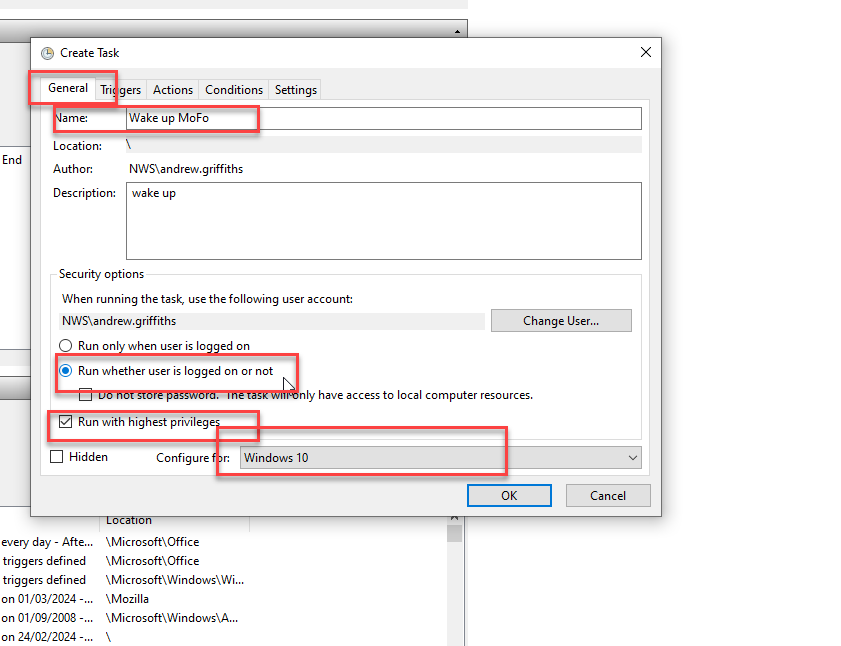
- Create Task…

- Click the General Tab and use the following settings:
- Click on the “Actions” tab and choose a program to run. Doesn’t really matter what program, I usually choose chrome. SF should run automatically
- Click the “Triggers” tab and click new

schedule the computer to wake up at the same time and frequency that you’ve set for the screaming frog crawls.
Then, that should be it.
The best way to run automatic crawls, is to sin up to Google cloud. At the moment you get $300 worth of credits free, and each crawl on an average ecommerce sure, will cost around a dollar a go.
Here’s the tutorial on how to set up Screaming Frog on the cloud ☁️:
https://www.screamingfrog.co.uk/seo-spider/tutorials/seo-spider-cloud/
It’s a bit of a mission/long process, but worth it. I reckon.
Anyway, here is the report, in all her glory (well, 1 part of 1 page):

 Small Business Dad