Actionable SEO & PPC News This Week (23rd February 2024)

SEO and Digital Marketing News Summary – February 2024

  1. Google Ads API Version 16 Launch: Introduces new capabilities for tracking campaign performance.
  2. Instagram Expands Creator Marketplace: Now available in eight new markets, facilitating connections between brands and creators for ads.
  3. Performance Max Campaigns Update: Google Ads emphasizes Performance Max with new call-to-action features, aiming to streamline campaign setups.
  4. Google Analytics 4 Enhancements: Updates to the Advertising workspace simplify reporting for marketers, focusing on campaign tracking and behavioral insights.
  5. Reddit and Google’s AI Content Licensing Deal: A significant move that could impact search visibility and content strategy.
  6. Link Building Strategies for 2024: Fresh insights on effective backlinking practices to maximize website potential.
  7. SEO Integration in Multichannel Marketing: Highlighting the importance of SEO in building brand visibility across various marketing channels.
  8. Custom GPTs for SEO: The introduction of SEO-focused ChatGPT plugins in the GPT Store for content optimization and keyword analysis.
  9. Pinterest Launches Cooking Series with Shoppable Experience: A novel approach to integrating content and commerce.
  10. Local Search Trends and Tactics for 2024: Emphasizing the importance of local SEO strategies for location-based businesses.

1. Leverage New Google Ads Features

Actionable Tip: Familiarize yourself with the latest features of Google Ads API Version 16. Specifically, look into new capabilities for tracking campaign performance and efficiency improvements.

  • Where to Find More Information: Visit the Google Ads Developer Blog for detailed release notes and guides on utilizing the new features of Version 16.

2. Optimize for Performance Max

Actionable Tip: Use the new call-to-action features in Performance Max campaigns to create more compelling and effective ads. Focus on designing ads that directly address your target audience’s needs and interests.

3. Simplify Your Reporting with GA4 Enhancements

Actionable Tip: Take advantage of GA4’s updated Advertising workspace to gain insights into your campaigns. Use the dedicated spaces for tracking and analyzing campaigns and for behavioral insights to refine your marketing strategies.

4. Incorporate AI Content Strategies

Actionable Tip: Explore how AI-generated content can enhance your content marketing efforts. Use AI for content ideation, drafting initial content outlines, and optimizing existing content for SEO.

  • Resources: OpenAI’s GPT-3 Examples page showcases various applications of AI in content creation, providing inspiration for marketers.

5. Focus on Quality Backlinks

Actionable Tip: Prioritize acquiring backlinks from authoritative and relevant websites. Use tools like Ahrefs or Moz to identify potential backlink sources and monitor your backlink profile’s health.

  • Example and Resources: Moz’s guide on Link Building offers strategies for earning high-quality backlinks, including guest blogging and influencer outreach.

More info –
https://moz.com/blog/link-building-okrs (OKRs are Objectives & Key Results)

Good tip for link building – is generate your own research with Google Surveys etc – people love to link to statistics

Create Linkable Assets


6. Harmonize SEO with Other Channels

Actionable Tip: Ensure your SEO strategy complements your social media, email, and PPC campaigns. For example, use insights from PPC campaigns to inform your SEO keyword strategy and vice versa.

  • Resources: HubSpot’s Marketing Blog provides numerous articles on integrating SEO with other digital marketing channels.

7. Utilize SEO-focused ChatGPT Plugins

Actionable Tip: Explore the GPT Store for plugins specifically designed for SEO tasks, such as content optimization and keyword research. These tools can help streamline your SEO workflow and enhance content quality.

  • Where to Find More Information: Visit the GPT Store and search for SEO-related plugins to find tools that can assist with your specific needs.

Some of the best Chat GPT SEO Plugins include

  • Automated Writer by OctaneAIย 
  • Bramework SEO Booster by Bramework
  • SEO by Elevate
  • Outrank Article by aiseo.ai
  • Scraper by hqdata.com
  • SEOmator Free Keyword Research & SERP Analyzer GPT by seomator.com

8. Experiment with Shoppable Content

Actionable Tip: Create content that directly links to products or services, making it easy for readers to make a purchase. Use platforms like Instagram and Pinterest to showcase shoppable posts and stories.

9. Enhance Your Local SEO

Actionable Tip: Claim and optimize your Google My Business listing, focus on acquiring local backlinks, and encourage customers to leave positive reviews. Use local keywords in your website’s content and metadata.

  • Resources: Google’s Manage your Business Profile page provides step-by-step instructions on optimizing your listing for better local search visibility.

https://www.linkedin.com/pulse/local-seo-tips-small-businesses-getting-found-locally-usnof/?trk=article-ssr-frontend-pulse_more-articles_related-content-card

10. Stay Informed and Adaptable

Actionable Tip: Regularly read industry blogs and attend webinars to stay updated on the latest SEO and digital marketing trends. Websites like Search Engine Journal, Moz Blog, and Search Engine Land are excellent resources for the latest news and insights.

References
Search Engine Land
Backlinko

Screaming Frog – Custom Extraction – Extract Specific Page Copy [2025]

Last Updated – a few days ago (probably)

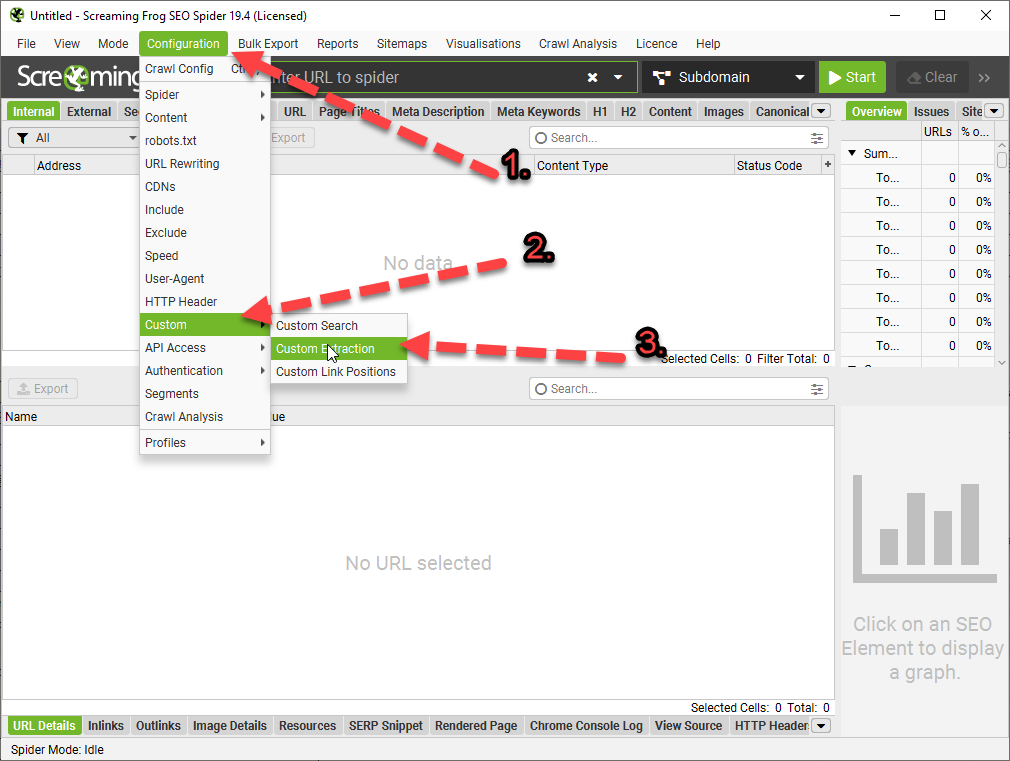
  • Open Screaming Frog
  • Go to Configuration in the top menu
  • Custom > Custom Extraction
  • Use Inspect Element (right click on the copy and choose “inspect” if you use Chrome browser) – to identify the name, class or ID of the div or element the page copy is contained in:

    In this example the Div class is “prose” (f8ck knows why)

  • You can copy the Xpath instead – but it appears to do the same thing as just entering the class or id of the div:
  • The following will scrape any text in the div called “prose”:

*Click Image to enlarge^

Once you are in the Custom Extraction Window – Choose:

  • Extractor 1
  • X Path
  • In the next box enter –> //div[@class=’classofdiv‘] —->

    in this example – //div[@class=’prose’]
  • Extract Text

//div[@class='prose']

^Enter the above into the 3rd 'box' in the custom extraction window/tab. 
Replace "prose" with the name of the div you want to scrape.


If you copy the Xpath using Inspect Element – select the exact element you want. For example, don’t select the Div that contains text you want to scrape – select the text itself:

Here are some more examples:

How to Extract Common HTML Elements

//div[@class='read-more']
XPathOutput
//h1Extract all H1 tags
//h3[1]Extract the first H3 tag
//h3[2]Extract the second H3 tag
//div/pExtract any <p> contained within a <div>
//div[@class=’author’]Extract any <div> with class “author” (remember to check ‘ quote marks are correct)
//p[@class=’bio’]Extract any <p> with class “bio”
//*[@class=’bio’]Extract any element with class “bio”
//ul/li[last()]Extract the last <li> in a <ul>
//ol[@class=’cat’]/li[1]Extract the first <li> in a <ol> with class “cat”
count(//h2)Count the number of H2’s (set extraction filter to “Function Value”)
//a[contains(.,’click here’)]Extract any link with anchor text containing “click here”
//a[starts-with(@title,’Written by’)]Extract any link with a title starting with “Written by”


How to Extract Common HTML Attributes

XPathOutput
//@hrefExtract all links
//a[starts-with(@href,’mailto’)]/@hrefExtract link that starts with โ€œmailtoโ€ (email address)
//img/@srcExtract all image source URLs
//img[contains(@class,’aligncenter’)]/@srcExtract all image source URLs for images with the class name containing โ€œaligncenterโ€
//link[@rel=’alternate’]Extract elements with the rel attribute set to โ€œalternateโ€
//@hreflangExtract all hreflang values


How to Extract Meta Tags (including Open Graph and Twitter Cards)

I recommend setting the extraction filter to โ€œExtract Inner HTMLโ€ for these ones.

Extract Meta Tags:

XPathOutput
//meta[@property=’article:published_time’]/@contentExtract the article publish date (commonly-found meta tag on WordPress websites)

Extract Open Graph:

XPathOutput
//meta[@property=’og:type’]/@contentExtract the Open Graph type object
//meta[@property=’og:image’]/@contentExtract the Open Graph featured image URL
//meta[@property=’og:updated_time’]/@contentExtract the Open Graph updated time

Extract Twitter Cards:

XPathOutput
//meta[@name=’twitter:card’]/@contentExtract the Twitter Card type
//meta[@name=’twitter:title’]/@contentExtract the Twitter Card title
//meta[@name=’twitter:site’]/@contentExtract the Twitter Card site object (Twitter handle)

How to Extract Schema Markup in Microdata Format

If itโ€™s in JSON-LD format, then jump to the section on how to extract schema markup with regex.

Extract Schema Types:

XPathOutput
//*[@itemtype]/@itemtypeExtract all of the types of schema markup on a page

References:

Update:

If the ‘shorter code’ in the tables above doesn’t work for some reason, you may have to right click – inspect and copy the full Xpath code to be more specific with what you want to extract:

For sections of text like paragraphs and on page descriptions, select the actual text in the inspect window before copying the Xpath.

Update 2

We wanted to compare the copy and internal links before and after a site-migration to a new CMS.

To see the links in HTML format – you just need to check “Extract Text” to “Extract Inner HTML” in the final drop down:
(click image to enlarge)

On the new CMS, it was easier to just copy the XPath

Why Use Custom Extraction with Screaming Frog?

I’m glad you asked.

We used it to check that page copy had migrated properly to a new CMS.

We also extracted the HTML within the copy, to check the internal links were still present.

One cool thing you can do – is scrape reviews and then analyse the reviews to see key feedback/pain points that could inform superior design.

Here’s a good way to use custom extraction/search to find text that you want to use for anchor text for internal links:

custom search screaming frog

I’m still looking into how to analyse the reviews – but this tool is a good starting point: https://seoscout.com/tools/text-analyzer

Throw the reviews in and see what words are repeated etc

This tool is also very good:

https://voyant-tools.org

Or – just paste into Chat GPT and ask for insights and pain-points to help develop a better product.

I asked Chat GPT and Google Gemini why I would want to scrape copy from sites and got these responses:


Monitoring Competitors

Content Strategy Insights: Gather headings, titles, and meta descriptions from competitor websites to gain insights into their content strategies and how they optimize for search engines.

Pricing Information: For e-commerce platforms, you can use custom extraction to keep an eye on competitors’ pricing strategies by pulling prices for similar products.

Promotional Strategies: Collect details on promotions, discounts, or special offers from competitors’ sites to evaluate how they stack up against your own promotional efforts.

Keyword Usage: Identify specific keywords from competitors’ content to understand how they are targeting particular topics or niches.

Backlink Analysis: While Screaming Frog isn’t primarily a backlink tool, you can utilize custom extraction to pinpoint external links on a page, providing insights into a competitor’s backlink strategy.

Optimizing Your Own Website

Content Optimization: Employ custom extraction to review your own site’s headings, titles, meta descriptions, and keyword usage to spot areas that need improvement.

Structural Data: Extract and assess structured data (like Schema markup) across your site to ensure proper implementation and identify potential enhancement opportunities.

Internal Linking: Analyze internal linking structures to understand the flow of page authority throughout your site and to find orphan pages or those with insufficient internal link support.

Audit Forms and Calls to Action (CTAs): Extract form action URLs and CTA links to verify they are working correctly and to optimize their placement and wording.

Identify Outdated Content: Use custom extraction to locate dates and timestamps on your content, which can help you identify articles or pages that may require updates.

Gemini said:

Reasons to Use Custom Extraction in Screaming Frog:

The custom extraction feature in Screaming Frog provides numerous advantages for website analysis and data collection. Here are some important reasons to utilize it:

  1. Extract Specific Data:

Go beyond basic SEO metrics: While Screaming Frog offers valuable insights, custom extraction enables you to focus on specific data points that may not be easily accessible, such as product prices, article publish dates, or user reviews.

Gain deeper competitor insights: Extract information on competitor pricing strategies, product descriptions, or content structures to compare with your own website.

Gather information for internal analysis: Monitor specific elements on your site, like call to action (CTA) button text or internal linking structures, to observe changes and assess their impact.

  1. Automate Data Collection:

Save time and effort: Collecting data manually can be labor-intensive and prone to errors. Custom extraction streamlines the process, allowing you to efficiently gather information across numerous pages.

Maintain consistent data: By setting up automated data extraction, you ensure uniform data collection over time, which facilitates better trend analysis and comparisons.

  1. Enhance Reporting and Analysis:

Combine extracted data with existing Screaming Frog metrics: Merge the extracted data with other SEO parameters such as page titles, meta descriptions, and internal links for a more thorough analysis.

Create custom reports: Use the extracted data to generate tailored reports for specific purposes, like competitor pricing comparisons or evaluations of content performance.

Monitoring Competitors:

Custom extraction serves as a valuable tool for competitor monitoring in various ways:

Extract competitor pricing data: Keep track of competitor pricing trends, identify potential gaps in your own pricing strategy, and make informed pricing decisions.

Analyze competitor content structure and keywords: Learn how competitors format their content, pinpoint their targeted keywords, and gain insights to enhance your own strategy.

Note for self – for Magento 2, Hyva theme Sub-category page copy – scrape using:

//div[@id='descriptionDiv']

Product page descriptions upper and lower divs -

//div[@class="product-description"]

//*[@id="specifications"]/div/div[2]/div/div/div/div/div

//*[@id="description"]/div/div[2]

Using Google Translate in Google Sheet [2024]

With my copy in column B, starting in cell B2, and with the language short codes “en” for the original language and “no” for Norwegian – what I want to translate the English into, in cells E1 and F1 respectively, the code I place in cell D2 is:
=GOOGLETRANSLATE(B2,$E$1,$F$1)

I can drag the formula down to translate all the English in column B.

That’s it really

๐Ÿ™‚

By the way – if you have a site that’s randomly in 2 languages, or more – you can use detect language Google Sheets function

=DETECTLANGUAGE(“cellnumber”)

Product Schema Example (with review schema) 2024

Here’s an example:

<script type="application/ld+json">	
{
"@context": "http://schema.org",
"@type": "Product",
"description": "The best pads you can buy online for MMA and boxing. Made with leather, manufactured by BJJ black belts and elves.",
"gtin8": "sdfdfsf3w5455",
"name": "Boxing and MMA Pads ",
"image": "https://cdnfake.com/media/catalog/product/m/i/boxing-pads-solo.jpg",
"sku": "boxing-mini-pads-only",
"url": "https://www.blackbeltwhitehat.co.uk/nice-mma-target-pads-boxing-only.html"
"brand": "Nice MMA",
"offers": [
{
"@type": "Offer",
"itemCondition": "http://schema.org/NewCondition",
"price": "89.99",
"availability": "InStock",
"priceCurrency": "GBP",
"url": "https://www.blackbeltwhitehat.co.uk/nice-mma-target-pads-boxing-only.html"

}
]
,
"review": [
{
"@type": "Review",
"author": {
"@type": "Person",
"name": "DAVE MACDONALD"
},
"datePublished": "2017-27-07",
"description": "Grandson loves using these",
"name": "ALFFI-JAC MACDONALD",
"reviewRating": {
"@type": "Rating",
"bestRating": "5",
"ratingValue": "5", "worstRating": "1"
}
} ]
,
"aggregateRating": {
"@type": "AggregateRating",
"ratingValue": "5",
"reviewCount": "1"
}
}
</script>

I use these tools to check schema

https://classyschema.org/Visualisation
https://search.google.com/test/rich-results
https://validator.schema.org/

and use – https://www.diffchecker.com/ to check an existing schema, that I know works and is validated, to another one that I’m testing.

Here’s another example I just found within the Google ‘documentation

 <html>
  <head>
    <title>Executive Anvil</title>
    <script type="application/ld+json">
    {
      "@context": "https://schema.org/",
      "@type": "Product",
      "name": "Executive Anvil",
      "description": "Sleeker than ACME's Classic Anvil, the Executive Anvil is perfect for the business traveler looking for something to drop from a height.",
      "review": {
        "@type": "Review",
        "reviewRating": {
          "@type": "Rating",
          "ratingValue": 4,
          "bestRating": 5
        },
        "author": {
          "@type": "Person",
          "name": "Fred Benson"
        }
      },
      "aggregateRating": {
        "@type": "AggregateRating",
        "ratingValue": 4.4,
        "reviewCount": 89
      }
    }
    </script>
  </head>
  <body>
  </body>
</html>

Enjoy!