
- TL;DR – Go to the “issues” reports – Bulk Report – Issues – All –> Export into a folder
- View canonicals canonicalized reports
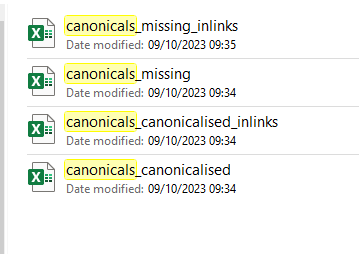
Some of the names of the reports can be confusing:
- The “canonicals missing inlinks” report – is a list of the pages missing canonical URLs, and the inlinks to those pages
- Canonicals Missing report – as you’d expect – shows you the pages without canonical URLs/tags
- Canonicals Canonicalised – has pages with canonical to a different URL. So you might have example.com/help/contact – canonicalised to example.com/help – which may or may not be a problem.
- Canonicals canonicalised inlinks – those pages with canonicals different to their own URL – the inlinks to those pages.
- Check canonical with JS turned off (using Developer Chrome Extension) & check it remains the same
- Check the View Source Code with and Without JS turned on – check canonical remains the same
- Check canonical is not added using JS – this is not idea – more info here
- Check for multiple canonical URLs using Screaming Frog and check visually in the view source code (JS rendering might be required to see all cononicals)
- For paginated pages – check if you want each page indexed, that each different page has it’s own canonical URL
- Check that faceted/filters on pages don’t change the canonical URL (generally you dont want them to)
- On eCommerce sites, you might have parameter URLs that will go to a different canonical.
For example using snowdog on Magento –
https://www.sportysports.com.au/neoprene-hex-dumbbells-x2.html+goal_weights-3kg is the URL when 3kg is selected from the drop down menu on the product page
https://www.sportsports.com.au/neoprene-hex-dumbbells-x2.html
is the canonical URL
Exclude these/filter out by, in this instance adding a filter in Excel – does not contain – +
Check this blog post too about auditing canonicals and Hreflang tags
 Small Business Dad