JavaScript – What is the DOM & DOM Manipulation? [2023]

The Document Object Model – is a structured representation of an HTML document.

You can use the DOM to “connect” HTML to CSS and JS.

The DOM is often said to have a tree structure or a hierarchy like a family with children and parents

Image source

Selecting & Manipulating Elements with JavaScript

You can use “document” to ‘enter’ the document – as in the top level of the HTML document as shown in the tree diagram above.

  • use “querySelector” to select a specific element in the DOM.

For example document.querySelector(‘.message’).textContent

Will select the text content of the element with the class of “message”

Once you have selected the content, use the equals sign = to update it.

document.querySelector(‘.message’).textContent = ‘Correct Number!’

The ‘code’ on the line above, will change the text-content found in the element .message to “Correct Number!”

“textContent” will only work if the element is something like a paragraph, that holds content.

If you have a value input field, like on a form or something similar, you may have to use .value instead of .textContent

document.querySelector(‘.guess’).value = 23;
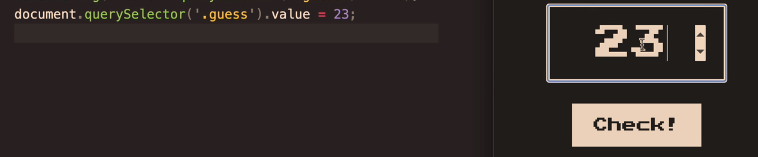
The code on the left, adds “23” as the input value to the form/input field on the right^

Screenshot from The Complete JavaScript Course

Handling Click Events

In this example, the button has a class of “check”

document.querySelector(‘.check’) – will select the button with the class of “check”

Then we need to use the addEventListener() method. The addEventListener method, basically looks out for events such as button clicks.

Image Source

Event Listener ^looks out for events such as button clicks.

We can add the event we want to look out for, in this example a click:

addEventListener(‘click’)

  • Now we need to tell the event listener what to do what it observers a click

addEventListener(‘click’ function () {
console.log(document.querySelector(‘.guess’).value);});

The code in bold, will take the value from the element called “guess” and print it to the “console.log”.

Screenshot from The Complete JavaScript Course

The code above prints 9 to the console.log

the element with the class of “guess” is the form input field containing the number 9:

Adding “Game Logic”

The aim of game in the screenshot above – guess the secret number

We need to randomly create a number and then tell the user when the number they guess is too high, too low or correct.

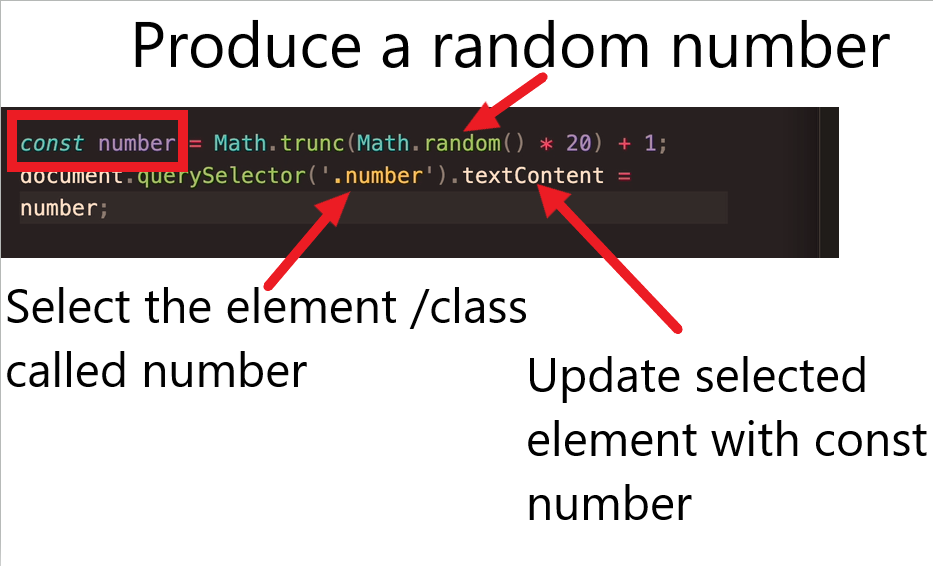
  • Producing the secret number

const number = (Math.truncMath.random()*20)

Math.random gives a number between 0 and 1

Match.trunc rounds up or down the number to the nearest whole number.

Multiplting the random number by 20 makes the number, well, larger

  • Checking the User Input Vs the Secret Number

if (!guess) {

document.querySelector(‘.message’).textContent = ‘No Number’;}

else if (guess === secretNumber) {

document.querySelector(‘.message‘).textContent = ‘Correct Number!’;

}

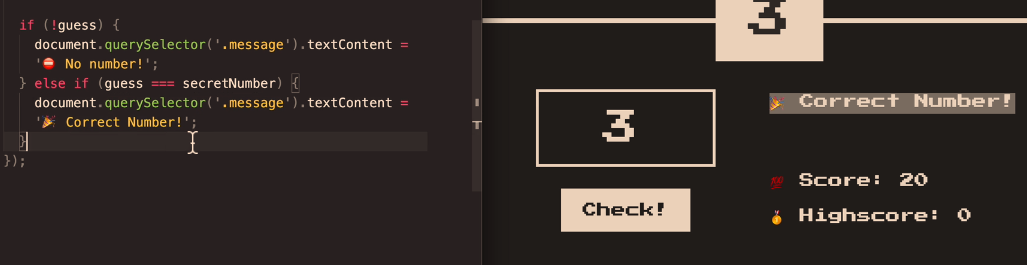
The code above will print “No number” if a number isn’t entered into the relevant form field.

if the number entered (the guess), is equal to the secretNumber – then the code will print “Correct Number!” – to the element with the class of “message“.
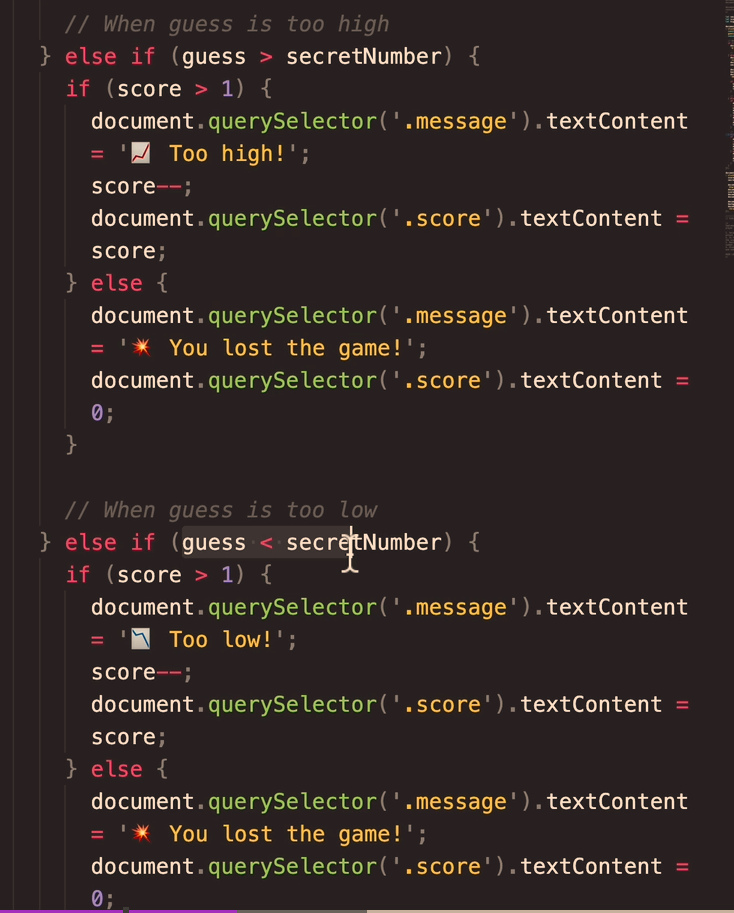
What if the guess is greater than the Secret Number?

else if (guess > secretNumber) {

document.querSelector(‘.message’).textContent=’Too high!’

and if it’s too low:

else if (guess < secretNumber) {

document.querSelector(‘.message’).textContent=’Too low!’

So all the code together will look like:

Adding a Score to The Game

The score will start at 20 and decrease for every wrong guess.

So, if the user guesses too low, reduce the score by 1

We also need to add a variable for the original/starting score, after the secretNumber is declared (or the code to create the secretNumber anyway)

Declare the score with:

let score = 20;

The score is part of the “application state”. The score is available in the code and not just in the DOM

Game Over

To tell the player when they’ve lost the game, we need to add a condition related to the score variable:

if (score > 1) {

https://www.udemy.com/course/the-complete-javascript-course/learn/lecture/22648419#learning-tools

Manipulating CSS When Player Wins- Change Background Colour

First select the whole <body> element

document.querySelector(‘body’).style.backgroundColor = ‘#60347’;

Implementing a High Score ‘Box’

Just like the regular, current score, we need to store the high-score in a variable.

use the code

let highscore = 0;

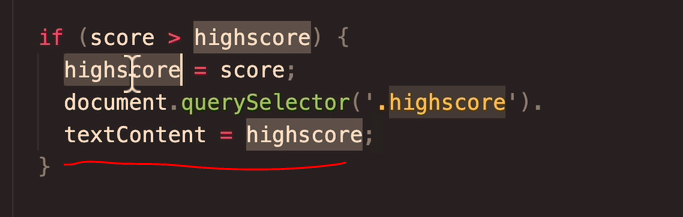
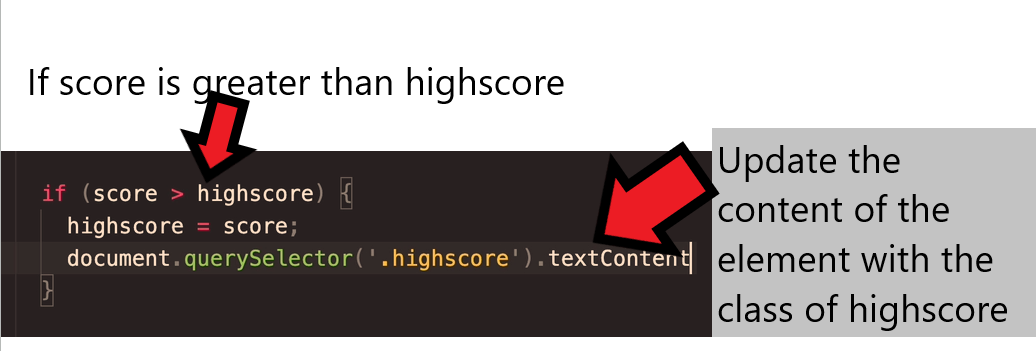
We need to check if the current score is greater than the existing game’s score

if (score > highscore) {

highscore = score;

}

Assuming the “HighScore” Box has already been made – we need to check what the class is.

In the this case, the class = “highscore”
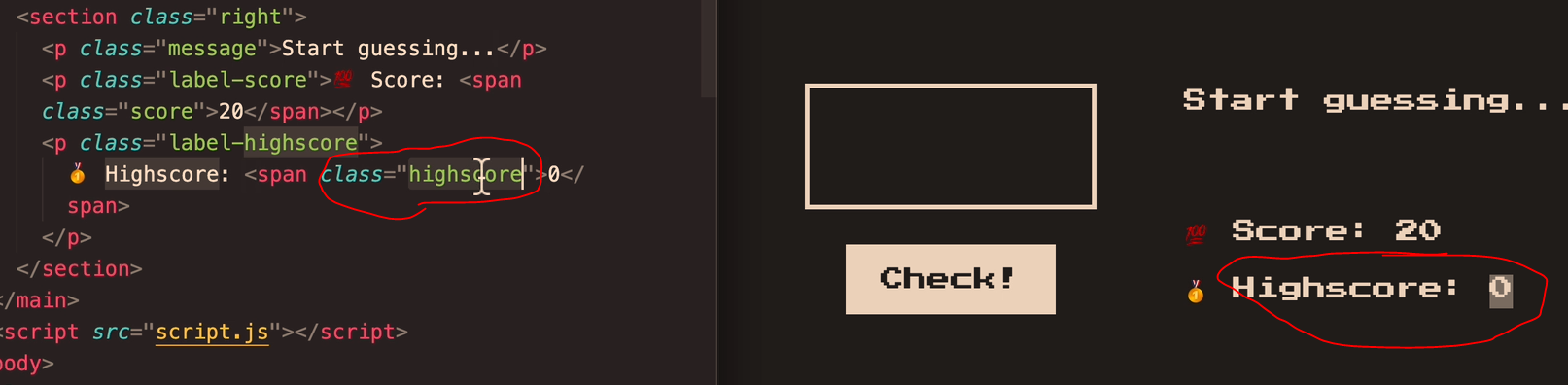
Now we need a way to update the highscore, when the current score is greater.

document.querySelector(‘.highscore’).

textContent = highscore;
https://www.udemy.com/course/the-complete-javascript-course/learn/lecture/22648427#learning-tools

Getting Rid of Duplicate Code (DRY Principle)

The code if the guess is too high, or if the guess is too low code is pretty much duplicate code

Remember

Dont Repeat Yourself DRY

There’s no problem starting out with repeated code, and then refactor the code once it’s all working

  • ID duplicate or close-duplicate code
  • Refactor the facker

Change the code above, to a “when guess is wrong” code block.

Use a ternary operator

While Loops in JavaScript

A while loop is more versatile than a for loop.

A while loop just needs a condition to keep running.

Creating a while loop

  • Add a condition.

for example

while ((rep<=10)

Run the look while the “rep” value is less than or equal to 10

  • Add the staring condition:

let rep = 1;

  • add the code to be executed:

console.log(‘lifting weights repetition ${rep}

  • Add the counter:

rep++;

let rep=1;
while (rep <=10) {
console.log('lifting weights repetition ${rep});
rep++;
}


While Loop doesn’t need a counter

Random variable – throwing a dice until we throw a 6

We don’t know how many times the dice has to be thrown, so we don’t need a counter

let dice = Math.trunc(Math.random() x 6) + 1;
console.log(dice);

while (dice !==6) {
console.log('Your rolled a ${dice}');
}


while (dice !==6) is the condition – roll the dice whilst the condition is not equal to 6

Making CSS Padding Responsive [2024]

  • TLD;R – I just set everything in “rem” units instead of pixels and it keeps padding etc relatively-relative on all devices

First – you may want to use “padding-block:” – which is the padding for the top and the bottom only.

You can also use a “min()” statement or line of code, or whatever it’s called in CSS

If you type:

section {

padding-block: min(10vh, 10rem)

Min, Max & Clamp

Min

To use “min” – you may for example have a back-ground colour, with width:70% and max width:500px

width: min(500px, 70%)

Min will “look” for the smallest value – either 500px, or 70%

Min will choose the smallest value.

If you are on a mobile for example, 70% width, is less than 500px – so on mobile the background will be 70% of the viewport for a mobile.

If you are on a desktop computer, 500px will be less than 70% of the screen width – so the background will be 500px wide.

Responsive Equal Padding Top & Bottom

If you wanted to pad the top and bottom of text in the background:

padding-block: min (30px; 10%) ;

Max

width: max(500px, 70%)

max is the opposite – now it will use the maximum value.

on Mobile, 500px will be the largest

On Desktop – 70% will be the largest.

Padding with a Percentage

Calc Rem + VW

Yet another way to add padding, is to use “calc” and then add parameters/values for rem and vw

Rem (short for “root-em”) units dictate an element’s font size relative to the size of the root element. By default, most browsers use a font size value of 16px. 

The full form of VW is viewport width. It works like the percentage unit. Specifying 10vw is equivalent to occupying 10% of entire visible screen width.

This code works okay by the looks of it:

padding-block: calc(0.75rem + 0.5vw);
padding-left:  calc(0.75rem + 0.5vw);
padding-right: calc(0.75rem + 0.5vw);

Image & Text Aligned Side by Side Using CSS Grid

Here’s an example, that uses “padding: 2rem;” and “gap: 1rem:” to space the image and the

If you click on the CSS tab/button – everything below @media, is to provide a separate style and effect on mobile devices

To be honest, I having got a fecking clue with CSS Grid, I need a refresher – here’s a blog post I did earlier – https://businessdaduk.com/2022/11/21/css-grid-for-beginners-2022/

JavaScript – the for Loop [2023] for beginners/dummies/SEO-helmets

A for loop, is a loop that will loop through (go through) the elements in an array or the properties of an Object.

You can use it to update arrays, count the number of elements etc

Loops can execute a block of code several times.

With arrays, it’s common(ish) to run the same code over with a different value.

Image source

screenshot source

For Loops tend to be used with arrays (I think!)

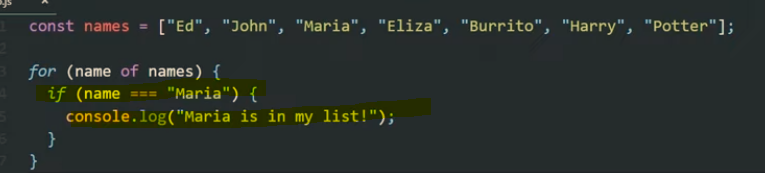
The code below the array in the screenshot below, starting with “for”, loops through the variable called “names” above it.
Once it loops through it create “name” and then “console.log(name);” will get it to print on the console.log screen

  • console.log just provides a way of testing and outputting stuff using web developer tools, inspect element etc.

The code below, will do the same as above, but this time it will add “Hello there” before each of the names:

You can also add if conditions. For example, in the code below, the loop will check if “Maria” is in the list, and if so, will print out “Maria is in my list”

You can get the loop to stop once it finds “Maria” by using the “break” keyword.

The above code will print “Ed, John and then Maria and “Maria is in my list”. It will then stop and it won’t print all the names up to “Potter”.

As well as using the for loop with arrays, you can also use it with a single variable like “age”, and add an incremented – for example “age++”

The code shown below will print out and loop 10 times. starting at 0, and then 1, 2 etc. until finally the condition age <10 is no longer met

When the age is 10, it will stop.

A web dev example

Get all the links on a page, and return the number of the links on the page.

When the loop gets to the 6th link, it is no longer less than links.length, and so the loop stops:

(you can click the image to see a lager version, the important code is :

for (i = 0; i < links.length; i++)

To print out the final link, change “<links.length” to “<= links.length” – meaning “less than or equal to links.length”

for (i = 0; i <= links.length; i++)

For In Loops

For in loops, are the same as for loops except they are shorter to write but less flexible.

For Loop Example with an Array

Work out the age of people, given an array with their year of birth in it.

start with the array and then a new array, which will hold the ages:

const years = [1991, 2007, 1969, 2020]
const ages = [];

for(let I = 0; I <years.length; i++) {

ages.push (2023 – years [i] );

}

console.log(ages);

the “ages.push” code, will psh the results into the ages array

Continue & Break Statements

Continue is to exit the current iteration and move to the next one

Break will exit completely.

You can use with an if statement

continue loop statement

If the type of the current element, is not a string, then continue.

This will skip any elements/values that are not strings. Continue will exit the current iteration and not print to the console.log

Using break, will terminate the loop completely.

break loop statement

What are objects in Javascript? [2023]

Notes taken from the Udemy Course – the Complete JavaScript Course which you can enroll on here.

I’ve also robbed some screenshots from other sites, but linked to them in the “source”.

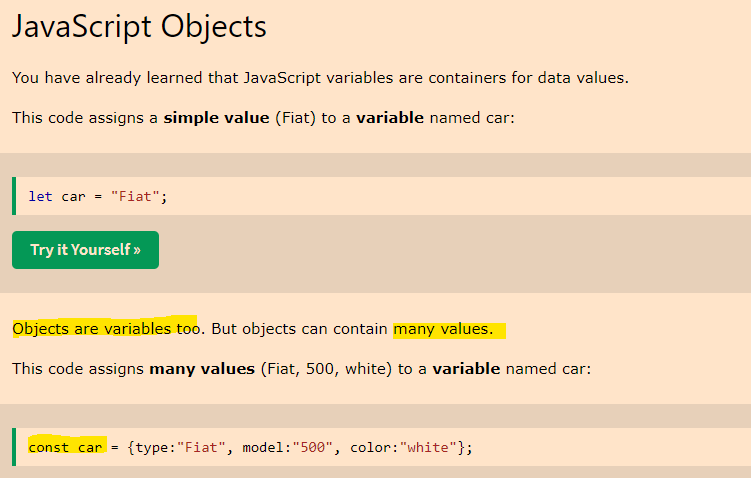
  • An object is a collection of properties
  • A property is an association between a name (key) and a value
  • A property’s value can be a function (but then it’s called a “method” for some reason)

Source

Objects provide a way to group values together in an organised fashion.

Objects can store lots of different types of data.

Objects can contain variables, functions or both.Variables found in objects are properties, while functions are methods.

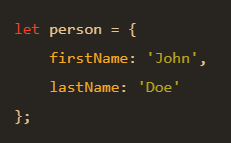
In objects we define key-value pairs. The key is also called the “property name”.

Objects are normally declared within culry braces:

firstName is a “key” and the “value” is “Jonas”.

The name and the value, create a “key value pair”.

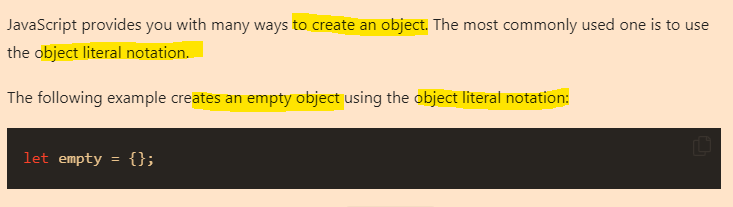
There are many ways of creating objects in JavaScript.

Using curly braces is called the “object literal syntax” because you’re writing down the literal object.

The order you write down objects doesn’t matter, unlike in arrays.

How do we get data from an object?

Dot Notation

Screenshot source

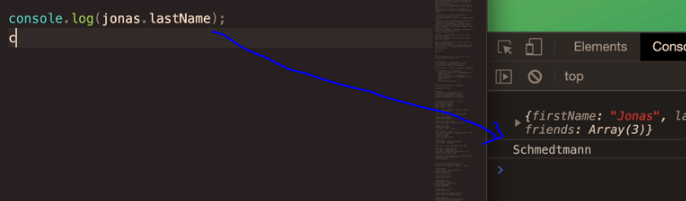
The first way to access data in an object is to use “dot notation”:

Dot notation is the most popular method to access the properties of an object.

let obj = {
  boxer: 'jab',
  muayThai: 'kick'
};
let strike = obj.boxer;
console.log(strike);
// jab

The dot notation in the example above is – let strike = obj.boxer;

Specify the name of the object, then add a dot, followed by the property name.

The syntax is objectName.propertyName;

Source

Bracket Notation

let obj = {
  boxer: 'jab',
  muaythai: 'kick'
};
let strike = obj['boxer'];
console.log(strike);
// jab

You can read a much better article about dot and bracket notation – here –> codeburst.io or here —> plainenglish.io

How do you create objects?

It is a common practice to declare objects with the const keyword.

There are two methods by which you can create an object: an object literal and the object constructor. 

Source

let’s create an object named myCup and give it properties named color, volume, and weight as follows:

let myCup = new Object();
myCup.color = "transparent";
myCup.volume = 1;
myCup.weight = 0.5;

We can write the same object in a shorter notation. Comma-delimited list of  pairs of property names and associated values, enclosed in curly braces:

let myCup = {
 color: "transparent",
 volume: 1,
 weight: 0.5
}


Above, we declare a variable in the same way with: let myCup equals and then curly brace.

source

If you are making multiple objects, it’s best to use the object constructor.

You can use a constructor to create a new object by calling the constructor with the new keyword. The new keyword will create an instance of an object and bind the this keyword to the new object.

The this keyword is a reference to the object itself.

function Fighter(name, age, nationality) { 
    this.name = name; 
    this.age = age; 
    this.nationality = nationality; 
    this.bio = function () { 
        console.log(`My name is ${this.name}. I'm ${this.age} years old. I'm from ${this.nationality}`) 
    } 
};

const oladele = new Profile("Izzy", 29, "Nigeria" );
console.log(oladele.bio()); //My name is Izzy. I'm 29 years old. I'm from Nigeria

More info about constructors at Freecodecamp.org

Here’s another example, using the this keyword from w3schools

<script>
// Constructor function for Person objects
function Person(first, last, age, eye) {
  this.firstName = first;
  this.lastName = last;
  this.age = age;
  this.eyeColor = eye;
}

// Create a Person object
const myFather = new Person("John", "Doe", 50, "blue");

// Display age
document.getElementById("demo").innerHTML =
"My father is " + myFather.age + "."; 
</script>

The above code gives the output “my father is 50”. (which is printed to the paragraph with the id of “demo”)

Adding a method to an object

We can add a method simply by adding another property that is a function. This function will be able to read the values of the object and work with them.

We will add an example that will print out the color of the table.

myTable.whatIsMyColor = function() {
 console.log("My color is: " + this.color);
};

source

source

Adding a new property to an object

In JavaScript you can add a property to an object after it has been created.

The following statement adds the age property to the fighter object and assigns 22 to it:

fighter.age = 22;


Deleting a property of an object

Simply use the delete operator

delete fighter.age;

Checking if a property exists

To check if a property exists in an object, you use the in operator:

propertyName in objectName

The in operator returns true if the propertyName exists in the objectName.

The following example creates an employee object and uses the in operator to check if the ssn and employeeId properties exist in the object:

let employee = {
    firstName: 'Peter',
    lastName: 'Doe',
    employeeId: 1
};

console.log('ssn' in employee);
console.log('employeeId' in employee);Code language: JavaScript (javascript)

Output:

false
true

Source